


How to undo changes or restore a historical version of a presentation in Smallppt?
Updated over 2 months ago
What is version history?
Version history is a core archiving and management feature specifically designed by Smallppt for AI Slides, which can help users efficiently track and manage the iterative process of presentations.
• Manually save key versions: Allows users to manually save important nodes or key versions of the presentation at any time.
• Automatically Generated Save Points: When performing operations such as replacing templates or restoring historical versions, the system will automatically create save points to ensure that the operations are reversible.
• Storage Limit:
◦ Each presentation can retain up to 30 archive points.
◦ The maximum retention period for save points is 180 days.
◦ Note: Once a presentation is deleted, all its history will also be cleared.
• Scope of application: This feature is only applicable to AI Slides, and other AI tools of Smallppt do not currently provide this feature.
How to undo changes or revert to a previous version
Smallppt provides two methods to manage and restore editing history: single undo (for immediate operations) and restoring historical versions (for key archive points).
Single Undo
You can use the standard undo shortcut key to undo the most recent editing operation.
• Operation: Use the keyboard shortcut Ctrl + Z (Windows) or Cmd + Z (Mac).
• Note: This operation only undoes the most recent unsaved edit in the current session and cannot cross multiple save points or restore a completed session.
Restore Historical Version
If you need to revert to an earlier critical version, please use the "Version History" feature:
1. Open the AI Slides editing interface.
2. Locate and click on the "Save Time" area of the presentation below the navigation bar to open the "Version History" panel.
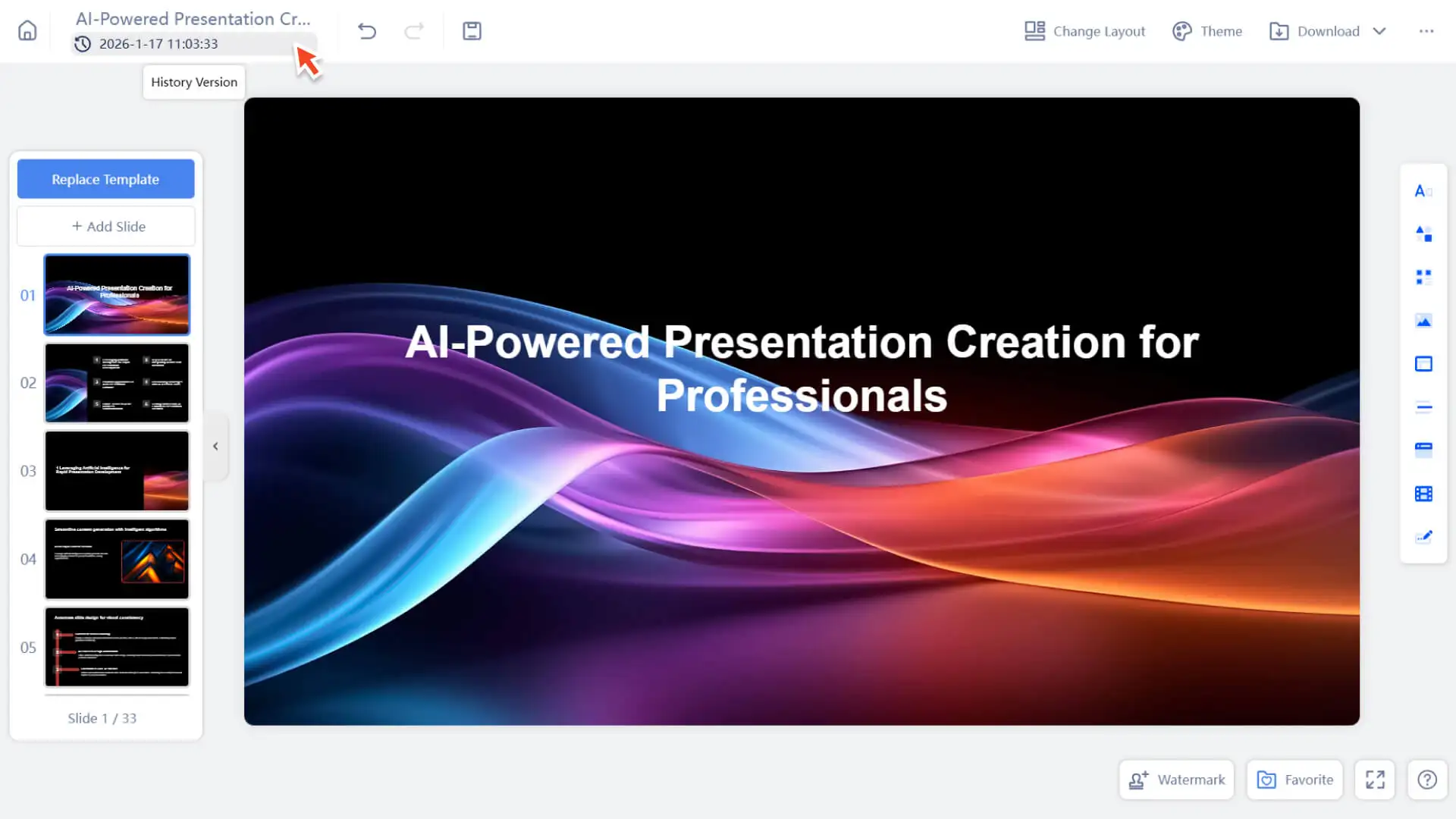
3. In the pop-up version list, browse and select the archive point you wish to restore.
4. Click the "Restore" button next to the selected version.
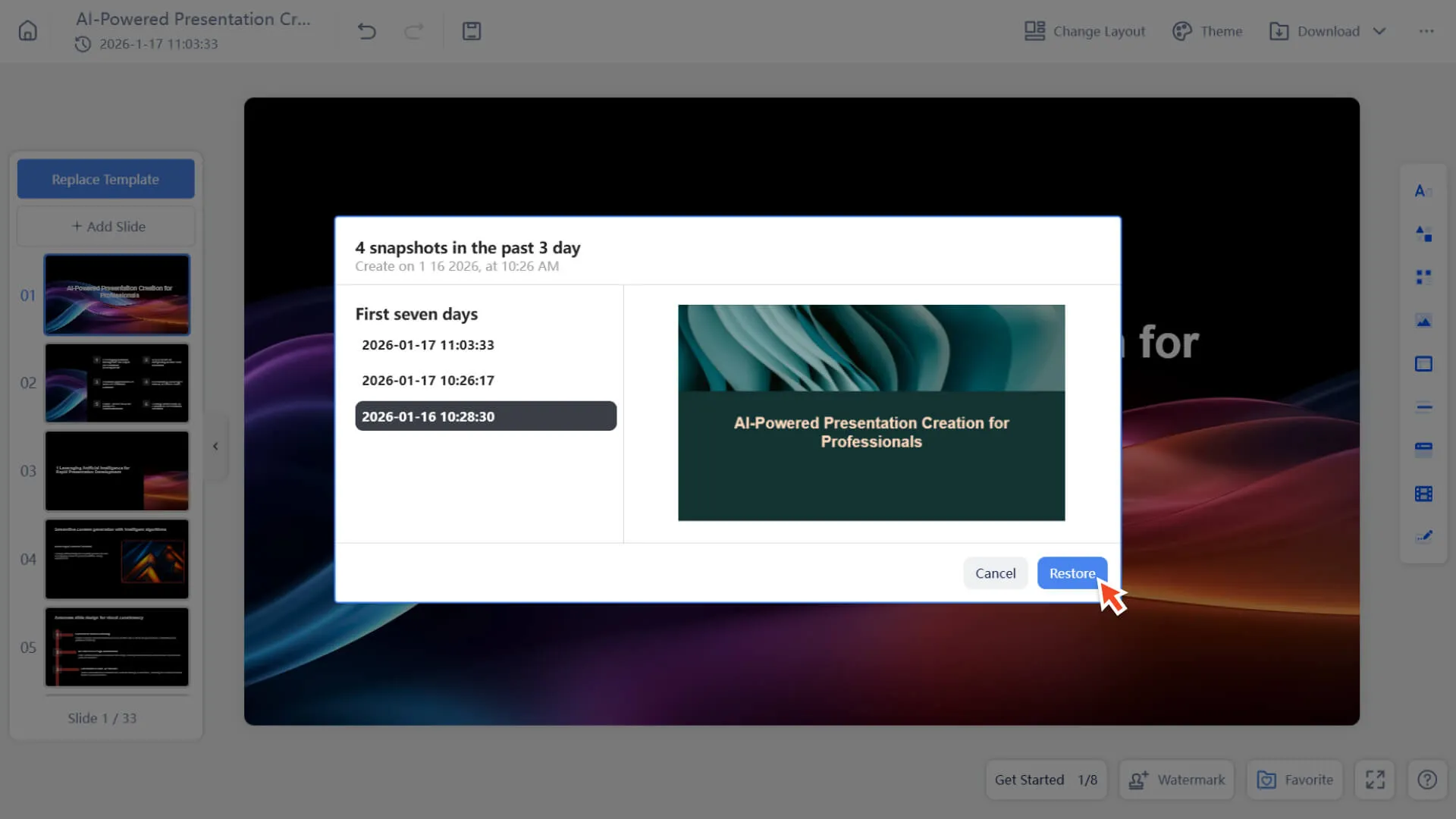
5. The system will automatically save the current state of the presentation as a new archive point before recovery, ensuring that the latest work is not lost.
6. After a successful restoration, the presentation will immediately return to the state of the selected historical version.
Frequently Asked Questions
Which Smallppt tools does the Version History feature apply to?
- • Only applicable to AI Slides; other AI tools do not currently support version history.
Is it possible to restore a deleted presentation's historical version?
- • No, once the presentation is deleted, its historical versions will also be cleared accordingly.
Will restoring a historical version result in the loss of current content?
- • No, the system will automatically save the current version before recovery to ensure data security.
Can free users use the version history feature?
- • The version history feature is only available to paid users.