


How to remove members or leave a team?
Updated over 2 months ago
How can an administrator remove a team member?
Only team creators (administrators) have the permission to remove members. Before performing the operation, please ensure that you have switched to the corresponding team workspace.
Step 1: Enter the Team Workspace
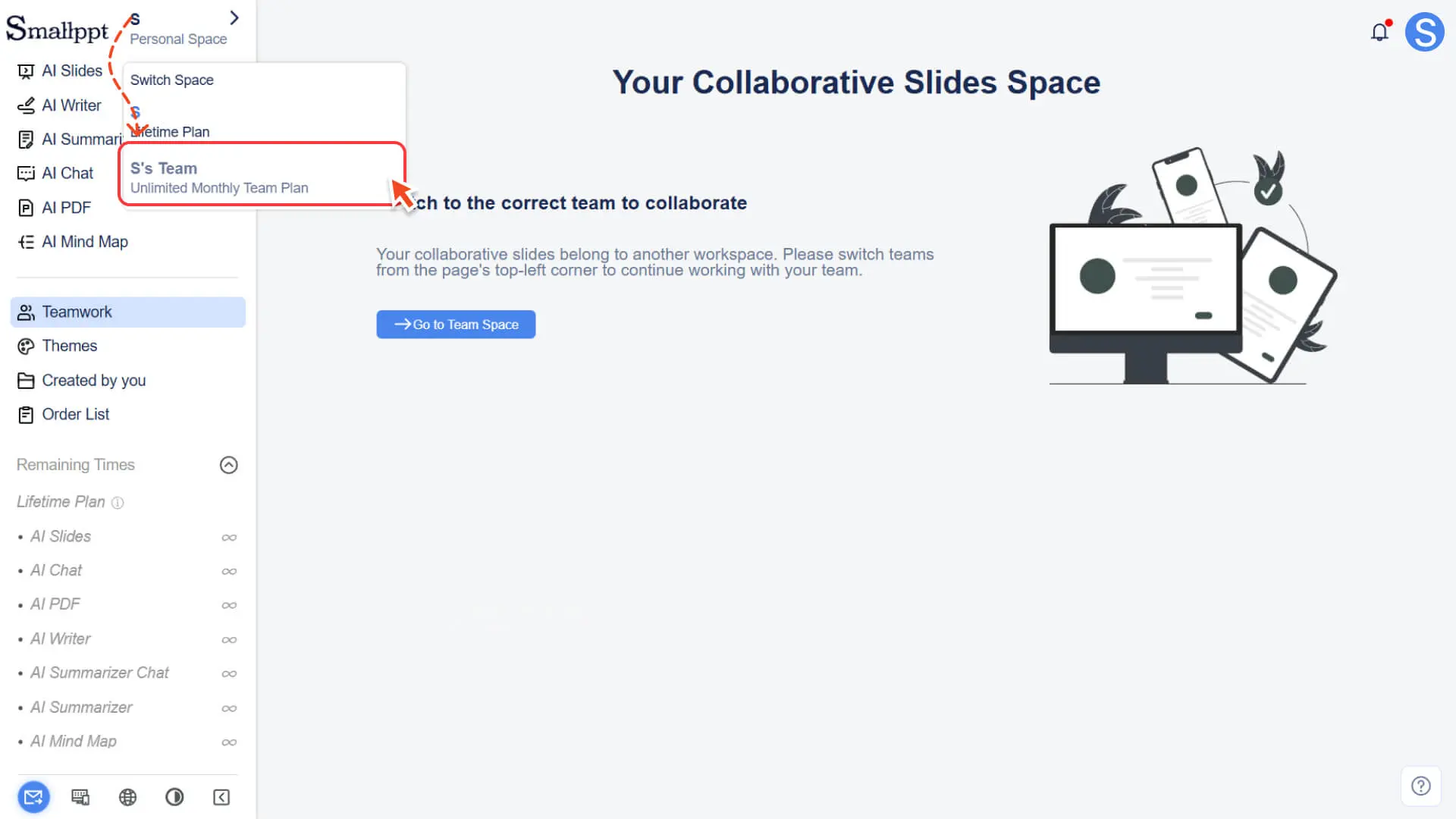
1. Click the Switch Space button in the top left corner.
2. Select and switch to your team workspace.
Step 2: Enter Team Management
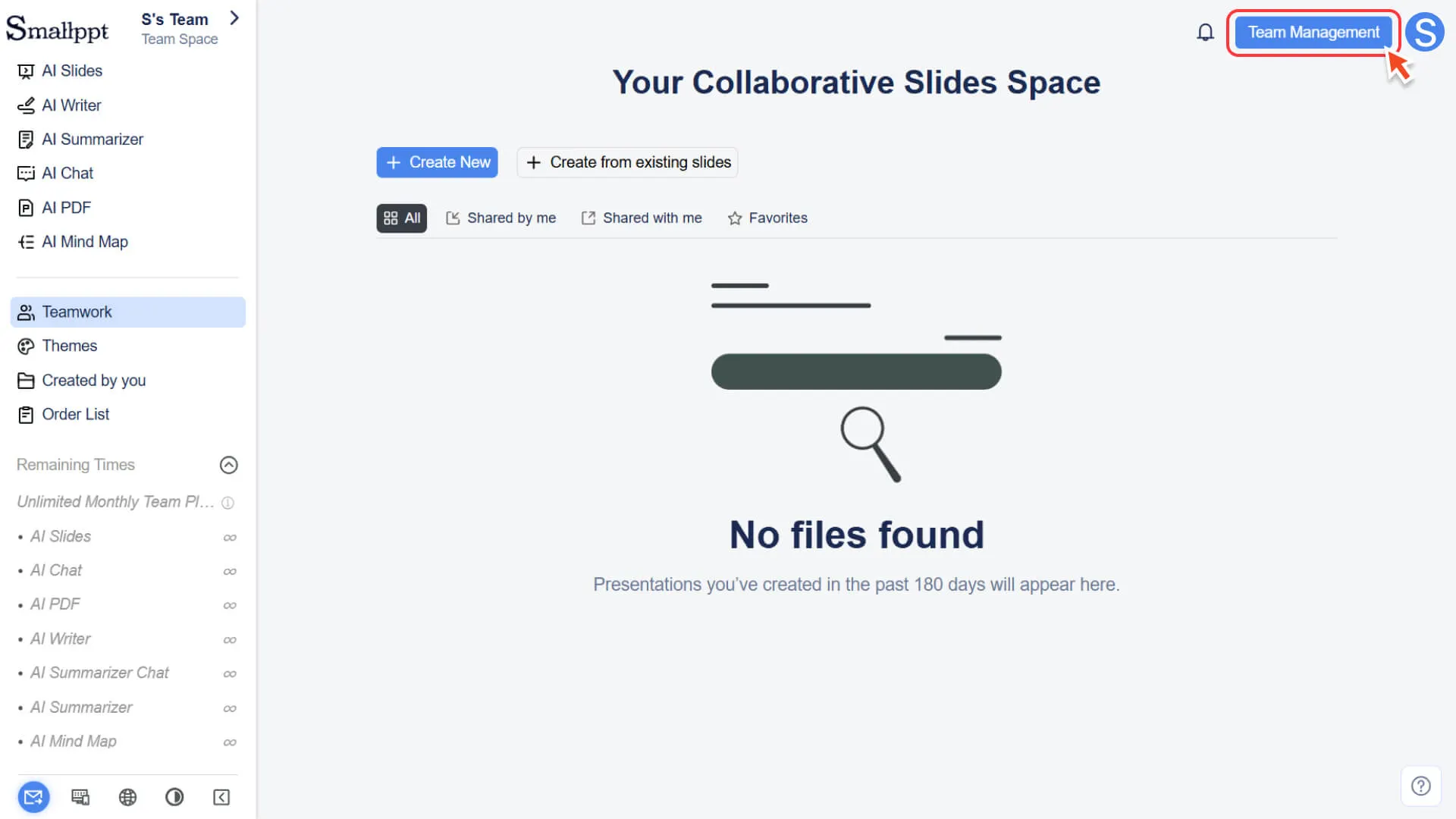
1. Open the Teamwork module in the left navigation bar.
2. Click the Team Management button in the upper right corner of the page.
3. Select the Member Management option on the management page.
Step 3: Remove Team Members
1. In the member list, find the member to be removed.
2. Click the Remove from team button on the right side of this member.
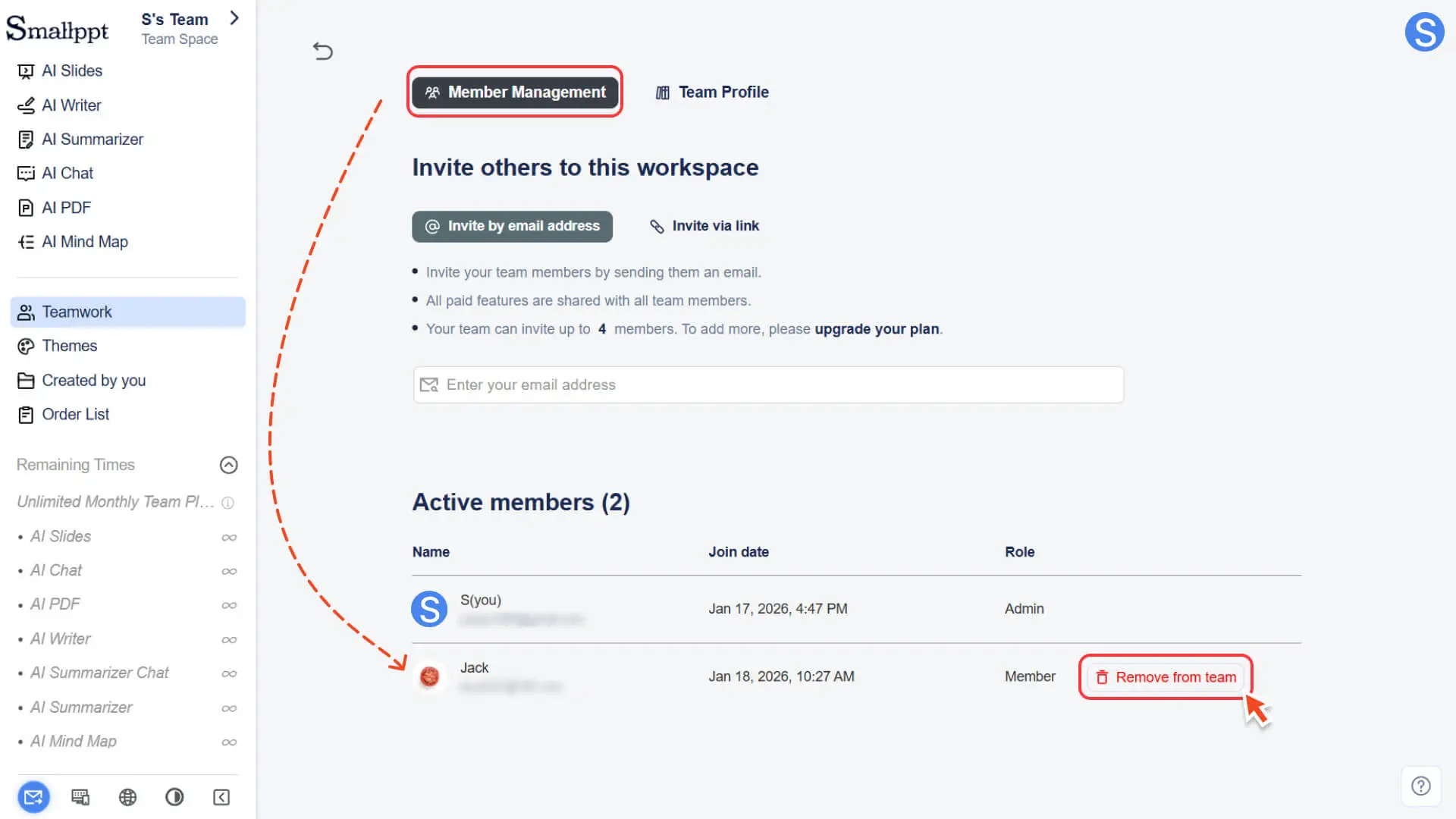
3. After confirming the operation, this member will immediately lose the permission to access the team workspace.
✔ Attention:
◦ Personal file retention: Files in the personal workspace of removed members will not be affected, and all personal files will still be retained.
◦ Automatic Workspace Switching: If a removed member was in the team workspace at the time, the system will automatically switch them back to the personal workspace after the page refreshes.
How members can leave the team on their own
Ordinary members can voluntarily leave the current team. Before performing the operation, please ensure that you have switched to the corresponding team workspace.
Step 1: Switch to the Team Workspace
• Click the Switch Space button in the top left corner.
• Select and enter the team workspace you are currently in.
Step 2: Enter the Team Management Page
1. Click the Teamwork module in the left navigation bar.
2. Click the Team Management button in the upper right corner of the page to enter the management page.
Step 3: Perform the exit operation
1. At the bottom of the Member Management page, click the Leave Team button.
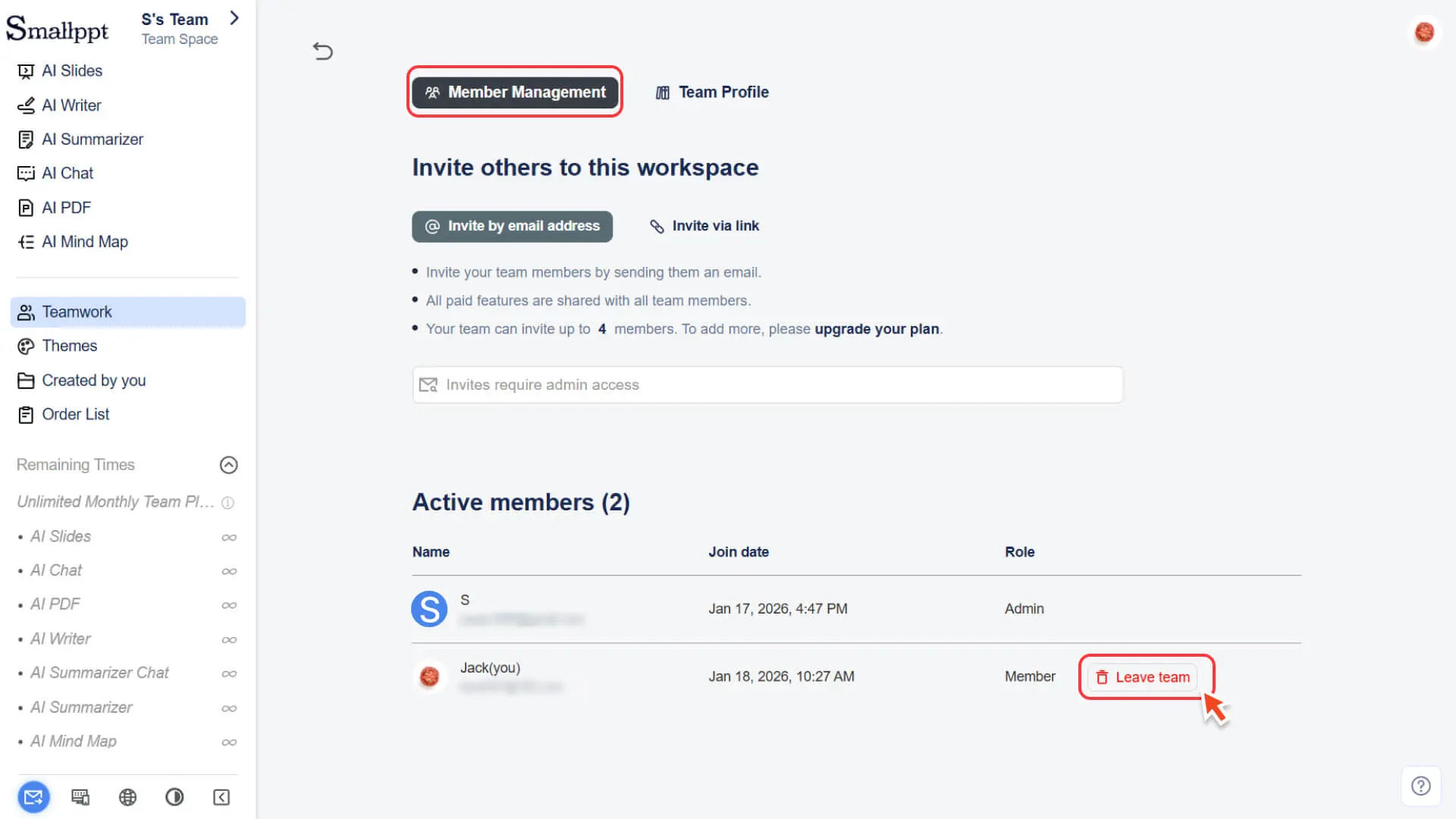
2. After confirming the operation, you will immediately exit the team and automatically switch back to your personal workspace.
Frequently Asked Questions
Will my personal files be affected after being removed or leaving the team?
- • No. Leaving the team will only affect your access to the team workspace, and the files and usage records in your personal workspace will not be affected in any way.
Why didn't I automatically enter the team space after joining the team?
- • After joining the team, you need to manually switch to the corresponding team workspace via the Switch Space in the top-left corner.
Can I rejoin the team after leaving?
- • Yes. As long as the team creator resends the invitation (via email or invitation link), you can join the team again.
Can administrators add or remove members at any time?
- • Yes. As long as there are still available seats in the team package, the administrator can invite new members to join the team or remove existing members at any time. The released seats can be used again immediately.