


How to add new members to your team?
Updated over 2 months ago
How to Invite New Members to the Team
Step 1: Confirm permissions and switch workspace
Before inviting members, please ensure that you meet the following conditions:
• Permission Confirmation: Only the team creator can invite new members to join the team.
• Workspace Switching: Click Switch Space in the top-left corner to enter your team workspace.
Step 2: Enter Team Member Management
1. Open the Teamwork module in the left sidebar.
2. Click the Team Management button in the upper right corner of the page.
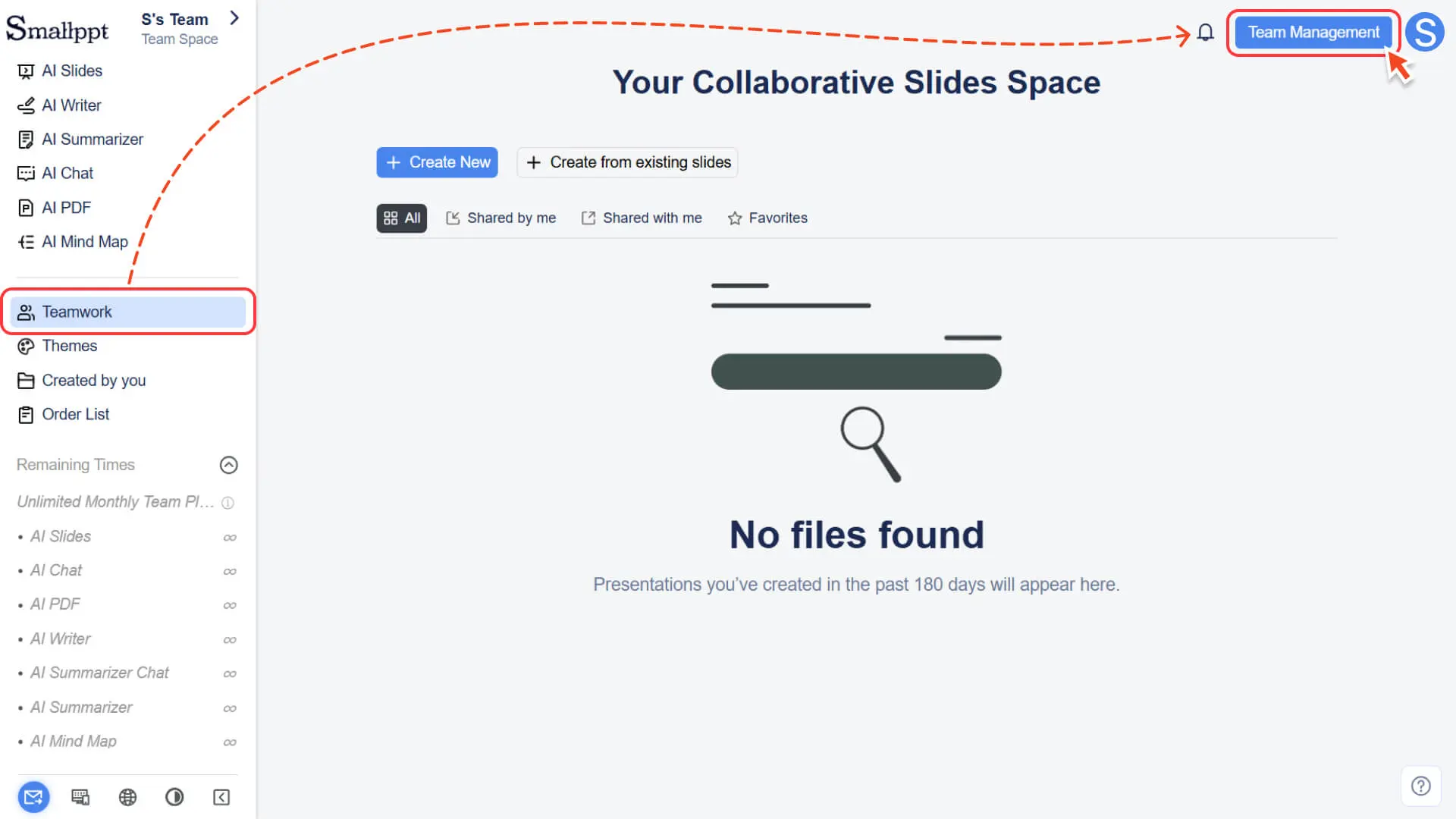
3. Select the Member Management option on the management page.
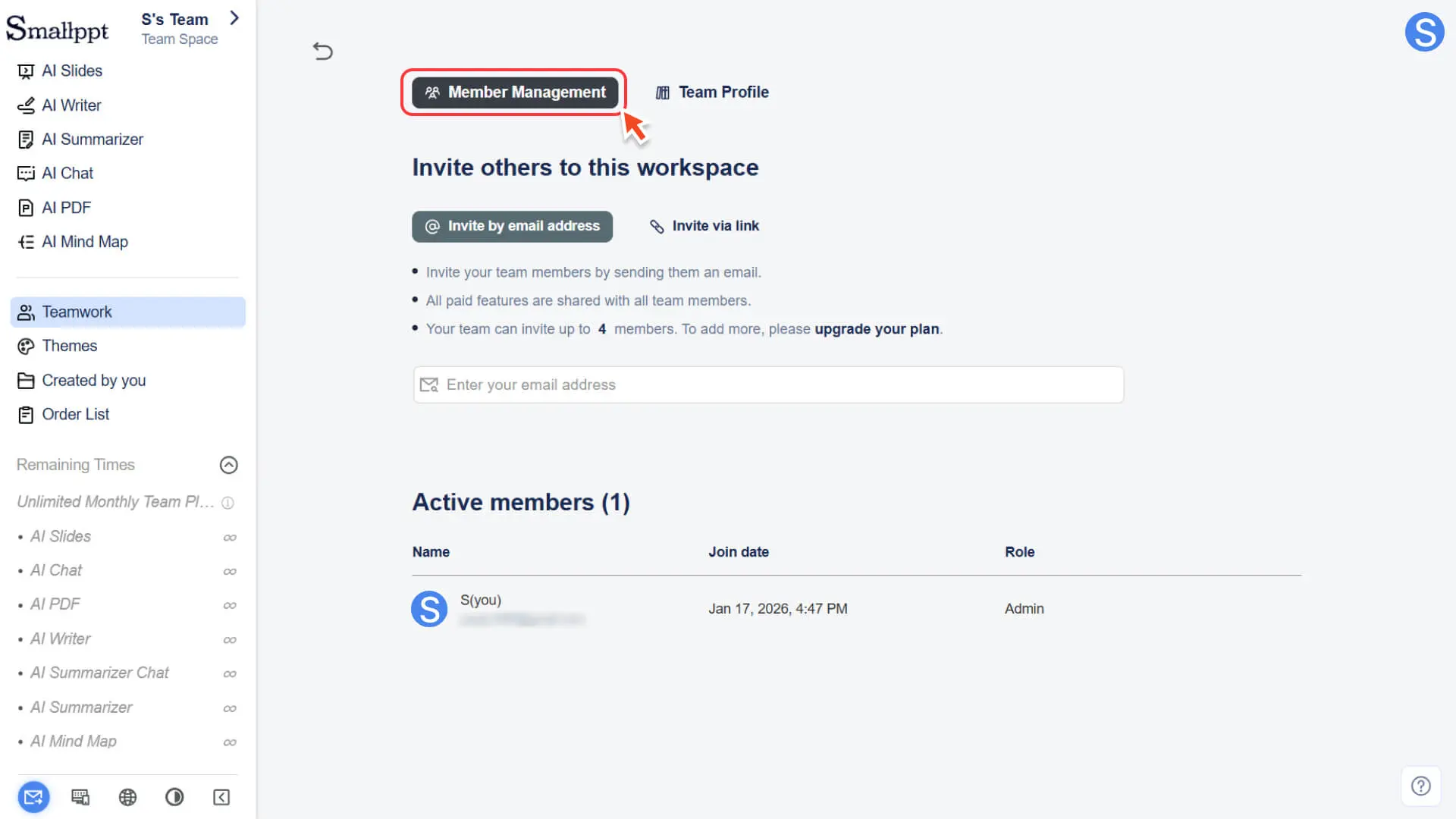
Step 3: Select the invitation method
Below the Member Management page, you will see two invitation methods:
Method 1: Invited by email address
1. Enter the Smallppt registered email address of the member you wish to invite.
2. Click Invite to send an invitation.
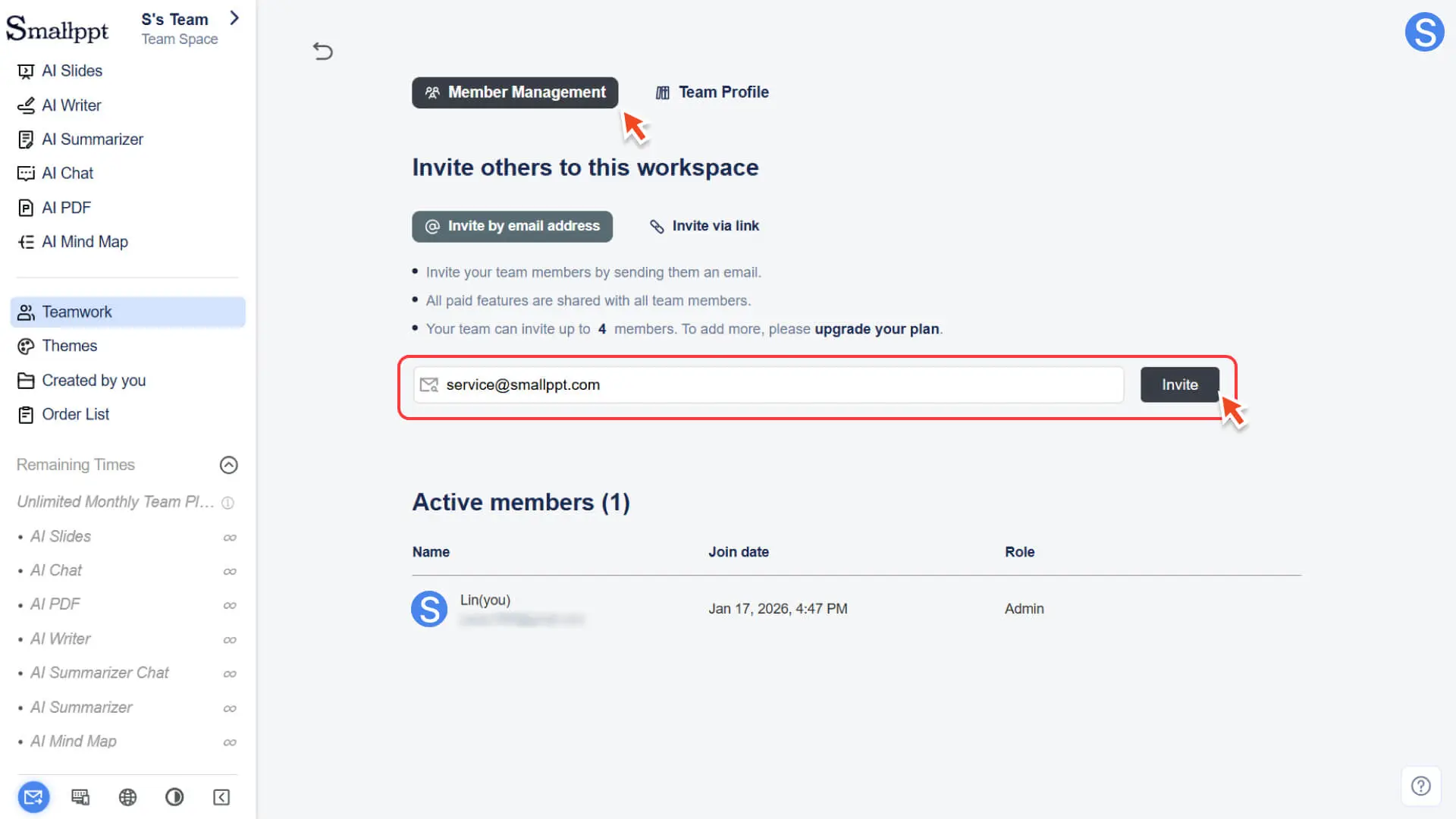
3. As long as the other party has registered for Smallppt, the system will automatically add them to the team without requiring manual intervention from the other party.
Note: You must use the email registered with Smallppt; otherwise, the invitation will not take effect.
Method 2: Invite via link
1. Click "Copy Invitation Link" and send it to the members who want to join the team.
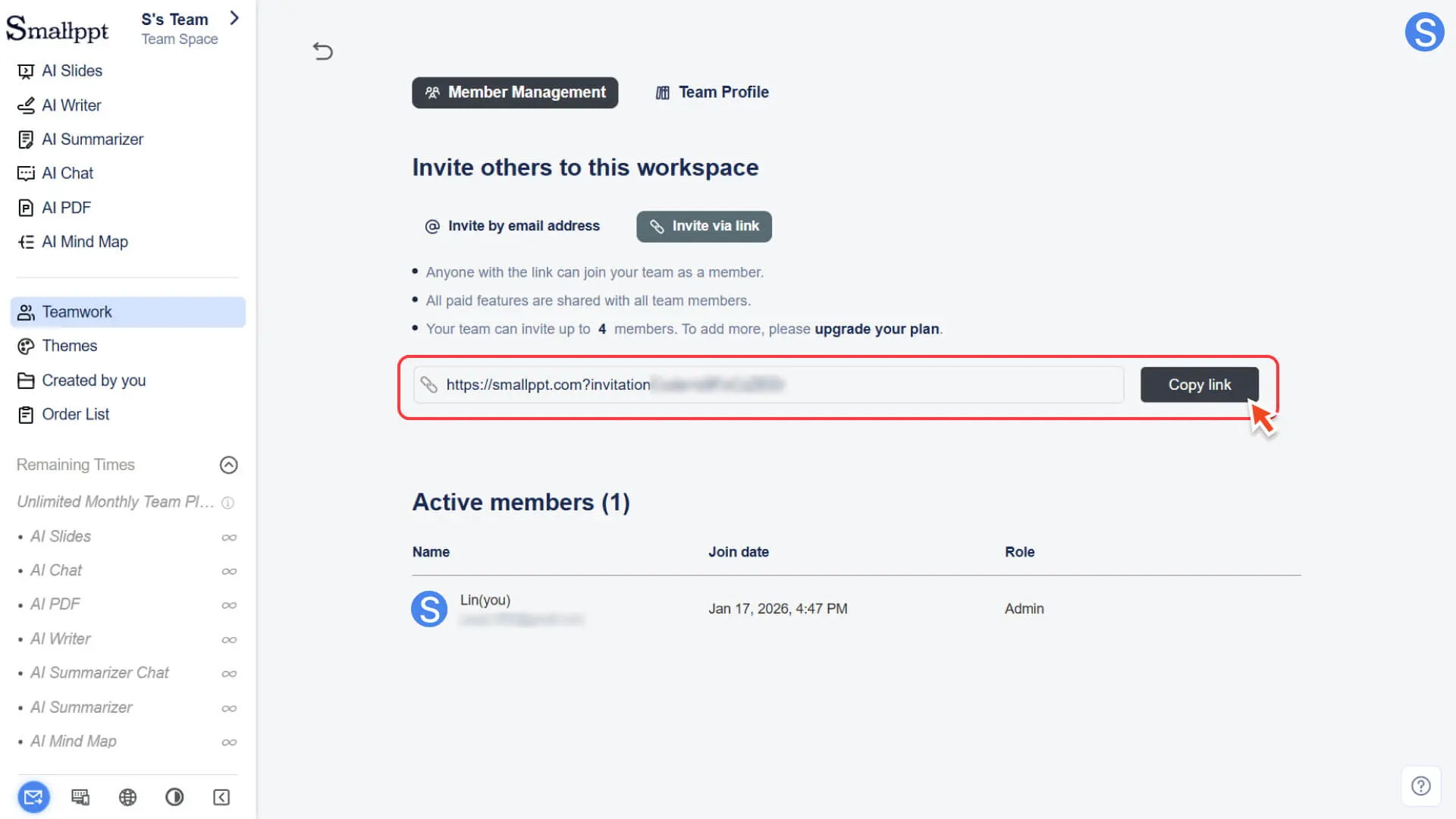
2. After the other party clicks the link, they will be redirected to the login/registration page.
3. After successfully logging in or registering, you can join the team.
Step 4: Confirm Member Joining
• Member Status: After a member is successfully invited, they will automatically appear in the Member List.
• Functional Permissions: All members have unlimited usage times for the functions within the team package (such as generating presentations, editing collaborative slides, using AI tools, etc.), but some new features in the testing phase may have separate usage limits, subject to the actual display on the page.
• Team Management Permissions: Operations related to team settings (such as inviting/removing members, modifying team name and avatar, etc.) can only be performed by the team creator. Regular members cannot manage the team, but they can freely access and edit team content, and can choose to leave the team on their own.
• For more information, please check:
The number of team members is limited by the package limit. If the number of invited members exceeds the limit, the system will prompt that the seats are full, and you can increase the number of members by upgrading the package.
How to join a team created by others
Before joining any team, you need to complete Smallppt registration first. There are two ways to join, depending on how the team creator operates.
Method 1: Invite to join via email
This is the quickest way to join, without requiring you to manually confirm.
1. Team Creator Operation: The team creator (or administrator) enters your Smallppt registered email address in Member Management.
2. Automatic Enrollment: After your email is entered, the system will directly add you to the team without manual intervention.
3. Enter Team Space:
◦ Click the Switch Space button in the upper left corner.
◦ Select the team name, and you can immediately enter the team space to start collaboration.
Method 2: Join via invitation link
1. Receiving Link: The team administrator will send you an invitation link to join the team.
2. Login/Registration: After clicking the link, the system will guide you to the Smallppt login or registration page.
3. Join the Team: Once you log in successfully, you will be added to the team automatically.
How to enter the joined team space
Step 1: Open the workspace switch panel
• Find the Workspace Switching entry at the top of the left sidebar.
• Click the toggle button next to this entry to open the Switch Space panel.
Step 2: Select and enter the team space
• In the Switch Space pop-up window, find and select the team name.
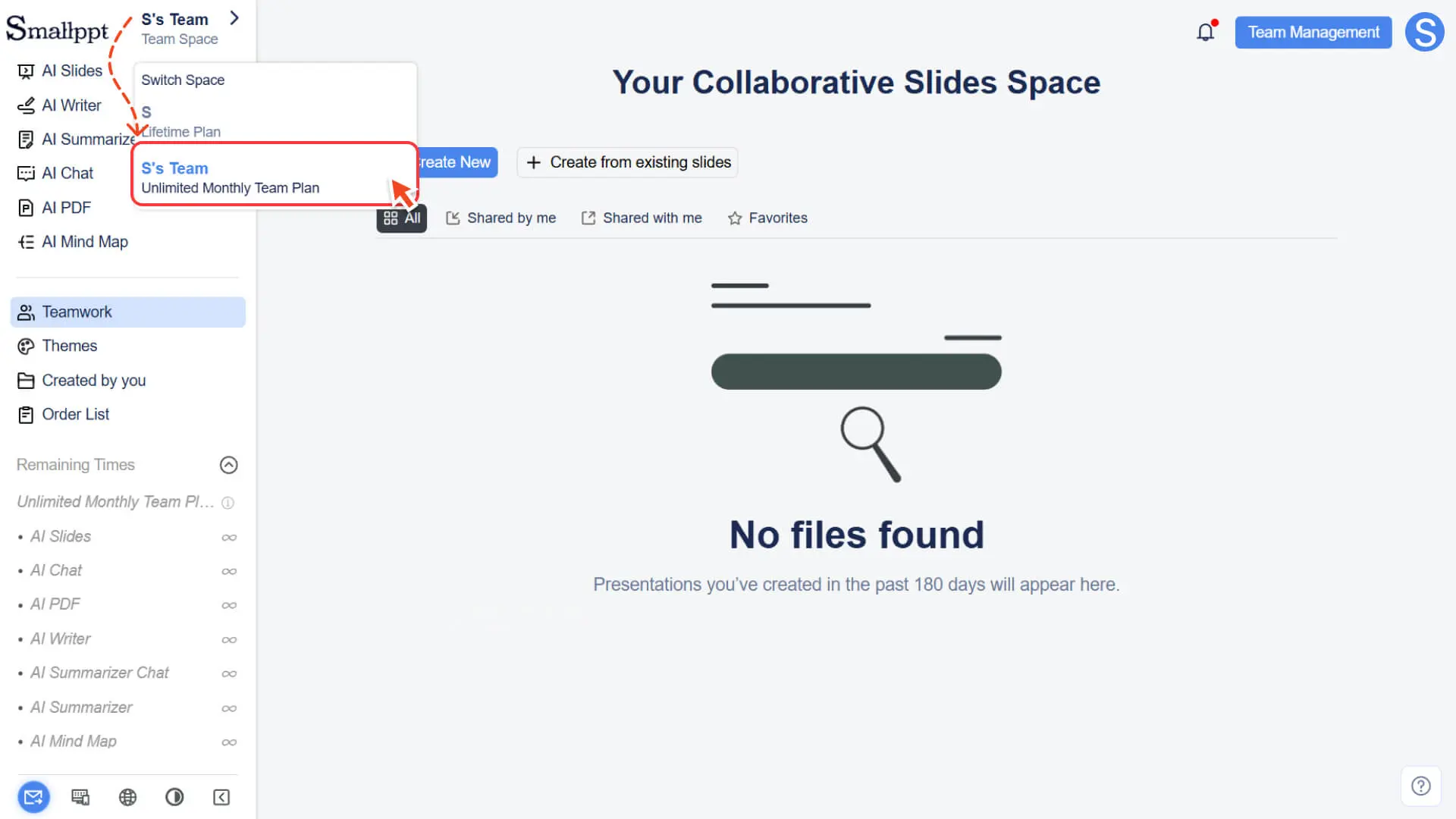
• After clicking, you can switch to the team space and start collaborating.
Tip: Even if you have successfully joined a team created by others, if you have not created your own team yet, the Create Team button will still be displayed in the Switch Space panel, which is normal and can be ignored.
Frequently Asked Questions
Why can't I invite members?
- • You may not be a team administrator.
- • Only the team creator (administrator) can invite or remove members.
Why can't the other party join the team?
• There may be the following reasons:
◦ The recipient's email has not been registered with Smallppt (registration is required before joining).
◦ An expired or invalid invitation link was used.
◦ The team has reached the maximum number of people in the package and needs to upgrade the package to add seats.
Why can't members see team files after joining?
- • After joining the team, members need to manually switch to the team space: Switch Space → Select Team Space.
Can I join multiple teams?
- • No, it is not allowed. A Smallppt account can join at most 1 team and create only 1 team at the same time.
Will my files be deleted after I am removed from the team?
- • No. Your personal workspace files will not be affected in any way, only losing access to the content of the team space.