


How does collaboration and sharing work in Smallppt?
Updated over 2 months ago
What are sharing and collaboration settings?
Sharing and collaboration settings depend on the Smallppt plan you are using. Different plans vary in aspects such as sharing methods, collaboration permissions, etc. The following will briefly describe the sharing and collaboration features supported by each plan:
| Function | Free Plan | Individual Meal Plan | Team Package |
|---|---|---|---|
| Real-time collaborative presentation | ❌ | ❌ | ✅ |
| Set member permissions | ❌ | ❌ | ✅ |
| Create a shared presentation | ❌ | ❌ | ✅ |
| Invite Team Members | ❌ | ❌ | ✅ |
How to Share a Presentation
In Smallppt's Team Workspace, you can share presentations in the following two ways:
• Create a brand new shared presentation
• Convert an existing ordinary presentation to shared mode
Method 1: Create a new shared presentation
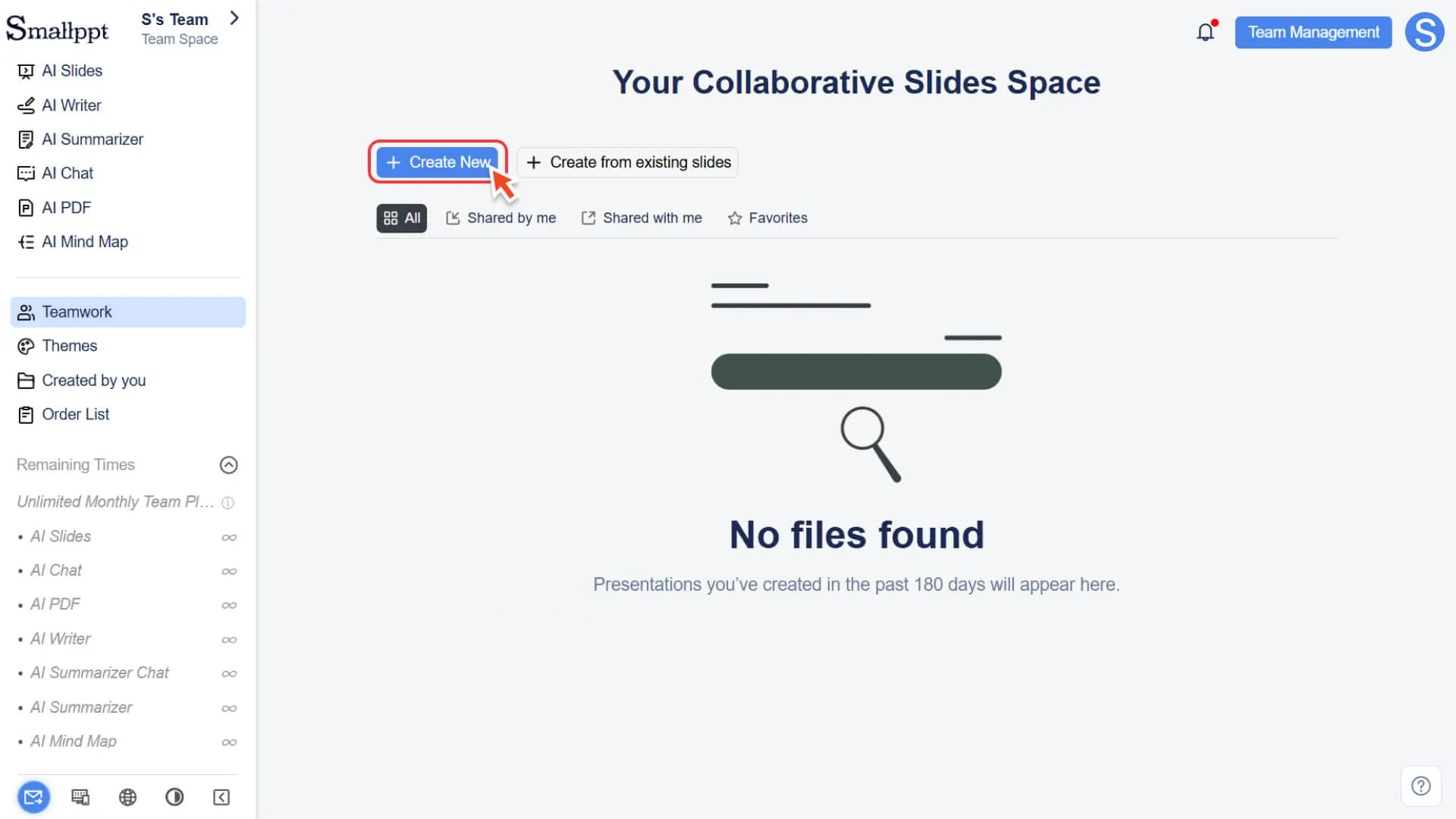
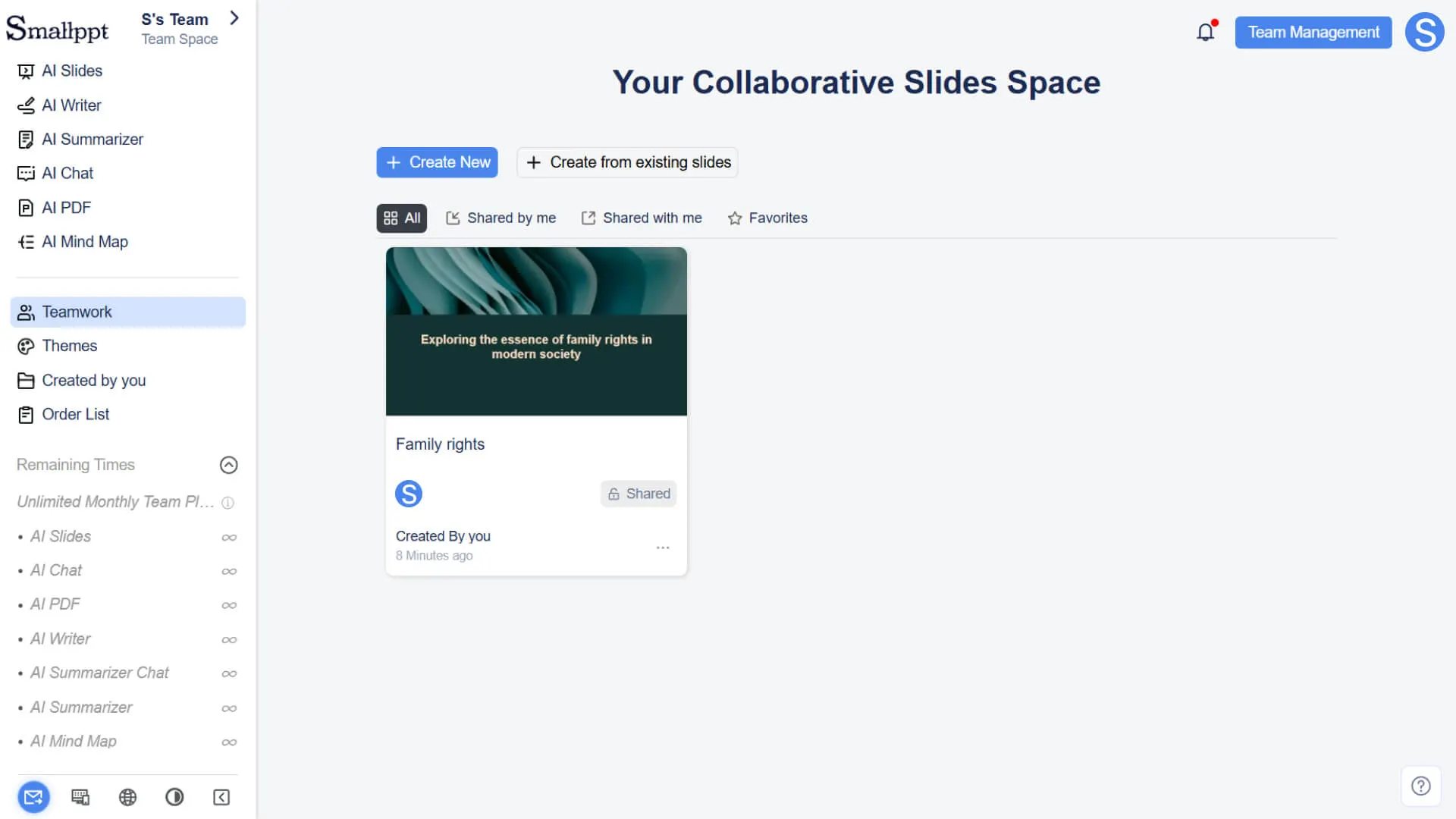
1. Open the Teamwork page.
2. Click the Create New button, and the system will redirect to the AI Slides generation page.
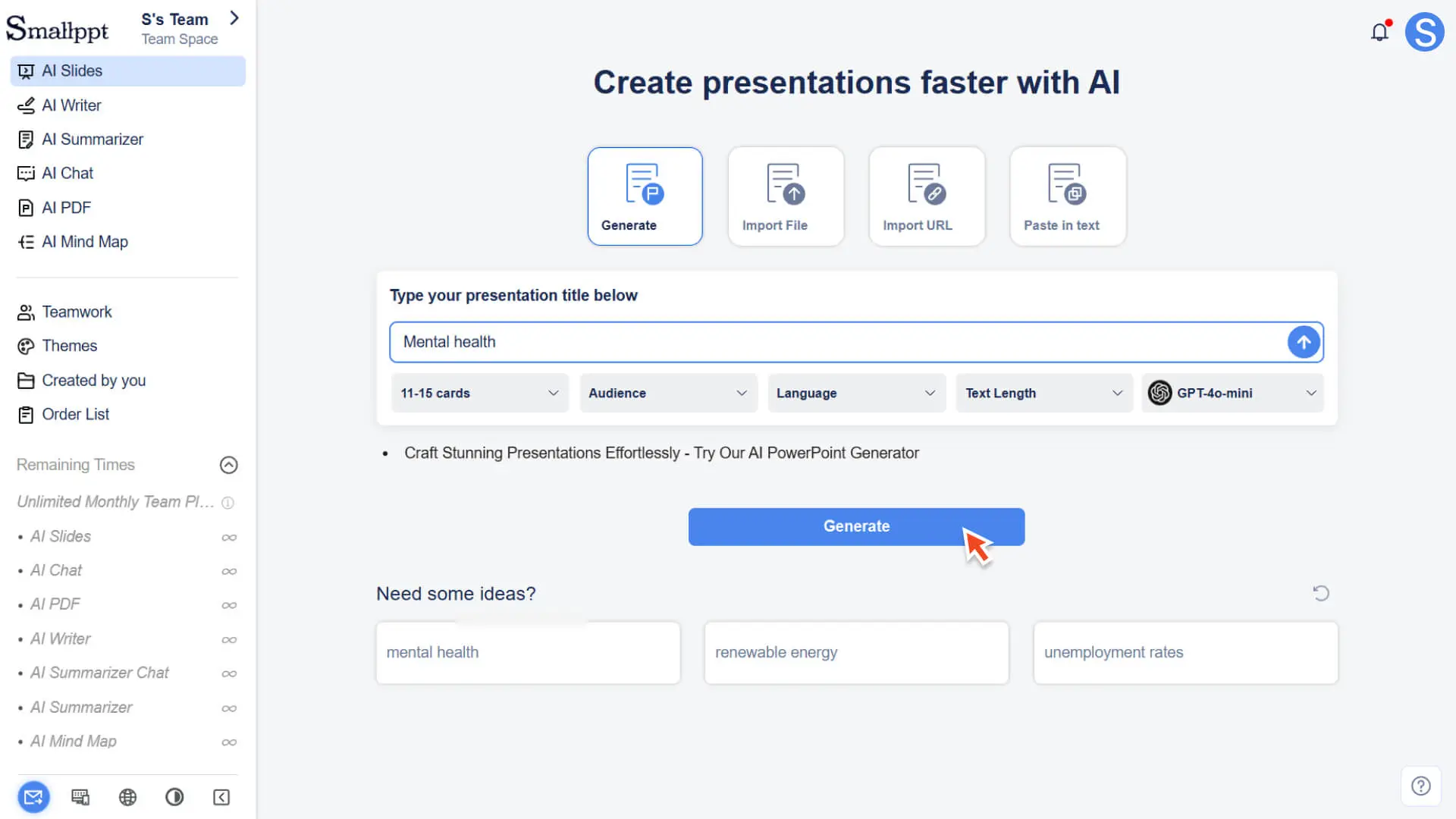
3. Enter your topic or requirements on the AI Slides page and generate a presentation.
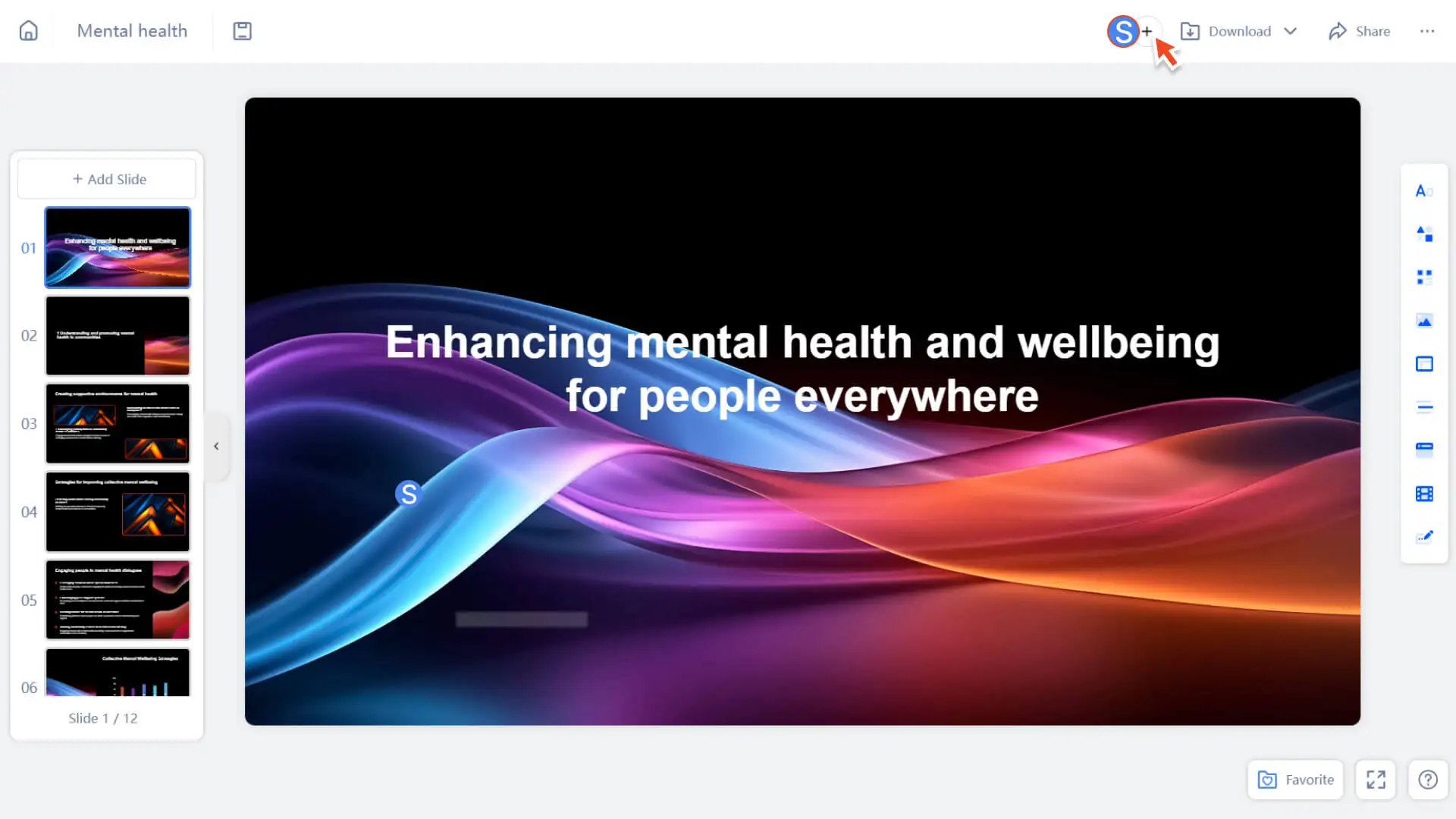
4. After the generation is complete, the system will automatically create a new presentation and set it to shared mode by default, allowing team members to start collaborating immediately.
Tip
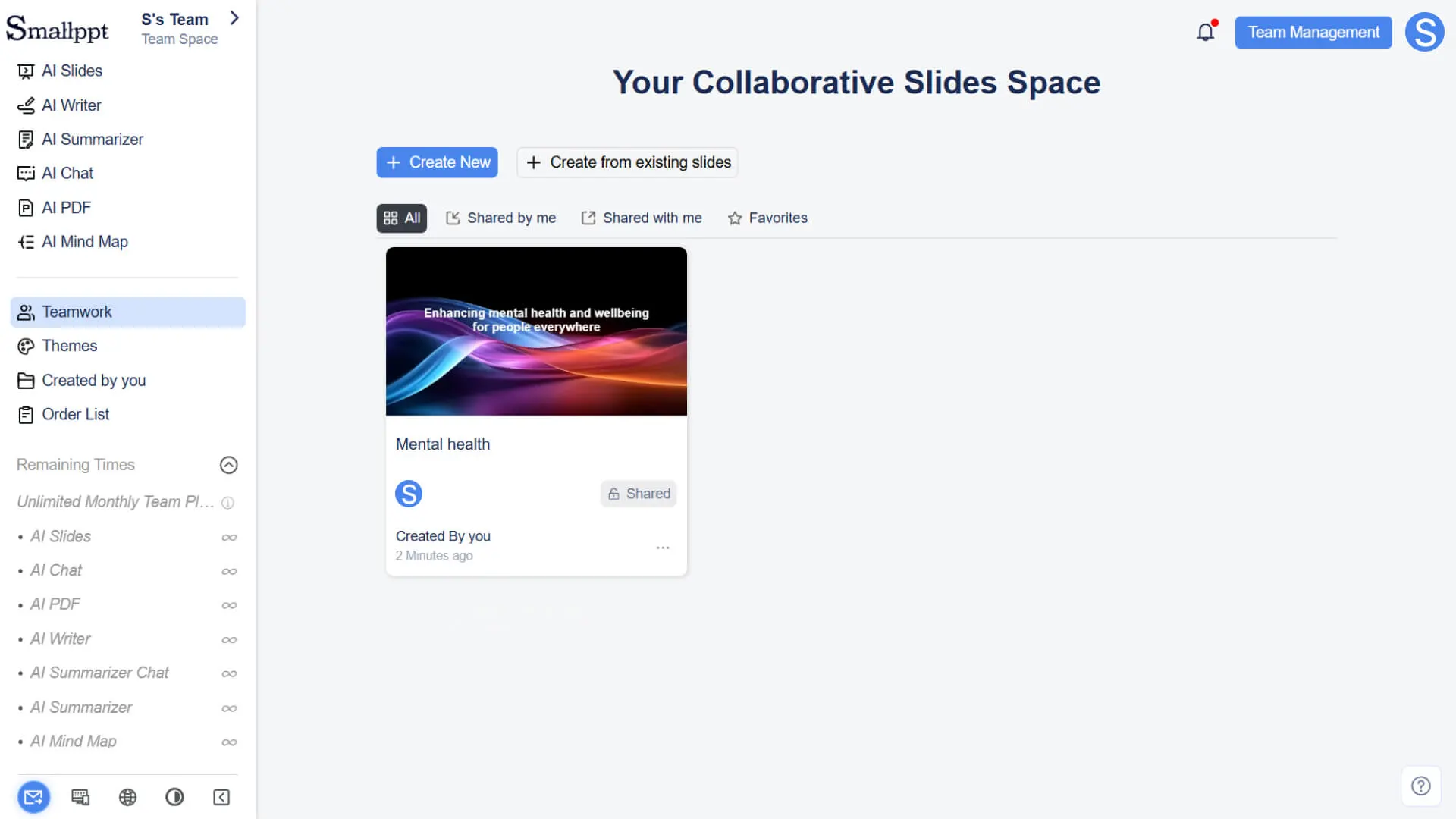
• Presentations created from the Teamwork page: After generation, they are in the shared state by default.
• Presentations directly created from the AI Slides page: Regardless of whether you are currently in a personal space or a team space, they will default to a private state after generation.
Method 2: Convert a regular presentation to shared mode
Step 1: Enter the 'Created by you' list
You can access the list of personal presentations by any of the following methods:
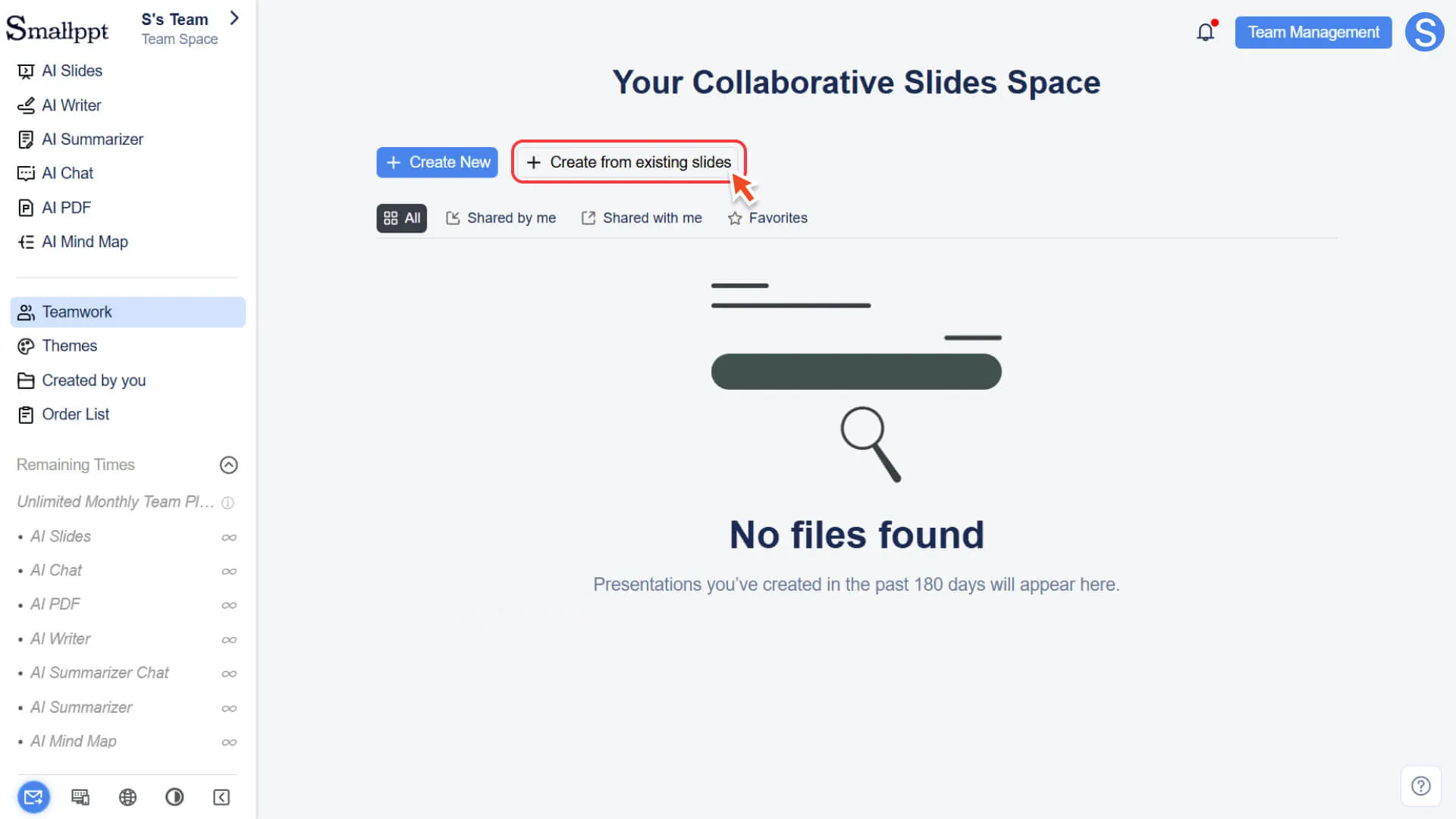
• Through the Teamwork module: Click Teamwork in the left navigation bar, then click Create from Historical Slides on the page.
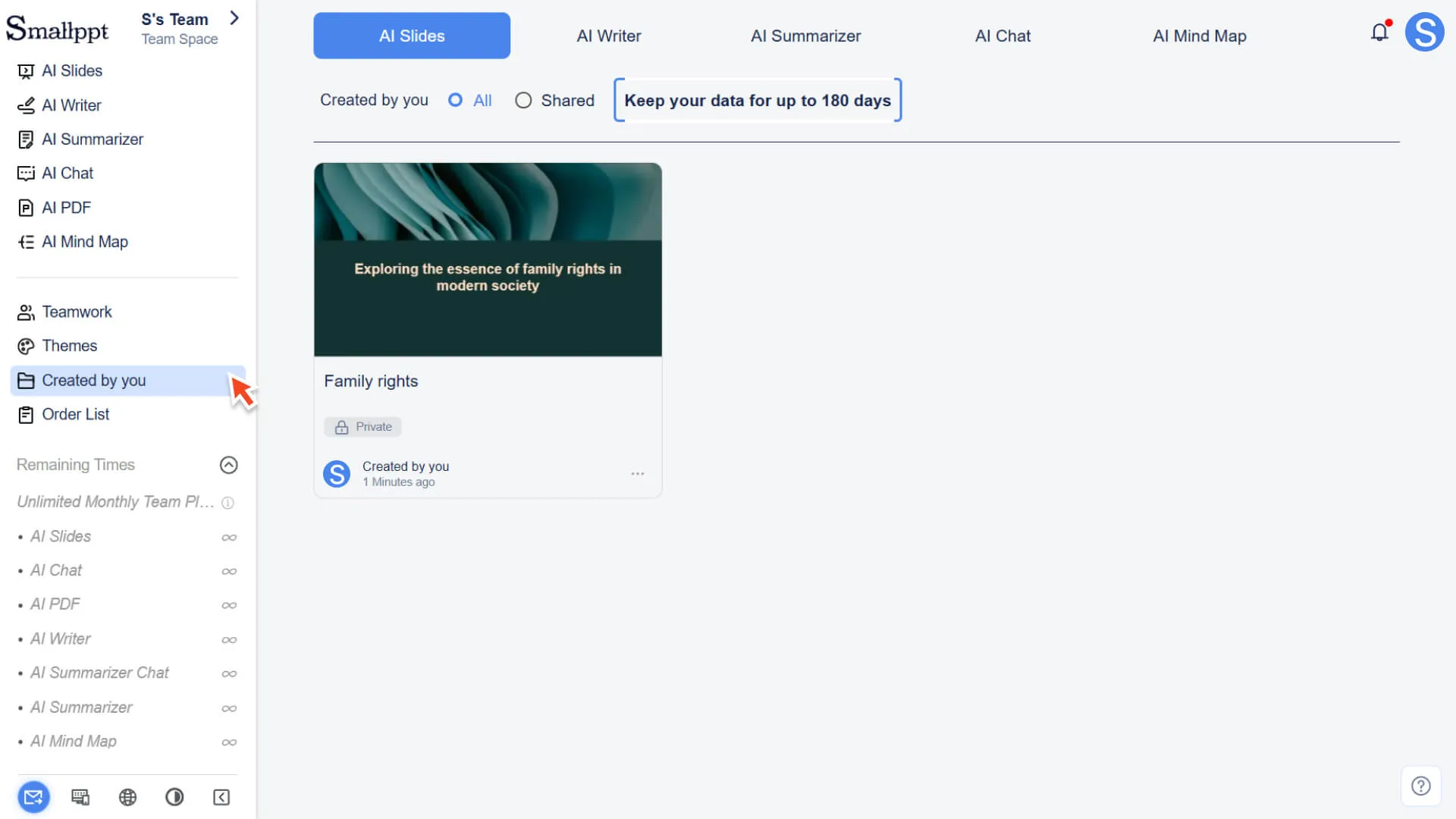
• Directly access the 'Created by you' list: Click 'Created by you' in the left sidebar to view the presentations you created.
Step 2: Start Shared Conversion
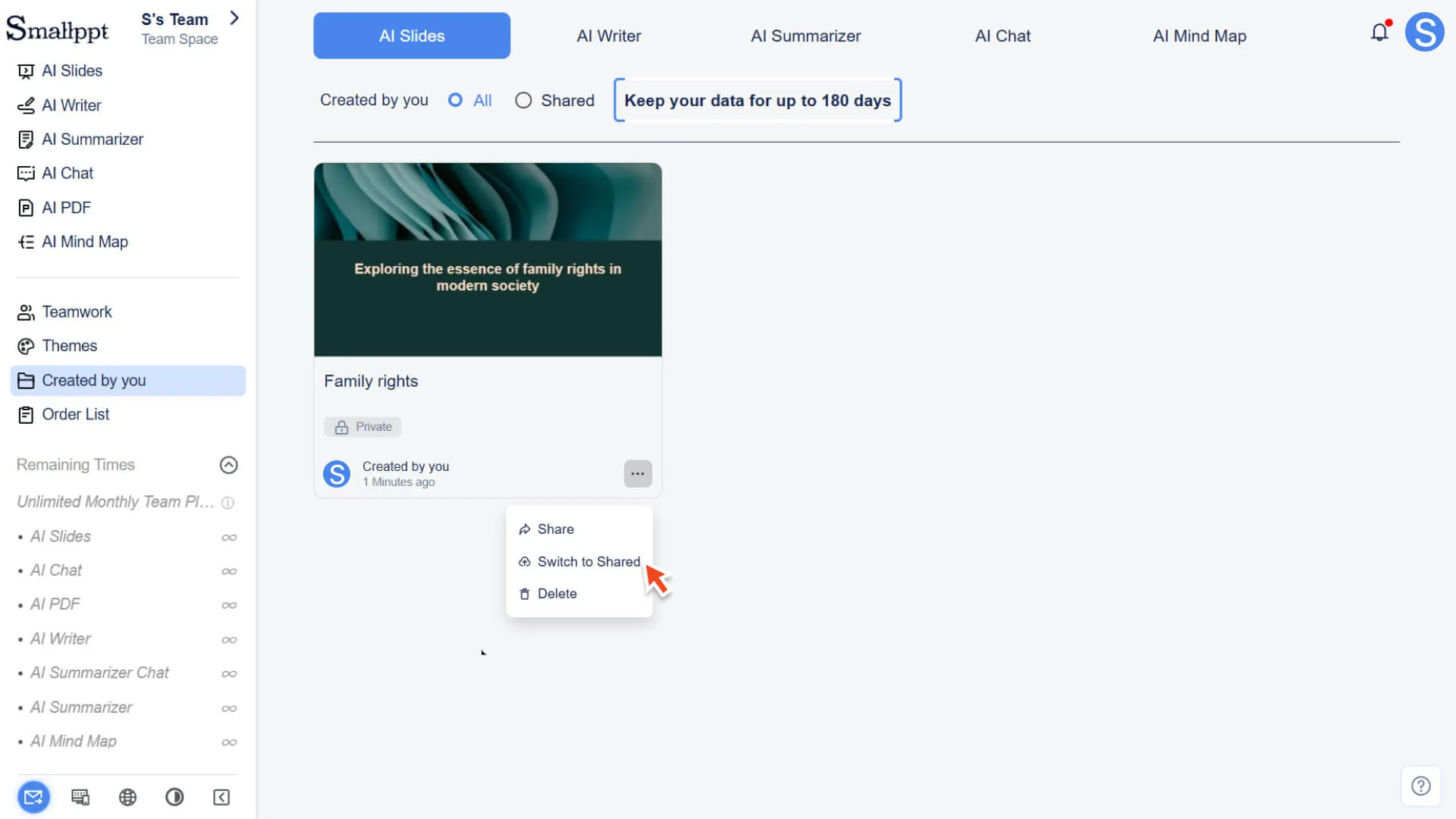
1. Locate the private presentation that needs to be converted to shared mode.
2. Click the More (...) button on the right side of the presentation.
Step 3: Set permissions and complete the conversion
1. Select 'Switch Sharing' in the pop-up menu.
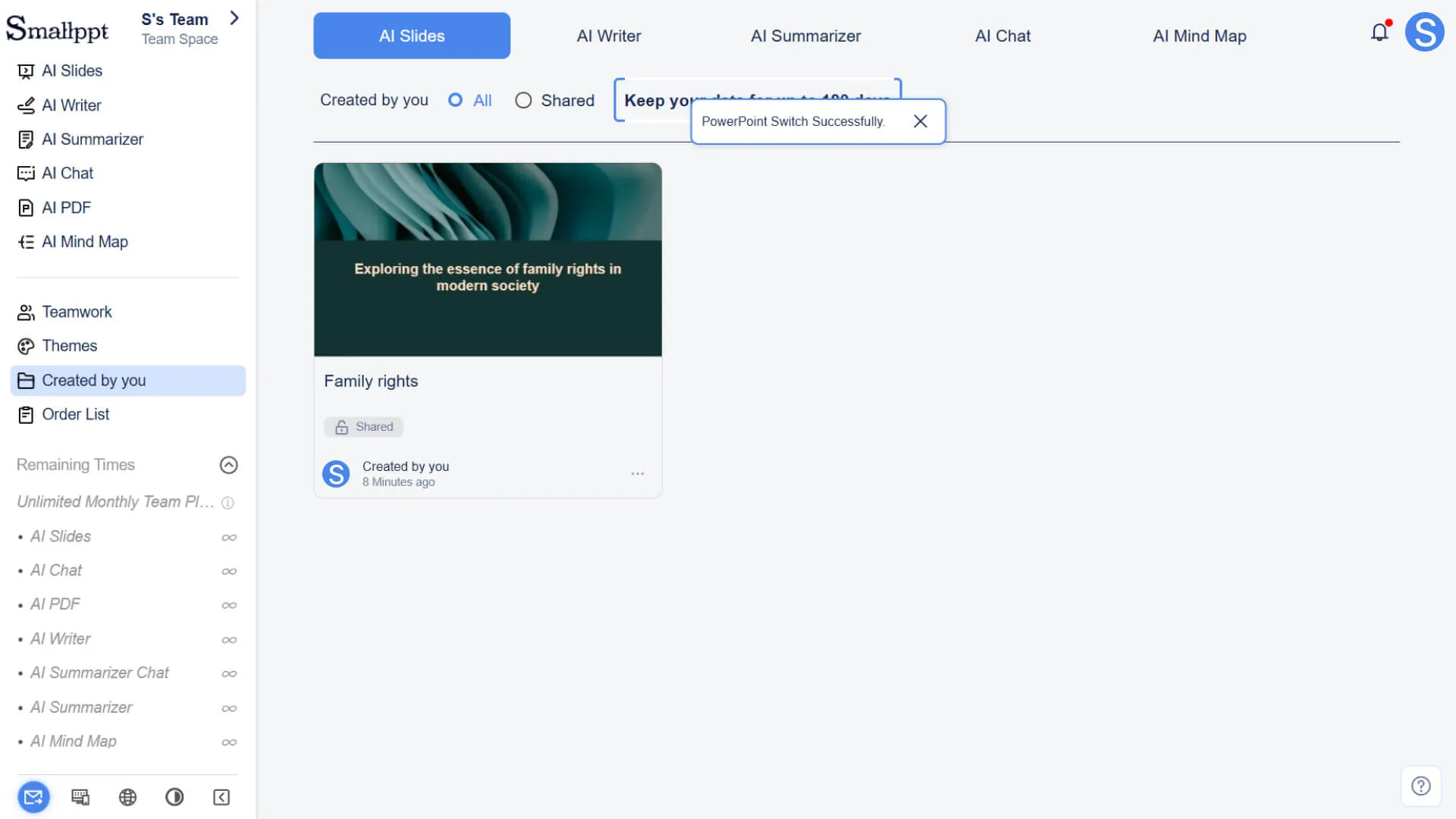
2. After confirming the operation, the presentation will be successfully converted to shared mode.
Step 4: Confirm the file location
• After the conversion is completed, the presentation will be simultaneously displayed on the Teamwork page, where team members can access and collaborate on it.
How to add collaboration members and set collaboration permissions
Once a presentation is created in shared mode (or converted from private mode to shared mode), you can manage team members participating in collaboration and their permissions at any time.
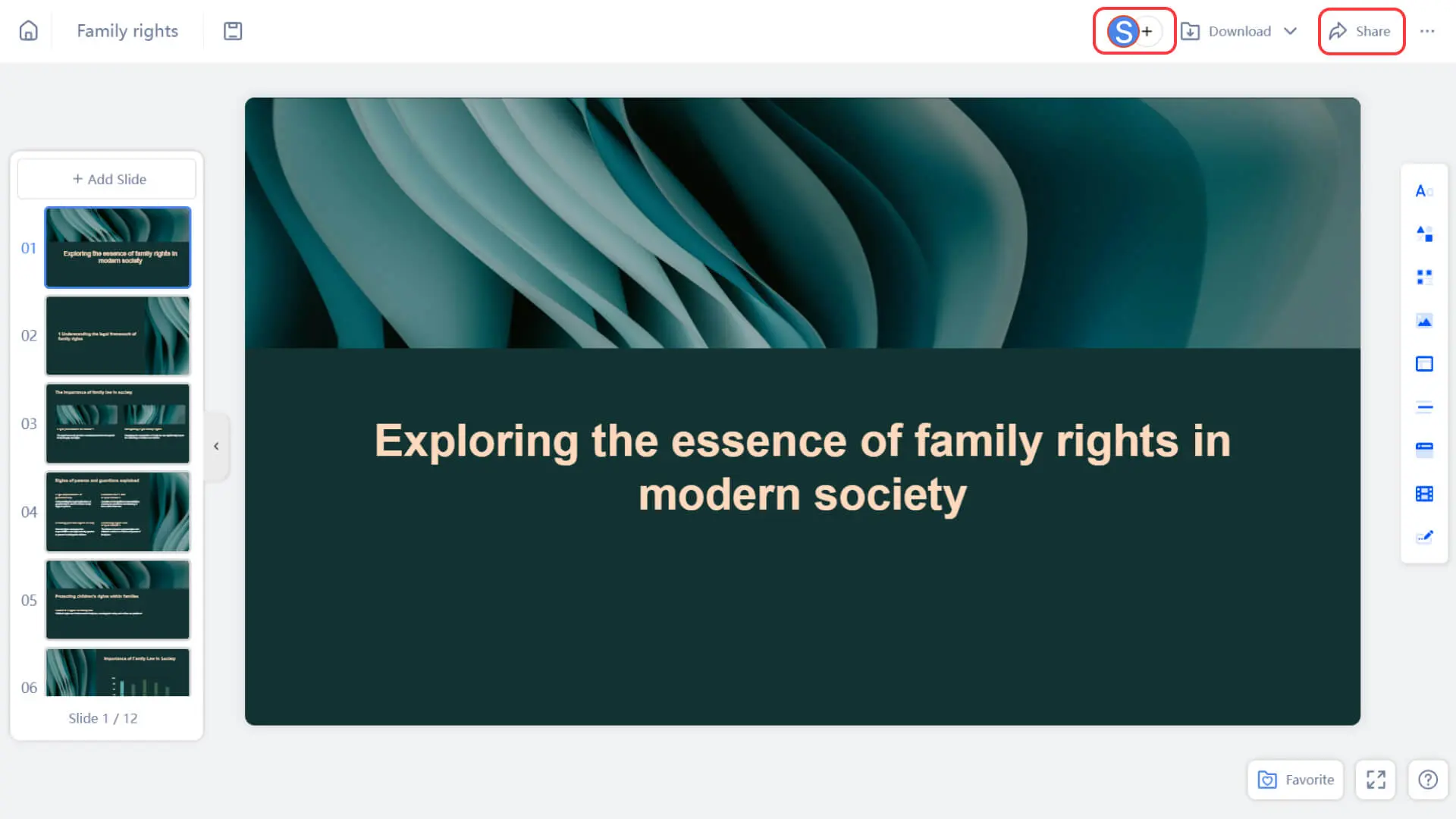
Step 1: Enter the sharing settings panel
1. Open your shared presentation.
2. In the upper right corner of the edit page, click the Share button, or click the member avatar button in the navigation bar.
Step 2: Select members and set permissions
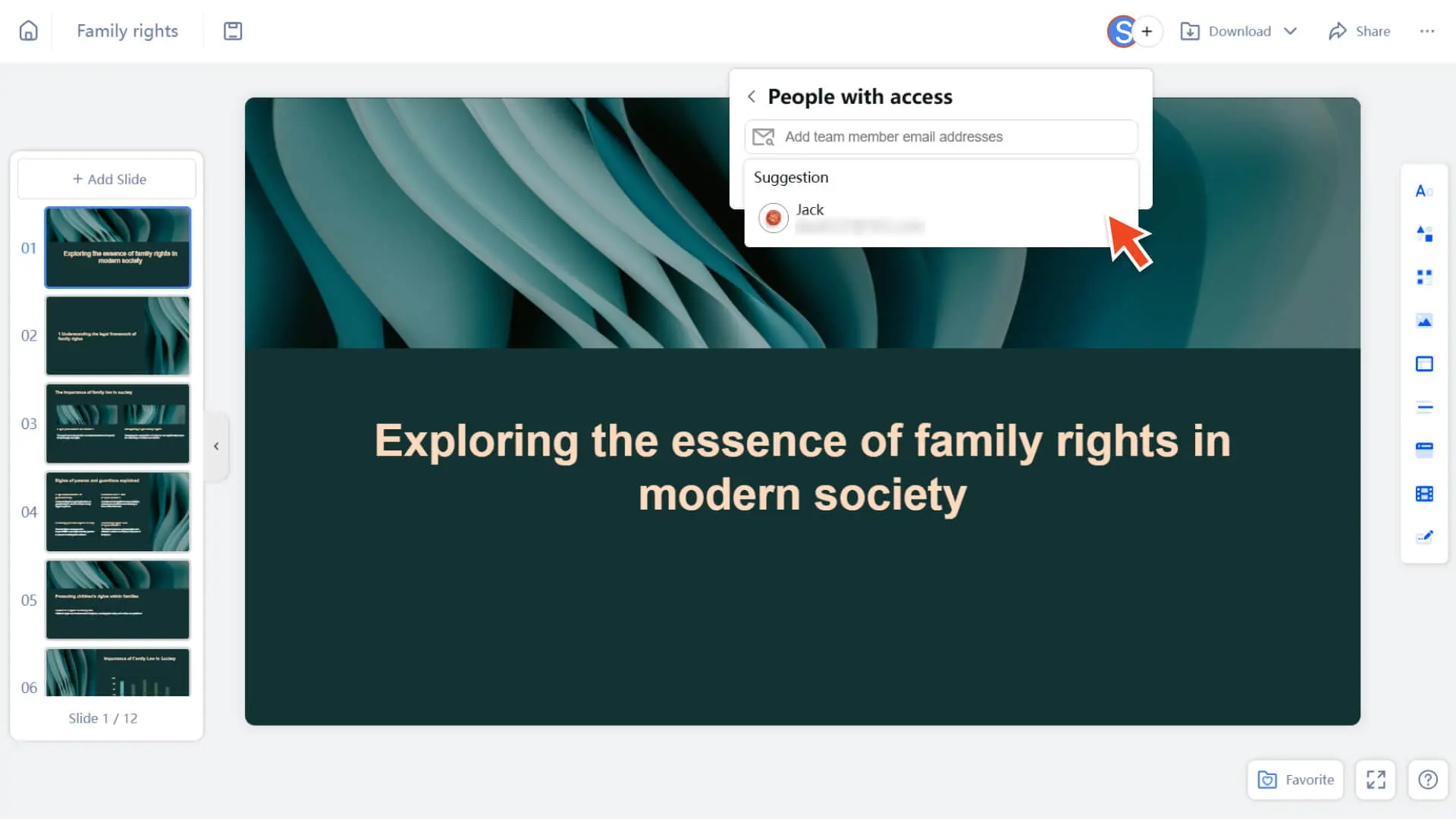
1. In the pop-up panel, select the team members you wish to invite to collaborate (only members who have joined the current team package are eligible).
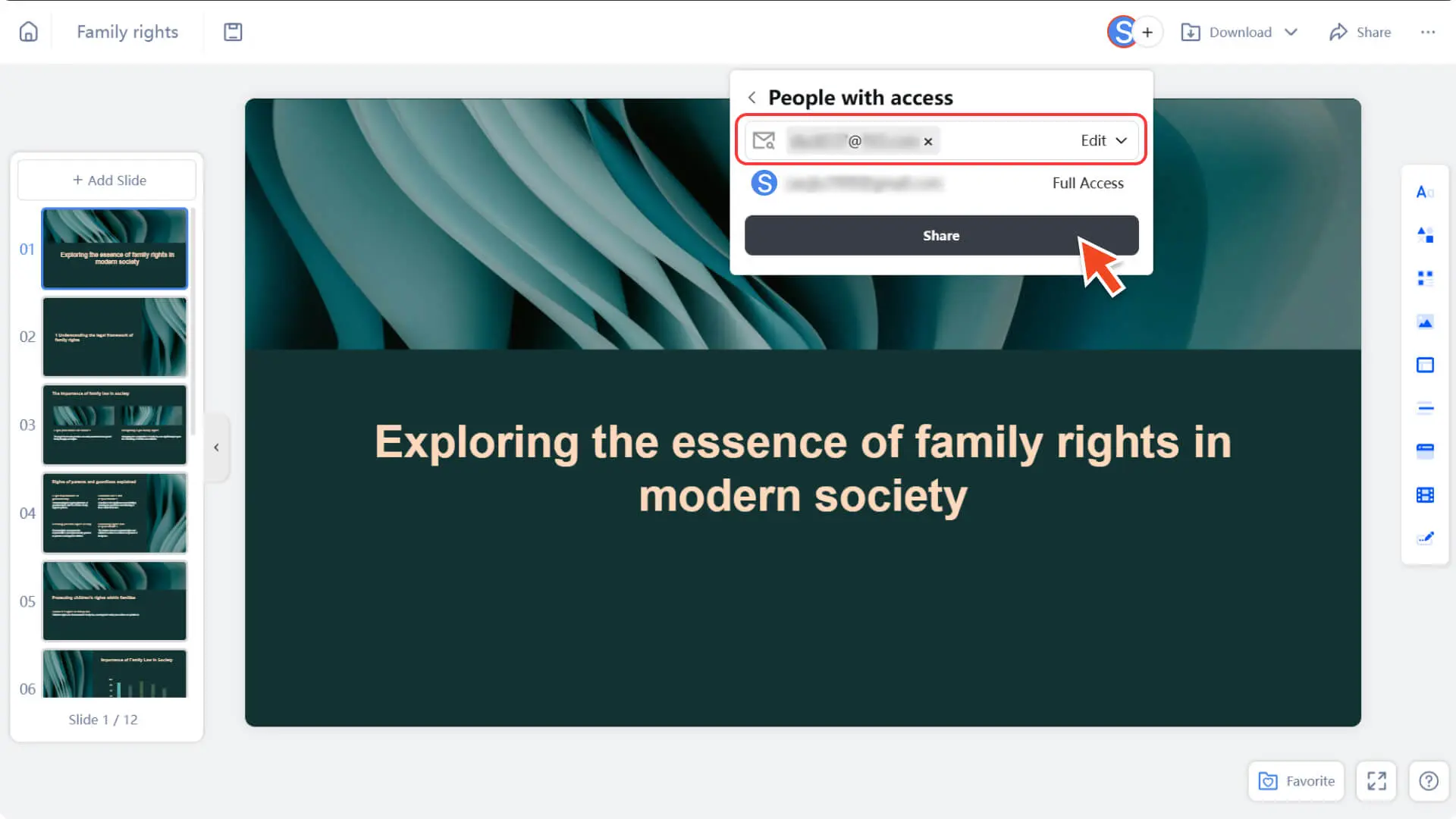
2. Set corresponding collaboration permissions for each member:
◦ Can Edit: Members can modify and edit the content of the presentation.
◦ Can View: Members can only view the presentation and cannot edit it.
◦ Remove from room: If a member has joined the collaboration, they can be removed from the current collaboration.
3. Click the Share button to complete member addition and permission settings.
Step 3: Members begin to collaborate
• Invited members can simply use the 'Switch Space' option in the top-left corner to access the team workspace, where they can then view or edit the presentation on the Teamwork page.
Frequently Asked Questions
Will there be conflicts when multiple people edit simultaneously?
- • When a member is editing a page, other members cannot edit the same page simultaneously but they can edit other pages. The system will display the name or email of the member currently editing the page in real time, facilitating collaborative management.
Can I invite people outside the team to join the sharing?
- • No, it's not allowed. Shared presentations are only available to team members within the invitation package. When the number of members reaches the package limit, the system will prompt that further invitations cannot be sent.