


Introduction to Smallppt Dashboard
Updated over 3 months ago
What is the Smallppt Control Panel?
The Smallppt Dashboard is the central hub for managing and generating presentations, where you can quickly access AI features, theme settings, history, team collaboration, and order lists, completing all presentation-related operations in one stop. The following will introduce the various functions of the Smallppt Dashboard.
How to use the Smallppt dashboard
Step 1: Access the Smallppt Dashboard
• After opening Smallppt and entering the dashboard, you will first see four options for creating a presentation: Generate / Import File / Import URL / Paste in Text.
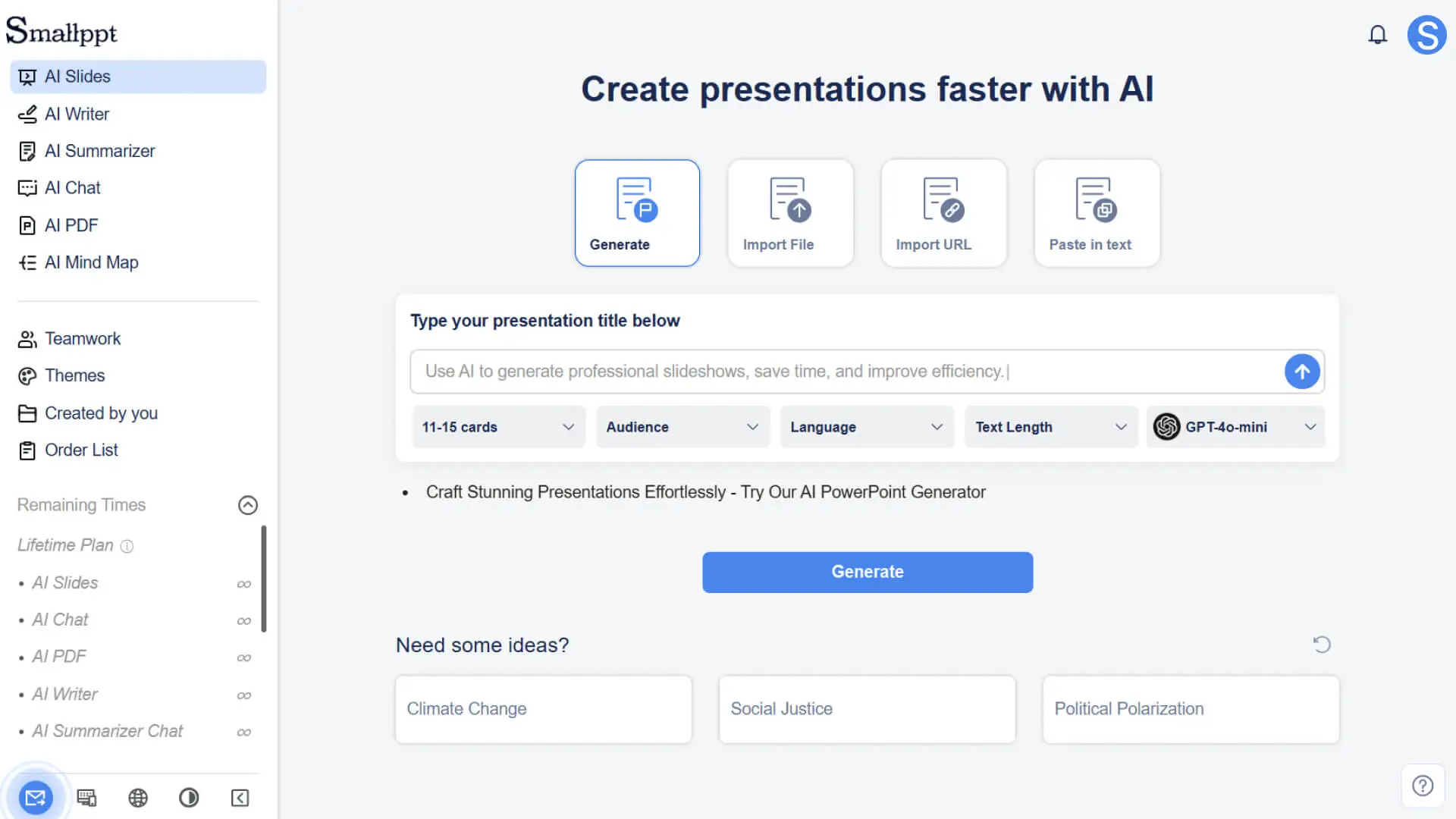
- • Select the appropriate creation mode based on your needs, and the system will automatically generate a preliminary presentation outline.
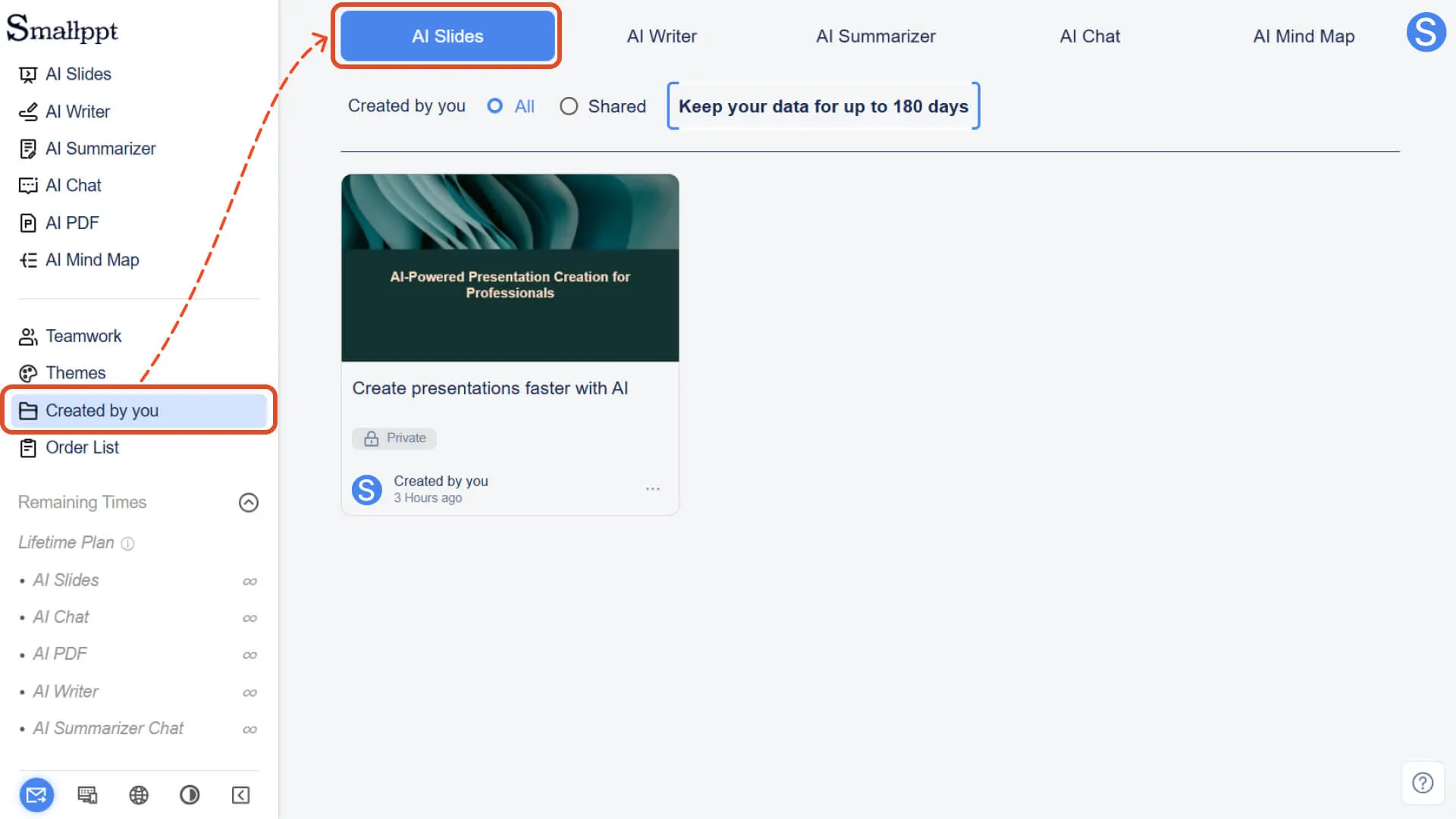
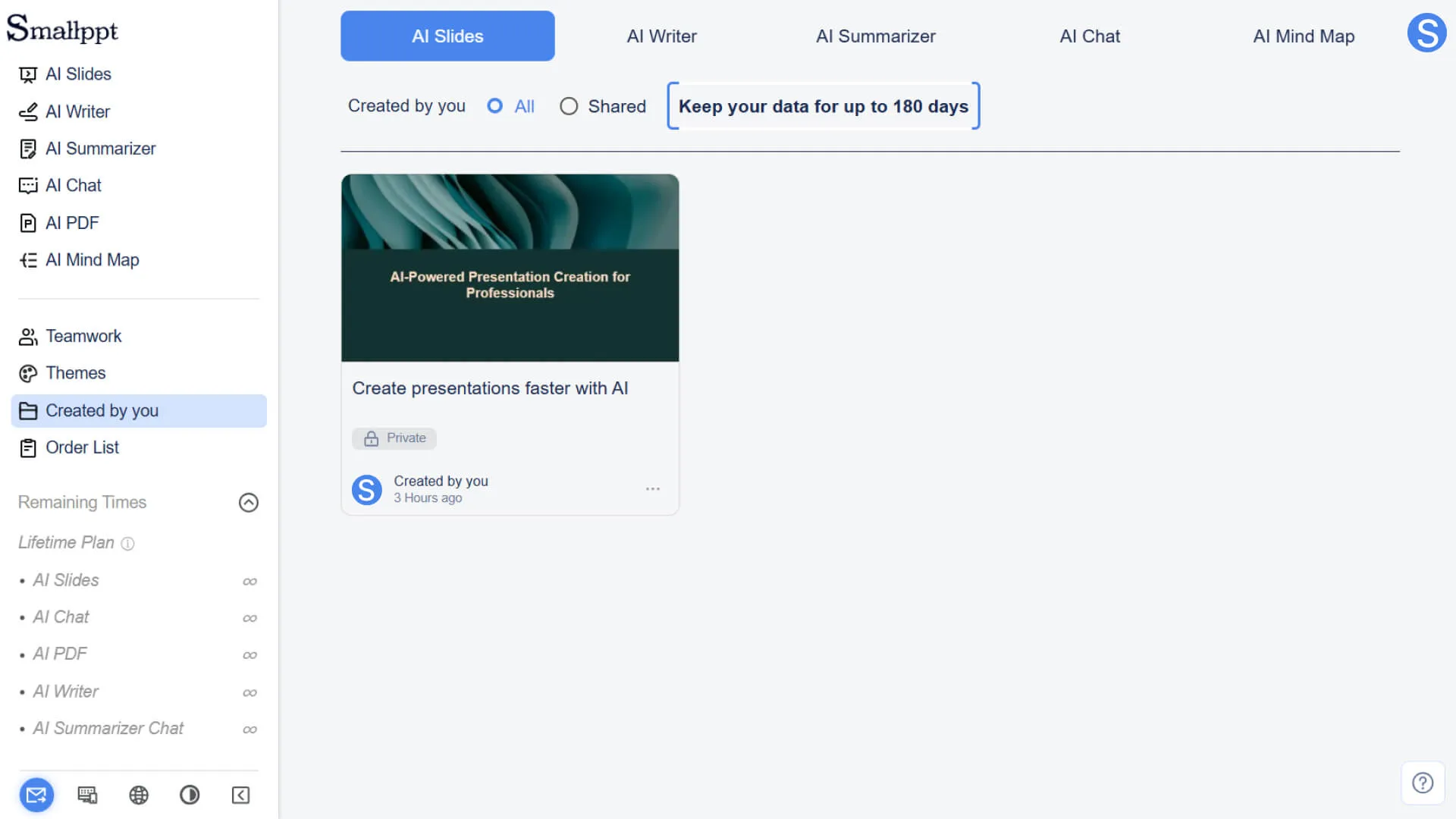
• The presentations you created previously can be found in Created by you for quick access and management.
Step 2: Explore AI Tools
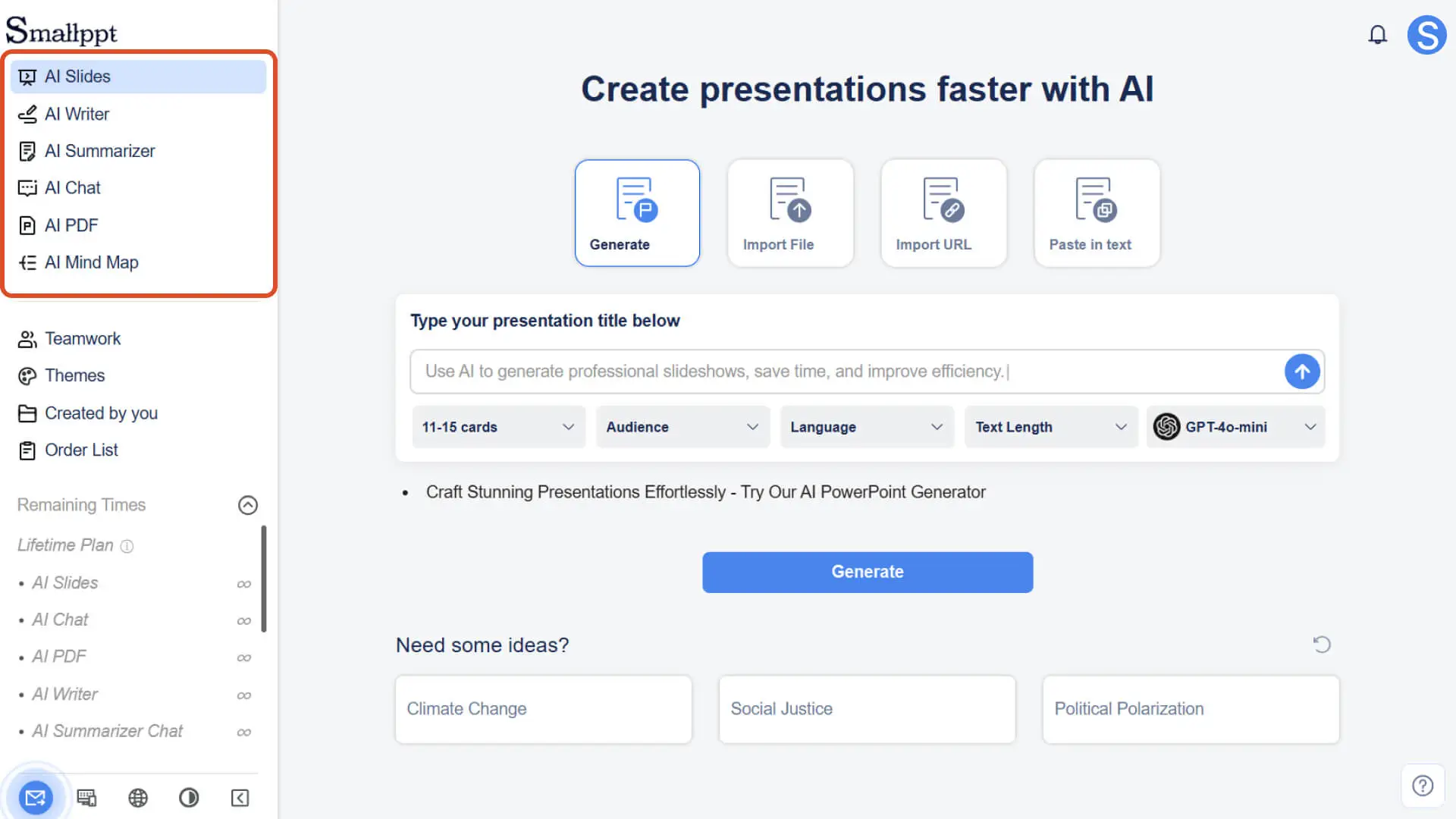
- • In the dashboard, you can quickly access tools such as AI Writer, AI Summarizer, AI Chat, AI PDF, AI Mind Map, and view and manage the content you have created.
• These tools provide different types of AI creation capabilities, facilitating your efficient handling of text, documents, and data in Smallppt.
- • To learn more, please visit:
Step 3: Use teamwork
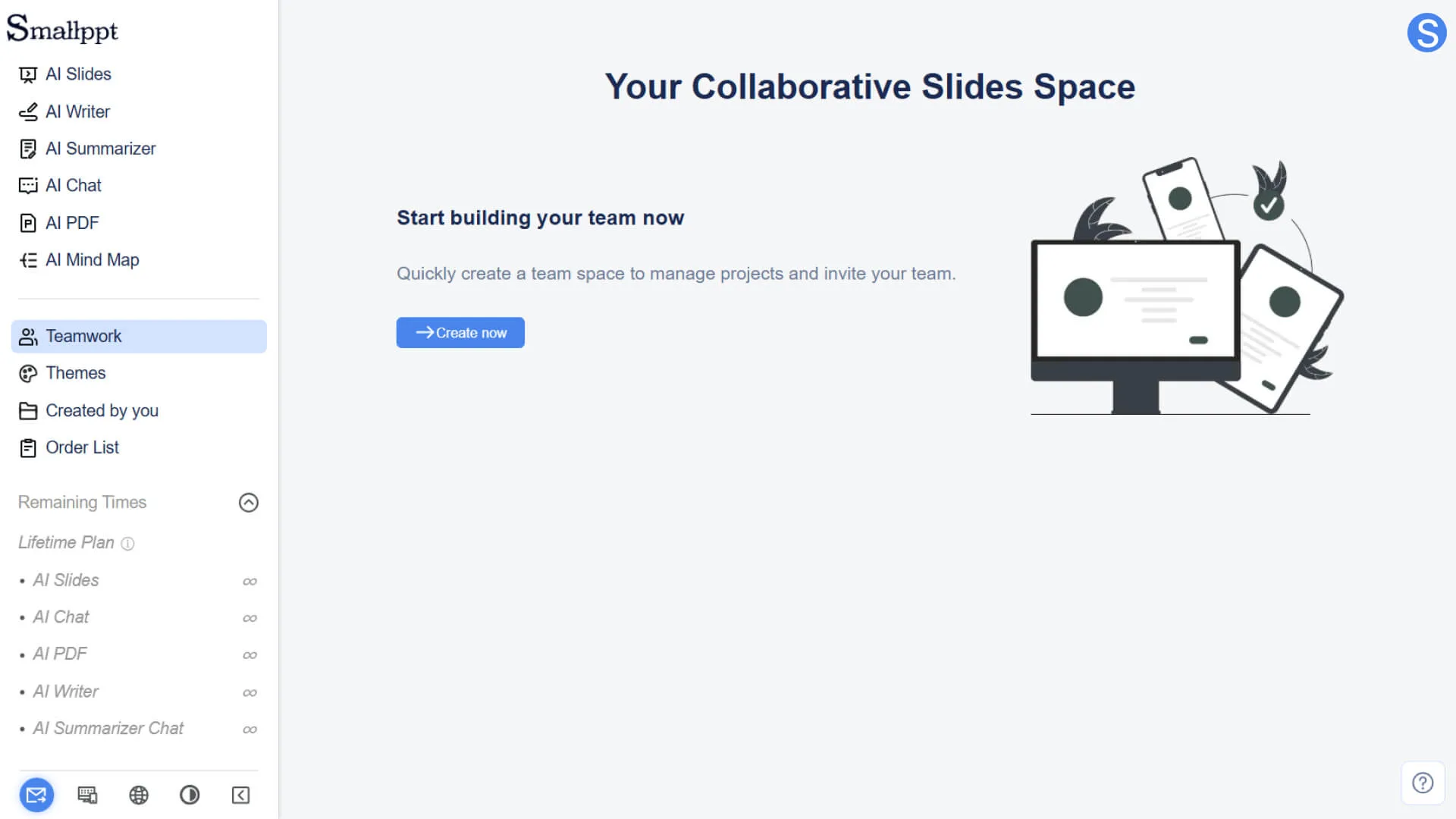
• In the dashboard, you can manage team members, assign permissions, and collaborate on presentations and other content through the Teamwork feature. Team members can jointly access, view, and edit shared content, improving collaboration efficiency.
- • To learn more, please visit:
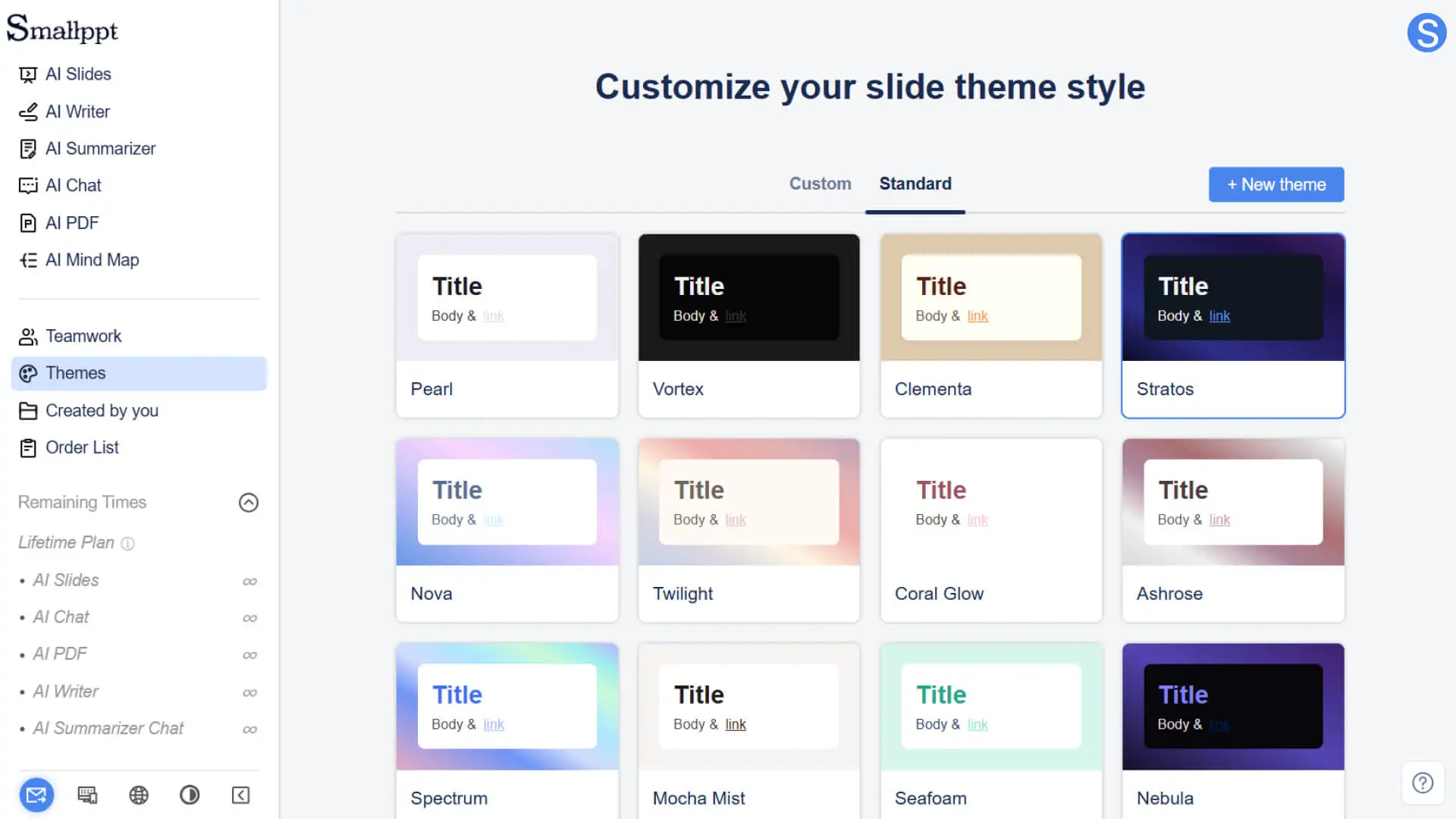
Step 4: Browse Topics
- • Theme: By default, Google Fonts are provided, and you can upload a logo in the theme to match your brand style.
- • Colors: Each theme includes pre-set color combinations to help maintain a consistent presentation style.
• Create a Theme: You can create your own brand-new theme based on an existing one or from scratch, making it easy to reuse across different presentations.
Step 5: Manage and View History
- • View the content you've created in Created by you, including presentations, AI texts, and other works.
• Quickly open, delete, or share existing content.
- • To learn more, please check:
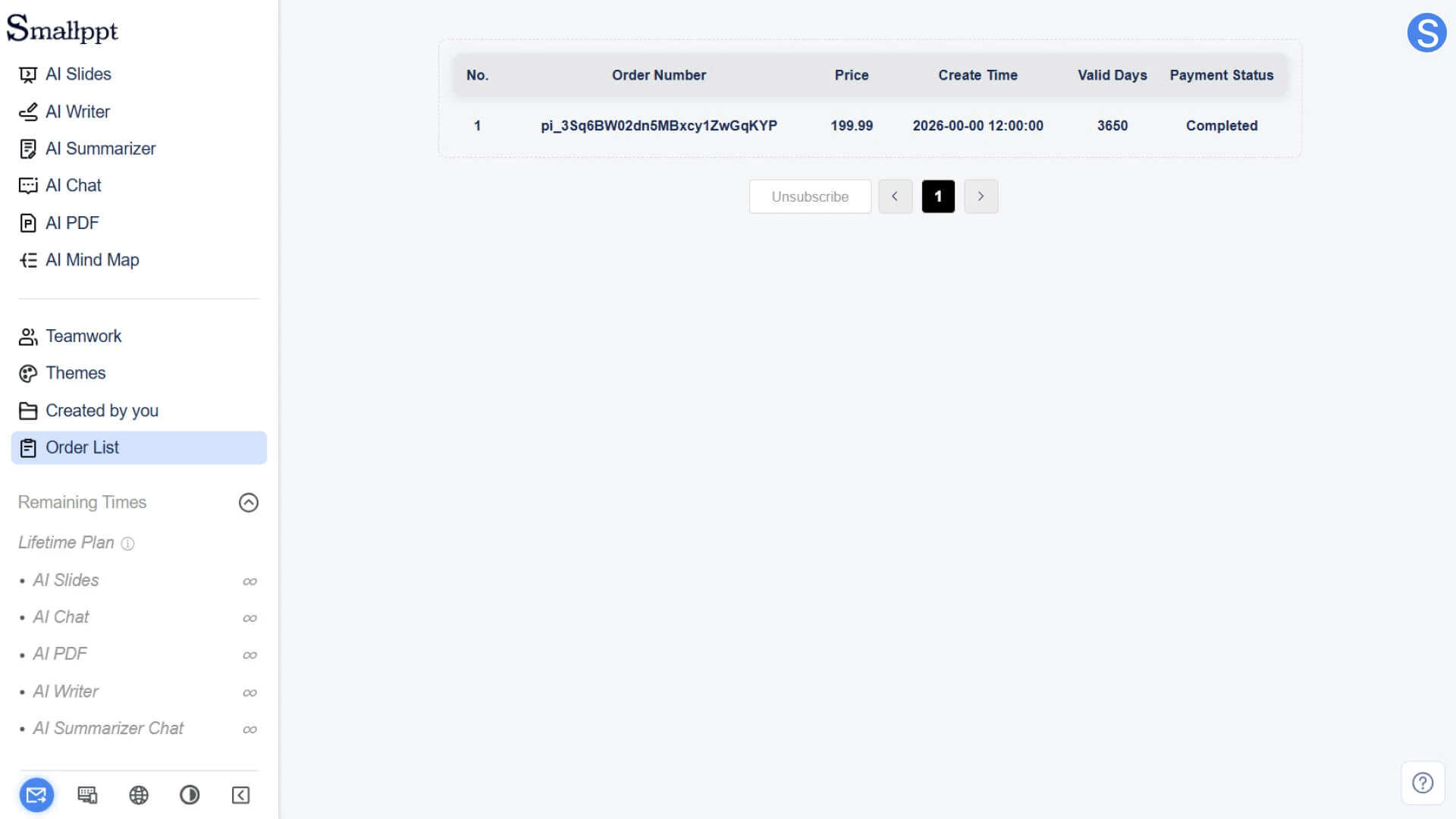
Step 6: View Orders
- • View purchase and subscription records in the Order List.
• Check your current subscription status.
Step 7: Get Help and Feedback
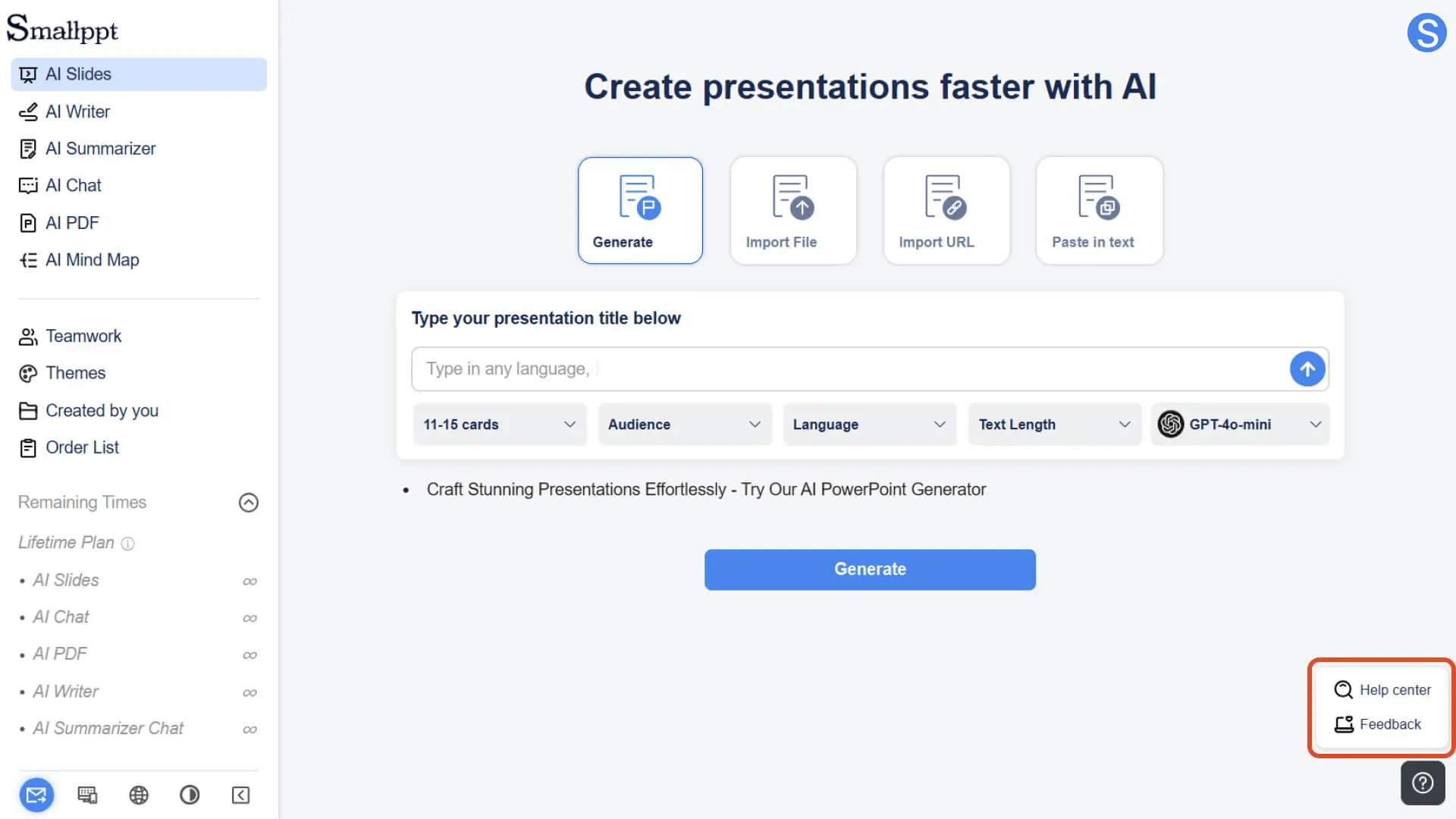
- • The question mark in the bottom right corner of the dashboard can be used to access the Help Center, where you can view tutorials and frequently asked questions.
• You can also submit your comments and suggestions to us through the feedback function, and we will continuously improve the functions of Smallppt.
Frequently Asked Questions
What are the differences between Generate / Import File / Import URL / Paste in Text?
- • Generate: Directly input a topic or idea, and let AI automatically generate a presentation.
- • Import File: Upload files (such as PDF, PPT, Doc, etc.), and AI will parse and convert them into presentations.
- • Import URL: Paste a web link, and AI will scrape the content to generate a presentation.
- • Paste in Text: Simply paste long text, and AI will generate a presentation based on the content.
Where can I use the created theme?
- • After generating the presentation, click Apply in the Customize option of the Theme panel in the upper right corner.
- • Create a new presentation, and in the visual style selection interface of Creative Slides (Beta), click See More to find and apply the theme you created.