


How do I create a new presentation in Smallppt?
Updated over 2 months ago
Choose How to Start Your Presentation
Insight: Smallppt offers four modes to quickly create structured and visually appealing presentations.
- • Generate – AI drafts an initial presentation based on your topic.
- • Import File – Convert existing files or presentations into structured slides.
- • Import URL – Pull content directly from a webpage to create slides.
- • Paste in Text – Format and enhance pre-written text with AI for a ready-to-use presentation.
How to Create a New Presentation
Step 1: Go to the Smallppt Dashboard
- 1. Navigate to your Smallppt dashboard.
2. Choose one of the available creation modes: Generate / Import File / Import URL / Paste in Text.
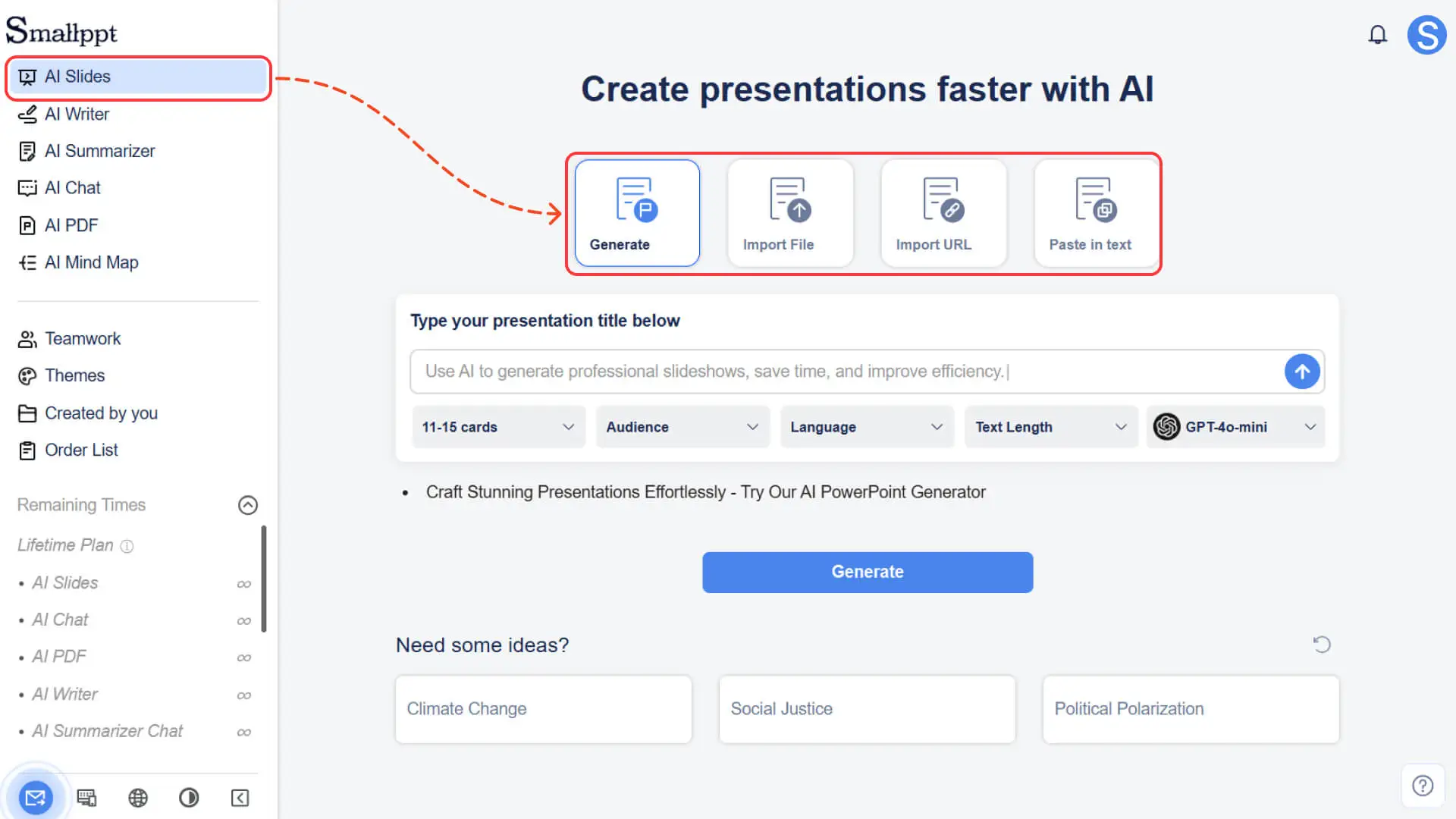
Step 2: Choose the Mode That Fits Your Needs
- • Generate• Enter a topic, and Smallppt will generate an initial outline for your presentation.• You can edit the generated outline to match the direction you need.
- • Import File• Upload documents, spreadsheets, presentations, images, PDFs, or even audio files, and Smallppt will extract the content for you.• Review the converted material and adjust it to fit the style or flow you want.
- • Import URL• Enter any webpage link, and Smallppt will fetch the page content and transform it into a clean, structured presentation outline.• Make quick edits to fine-tune the key points or emphasis before generating your slides.
- • Paste in Text• Paste your existing content into Smallppt—whether it comes from notes, drafts, or any other text.
• After the outline is generated, you can freely adjust, add, or remove points to refine it your way.
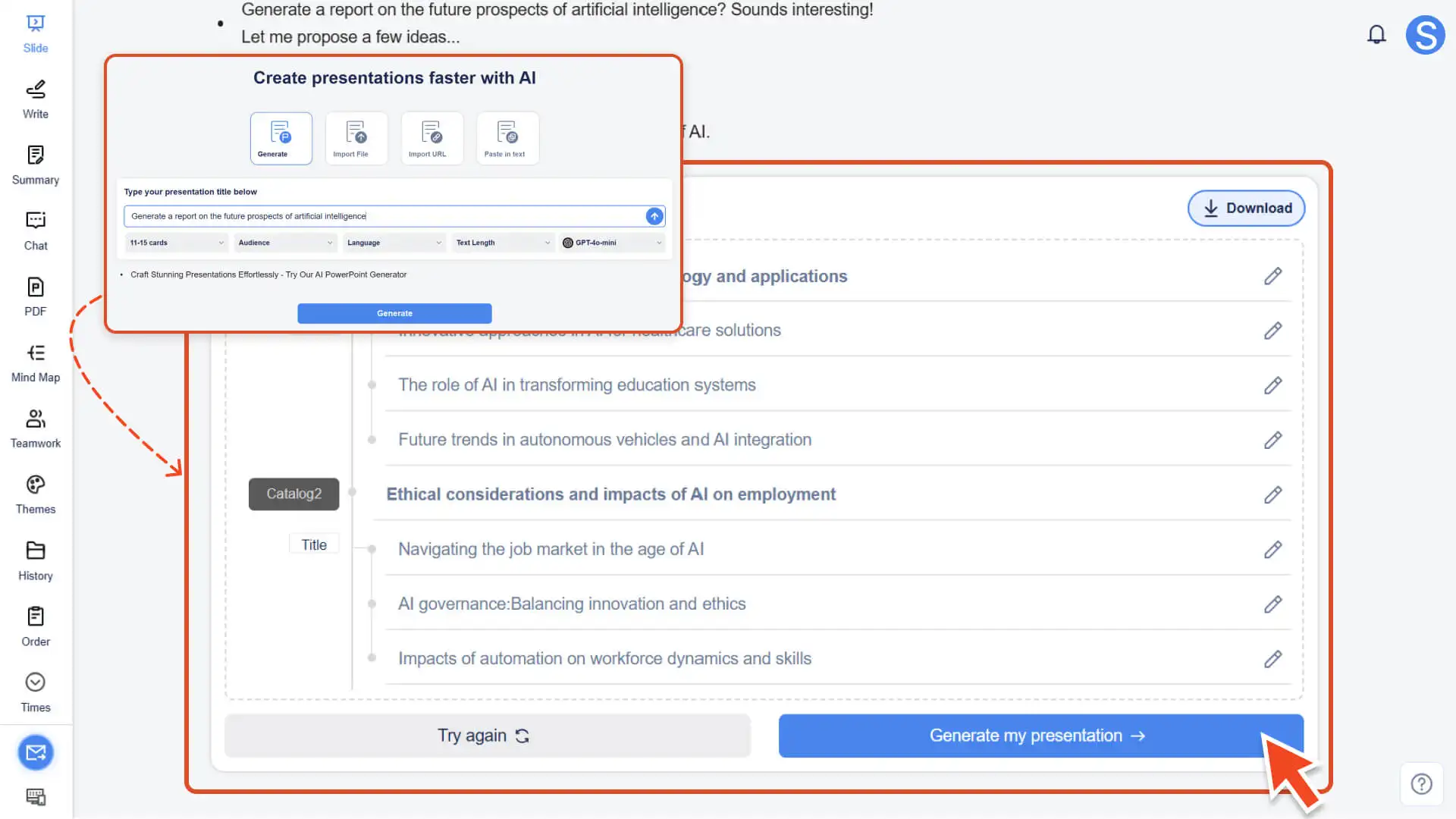
Step 3: Choose Your Presentation Workflow
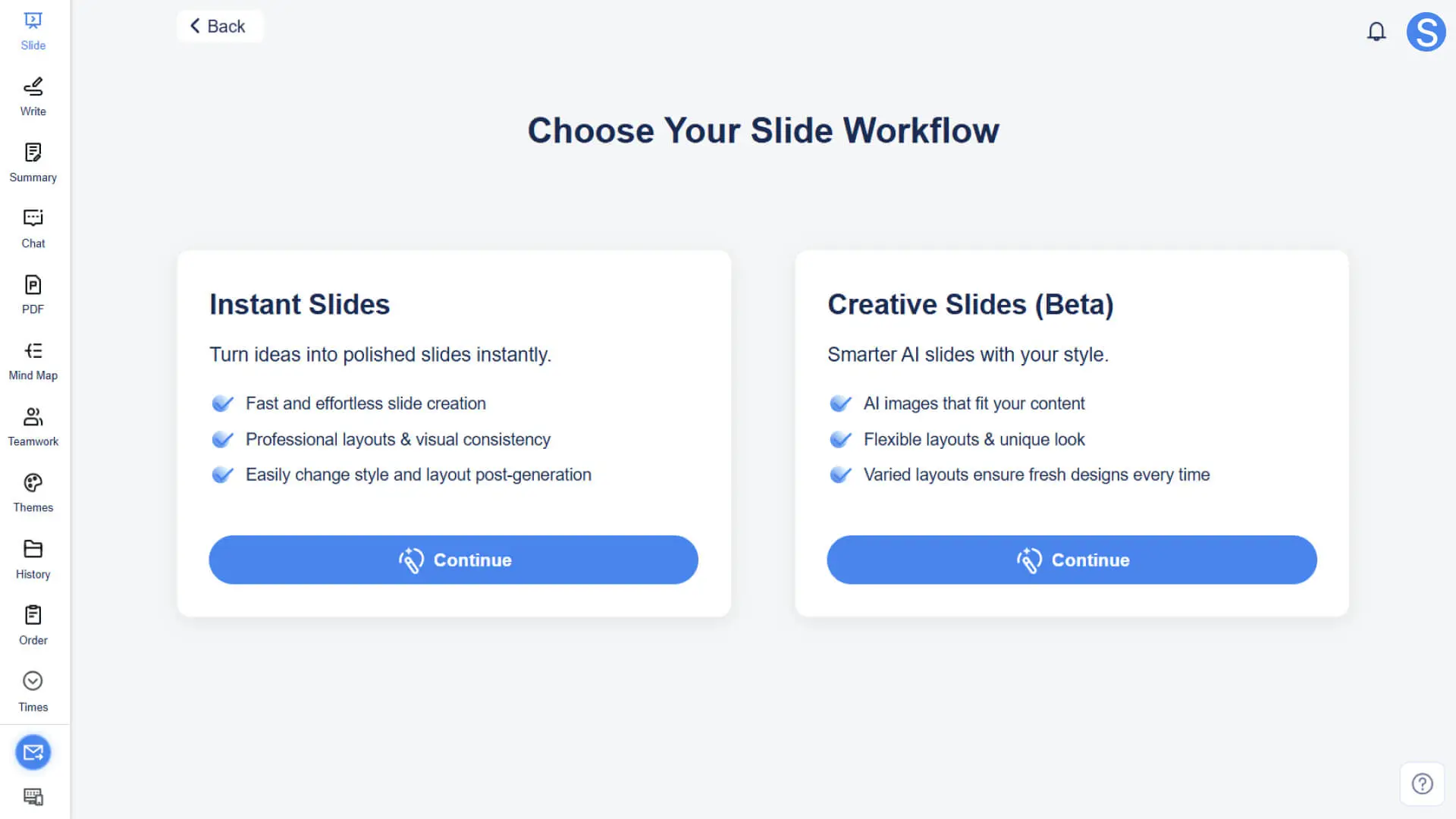
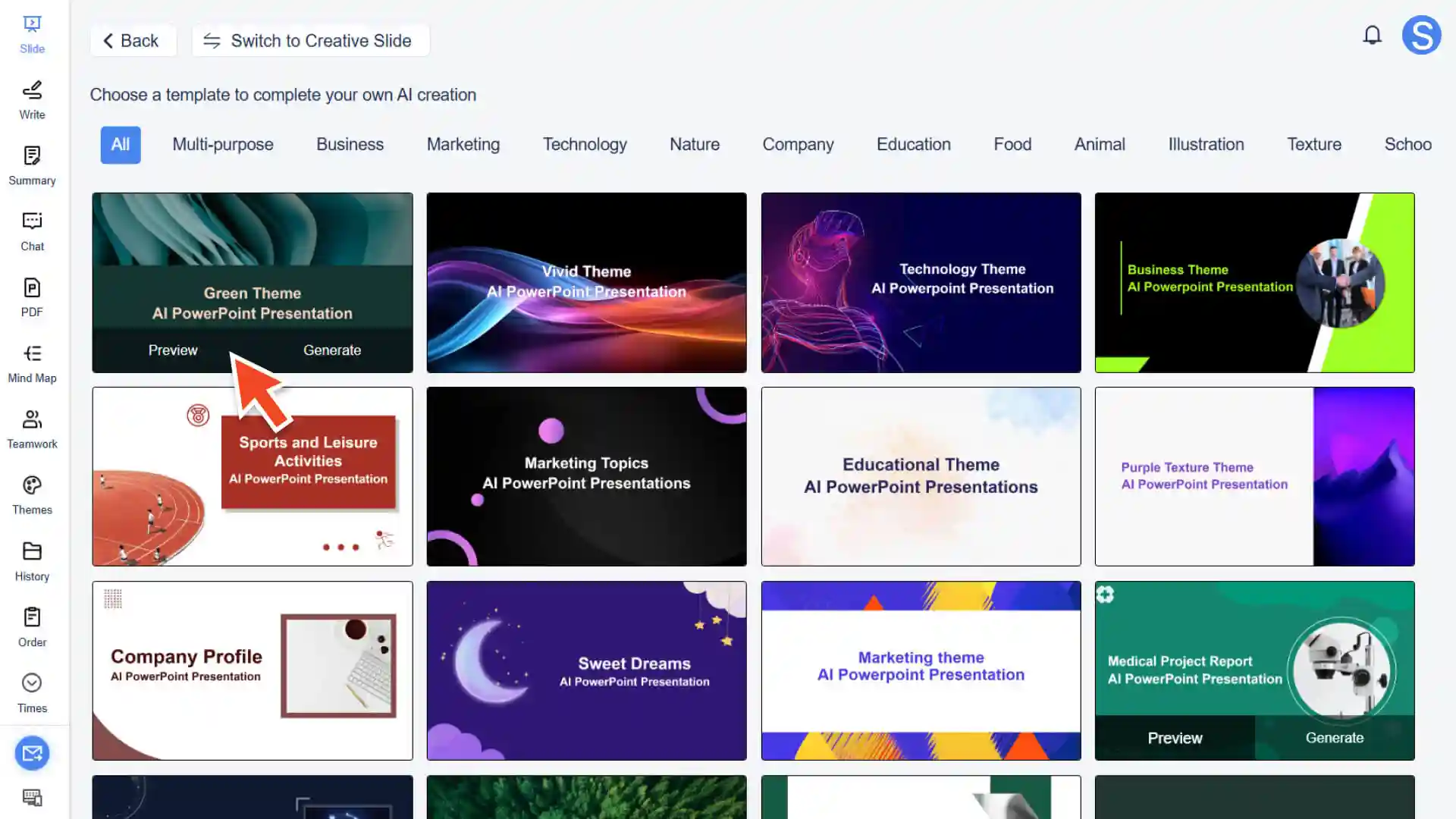
- • Instant Slides – Preset Templates and Ready-Made Layouts• Preview available templates to see the overall layout and fixed example images.• Select a template and click "Generate" to generate slides using that layout and the AI-generated content.
• You can still switch styles or adjust layouts after generation to keep your presentation consistent and ready to present.
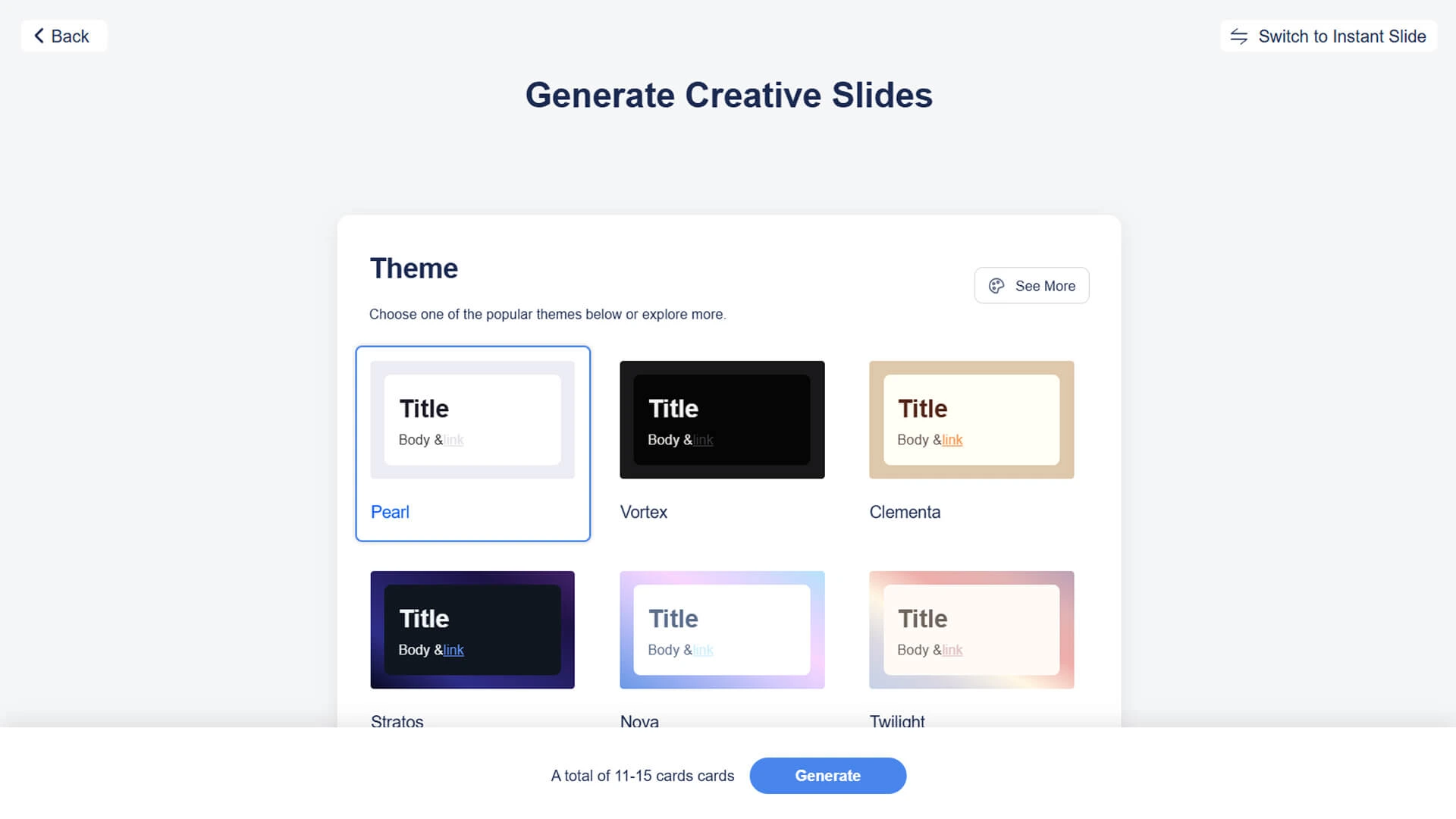
- • Creative Slides (Beta) – Customizable Styles with AI-Driven Layouts and ImagesThis feature is available to paid subscription users only.• Choose a visual style or create your own custom style, including fonts, colors, backgrounds, shapes, icons, and other visual elements.• Preview how the chosen style affects sample slides to see the design effect before generating.• Once confirmed, the AI generates slides with varied layouts and automatically selected images that fit your content.
• You can still tweak styles or replace images after generation to create a unique, visually appealing presentation.
Step 4: Edit and Refine Your Slides
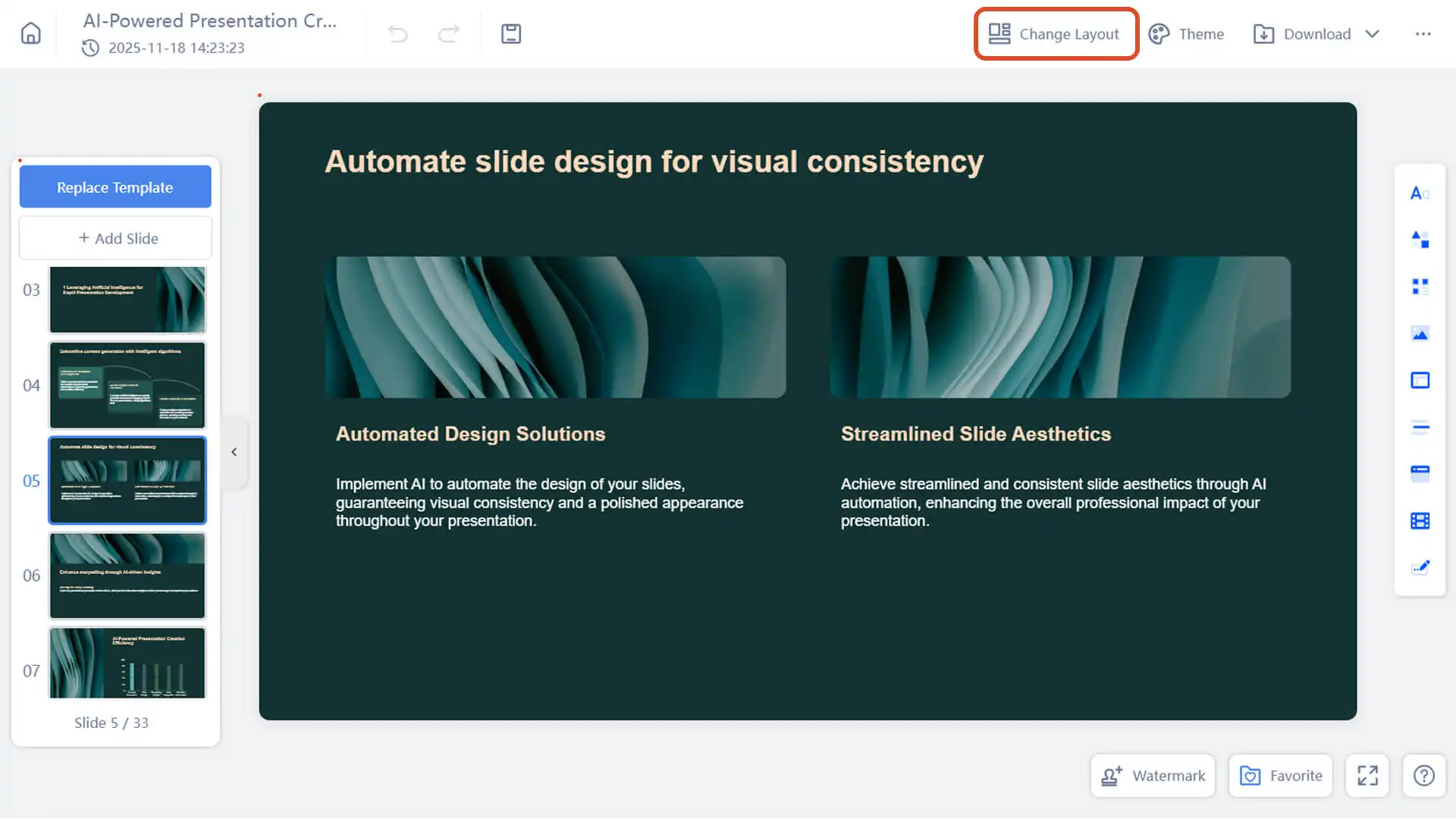
- • If a slide’s layout doesn’t fit your content, you can adjust the layout or replace the template.
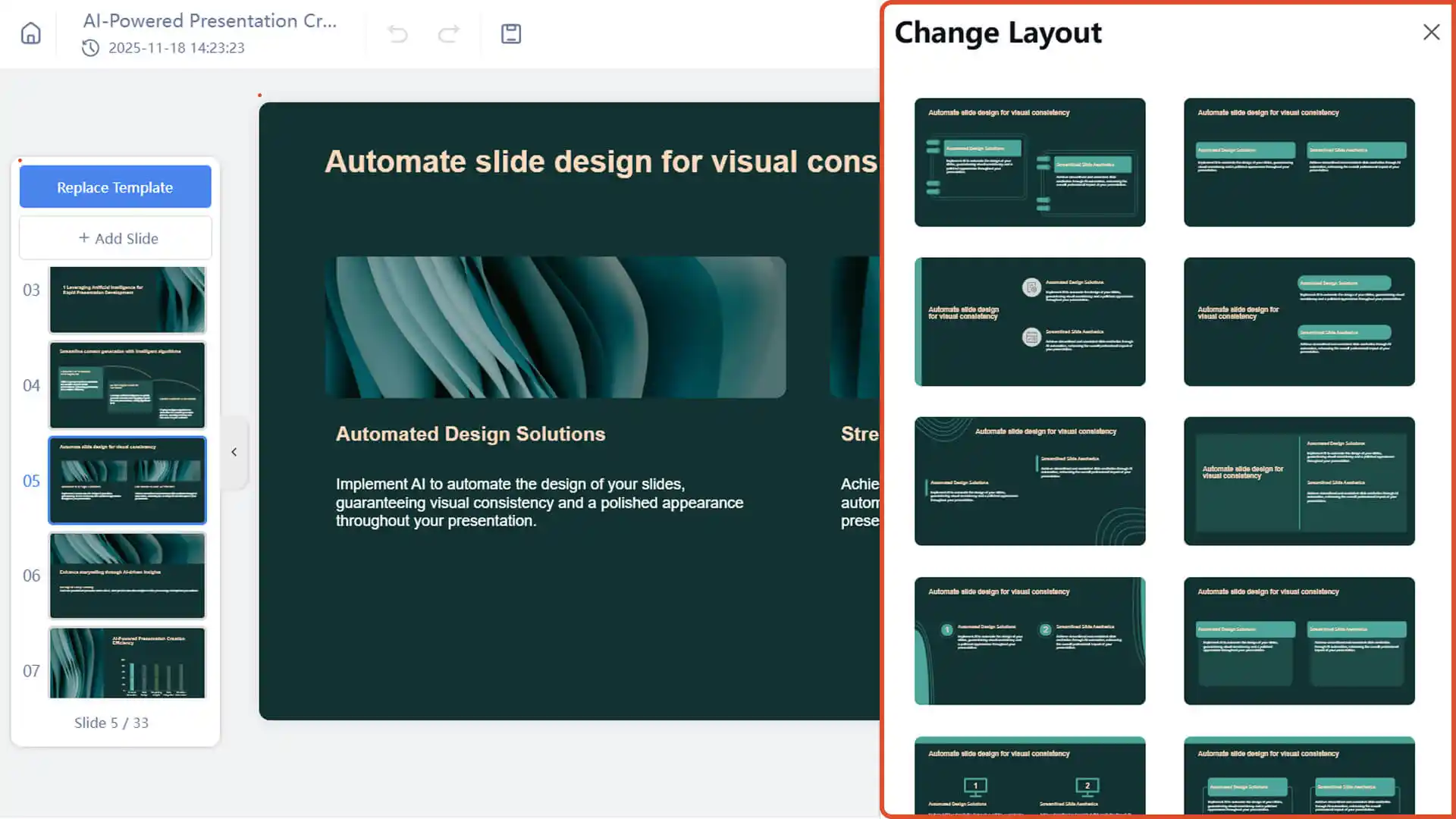
• Click on a slide and select "Change Layout" to pick a different layout variant within the same template.
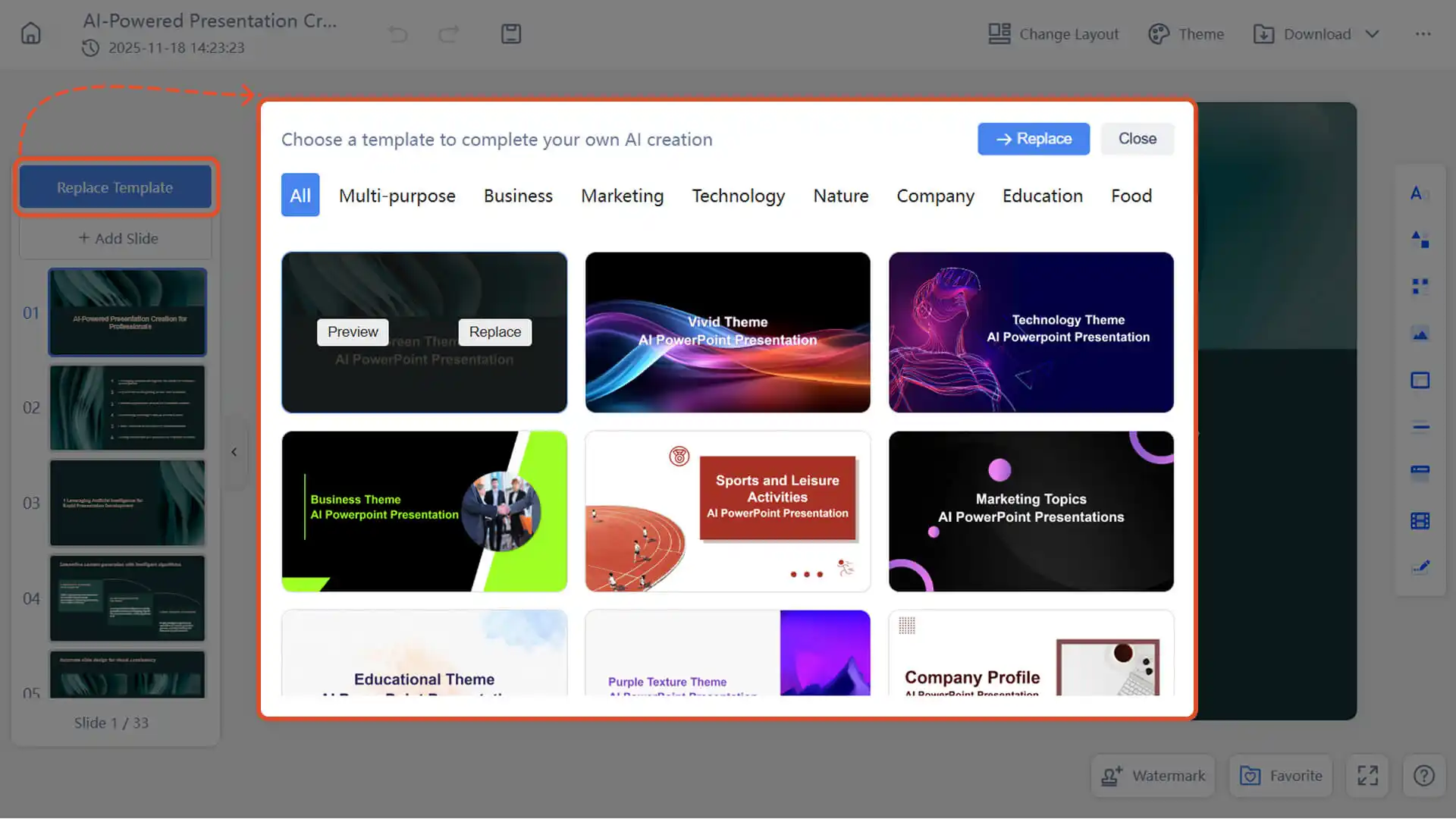
• To apply a completely different look, choose "Replace Template" to swap the current template with another one.
Frequently Asked Questions
Why didn't the AI presentation generate the expected results?
- • Smallppt’s AI model is continuously being improved. Future updates will integrate more advanced models to generate more accurate results.
Can I edit the Smallppt presentation after creating it?
- • Yes! You can manually adjust text, images, and layouts. AI-assisted editing is still under development.
Does Smallppt Presentation support changing themes?
- • Yes, you can change the theme at any time by selecting "Theme" in the top-right corner of Smallppt.
Can templates only be replaced in Instant Slides mode?
- • Yes, template replacement is currently only available when using the Instant Slides mode.