


How do I choose my preferred language to use Smallppt?
Updated over 5 months ago
How to change the display language in Smallppt
Smallppt will automatically detect your browser language and switch the interface. You can also manually change it to other available languages.
Step 1: Open Language Settings
- 1. Enter the Smallppt dashboard.
- 2. Find the language settings at the bottom of the left sidebar and click on them.
Step 2: Select your preferred language
1. Select the language supported by Smallppt from the drop-down menu.
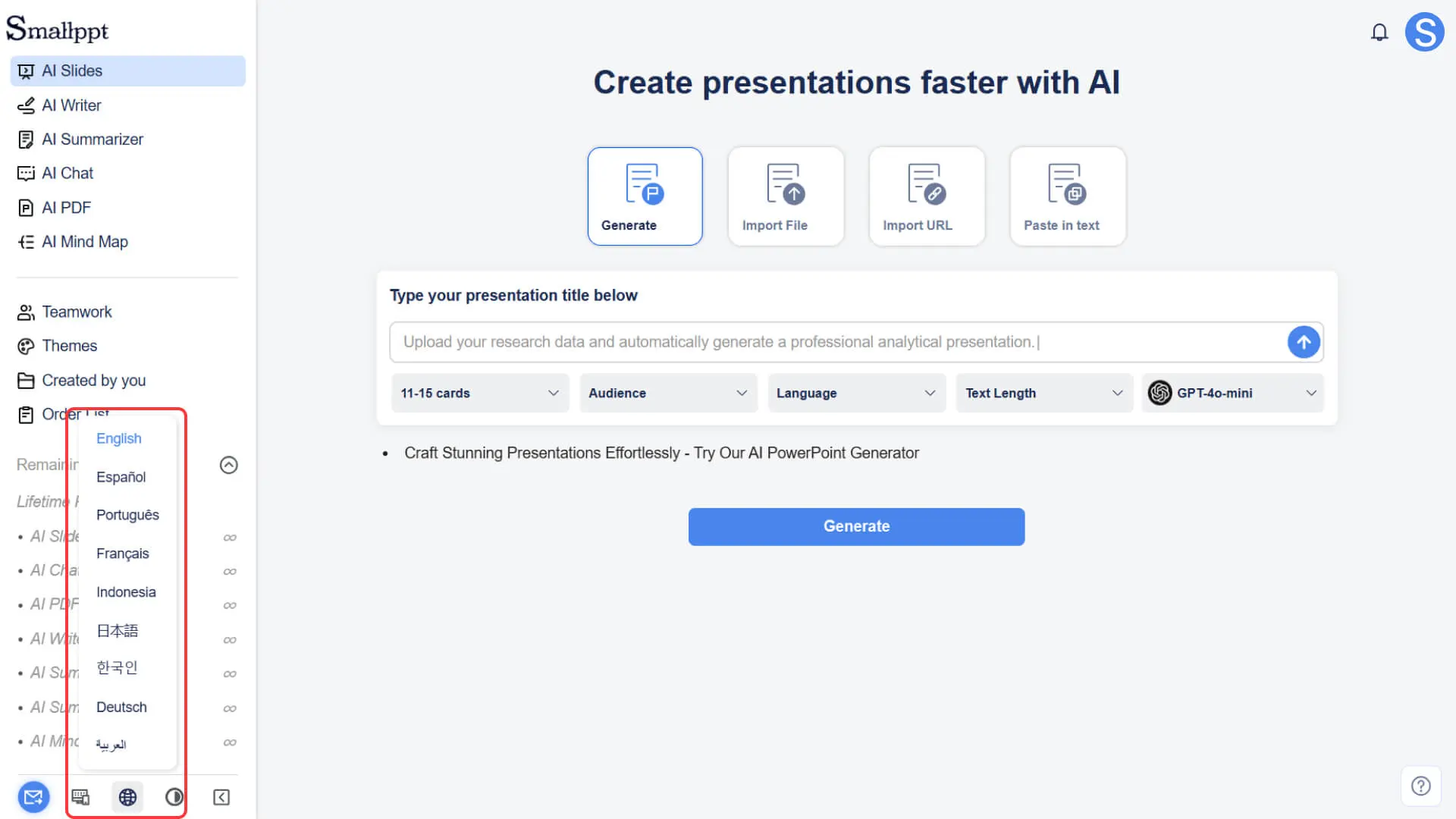
- 2. Smallppt will immediately apply the new language.
- 3. If the interface is not fully updated, simply refresh the browser.
How to Use the Browser Translation Feature to Translate Unsupported Languages
If Smallppt does not yet support your language, you can use the built-in translation tool of your browser.
Take Google Chrome as an example
- 1. Right-click on the blank area of the Smallppt page.
- 2. Select "Translate to [Your Language]".
- 3. The page will immediately display the translated content in your language.
- 4. To adjust the translation language or settings, click the translation icon on the right side of the address bar to manage.
Important Notice
• Browser translation only takes effect on the current tab; refreshing or opening a new tab requires restarting the translation.
• Some UI text may not be translated correctly, which is a limitation of browser functionality.
Frequently Asked Questions
What if the language I need is not available in Smallppt's language settings?
- • You can use the browser's translation feature to display the interface in your native language.
Does Smallppt support using multiple languages simultaneously?
- • Not supported. The interface of Smallppt generally only supports one language, but you can switch it at any time in the language settings.