


How to easily collect and reuse your slide pages?
Updated over 2 months ago
How to collect your favorite slides?
Step 1: Enter the editing page of the presentation
1. Open the editing page of the presentation.
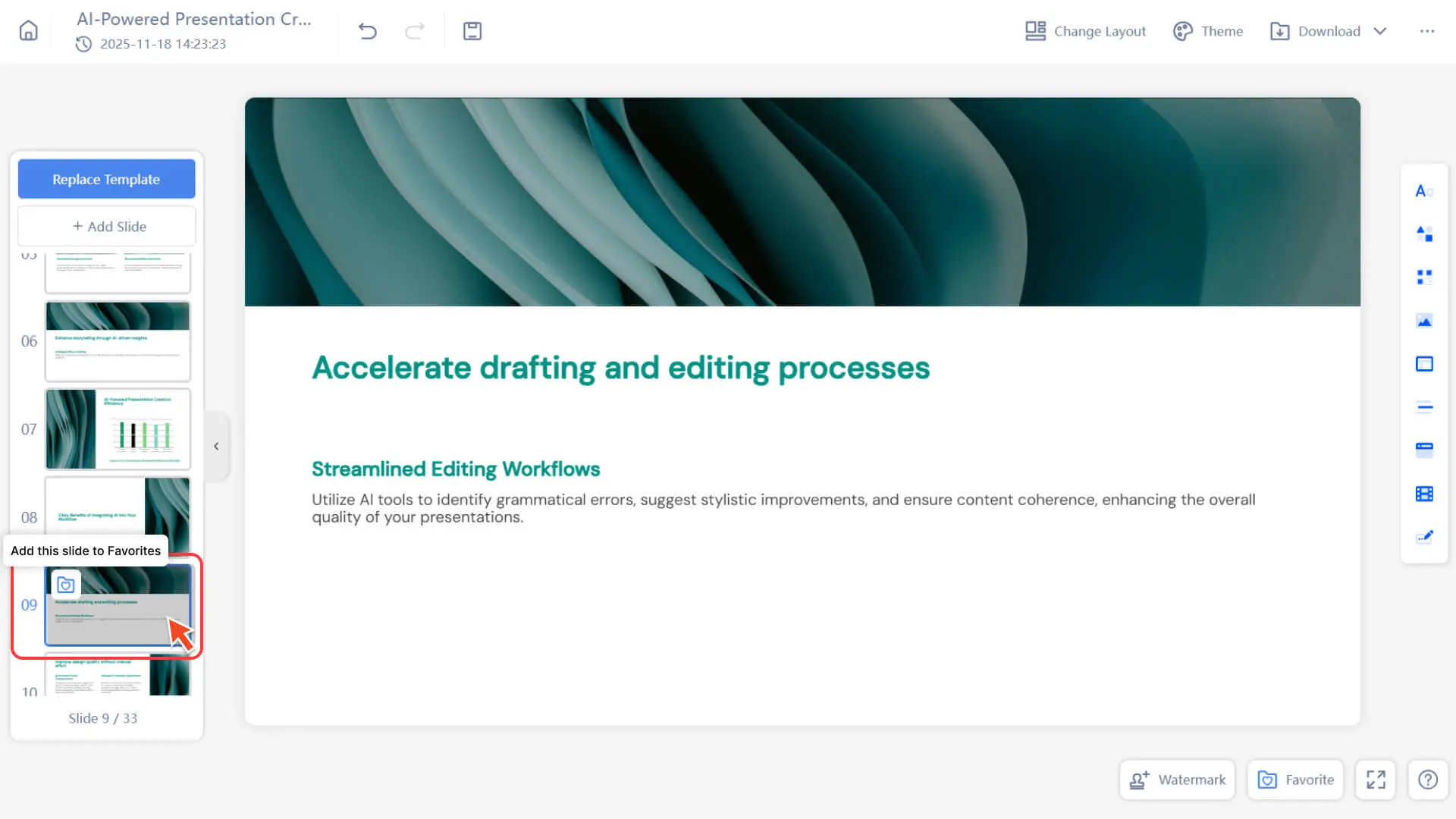
2. In the slide preview bar (filmstrip) on the left, select the slide you want to bookmark.
Step 2: Upload slides to favorites
1. Click the upload icon on the slide thumbnail
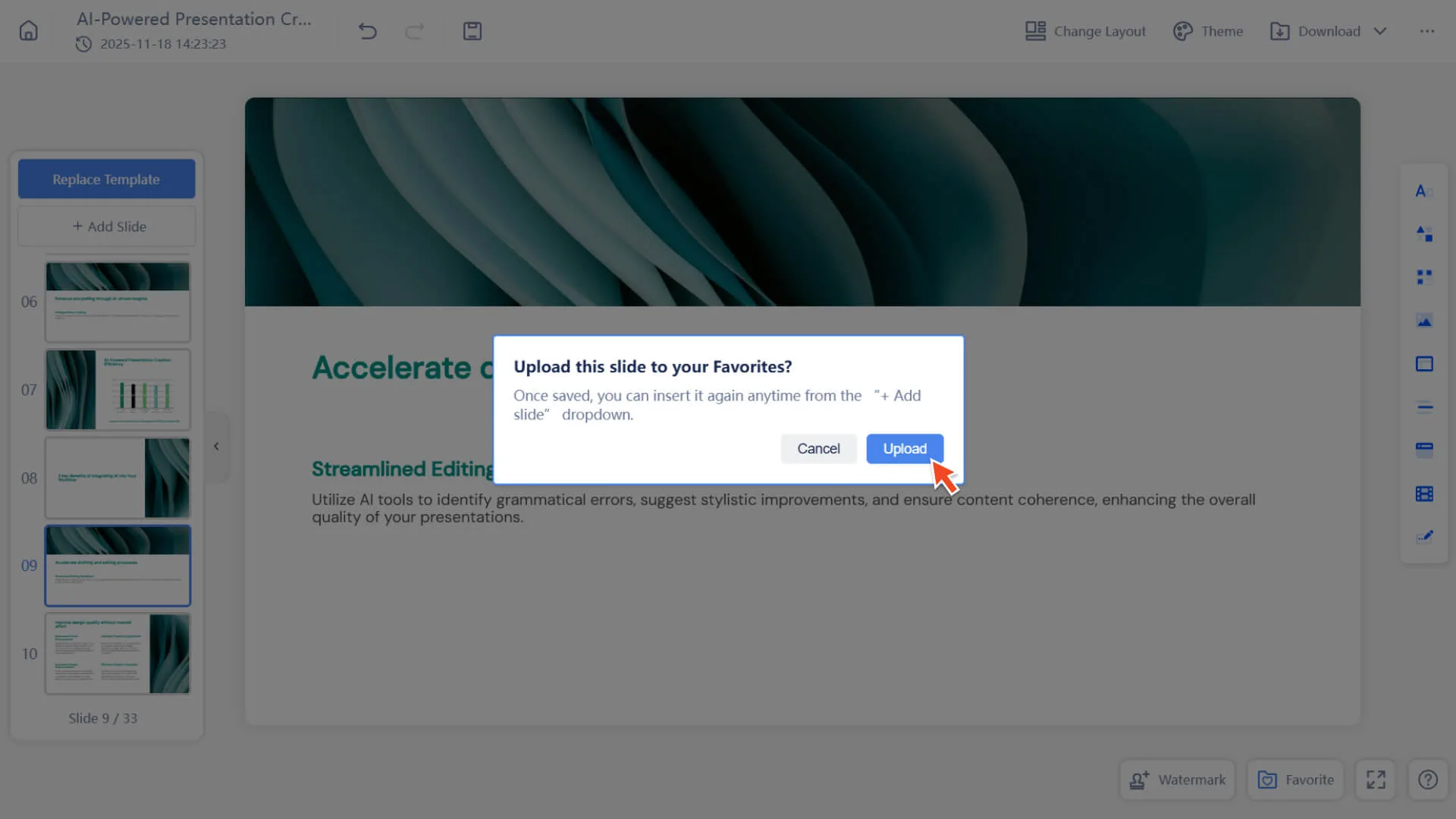
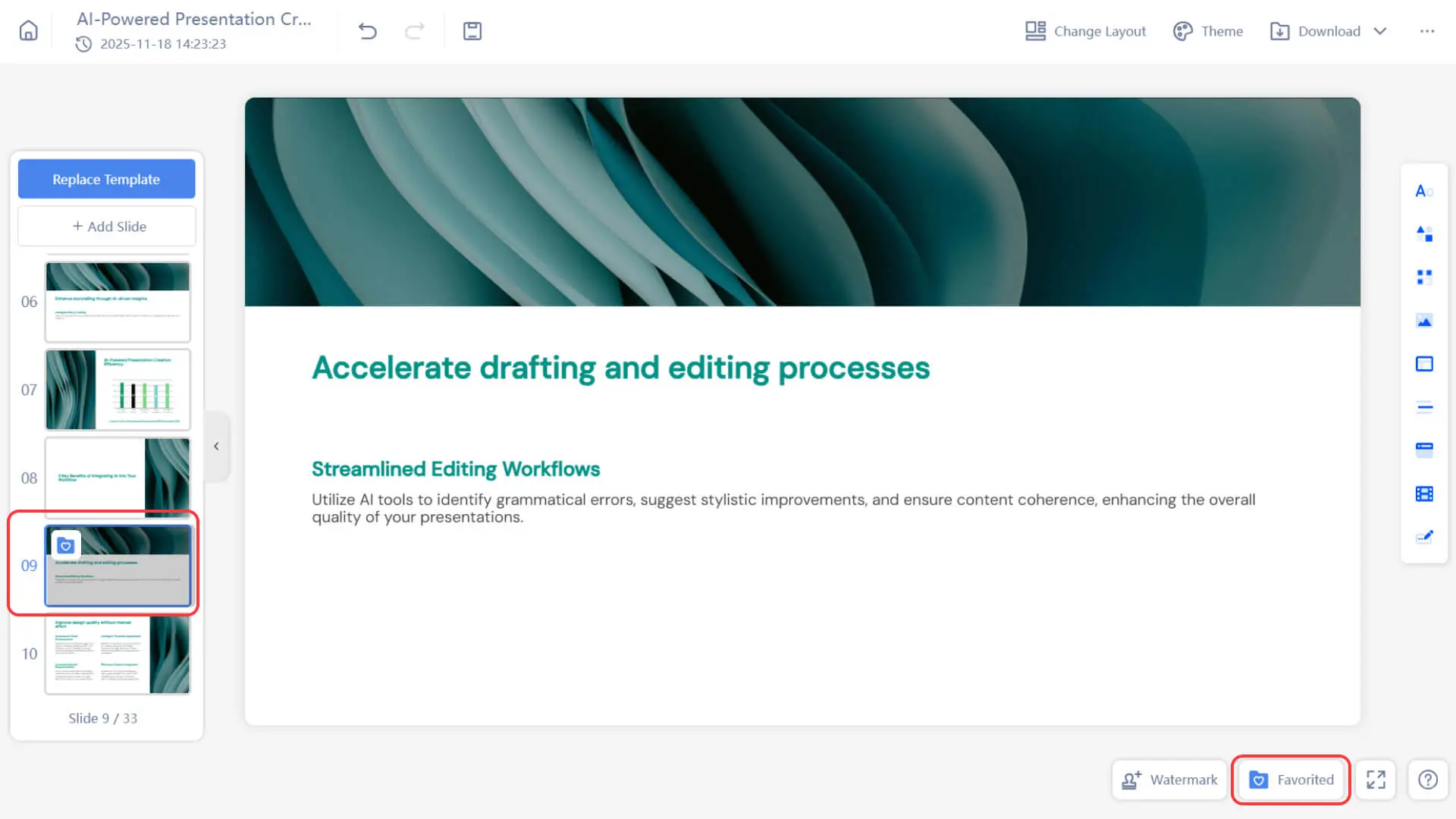
2. After the upload is successful, the uploaded logo will be displayed in the upper left corner of the slide.
3. Subsequently, you can quickly insert and reuse this slide in other presentations via "+ Add Slide"
How to insert the slides you've collected?
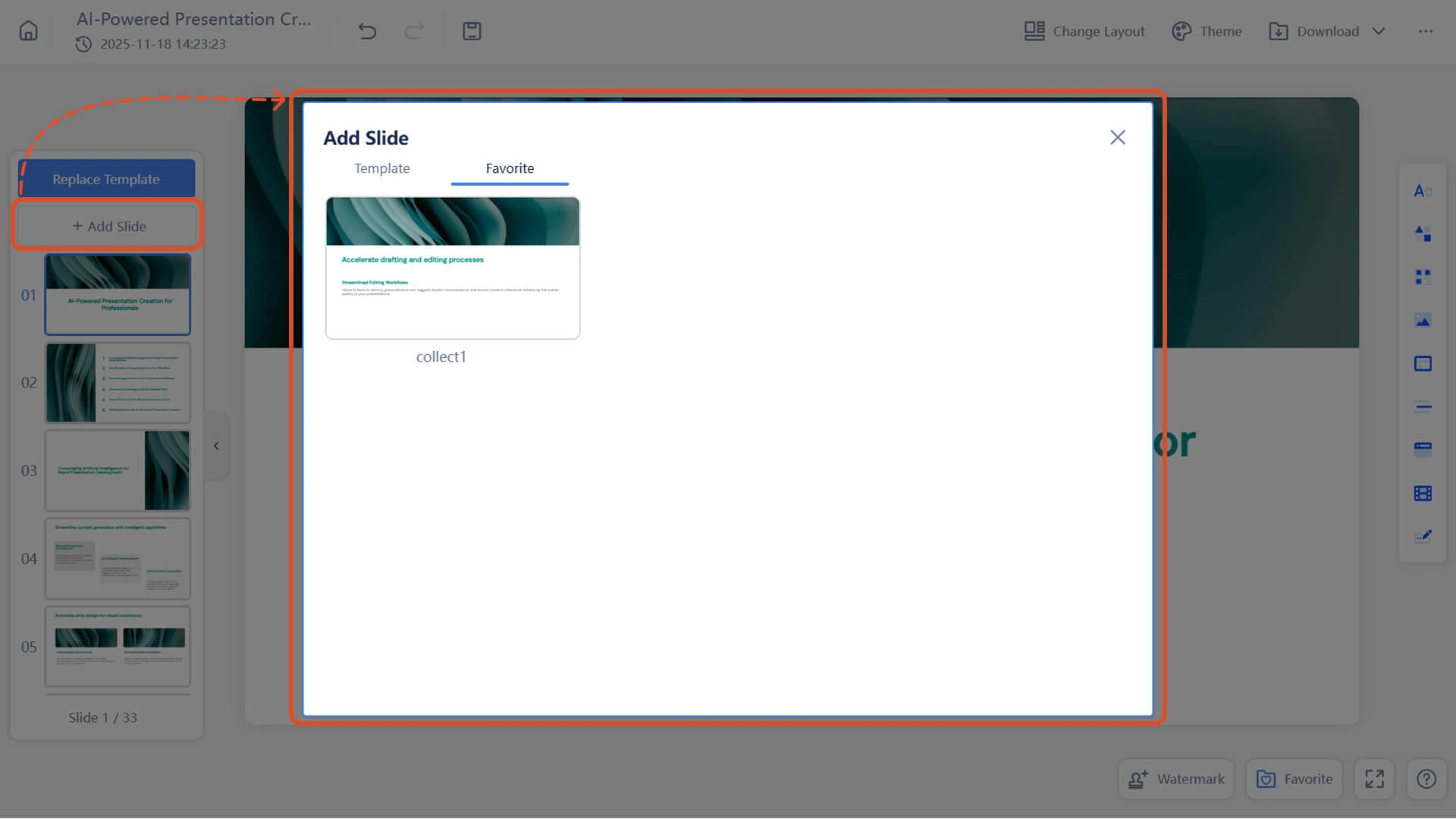
Step 1: Open the "+ Add Slide" panel
• Open the presentation that needs to be edited
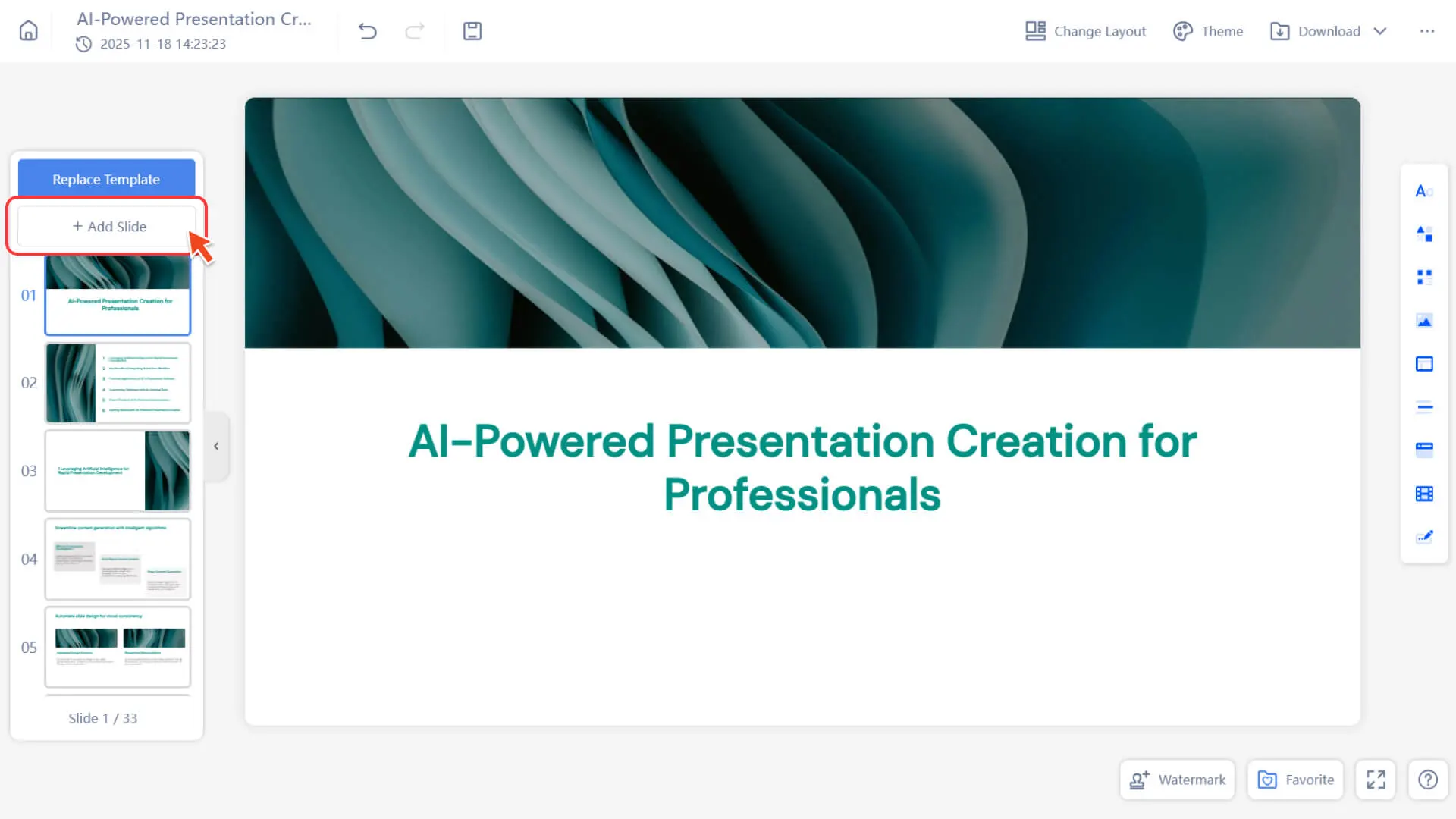
• In the slide preview bar on the left side of the editing page, find the "+ Add Slide" button located at the top of the slide list
Step 2: Select the Favorites category
• In the pop-up window, select the Favorites category to view the slides you previously uploaded
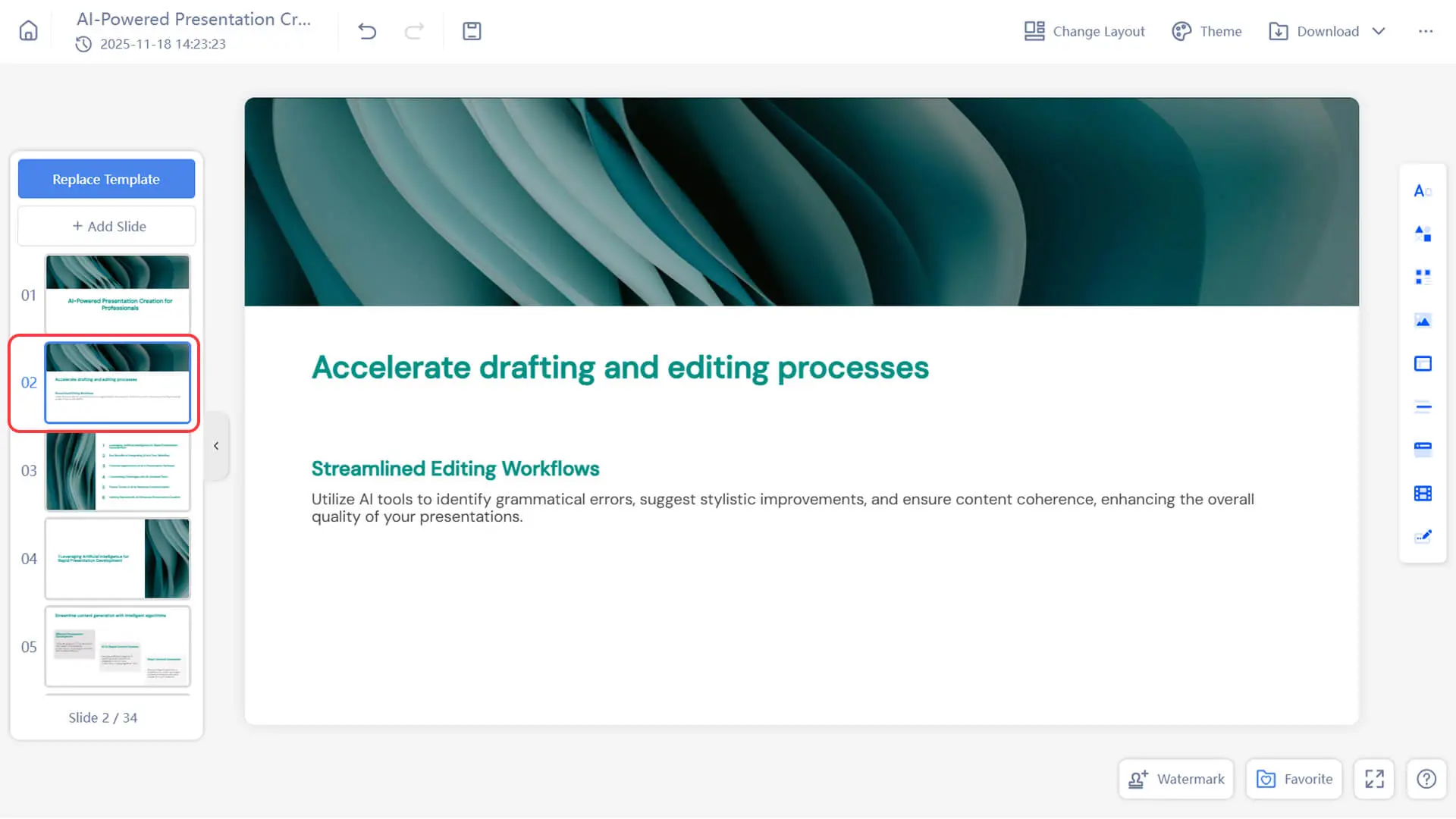
Step 3: Insert Slide
• Click the slide you want to insert to add it to the current presentation.
How to manage and update your favorites?
Step 1: Go to the Favorites page
• Click the "+ Add Slide" button in the left slide preview bar.
Step 2: Browse and Operate on Collected Content
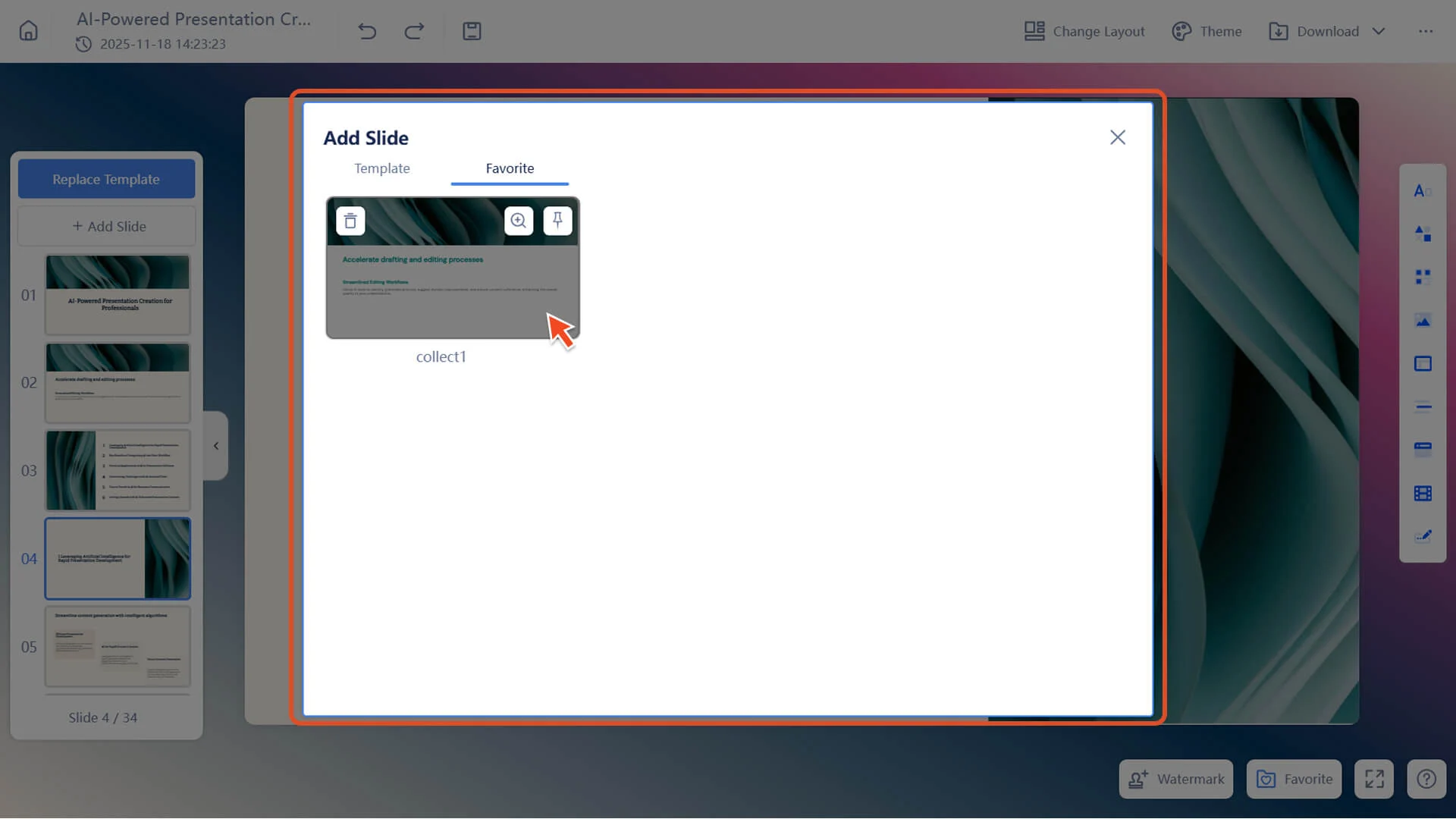
In the opened list of favorite slides, you can perform the following operations on the favorited slides:
1. Preview: Zoom in to view content.
2. Delete: Remove unwanted collections. Deleting a collection will not affect the original master slide.
3. Pin: Move the frequently used slide to the top of the list.
Step 3: Update the saved slides
• Modify content on the master slide.
• Click the uploaded icon again to upload, and the system will overwrite the original collection.
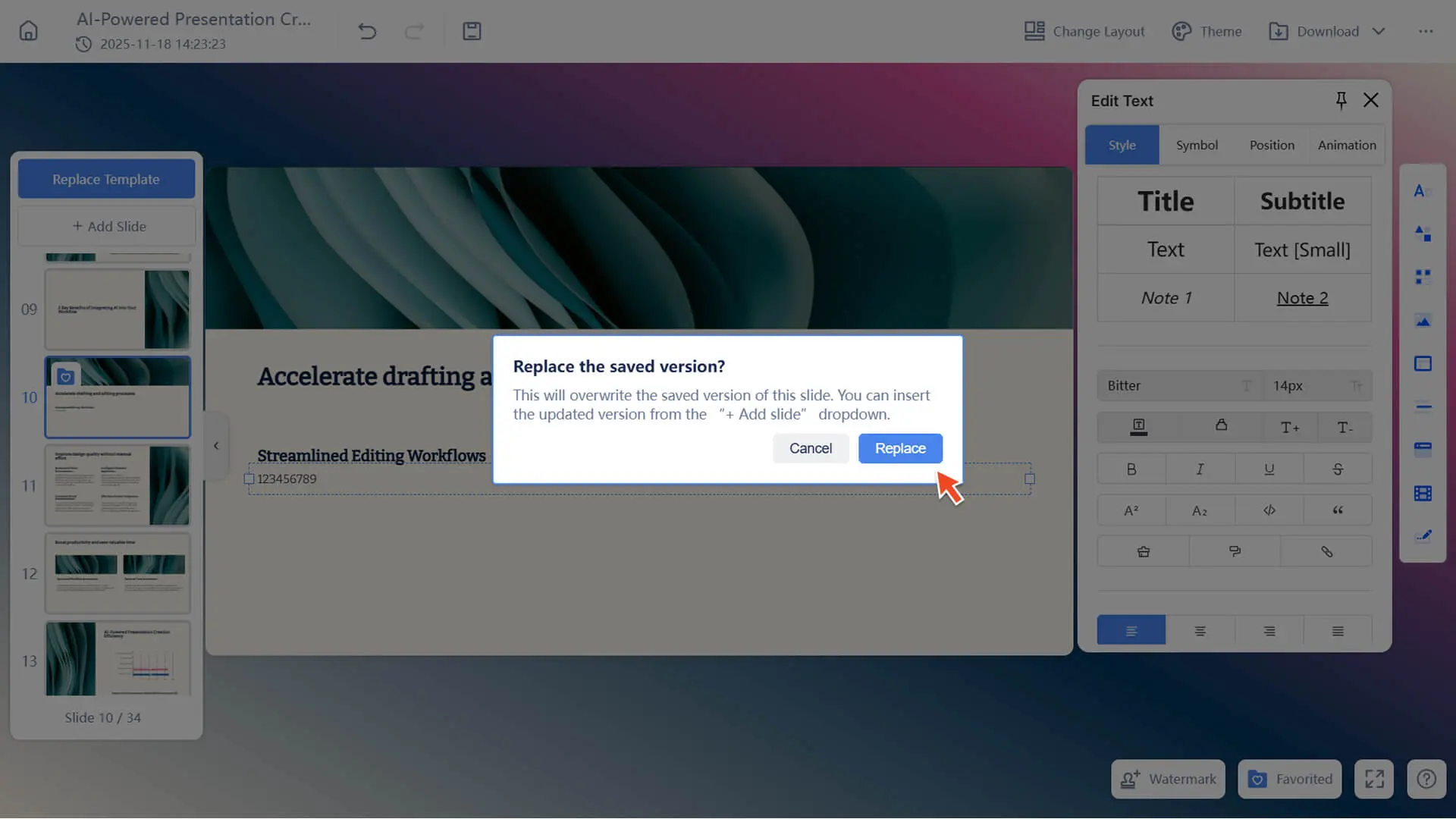
• Collections can only be updated when only the master version exists; duplicate or old versions cannot overwrite. After the master version is deleted, collections cannot be updated unless the master version is restored through version history.
• If a collection item is removed, clicking Upload will generate a brand new collection record.
Frequently Asked Questions
Will deleting a favorite affect the master template?
- • No. Deleting a favorite only removes the slide from the favorites folder and does not affect the original master or the slide in the presentation.
Why can't I update my collection?
- • The update function is only available when the master template exists; if the master template is deleted, the update function will no longer be available.