


How to use slide templates?
Updated over 2 months ago
How to use templates?
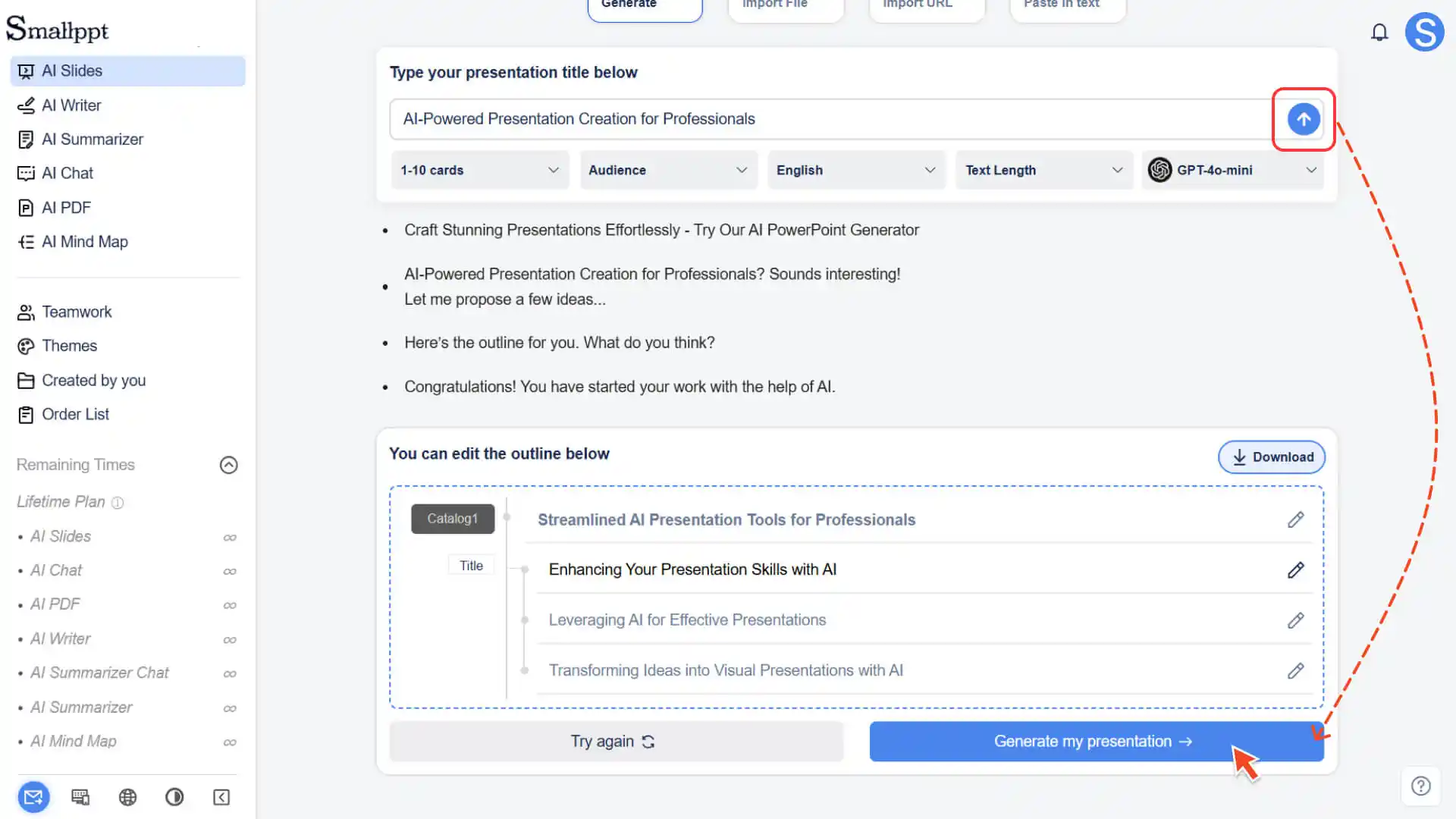
Step 1: Create a new presentation
1. Create a new presentation in Smallppt. After generating the outline
2. On the Select Workflow page, select "Instant Slides"
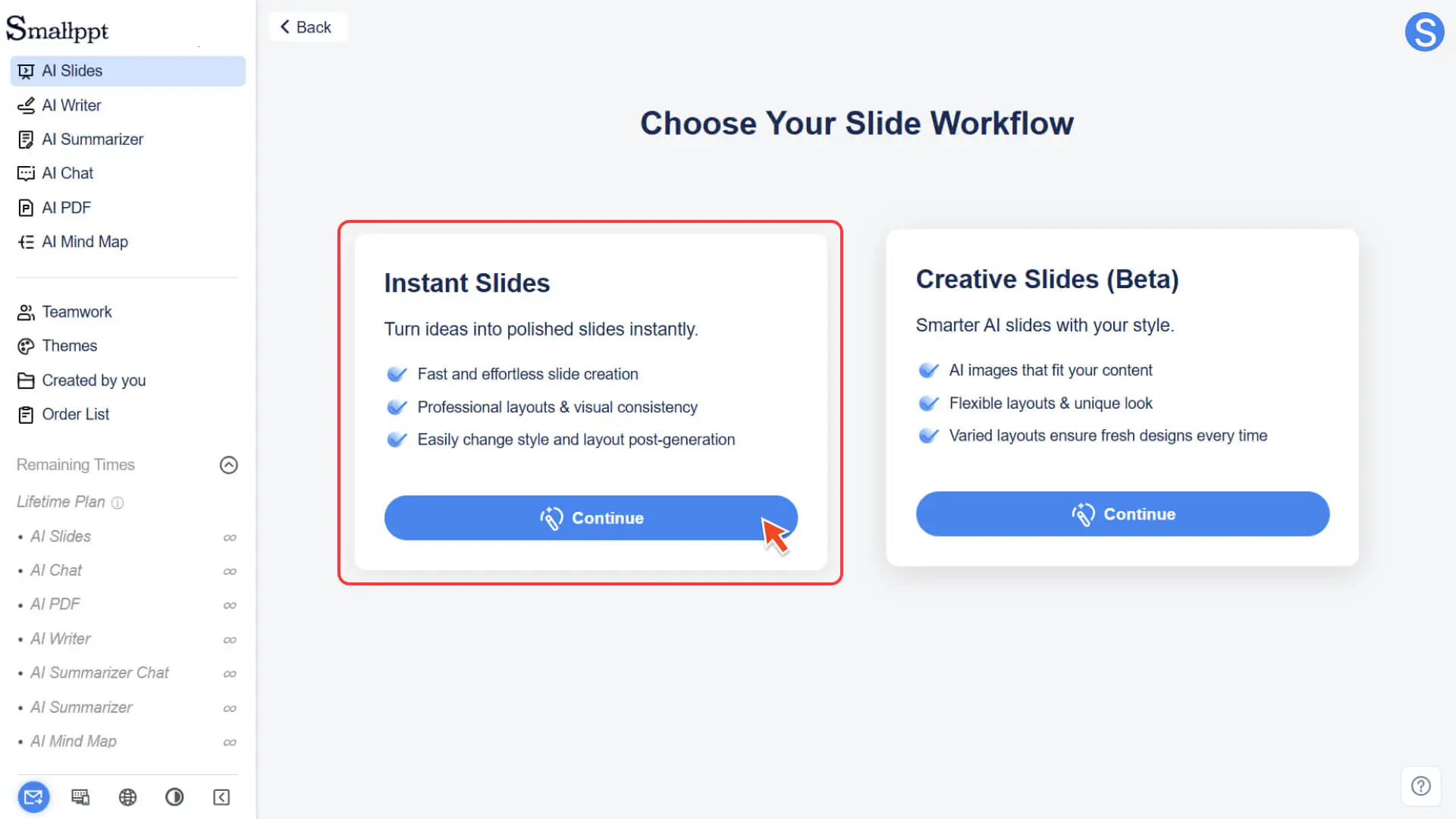
3. The system will automatically enter the slide template library, where all templates are standard 16:9 static slides
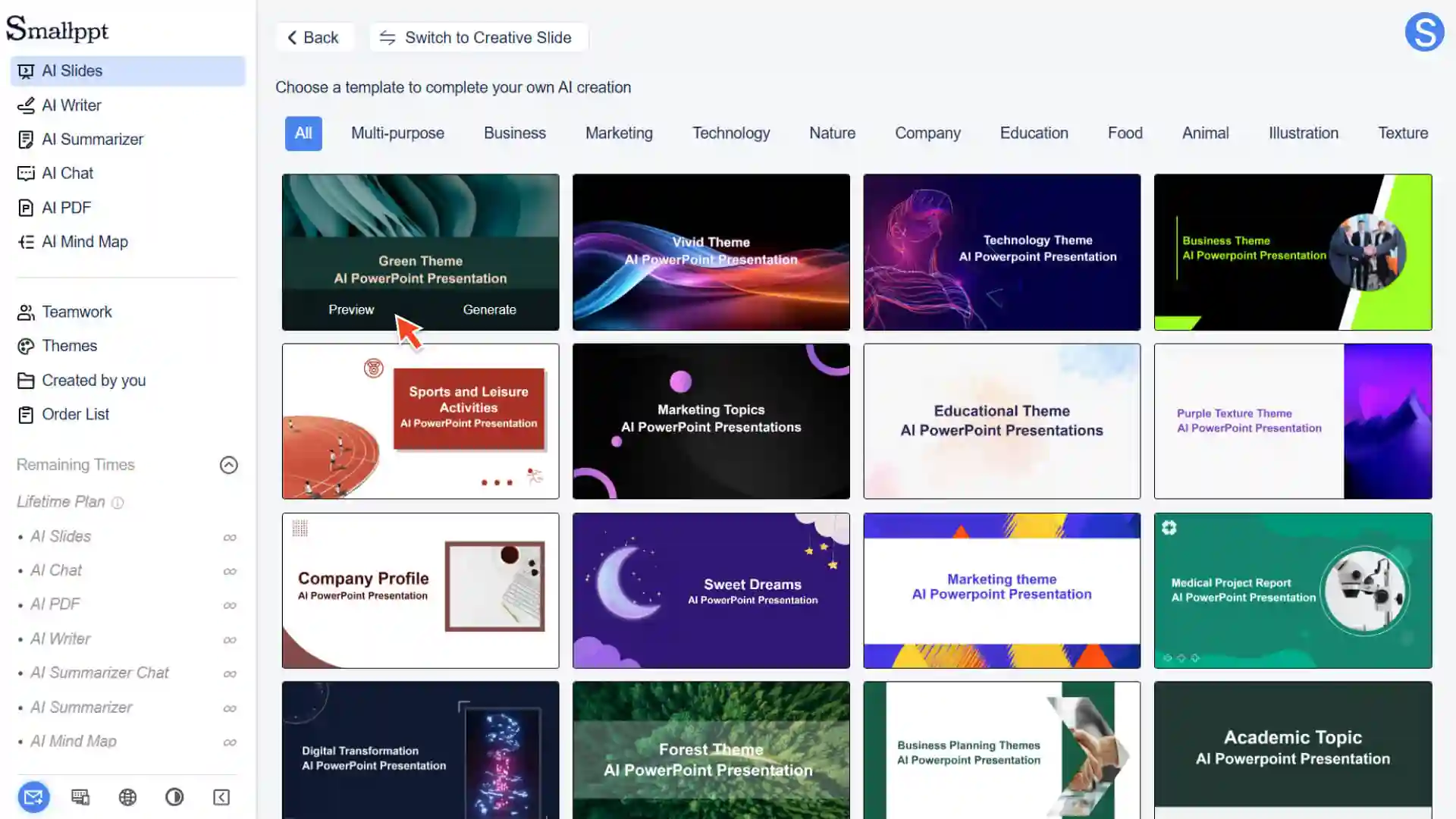
Step 2: Select a template that suits you
- After entering the template library, you can:
- • Browse all template categories (such as business, education, technology, minimalism, nature, etc.)
- • Click any template to view the preview
• View the page types included in the template (such as title page, table of contents page, content page, text and image page, etc.)
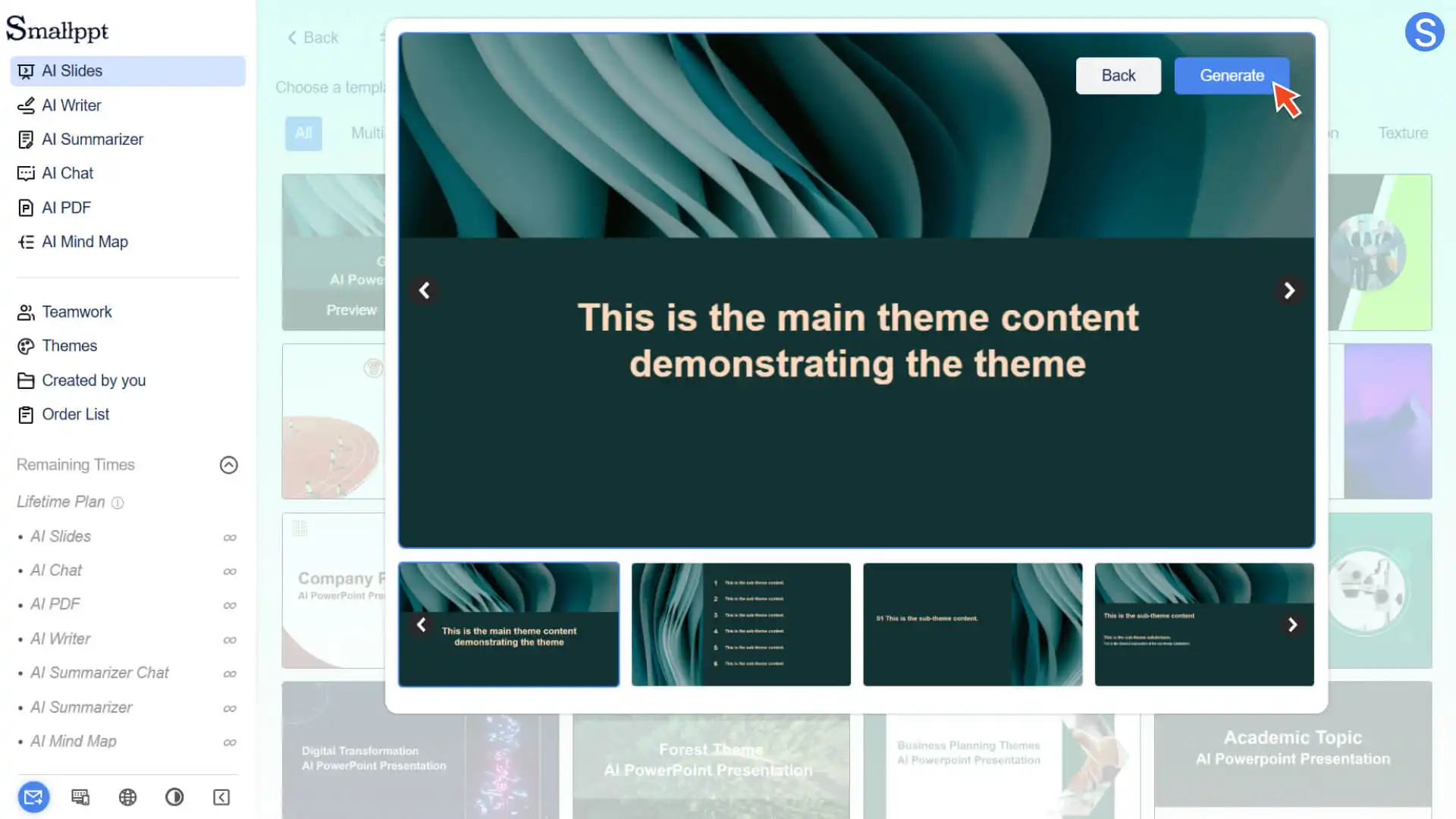
Step 3: Apply Template
- 1. Select a favorite template
- 2. Click "Generate"
- 3. Smallppt will generate a presentation with a default structure based on this template
- 4. You can modify content, delete pages, adjust order, and append more layouts
Step 4: Continue adding template pages
1. Click "+ Add Slide" in the slide preview bar on the left
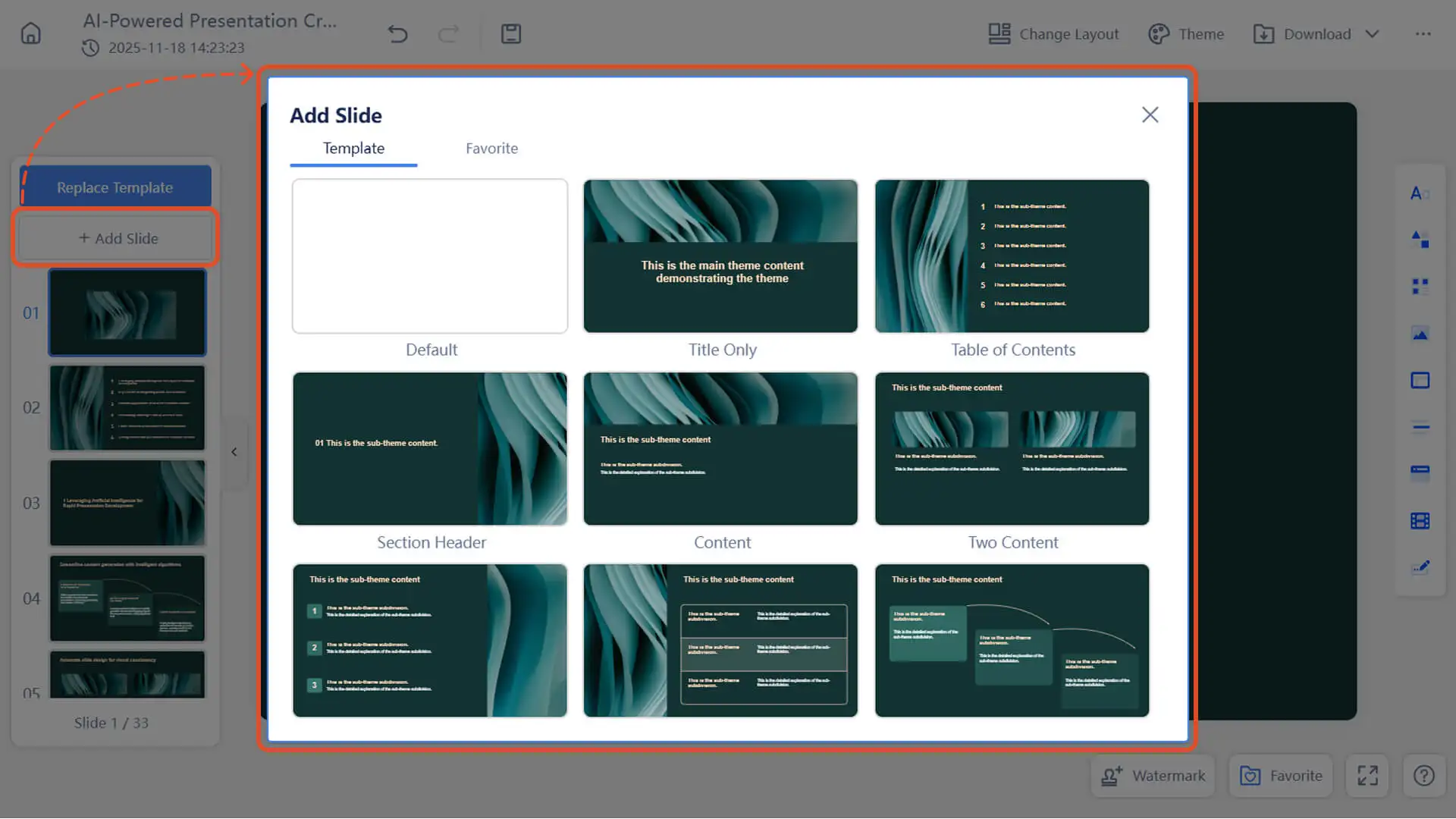
- 2. Select different layouts (title page, two-column content page, text and image page, etc.) of the corresponding template
- 3. The newly added page will automatically maintain the same style and format as the current template
Common Operation Techniques
✔ Replace template (without affecting content layout)
- If you want to change the overall style:
1. Click "Theme" in the menu in the upper right corner
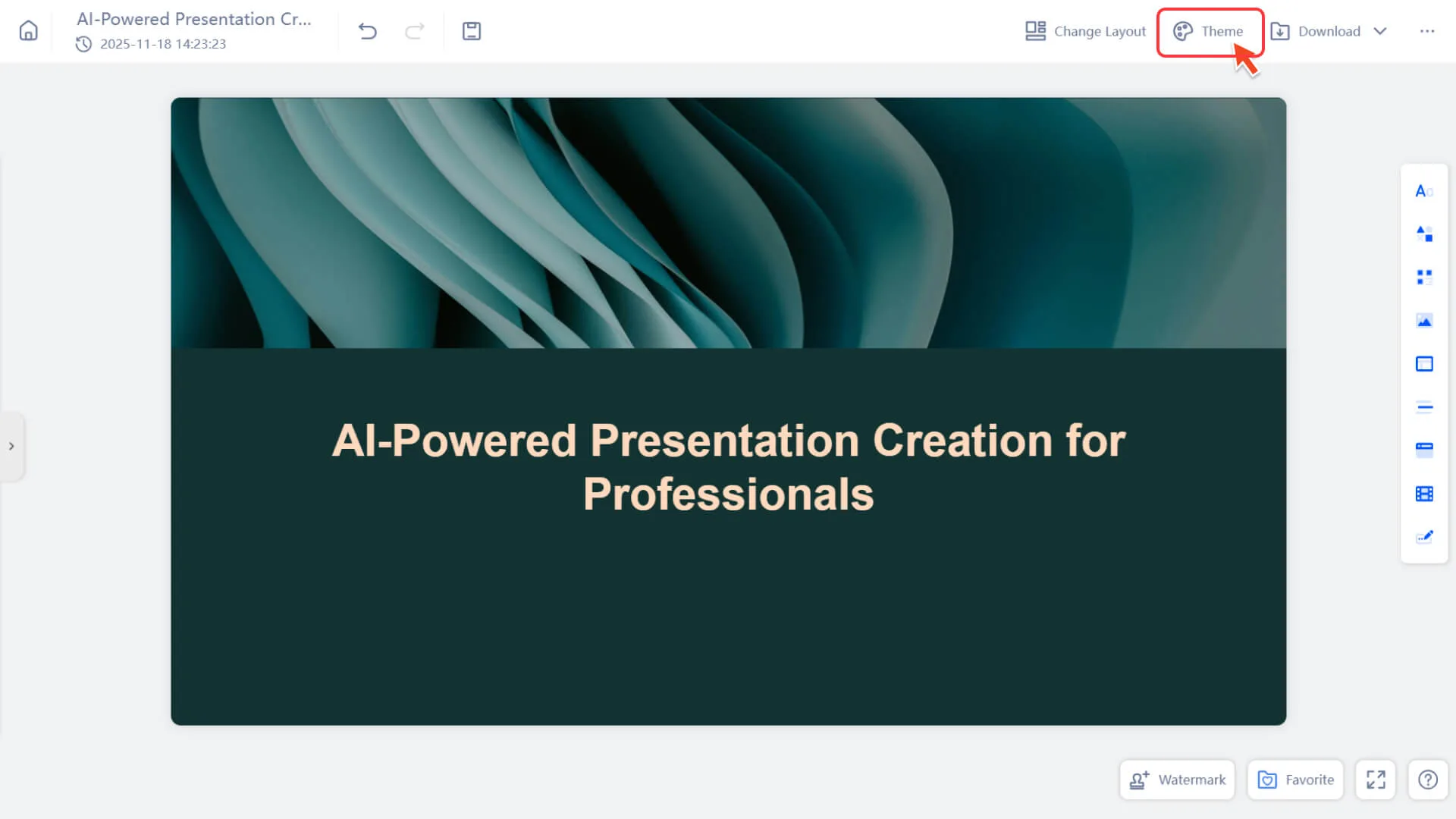
2. Switch to another template
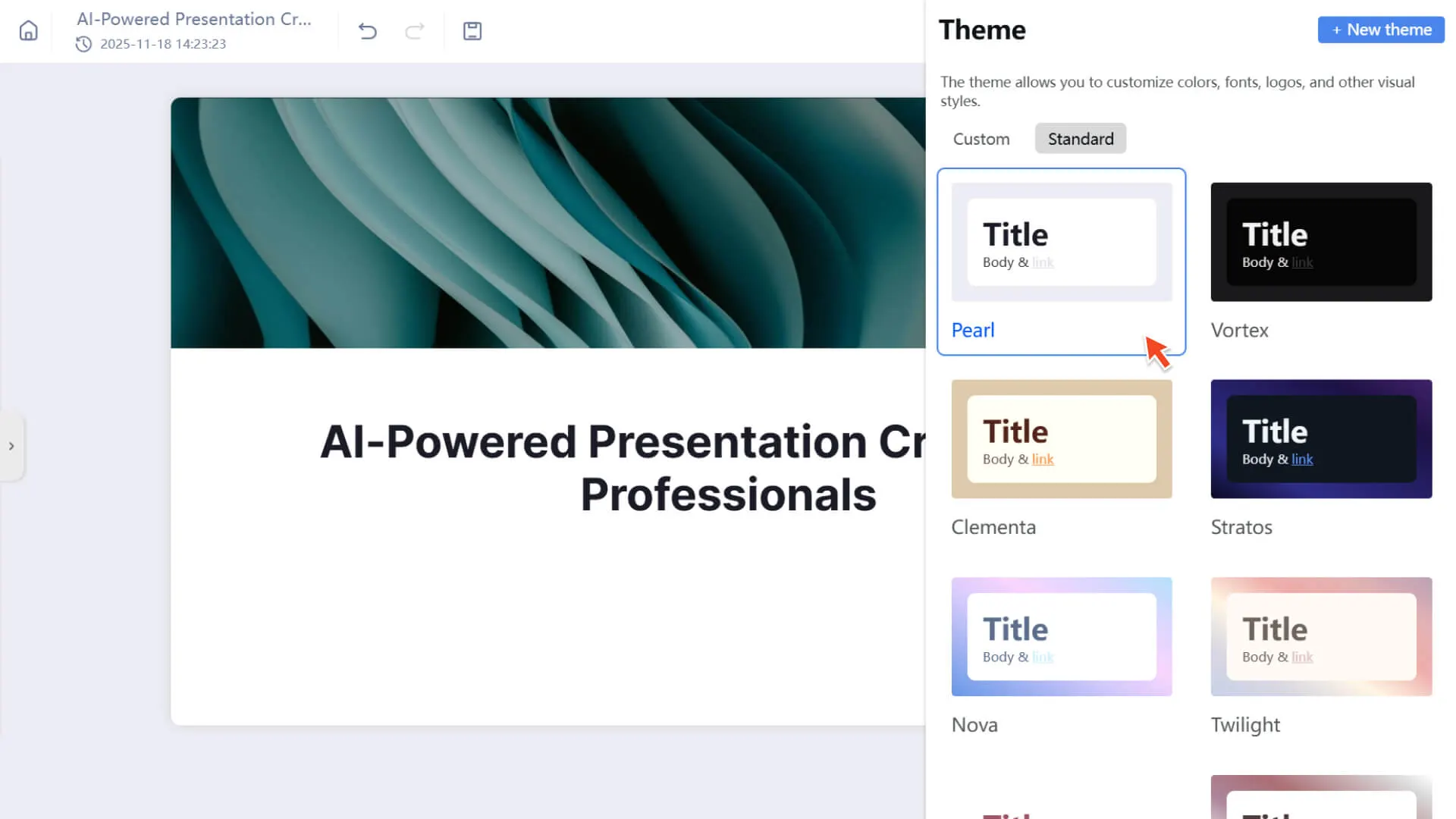
- 3. The content will be intelligently adapted to the layout of the new template (although complex layouts may require manual fine-tuning)
✔ The Difference Between Templates and Themes
| Slide Template | Theme Style |
|---|---|
| Determines the layout structure and overall visual style of the slide | Determines visual styles such as color, font, button style, etc. |
| Used when creating a presentation or replacing the global layout | Can be switched at any time during slide editing |
| will affect the content layout | Rarely affects content layout and adjusts color and font |
✔ Can the template be customized?
- Currently, the template structure is system-preset, but you can achieve the "custom template" effect through the following methods:
• Save frequently used presentations as "Favorites"
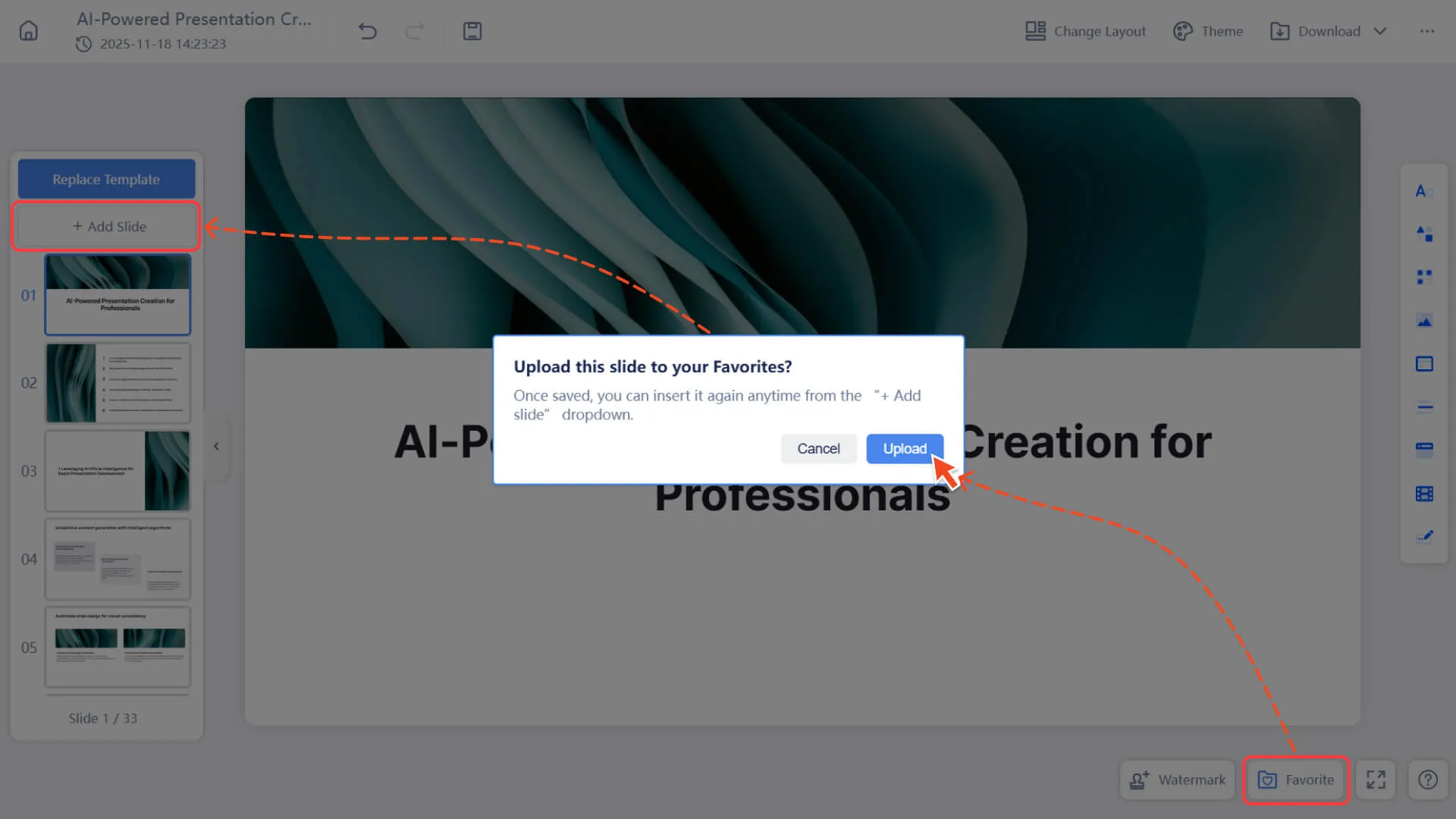
- • Use "Add from Collection" in the new project
- • Used as your custom base template
Frequently Asked Questions
Can the template be resized?
- • No. All slide templates in Smallppt are in the standard 16:9 aspect ratio. However, you can choose the creative slide mode that is not restricted by traditional dimensions.
Can the content still be freely modified after using the template?
• Yes. The template only affects the initial layout, and you can:
◦ Add or remove elements
◦ Adjust text, images, and illustrations
◦ Replace background or style
Can I mix multiple templates in the same presentation?
- • To maintain a consistent style and avoid visual inconsistencies, we will not provide the function of mixing multiple templates for the time being.
- • If needed, you can achieve a mixed effect by using "Add Blank Page" + "Custom Layout".
Will there be a difference between the template preview and the actual effect?
- • No. The preview is the final effect of actual use.