


How to quickly export Smallppt presentations in different formats?
Updated over 2 months ago
How to quickly export in the format you want?
Step 1: Enter the presentation and open the download panel
1. Open the presentation you want to download and enter the editing page.
2. On the top navigation bar of the editing page, find and click the "Download" button.
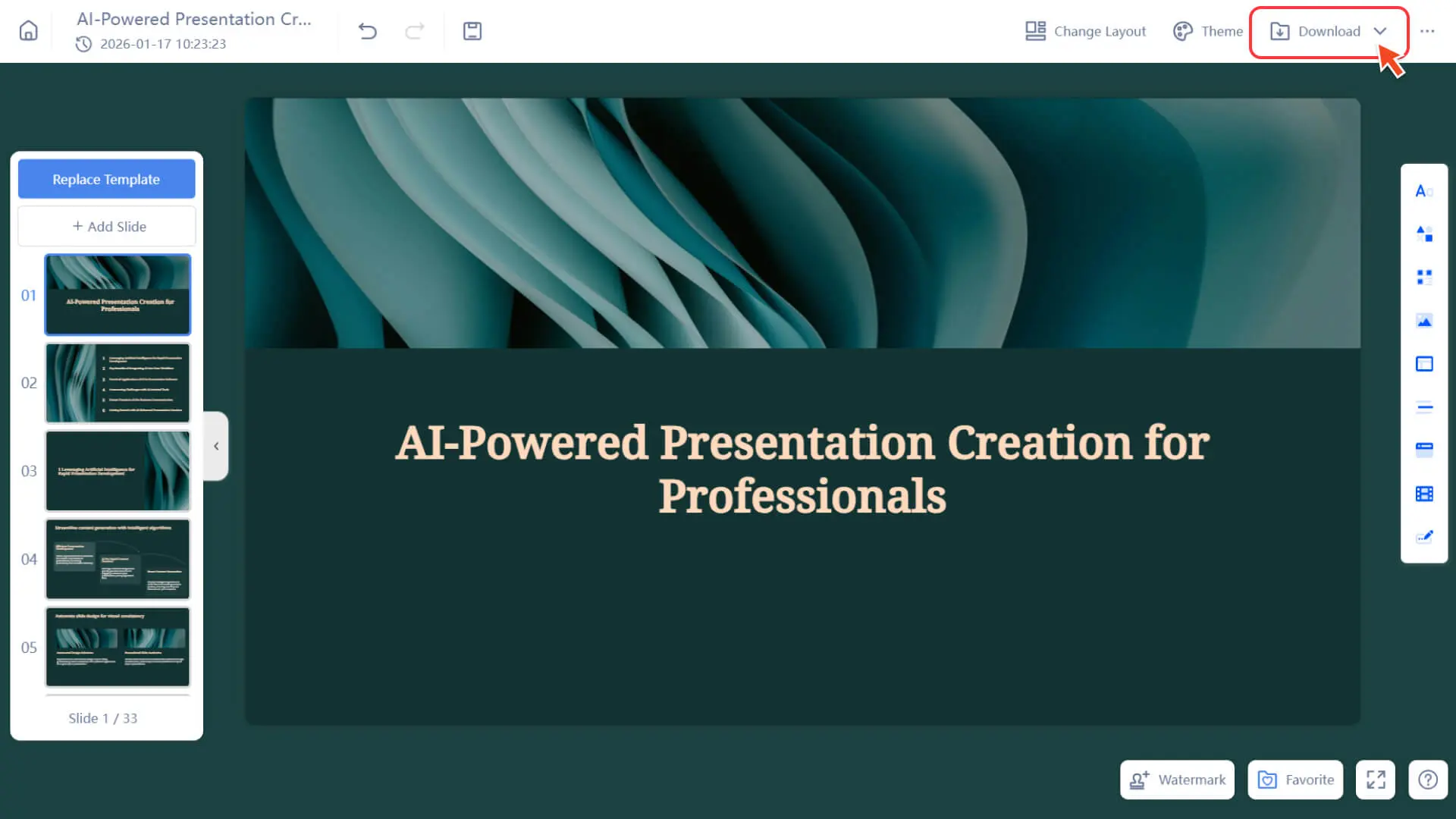
3. The system will pop up a download options panel, displaying the available export formats (such as PDF, PPTX, etc.).
4. You can view the description of each format in the panel and prepare to perform the download operation.
Step 2: Select the export format you need
• PPTX: Export as a PowerPoint file for easy secondary editing.
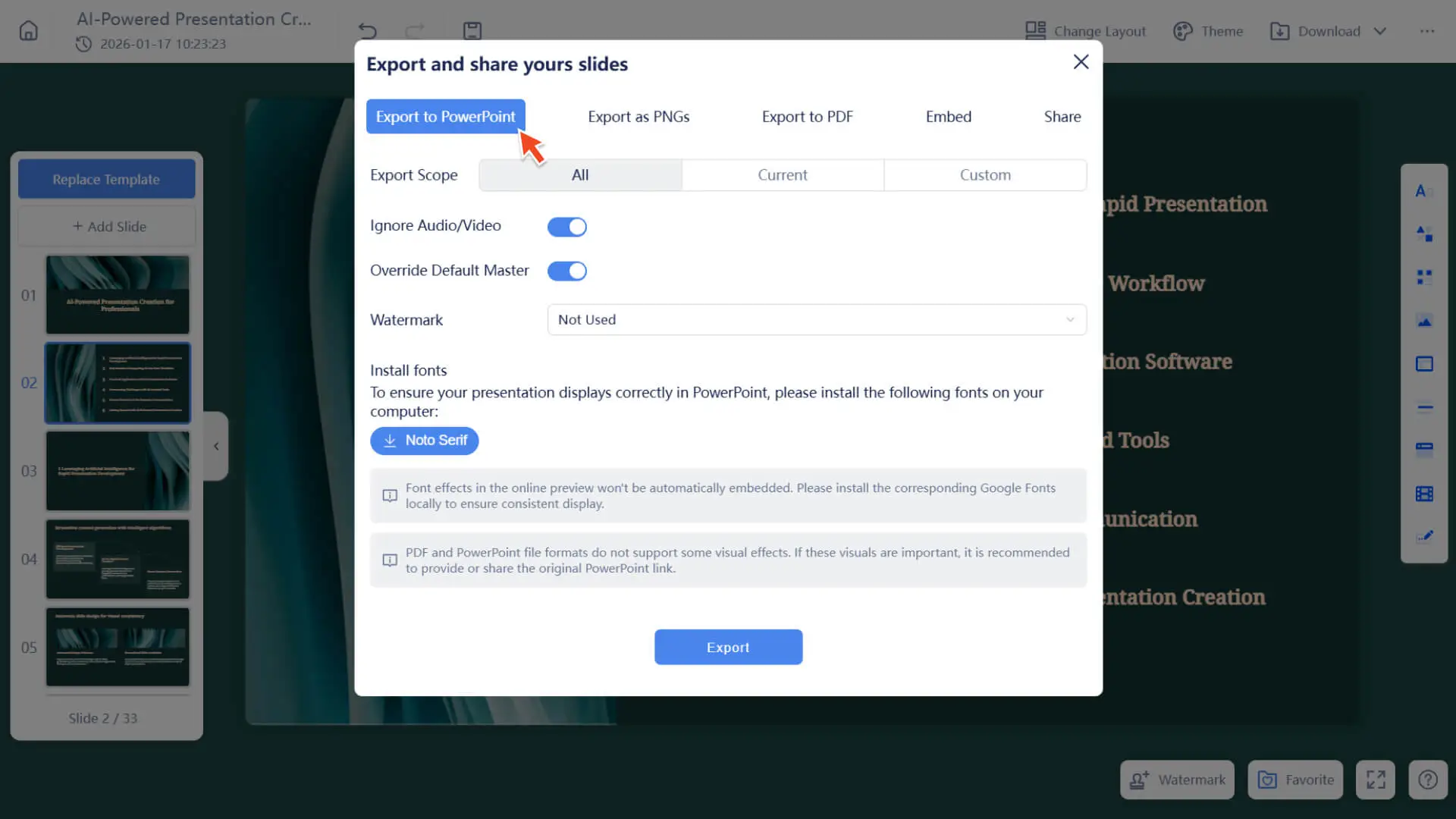
• PDF: Export as a PDF file, suitable for sharing and printing.
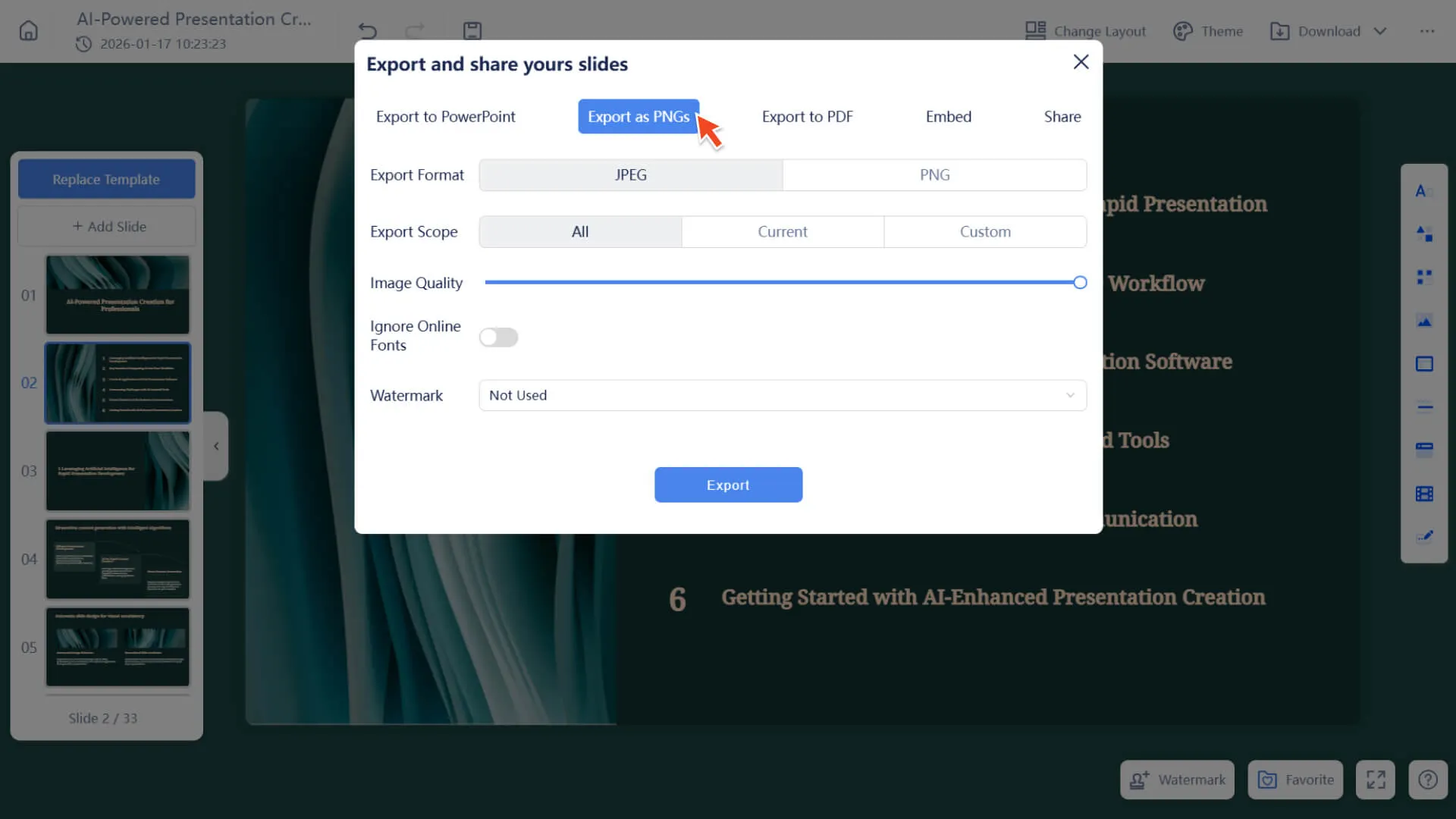
• JPG / PNG: Export as an image for easy use on web pages or in documents.
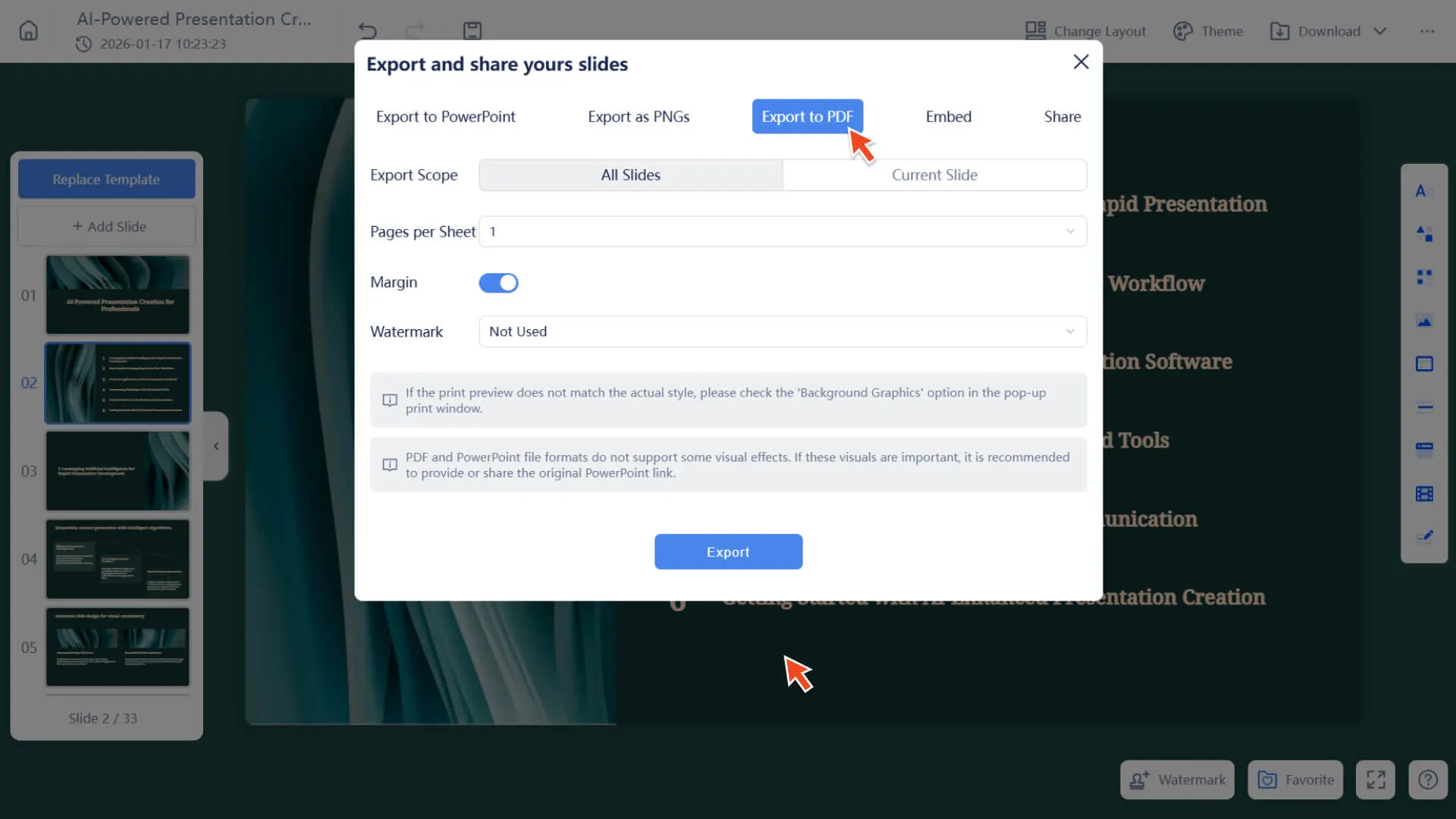
Step 3: After determining the export format, select the export scope
• All Pages: Export the entire presentation.
• Current Page: Only export the slide currently being edited.
• Custom Pages: Manually select the slide page numbers to be exported.
Step 4: Download the file
• After selecting the format and range, click the Export button.
• The system will generate a file and automatically download it to your device.
Frequently Asked Questions
Will the exported file remain unchanged?
- • We will restore the brilliance of your design to the greatest extent possible. However, in some cases, the exported files may exhibit minor formatting differences. For example, if your device does not have the special fonts used in the cloud installed, the system will automatically substitute them with the default fonts to ensure the integrity of the content.
Can I export only some pages?
- • Yes, you can export the specified slides by selecting the custom page option and entering the desired page numbers.
Does the exported PDF support printing?
- • Supported, the system will maintain the size and layout of the slides, suitable for printing or offline sharing.
What is the difference between JPG and PNG?
- • JPG files are small in size and suitable for sharing; PNG supports transparent backgrounds and is suitable for design purposes.