


How to add, edit, and format text in Smallppt?
Updated over 2 months ago
How to add text in Smallppt?
Step 1: Select the card to edit
- • Open your Smallppt presentation.
- • Click on any card to enter edit mode and modify the content of that card.
Step 2: Add a text box
Method 1: Double-click directly on the card to enter content
• Double-click on the blank area of the card to automatically generate a text box and start typing.
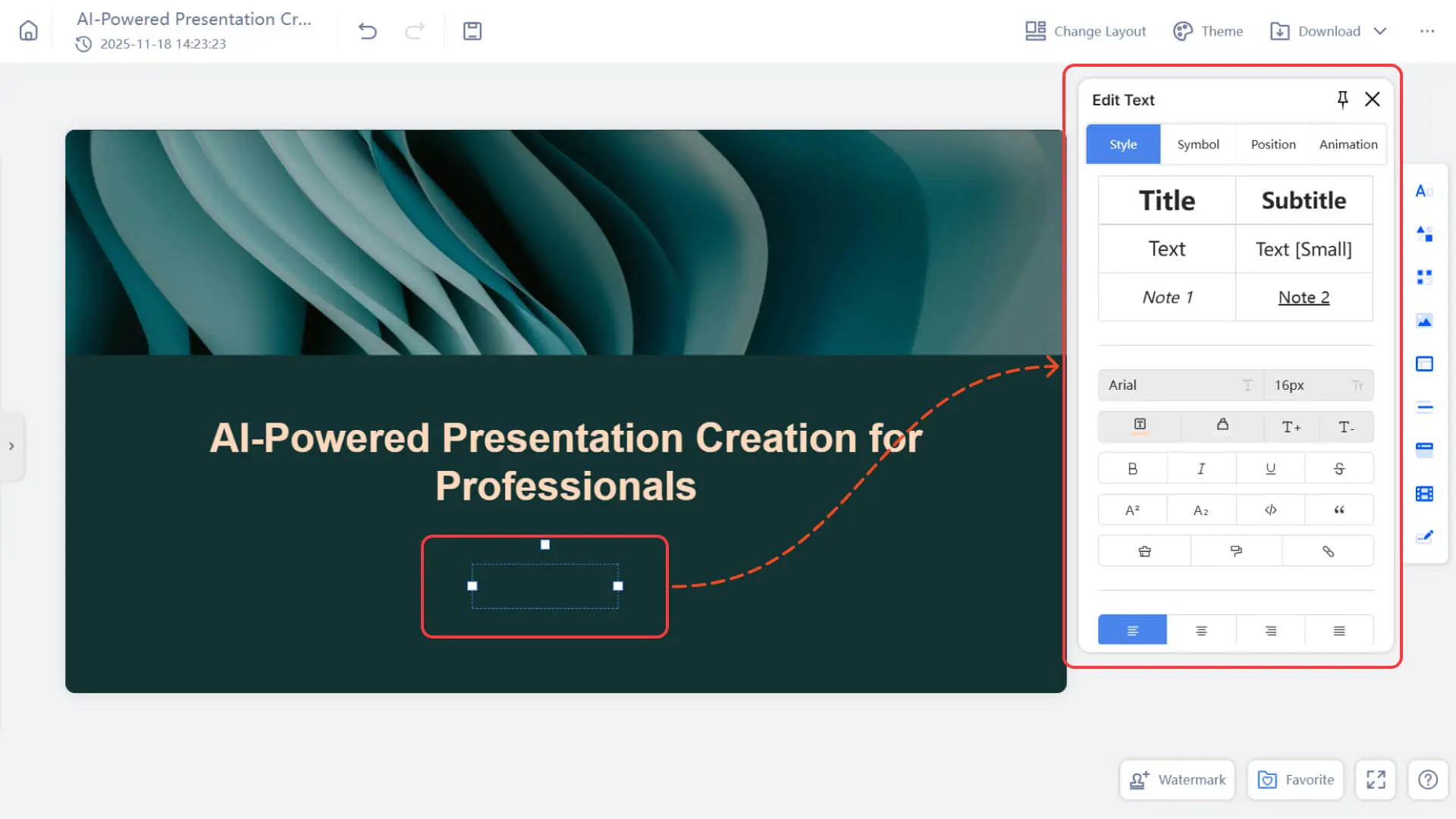
• This method is suitable for quickly adding content such as body text and titles.
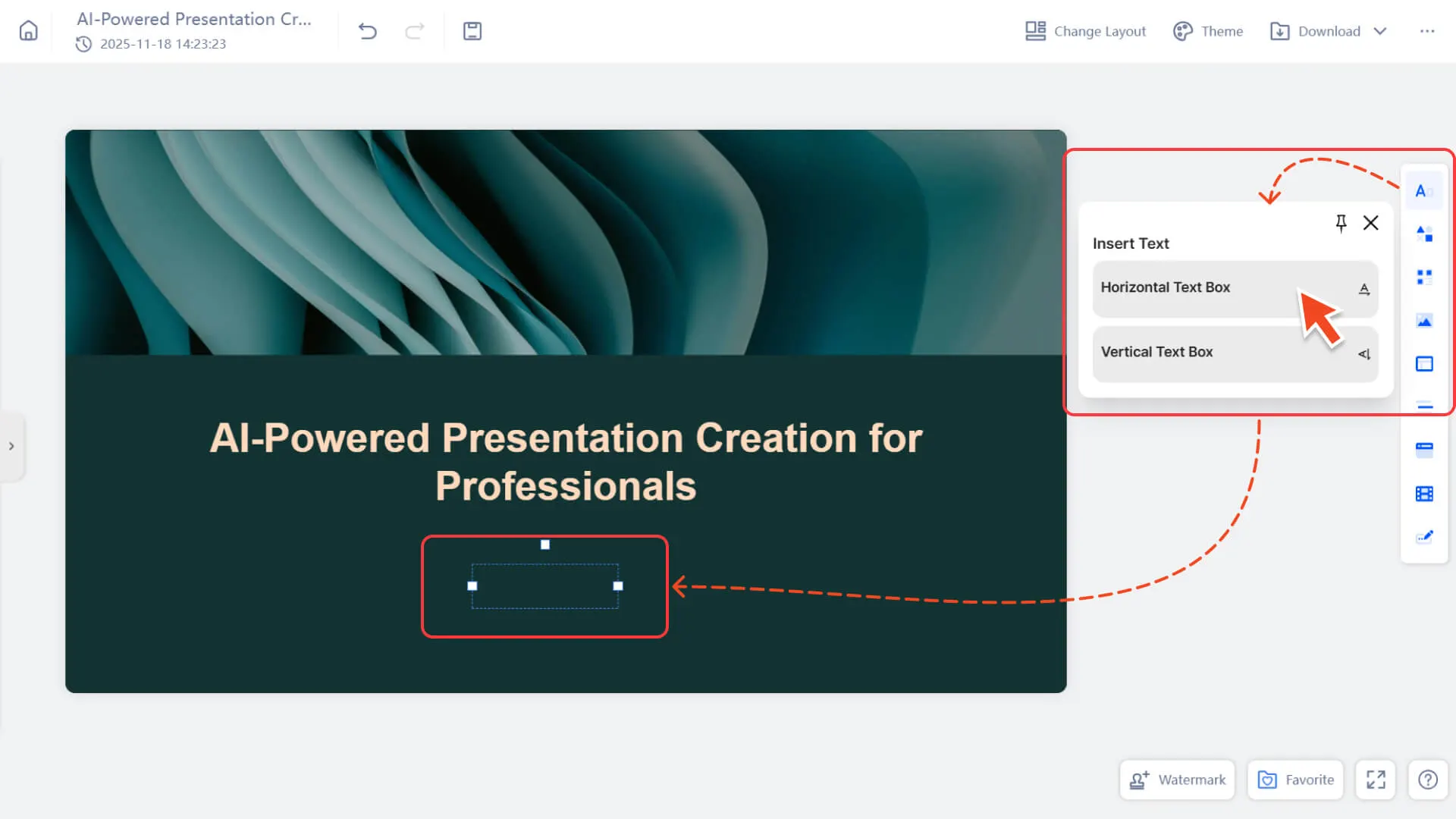
Method 2: Add text by inserting a navigation bar on the right side
• Select "Text" in the "Insert" navigation bar on the right.
• After clicking, a text box will be generated anywhere on the page, and you can start entering content.
How to edit text in Smallppt?
Step 1: Select the card to edit
- 1. Open your Smallppt presentation.
- 2. Select any card from the left card list to enter the editing canvas of that card.
Step 2: Click on the text to be edited
1. Click on the text area on the page to directly start editing the content.
• There is no need to create additional text boxes; all text in the template can be directly clicked and modified.
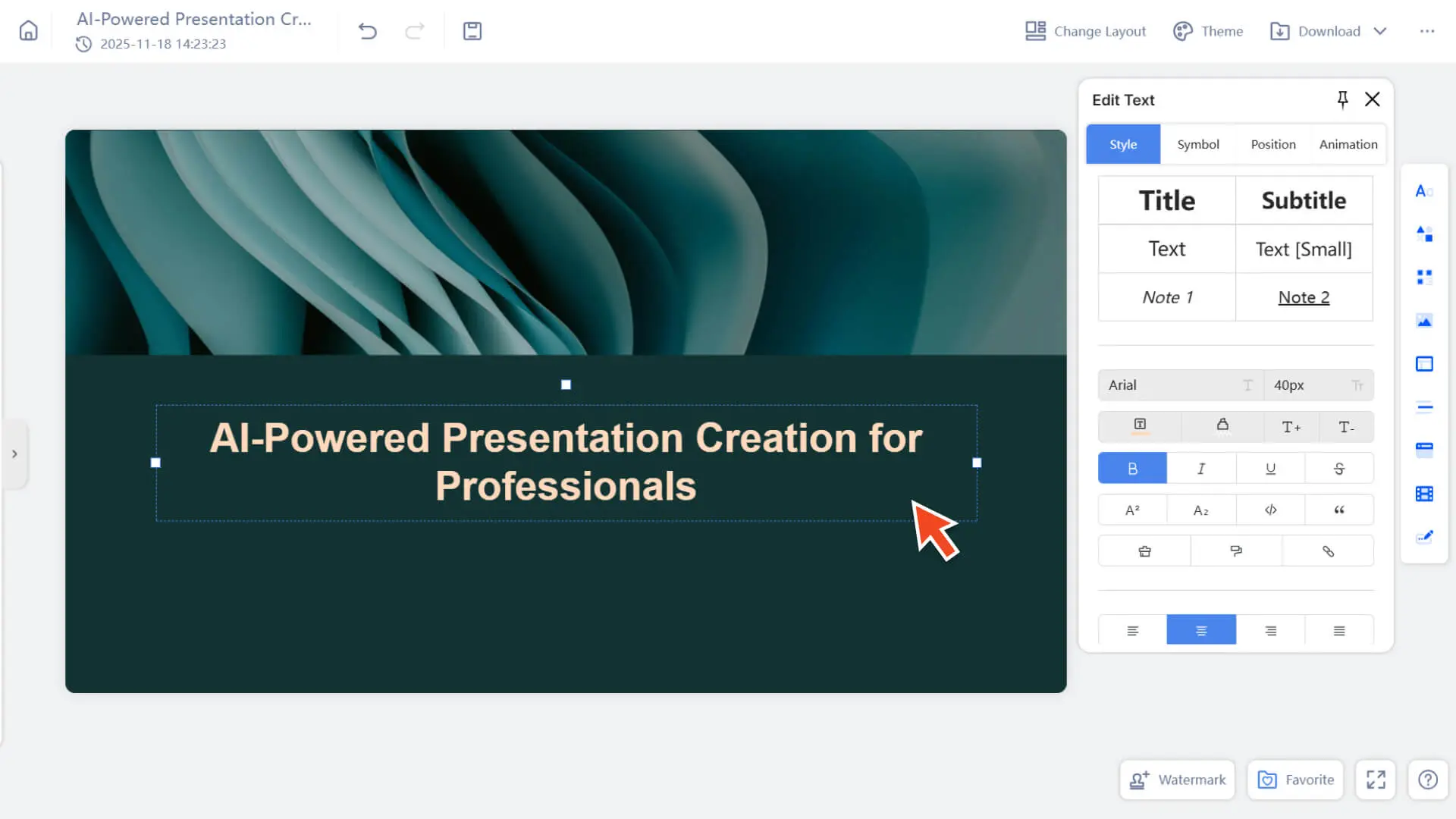
2. If there is no text in the card, you can:
• Simply double-click anywhere on the canvas to create a new text paragraph and start typing content.
How to set text styles in Smallppt?
Option 1: Set text style
- 1. Select the text to format.
- 2. A text formatting menu will automatically appear next to it.
| Tool | Instructions |
|---|---|
| Font Size | Adjust the text size to distinguish between title and body levels. |
| Text Color | Set colors to highlight key points or match the design theme. |
| Bold / Italic / Underline / Strikethrough | Common text decoration used to emphasize content. |
| Alignment | Three types of layout: left alignment, center alignment, and right alignment. |
| Use lists and reference blocks | • Using Lists: Select the text, then choose a bulleted list or numbered list from the text settings menu. • Quotation Block: Select the text and choose "Quotation" from the menu. |
| Add Link | 1. Select the text to which you want to add a hyperlink. 2. Click "Insert Link" in the text formatting menu. 3. Enter the URL and confirm. |
| Format Brush | If you have adjusted a section of text to your desired style (font/color/line spacing, etc.) and want another section of text to maintain the same effect, you can use the Format Brush to complete it with one click: 1. Select text with an existing style 2. Click the Format Brush in the right toolbar 3. Then click on the text you want to apply the style to, and you can immediately complete the style copy, eliminating the hassle of adjusting each item one by one |
| Line Spacing / Paragraph Spacing | Make the text breathe more naturally and have a clearer hierarchy. |
| Text Shadow | Enhances the sense of three-dimensionality, suitable for titles or key content. |
| Text Outline | Ensure that the font remains clear even on the image background. |
| Font Opacity | Lightweight text presentation that does not overshadow the Key Visual of the design. |
| Letter Spacing | Control the distance between words to optimize the aura and rhythm. |
| Tool | Instructions |
|---|---|
| Text Box Background Color (Background) | Adding a background to text makes it easier to read on complex backgrounds. |
| Border / Text Box Stroke (Stroke) | Add an outer border to the text box to make the structure clearer. |
Option 2: Insert Special Symbols
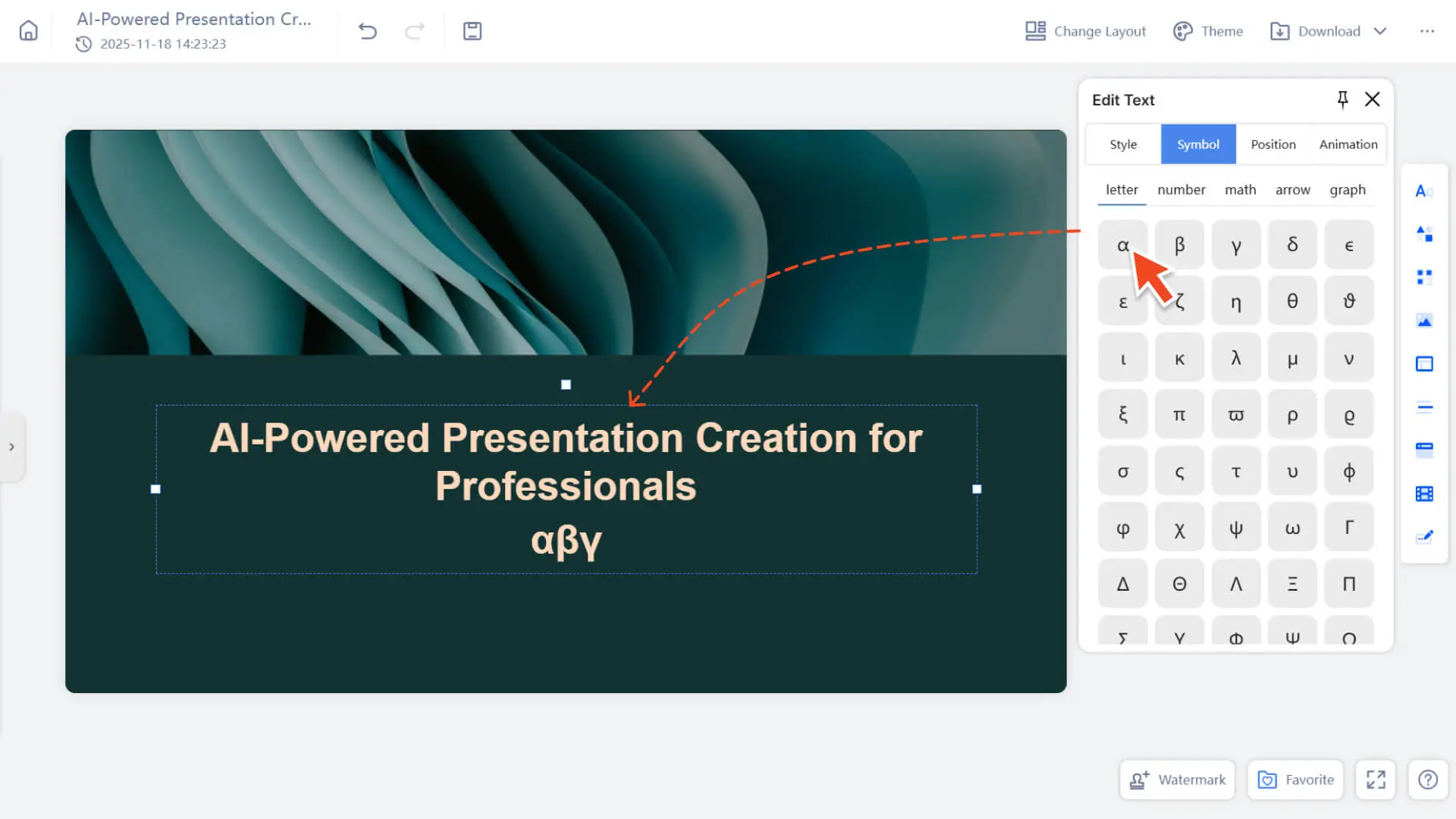
• When you need symbols that cannot be easily typed on the keyboard (such as mathematical symbols, arrows, currency symbols, etc.), you can use Smallppt's symbol library.
• Smallppt provides commonly used special symbols, which are divided into the following categories: Letter / Number / Math / Arrow / Graph
Insertion Method:
a. Click on the text area to enter the editing state
b. Find the Symbols tool on the right
c. Click on any symbol to insert it at the cursor position
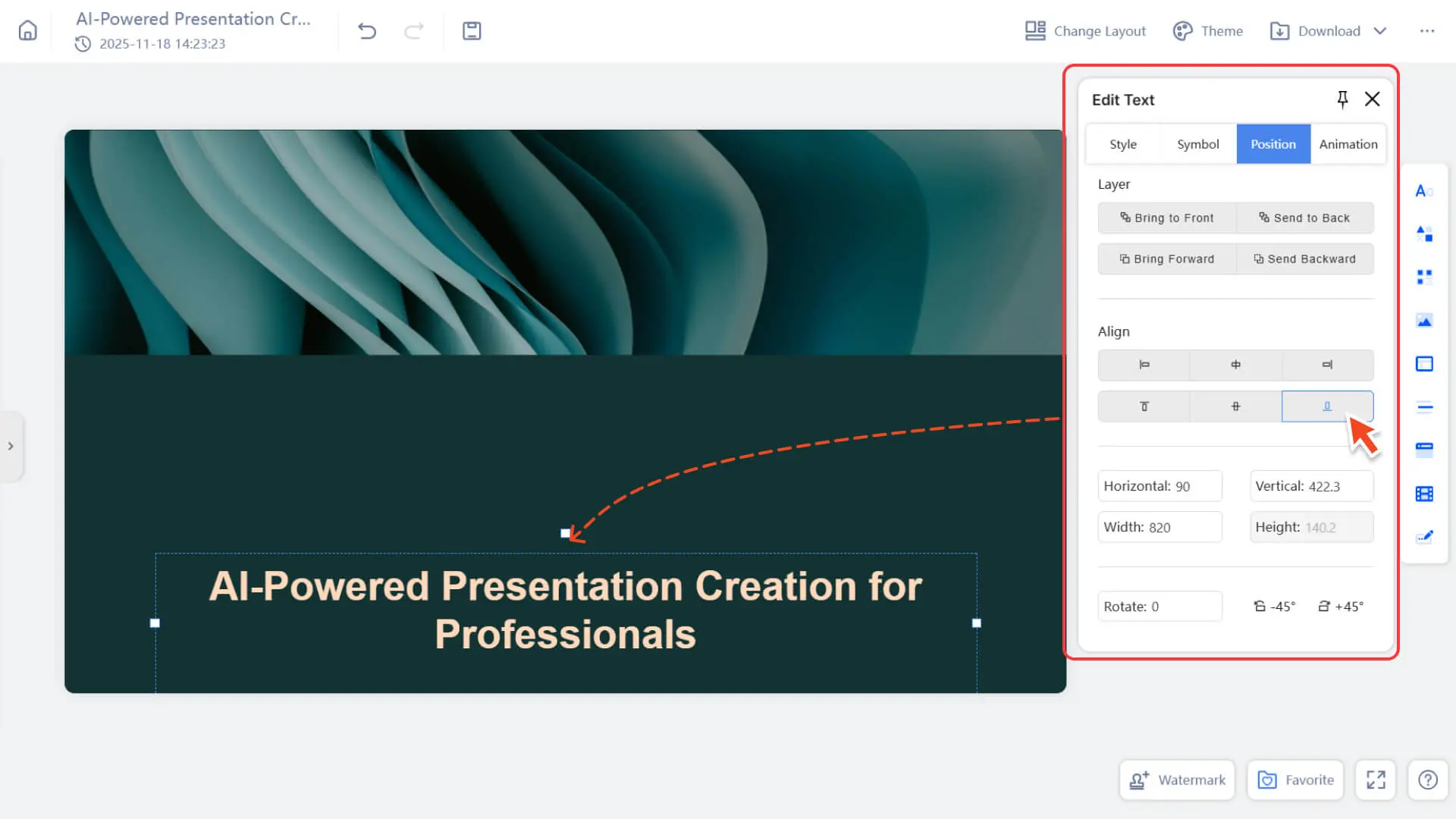
Option 3: Adjust Text Position
- • Drag to move the text box: freely position it
- • Use alignment tools: left / center / right, top / center / bottom
- • Element Distribution: Keep Multiple Text Blocks Equally Spaced
- • Lock: Avoid accidental touch and movement
• Hierarchy adjustment: Bring to Front / Send to Back, used for stacking with images or shapes
Option 4: Add Animation to Text
| Tool | Instructions |
|---|---|
| Fade In | Appears gently, the most common animation method. |
| Slide Up | Slide in from the bottom upwards. |
| Zoom | Presented in an enlarged manner, it has a dynamic impact. |
| Highlight Animation (Highlight) | is used to highlight a key point or title. |
- • For more information, please check:
Frequently Asked Questions
Can I adjust the styles of multiple text boxes at once?
- • Yes. You can hold down Shift to select multiple text boxes and then set the font, color, etc. uniformly.
Why can't the text box be edited?
- • May be locked, click "Unlock" to modify.
Can I customize the text color?
- • Yes! You can choose from existing colors or create a custom theme for more options.