


How to quickly change and customize your theme?
Updated over 2 months ago
How to change or customize the theme?
Modify Existing Standard Theme
Step 1: Enter the topic page
1. Log in to your Smallppt account and enter the dashboard
2. In the left navigation bar of the page, click Theme to enter the Theme Management page
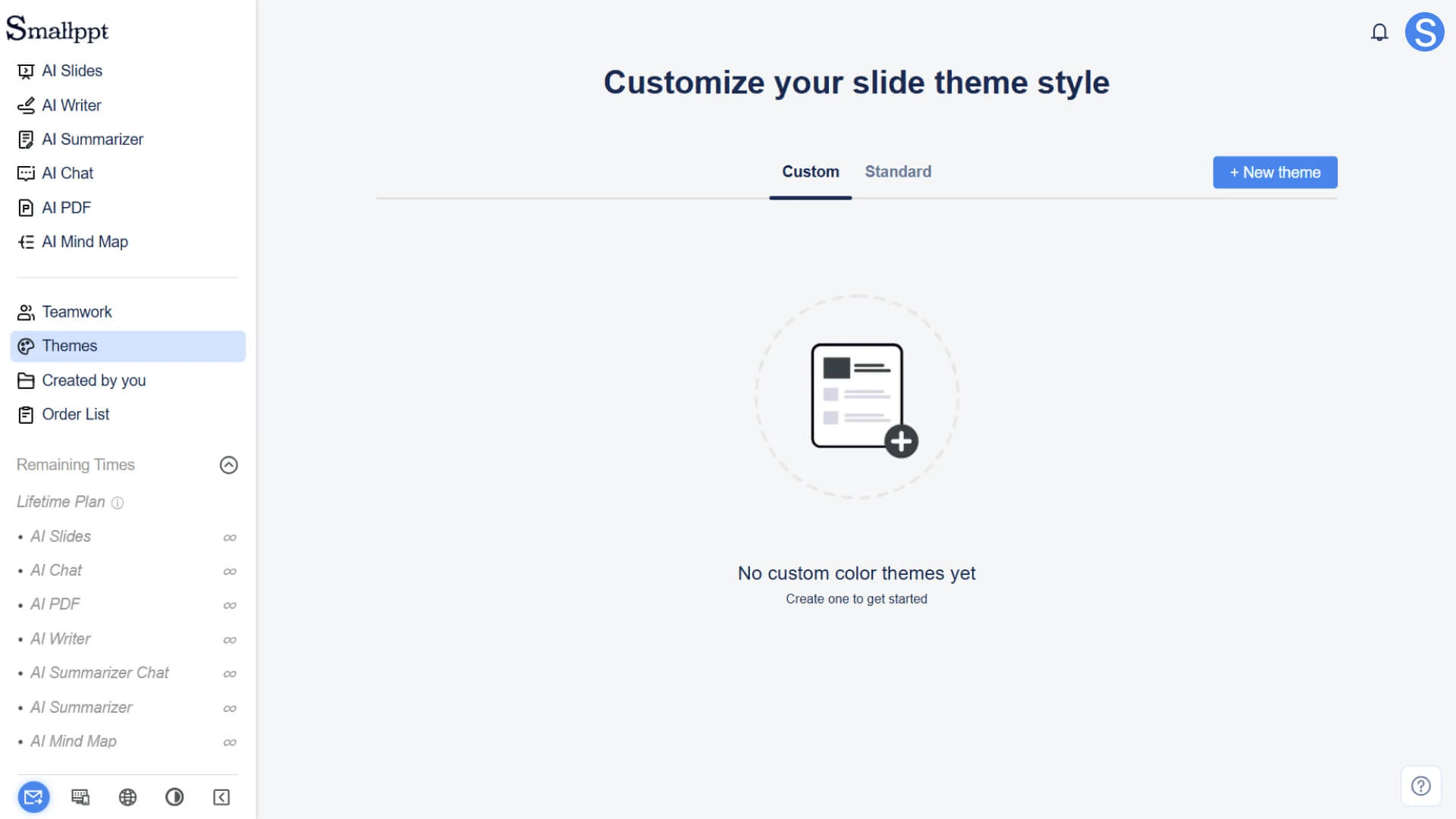
Step 2: Select the standard theme
1. On the theme page, you can see all the standard themes provided by the system
2. Hover the mouse over the topic you want to modify, and click to enter the editing page of that topic
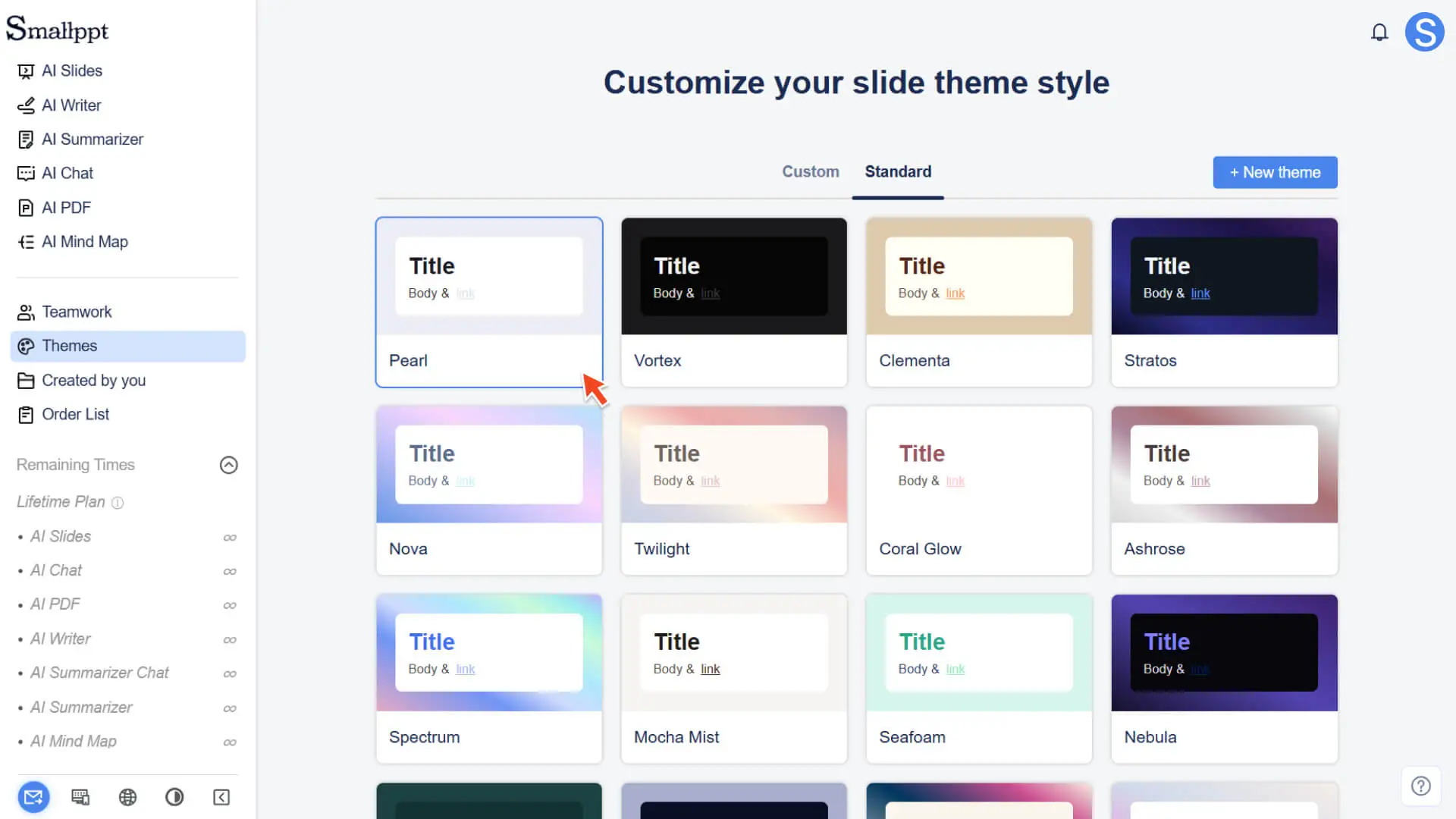
Step 3: Modify Theme Settings
On the theme editing page, you can adjust the following content according to your needs:
• Color: Adjust the primary color, secondary color, background color, etc., to unify the style of the slides
• Font: Set the font style for headings and body text
• Shape: Modify the style and color of the graphic
• Logo: Upload the logo and set its position and size
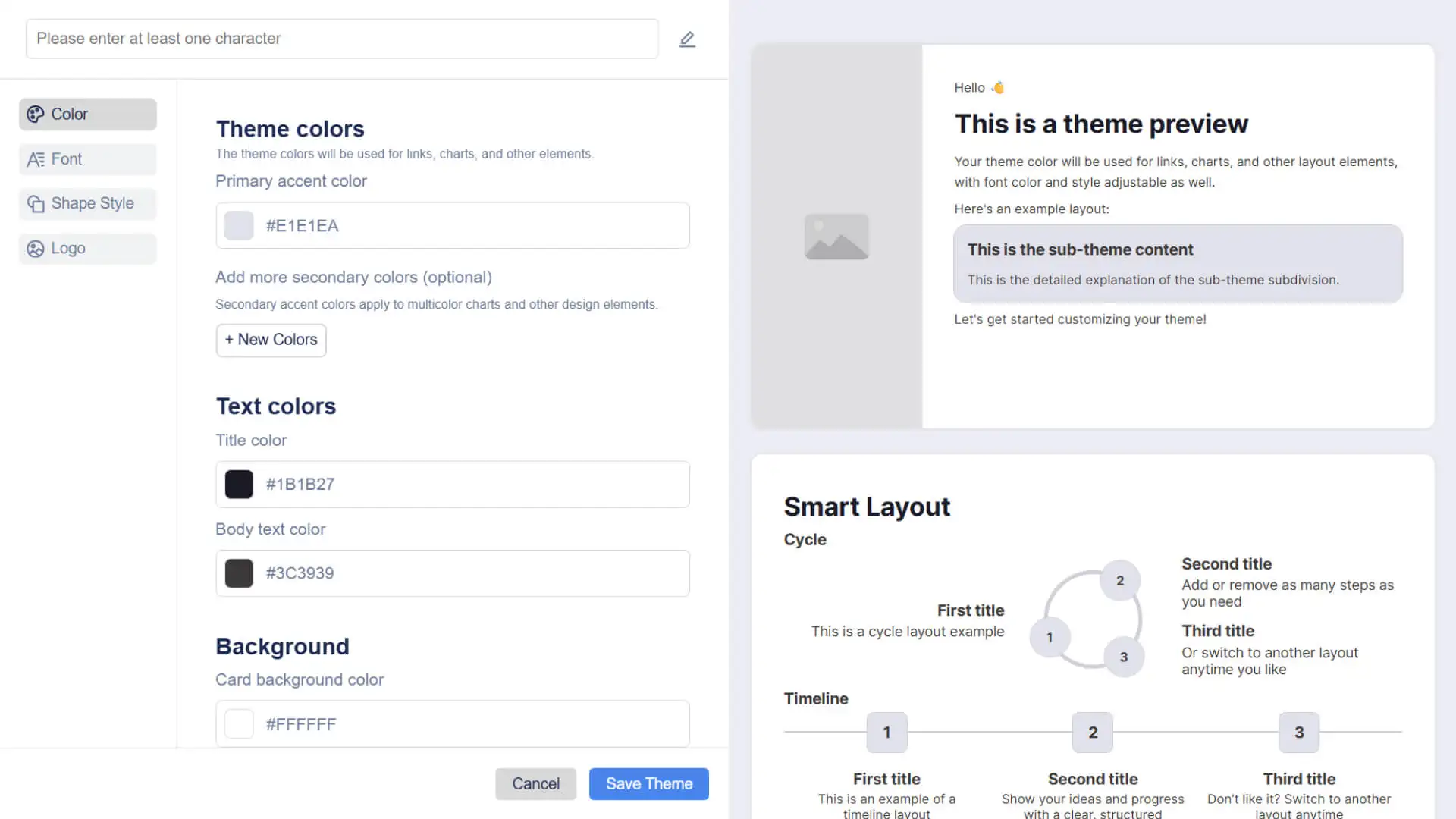
Step 4: Save as Custom Theme
1. After completing all settings, click Save
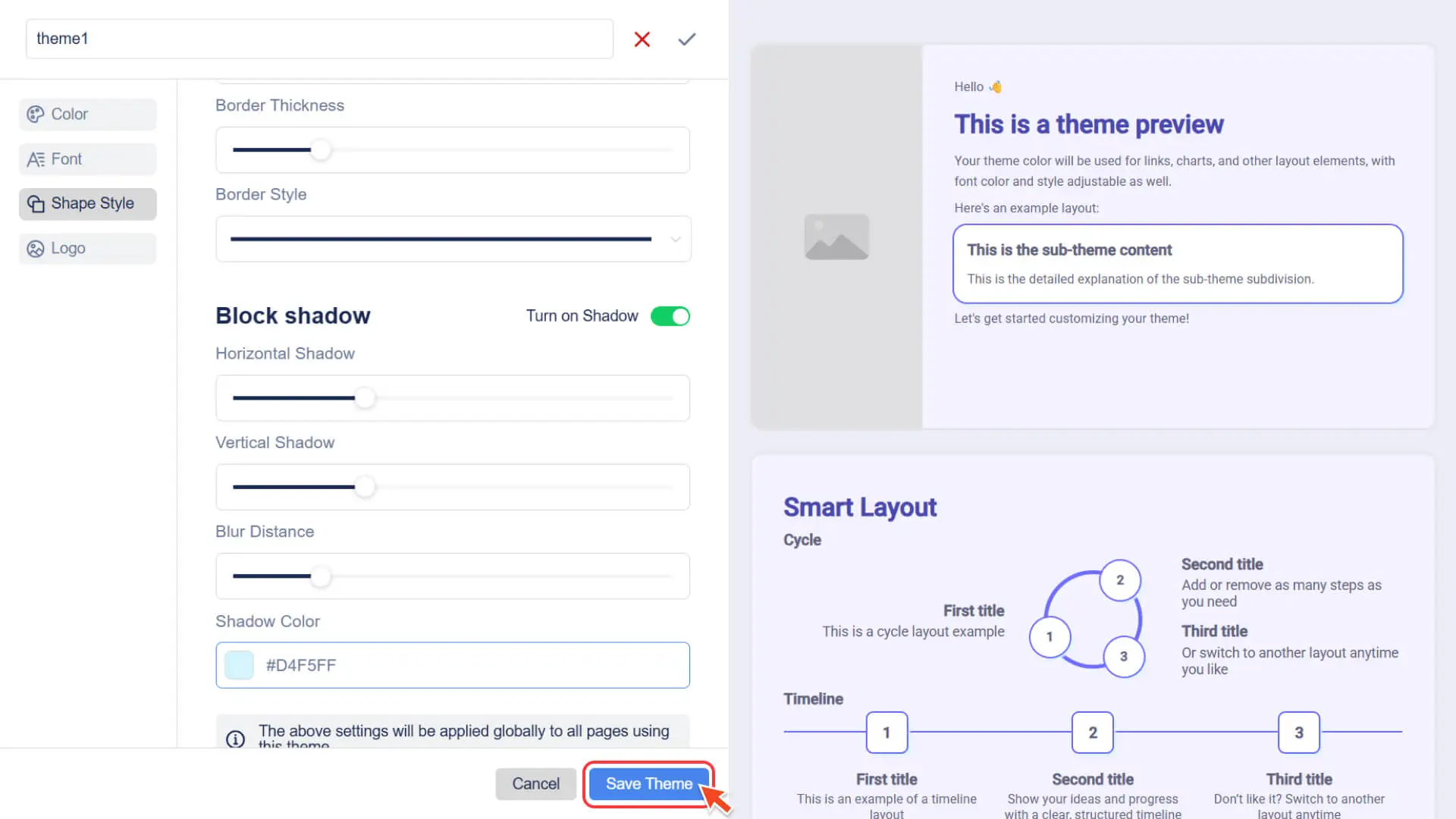
2. The system will save the current theme as a custom theme
3. The saved theme will be displayed in the custom theme list, and you can apply it at any time when creating or editing a presentation later
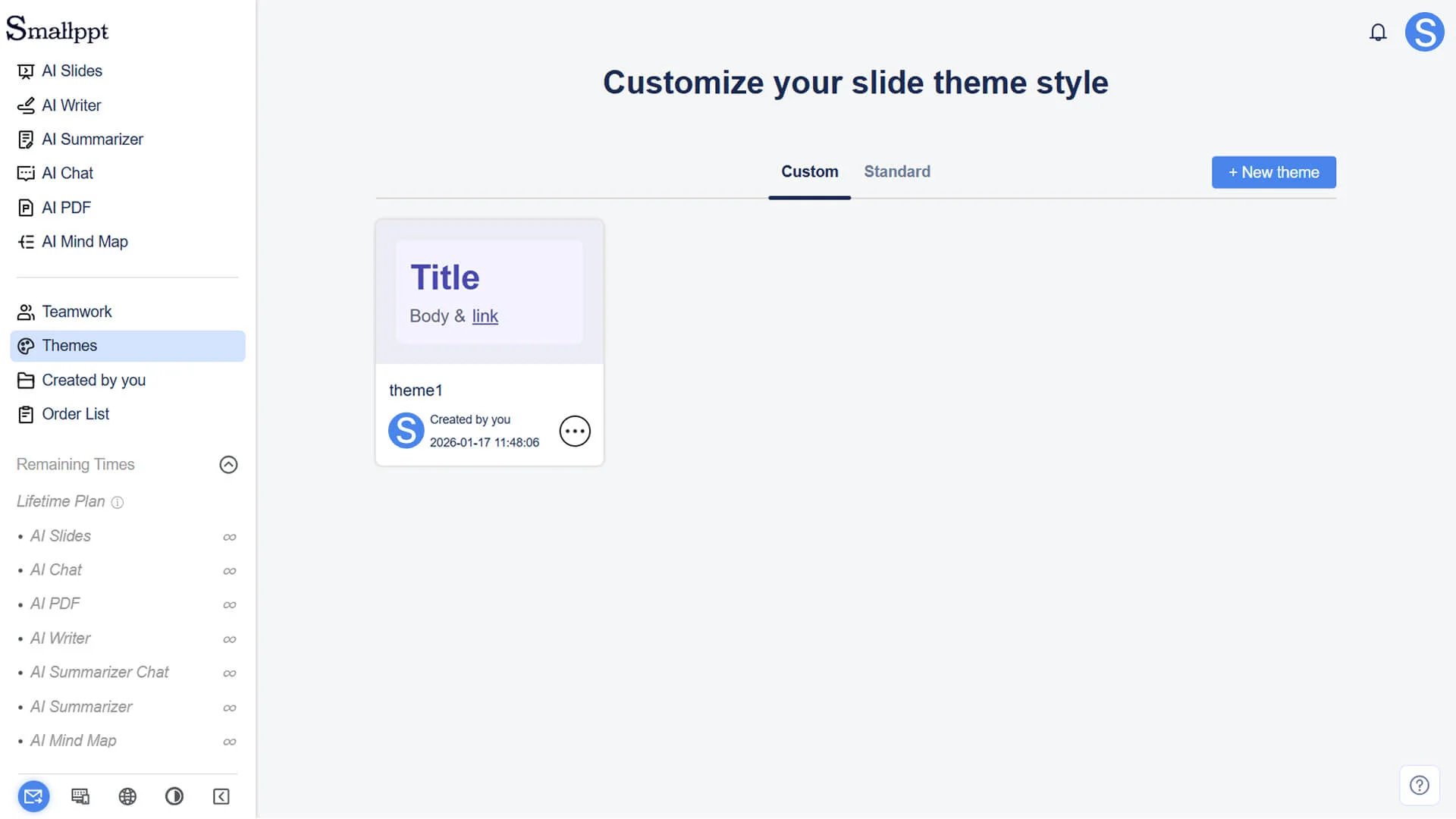
Create a brand new custom theme
Step 1: Create a new topic
1. Log in to your Smallppt account and enter the dashboard
2. In the left navigation bar of the page, click Theme to enter the Theme Management page
3. On the theme page, click New Theme, and the system will create a blank theme and enter the theme editing page
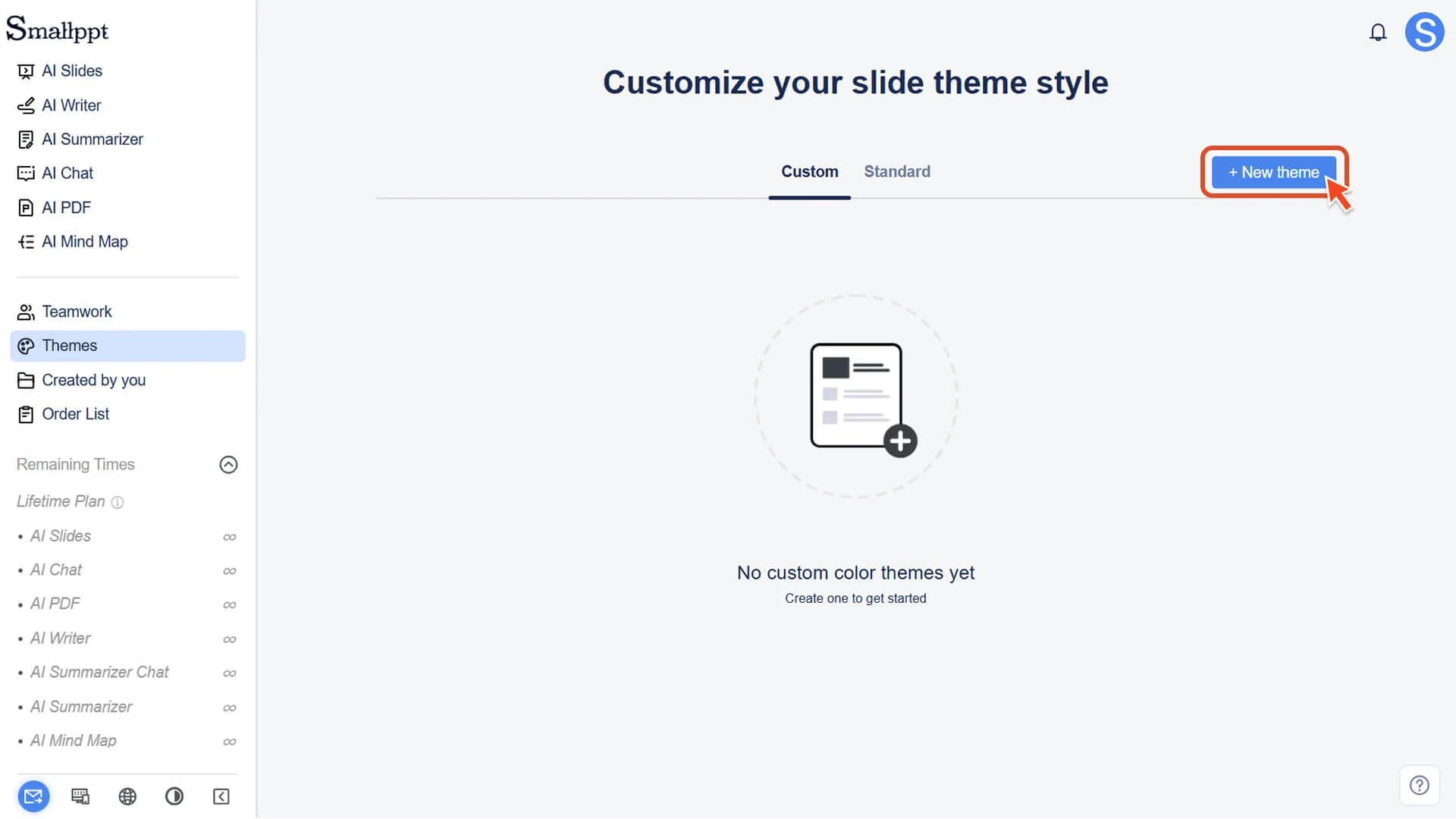
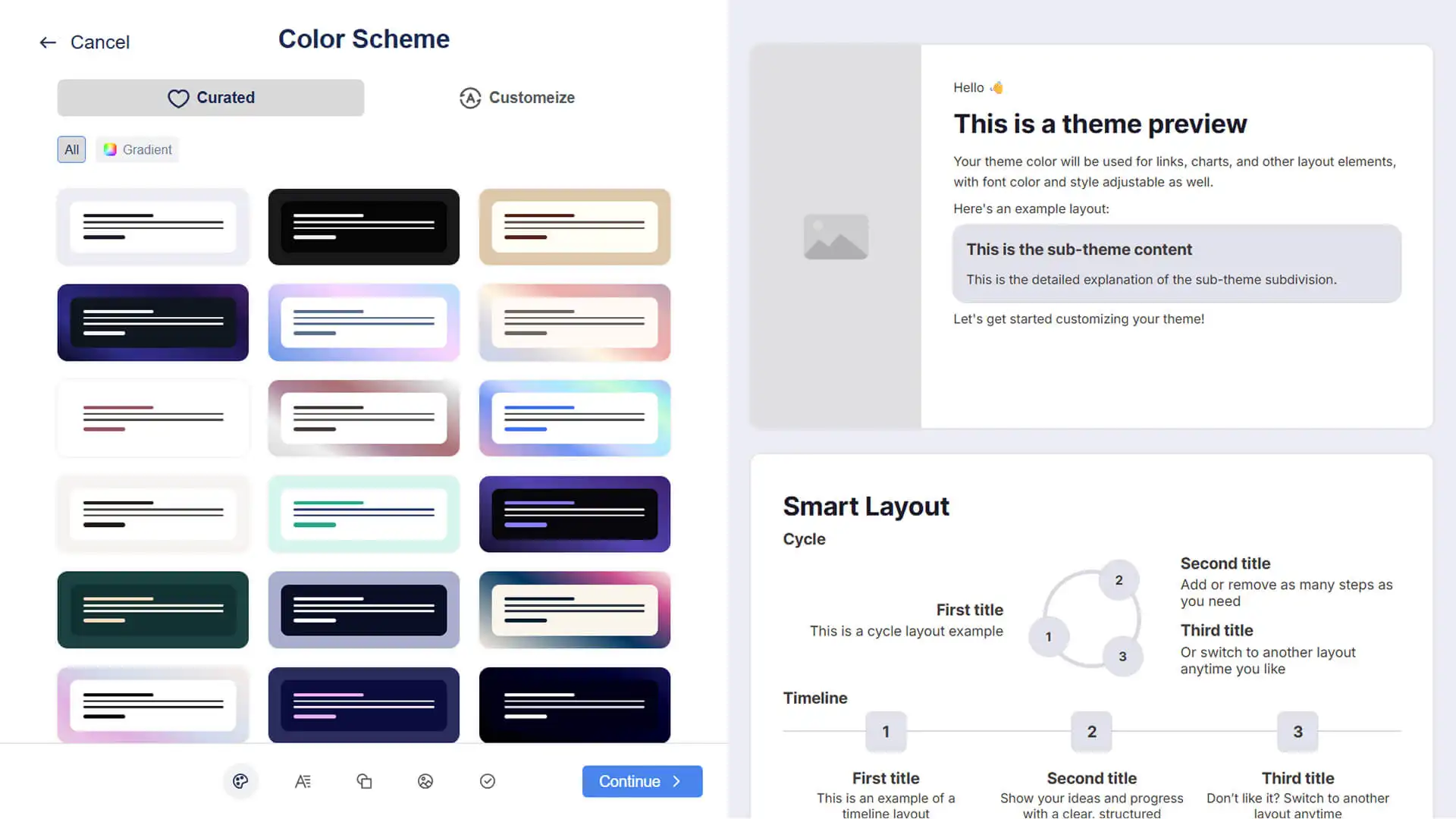
Step 2: Set the theme style
• Customize colors, fonts, shapes, logos, etc., to complete the design of a unique visual style
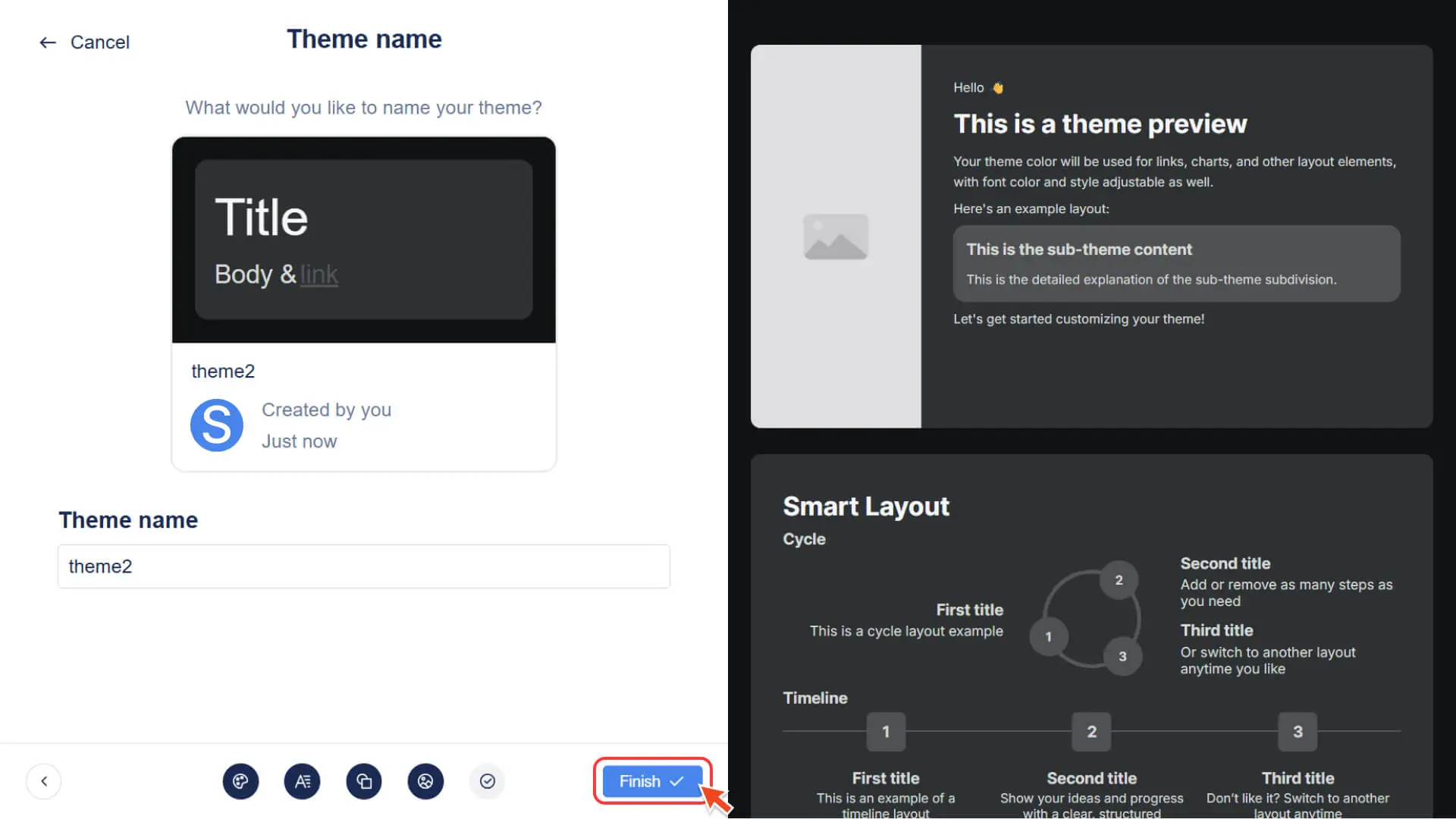
Step 3: Save the Theme
• After saving is completed, the custom theme will appear in the custom theme list
How to apply a custom theme?
Step 1: Open the slide editing page
• Enter the editing interface of any presentation
Step 2: Select a Theme
1. In the top navigation bar of the slide editing page, click Theme to open the theme panel
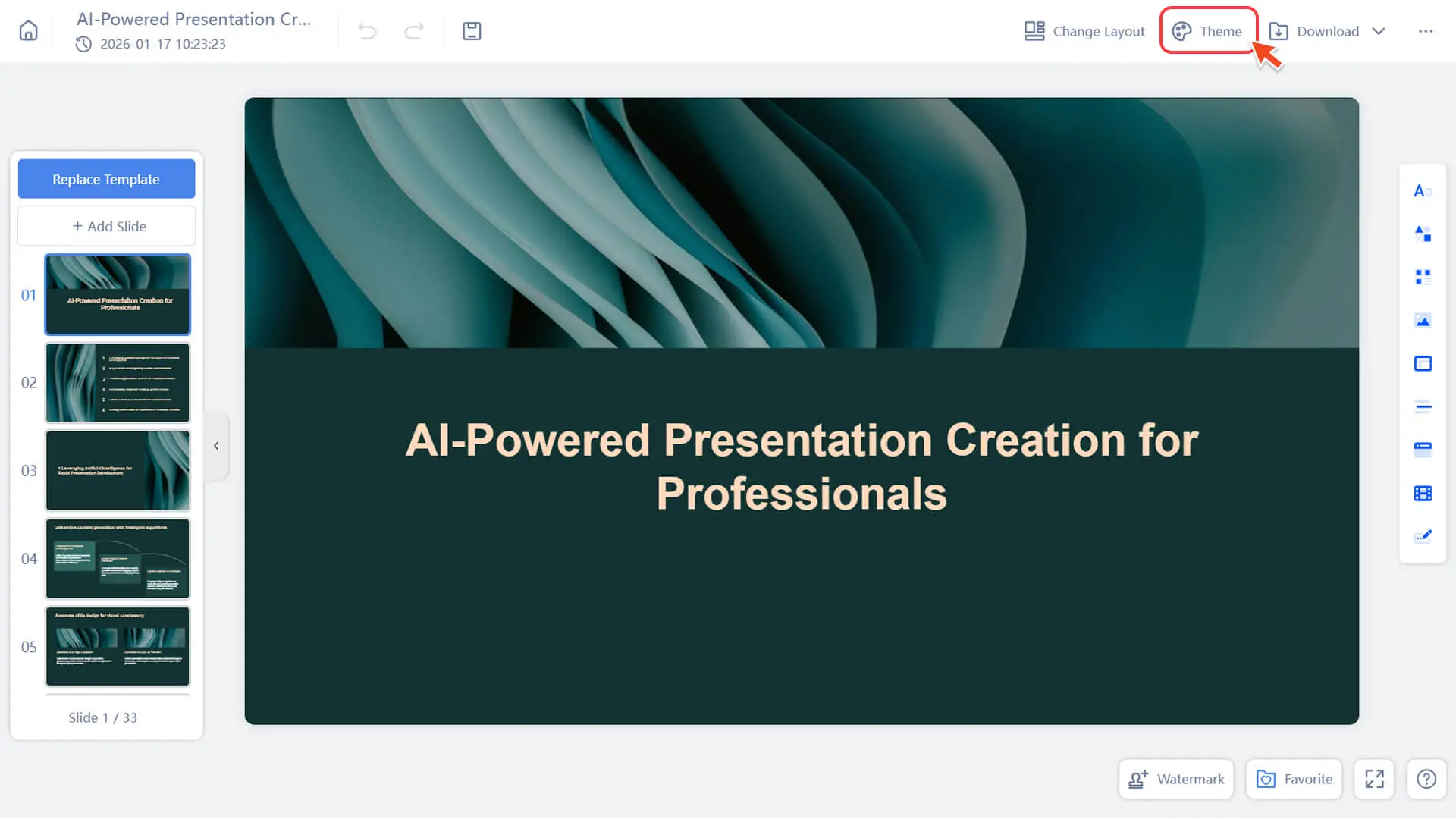
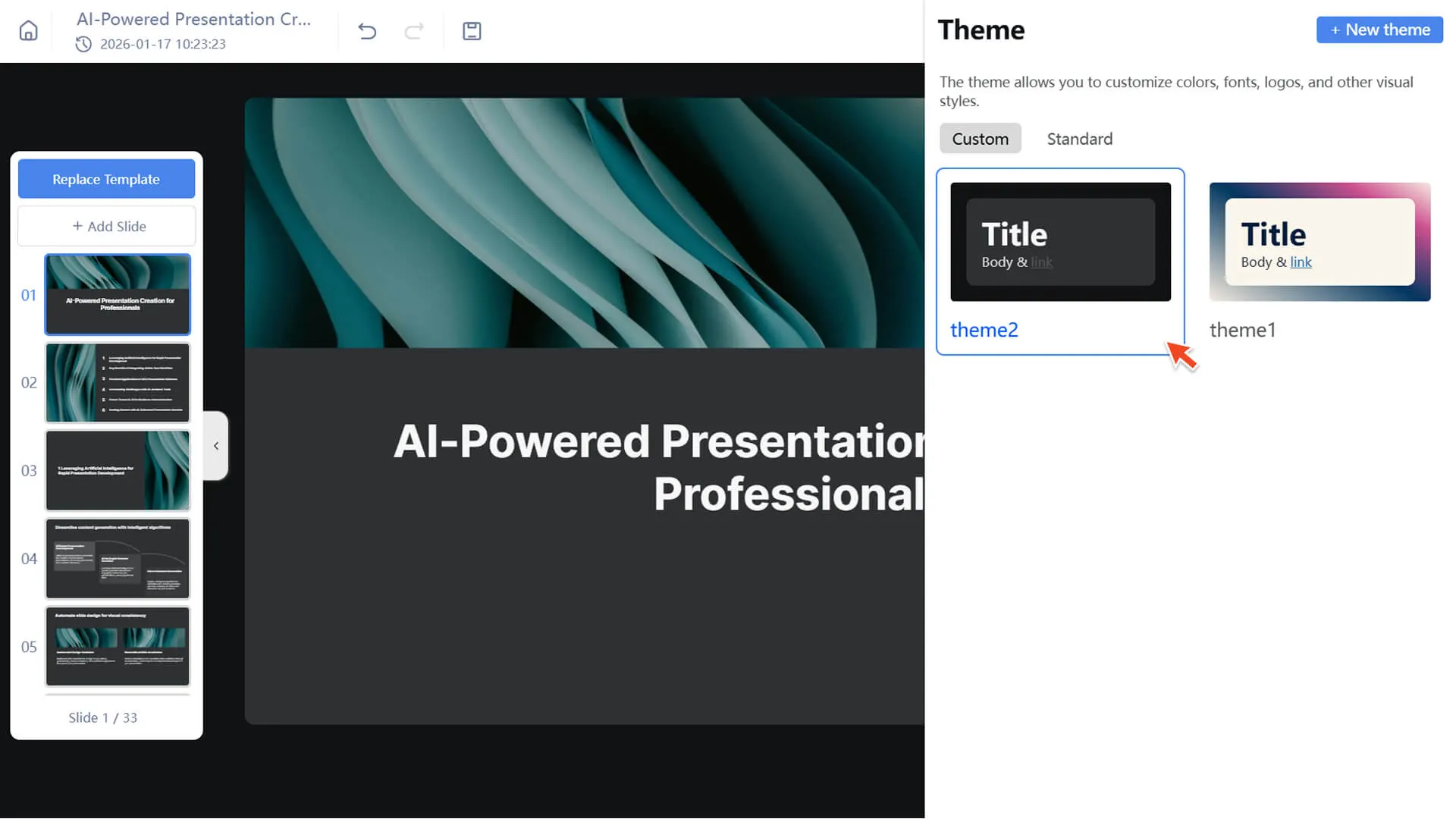
2. In the theme list, switch to the custom theme to view the themes you have created or saved
3. Click on the custom theme you want to use, and it will be immediately applied to the current presentation
Frequently Asked Questions
Will my changes affect the content created previously?
- • No, changing the theme will only update the visual style, and your content will remain unchanged.
Can I delete a custom theme?
- • You can delete a custom theme on the Theme Management page. After deletion, the theme cannot be used again or applied to new presentations, but the appearance of presentations that have already applied the theme will not change.