


How to add, copy, and edit images in Smallppt?
Updated over 2 months ago
How to upload and insert images?
Smallppt supports three insertion methods: drag-and-drop, paste, and insertion panel.
Option 1: Drag and drop directly
- 1. Find the image to be used on the computer
- 2. Drag the image onto any card in Smallppt
3. Images will be automatically inserted into the canvas
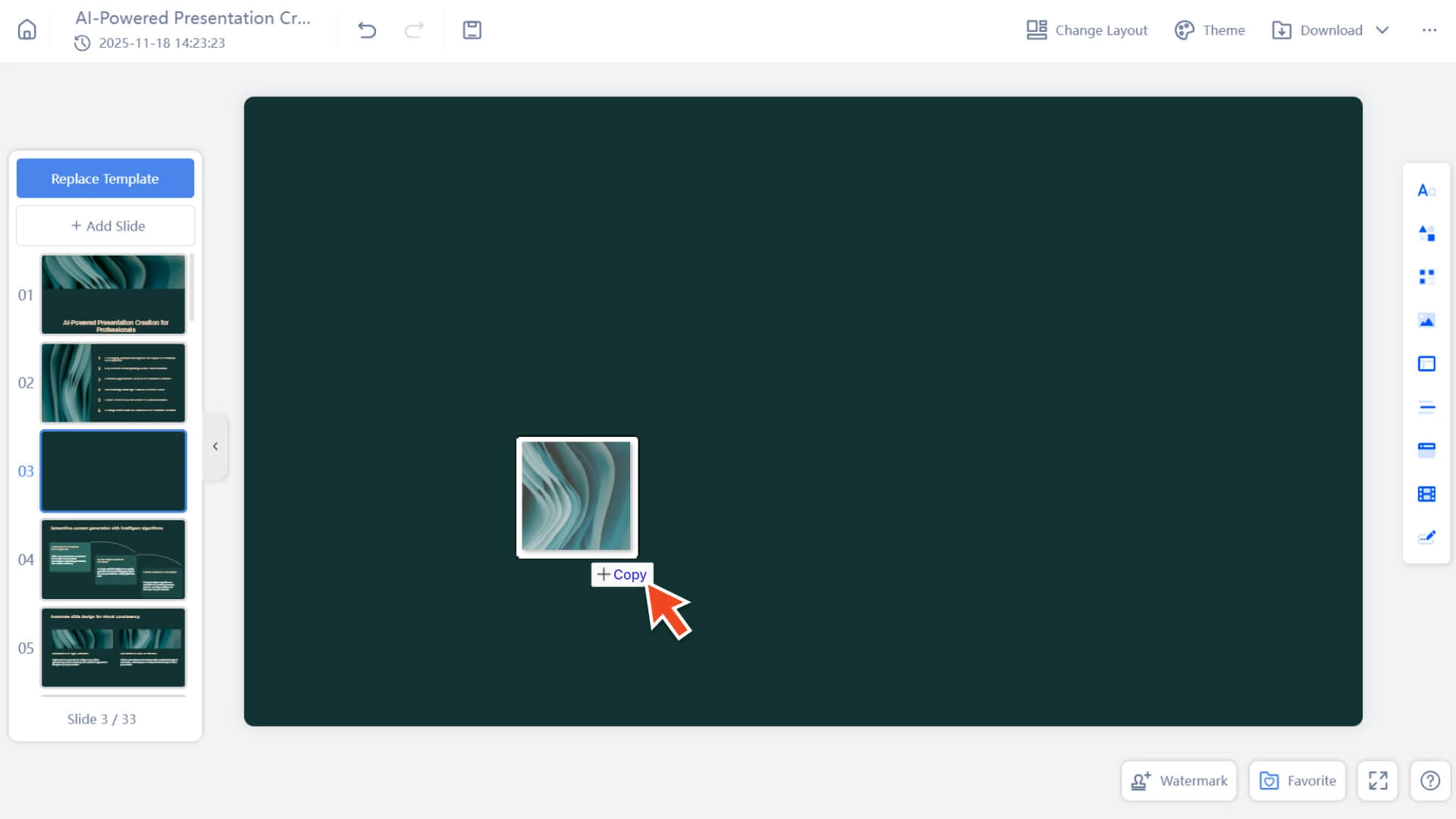
- Applicable scenarios: quickly add a large number of images, create inspiration boards, and organize creatives in batches
Option 2: Paste an image using a shortcut key
- 1. Copy any image from a webpage, screenshot tool, or locally
- 2. Press Ctrl / Cmd + V in the Smallppt card
- 3. The image will be inserted immediately
- Applicable scenarios: web screenshots, social media creatives, and temporary images do not need to be saved locally
Option 3: Use the "Insert" panel on the right
- 1. Click Insert in the right toolbar
- 2. Select Image
3. Select an image from a local file to upload
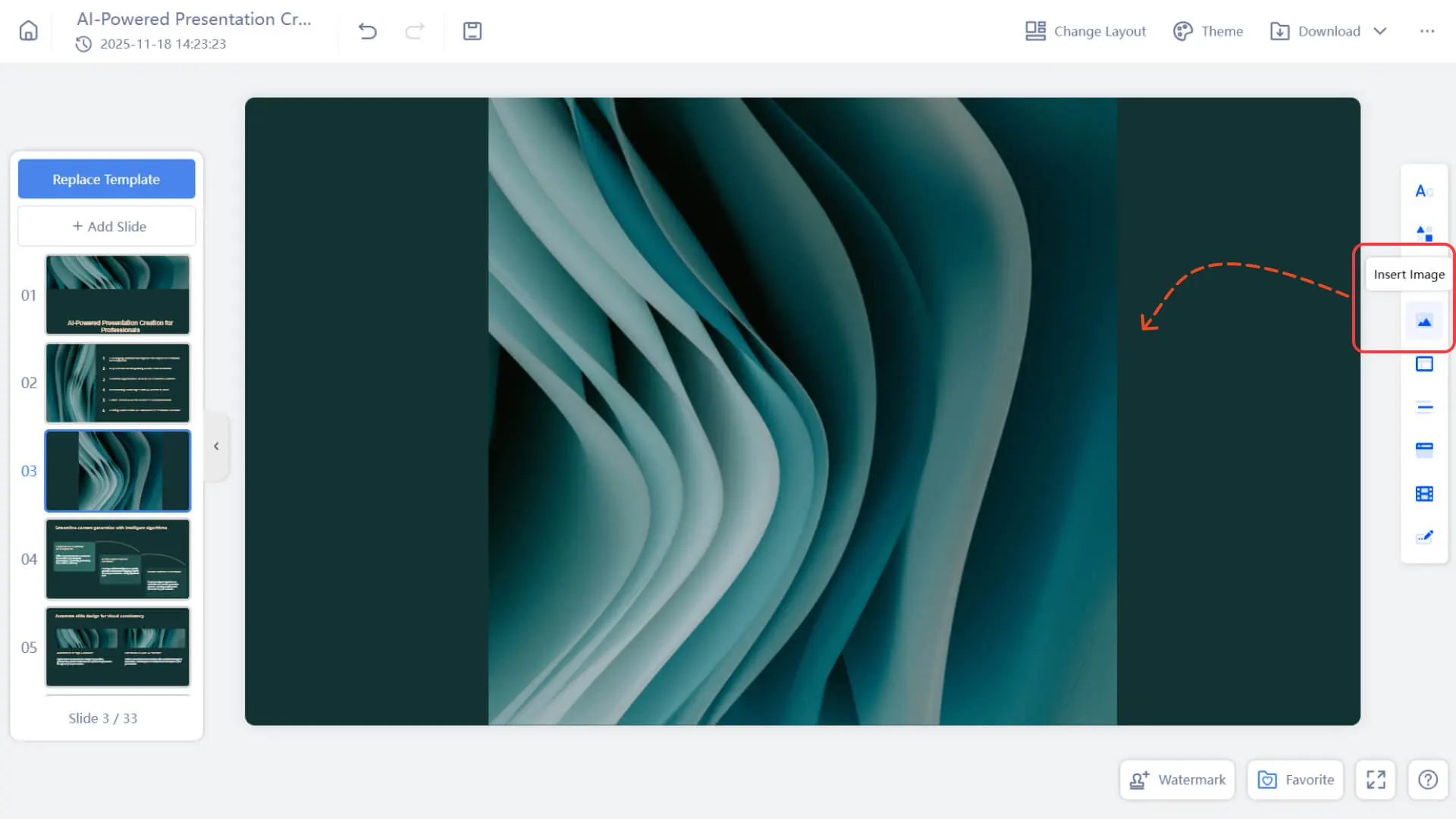
- Applicable scenarios: structured editing, when more elements need to be added from the insertion panel
How to replace or duplicate an image?
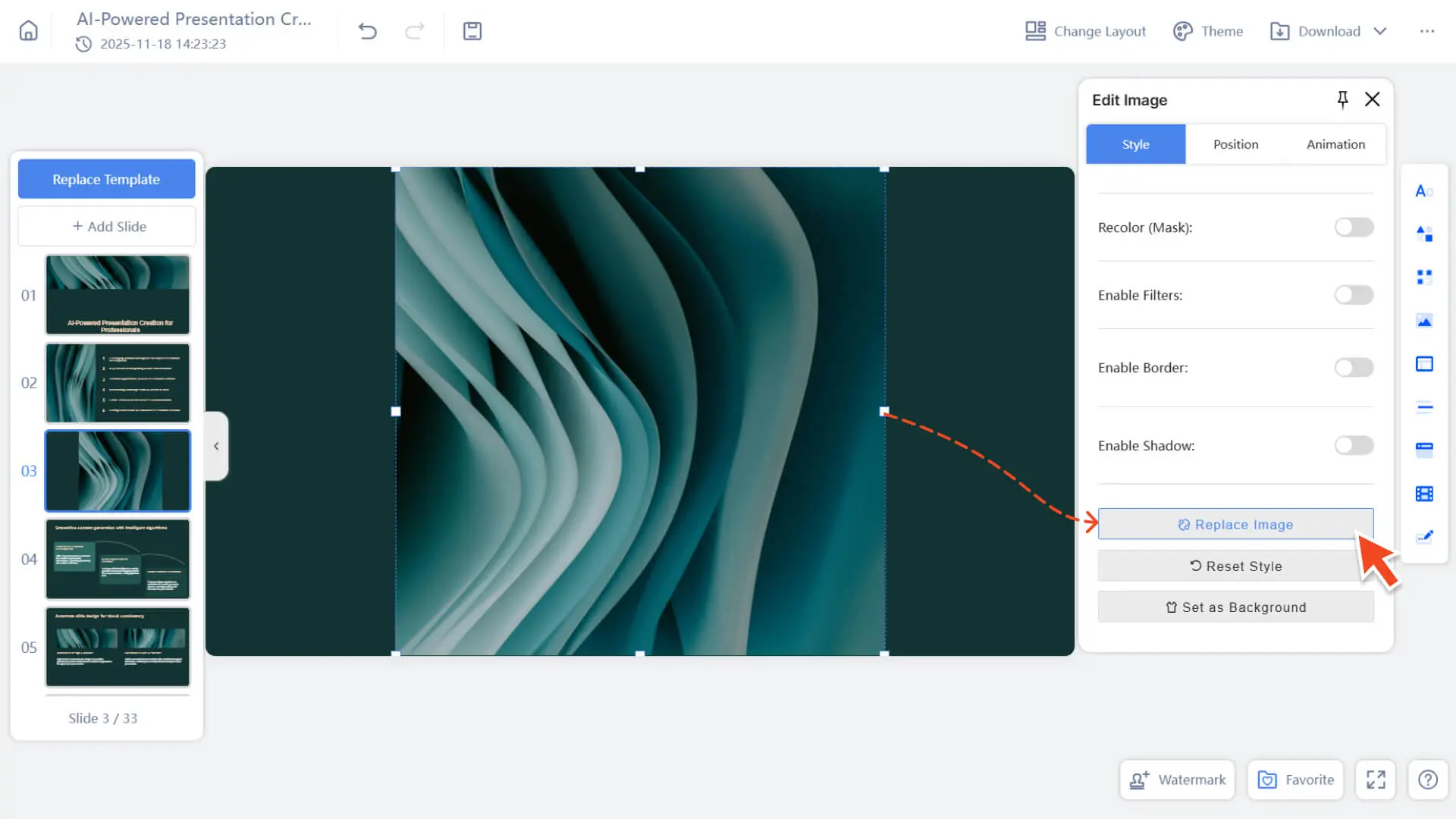
Replace Image
Step 1: Select the image to be replaced
• Click on any image to highlight its outer frame.
Step 2: Open the replacement function
• Find Style → Replace Image in the right editing panel.
Step 3: Select a new image
• Select the image you want from your computer files to upload and replace
Copy Image
Method 1: Copy using shortcut keys
1. Copy and paste using shortcut keys:
• Ctrl + C → Ctrl + V( Win)
• Cmd + C → Cmd + V( Mac)
2. The image will be copied in the same style and automatically placed nearby.
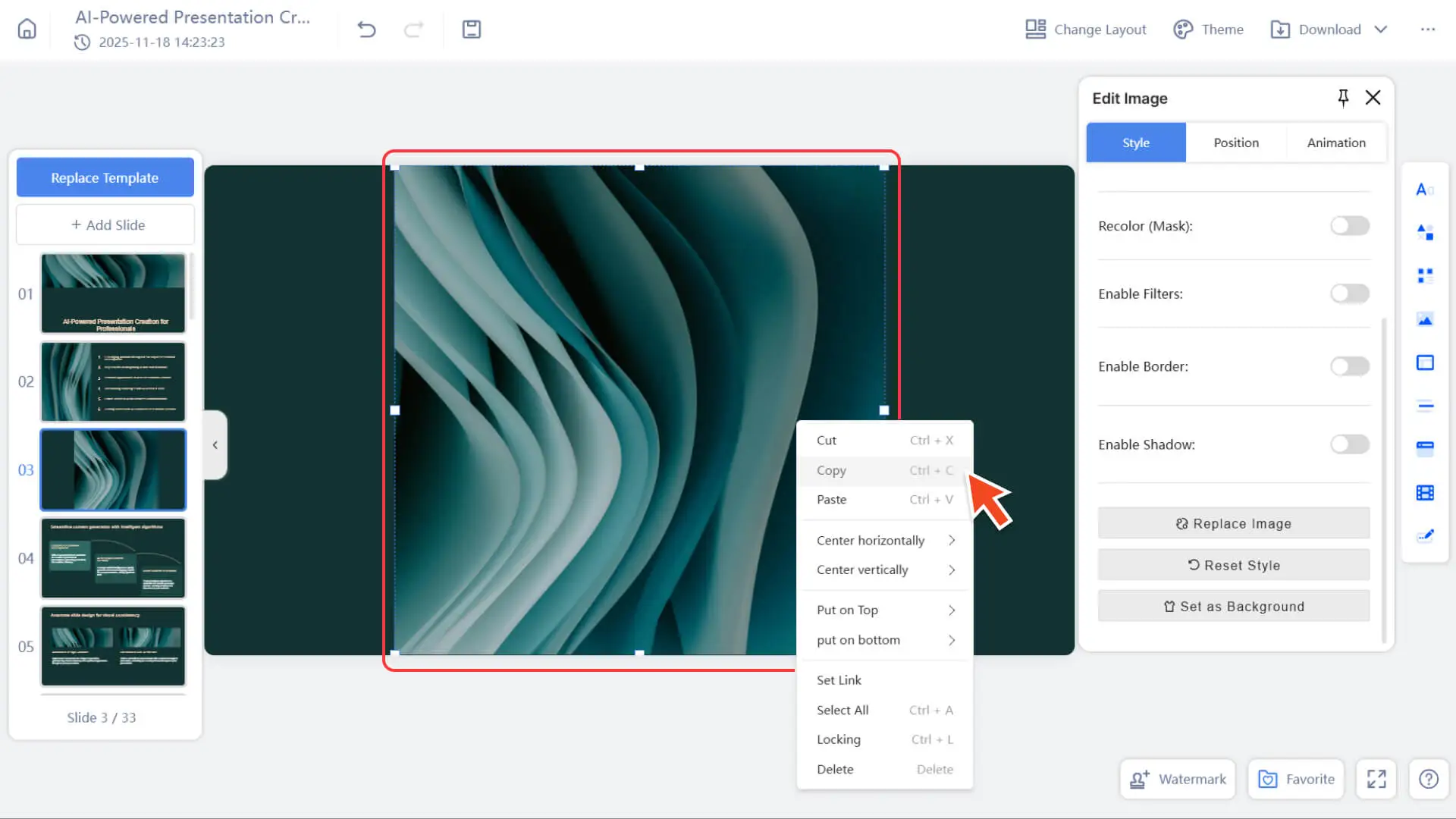
Method 2: Use the right-click menu
1. Right-click on the image
2. Select Copy, right-click, and click Paste
3. can generate an identical image
How to edit an image?
After you select an image, the image editing panel will automatically open on the right, which is divided into three major categories: Style / Position / Animation
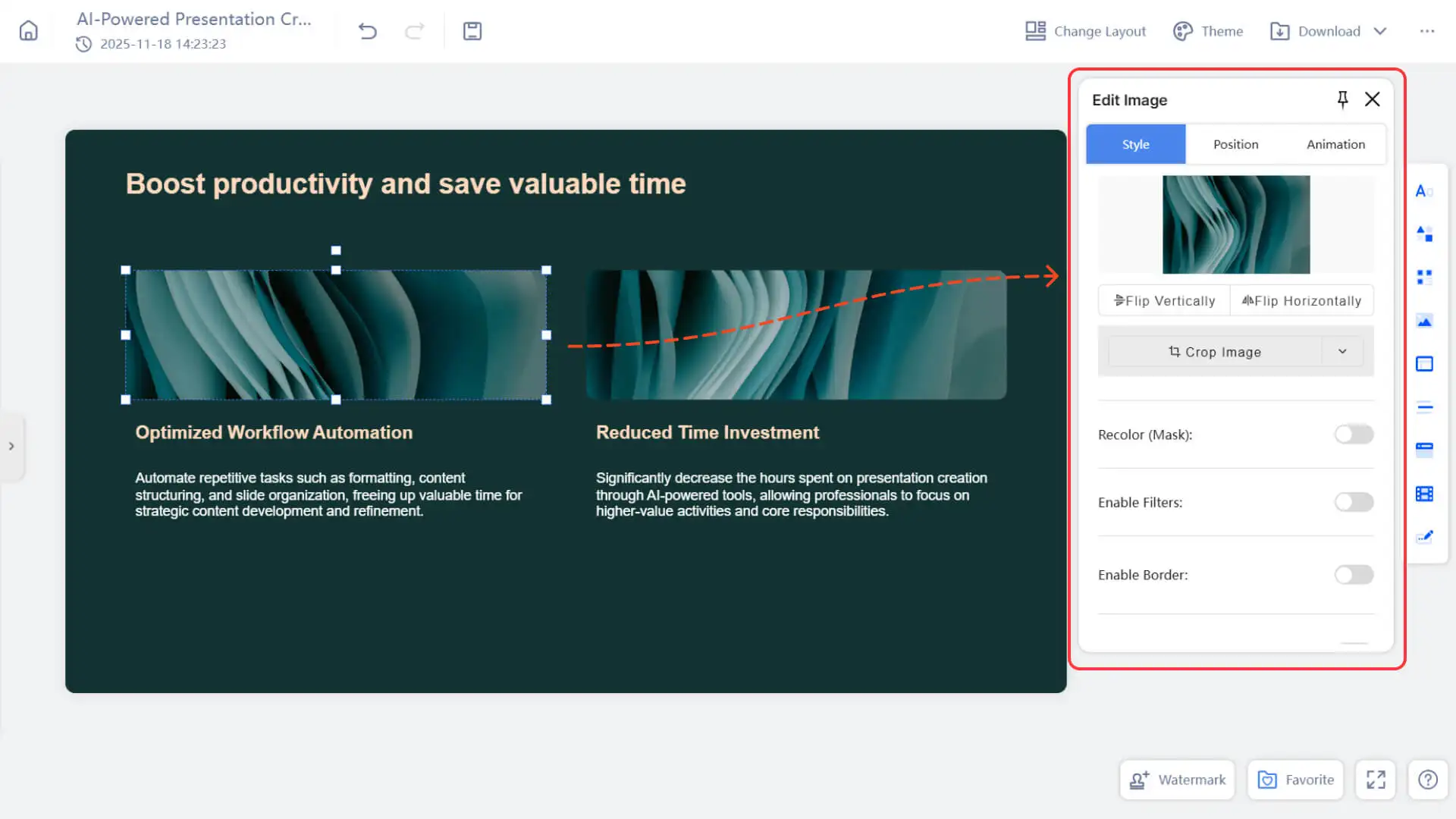
Style - Adjust the appearance and state of the image
Image Effects
Adjust the visual style of the image through the following style settings to make it more consistent with the overall design of the page:
• Flip: Change the image orientation (horizontal/vertical mirroring)
• Crop Image: Remove unwanted parts and retain only the core content
• Recolor / Mask: Unify the color tone and color with a single color or theme color
• Filters: Apply effects such as warm and cool colors, canary release, contrast enhancement, etc.
• Border: Add a border with customizable color, thickness, and transparency
• Shadow: Adds three-dimensionality and makes the image stand out from the background
Image Actions
Processing the content and state of the image does not directly affect the visual effect.
• Replace Image
◦ Changing content does not alter the style
◦ Retain size, border, filter, shadow, and position
◦ Suitable for uniformly replacing example images or iterative content
• Reset Style
◦ One click to restore the original style
◦ Remove filters, shadows, borders, coloring, cropping, etc.
• Set as Background
◦ Fix the image to the page background layer
• For more information, please visit:
Position - Resize, Align, and Layer
- • Click and drag the image border to resize the image as needed.
- • Use alignment options to position the image.
- • For more information, please visit:
Animation - Add motion effects to images
• Supports basic animation effects, such as Fade In, Zoom, Slide Up, etc.
• You can adjust animation parameters by yourself, including duration, delay, and playback order, to easily control the rhythm and highlight key points.
Note: Animations are effective on the web, but may not work when exported to software such as PowerPoint.
• For more information, please visit:
Frequently Asked Questions
Why can't I upload images?
- • Please confirm that the file format is supported (PNG, JPEG, GIF) and ensure that the network connection is normal.
- • Refresh the page if necessary.
Can I edit after inserting an image?
- • Yes, including resizing, repositioning, styling, and even replacing images.
Can I add animation to the picture?
- • It is possible, but only valid on the web page. Animations may not be displayed when downloaded to PowerPoint.
Can AI-generated images be used?
- • This feature is currently being tested in the "Creative Slides" mode and is still being gradually improved.