


How to add animation effects in Smallppt?
Updated over 2 months ago
How to add animation effects to elements?
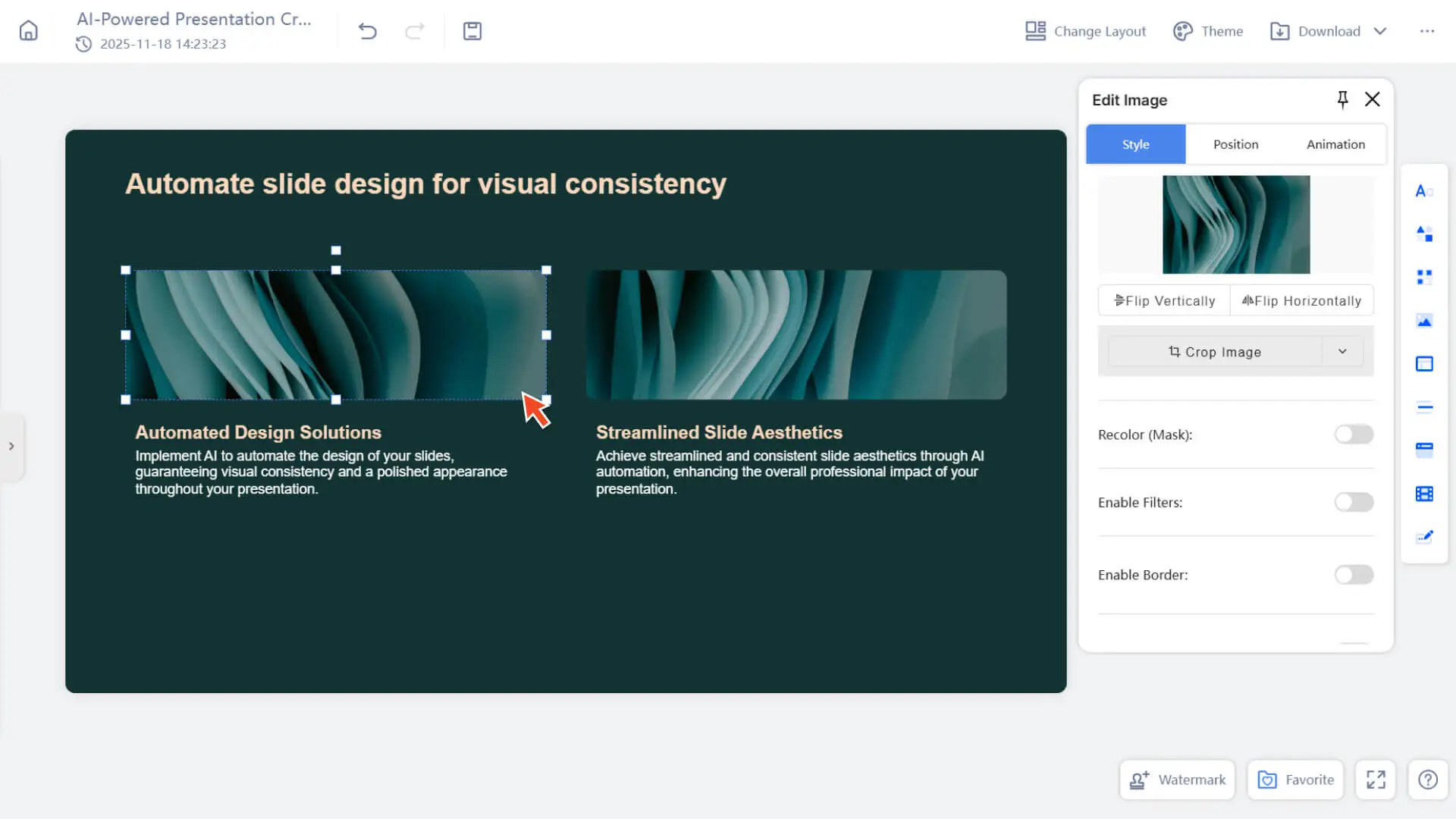
Step 1: Select an element
- 1. Open the slide editing page
- 2. Click on any card
3. Select the text, images, shapes, or other elements you want to animate. An element editing pop-up will appear automatically.
Step 2: Open Animation Settings
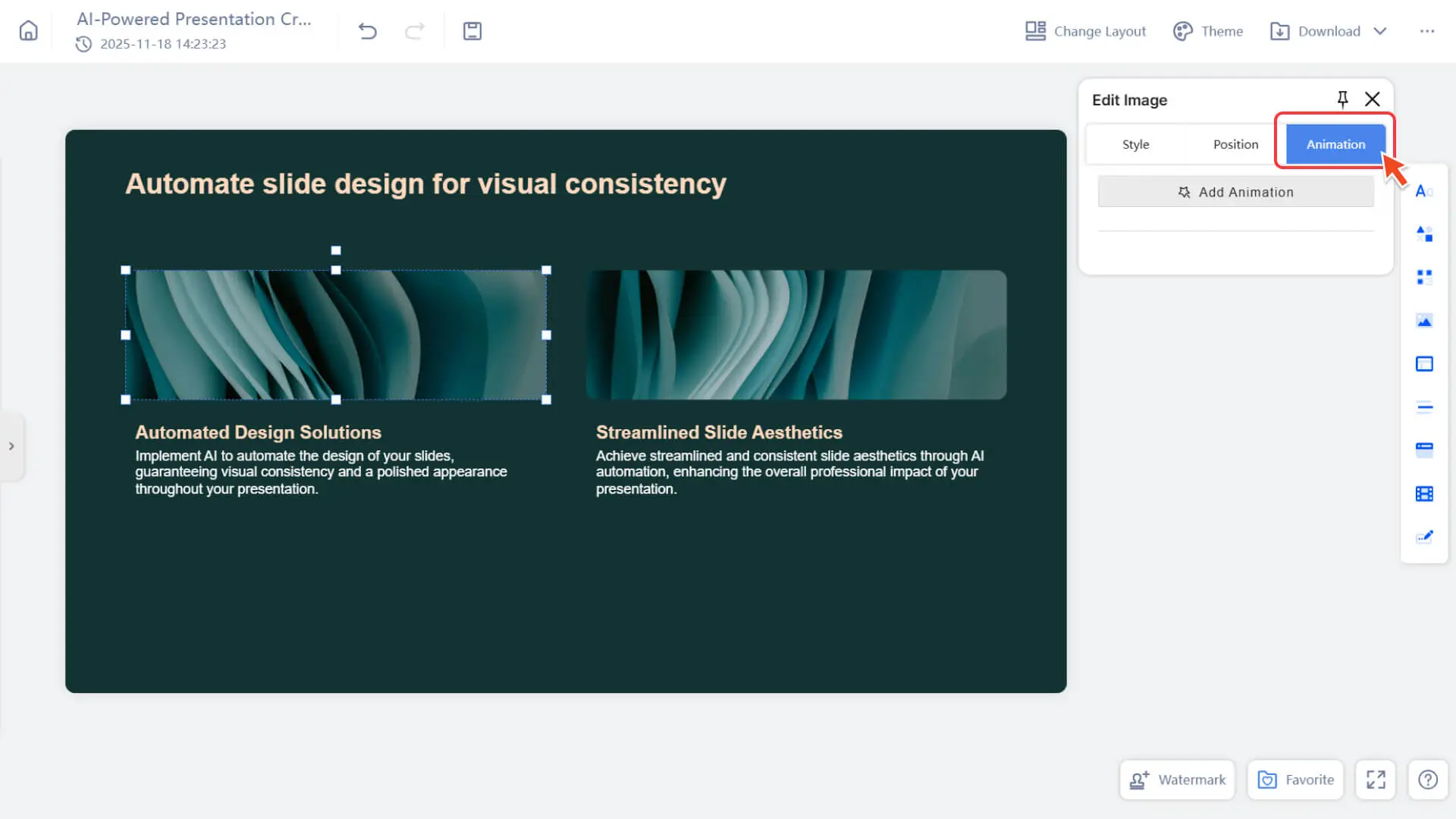
Find the animation option in the element editing pop-up window, and click Add Animation.
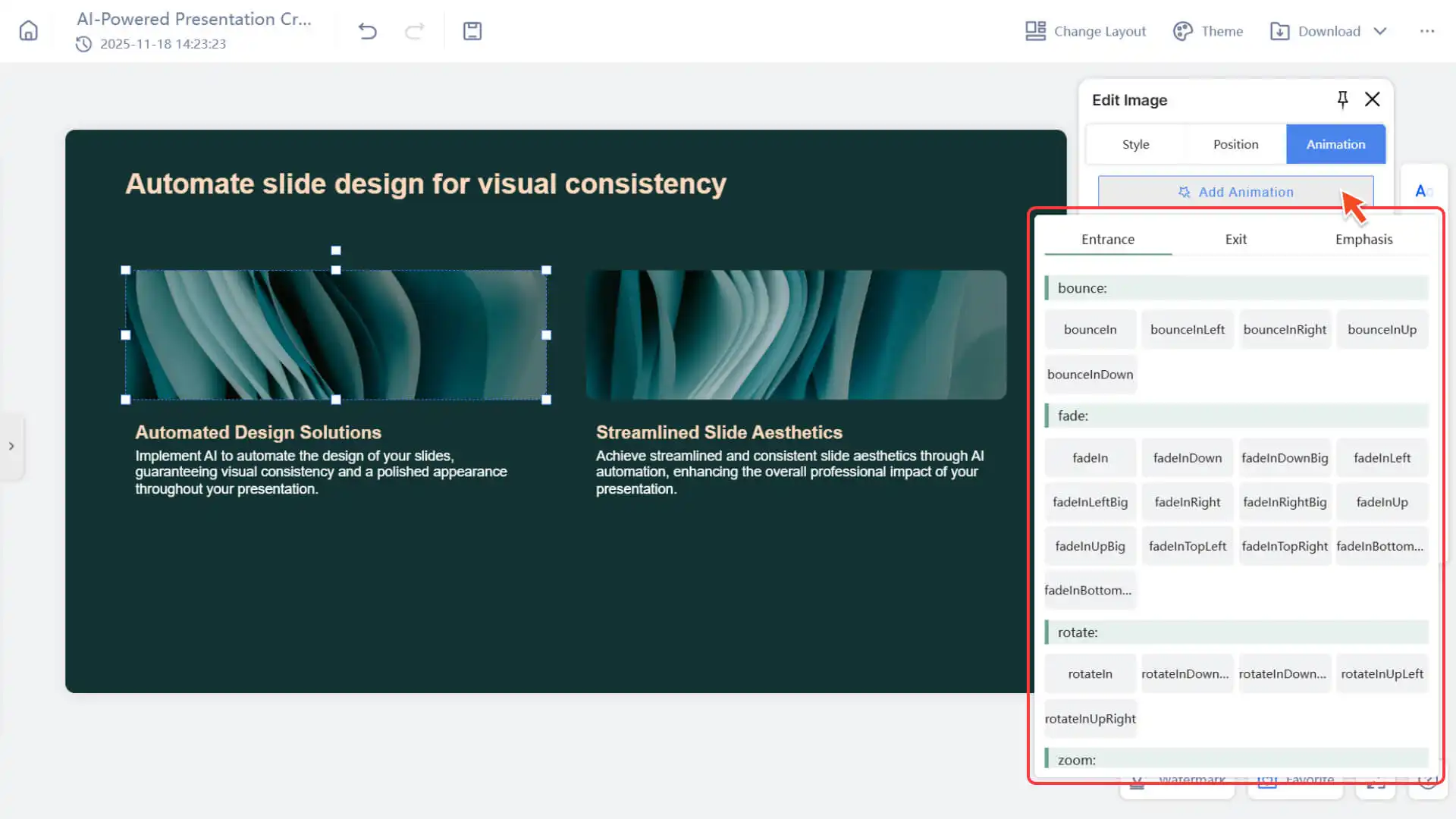
Step 3: Select the animation type
- The system supports three major types of animations, and you can choose according to your needs:
- • Entrance
- • Exit
- • Emphasis
Click any animation to apply it to the current element.
Step 4: Adjust Animation Properties
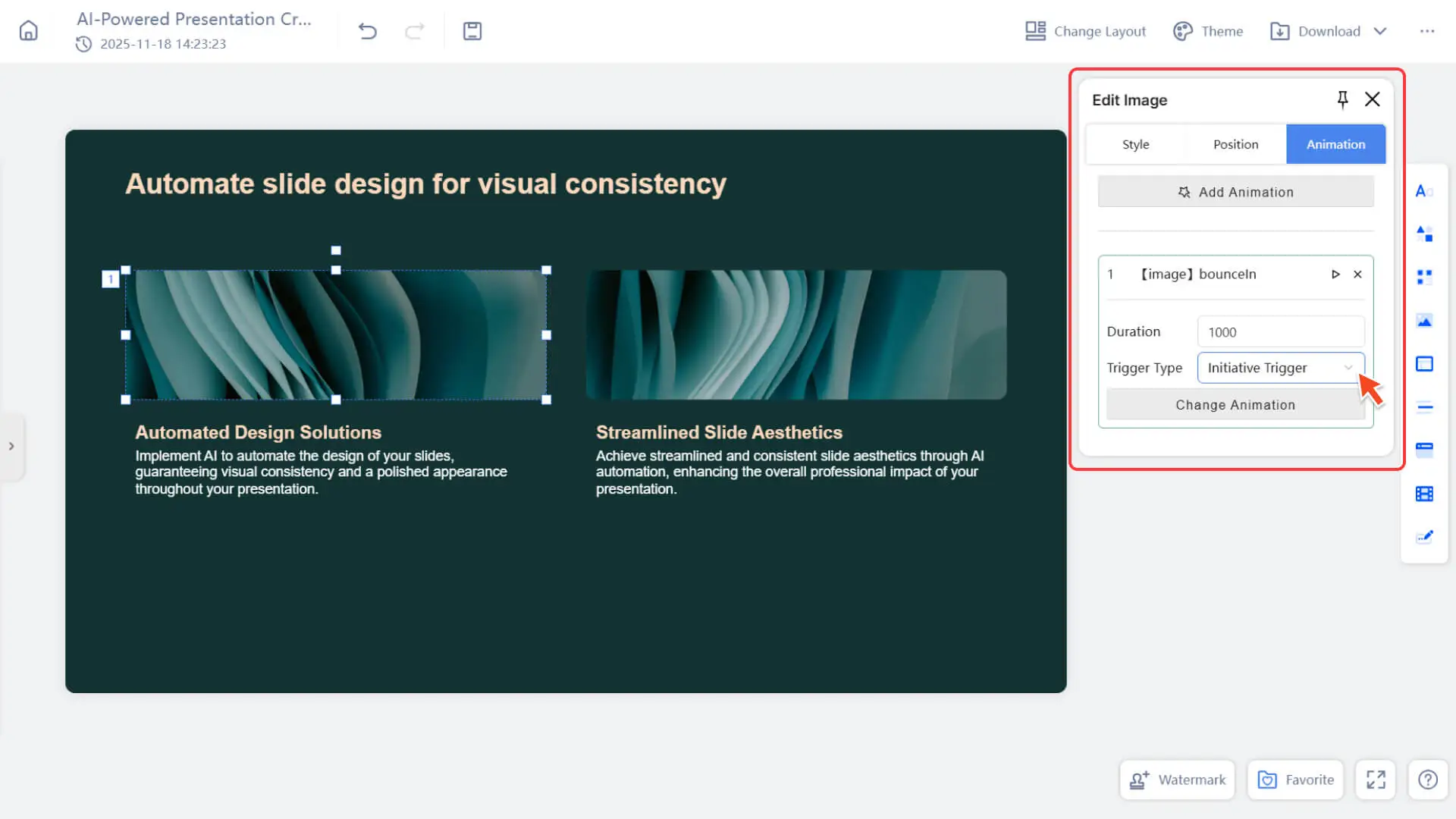
After selecting an animation, you can further edit the animation details:
• Duration: Controls the playback speed of the animation
• Trigger Type:
◦ Initiative Trigger
◦ Simultaneously with the Previous
◦ After Previous
Note: Currently, Smallppt only supports adding animations to individual elements separately and does not yet support batch adding animations.
Add a slide transition effect
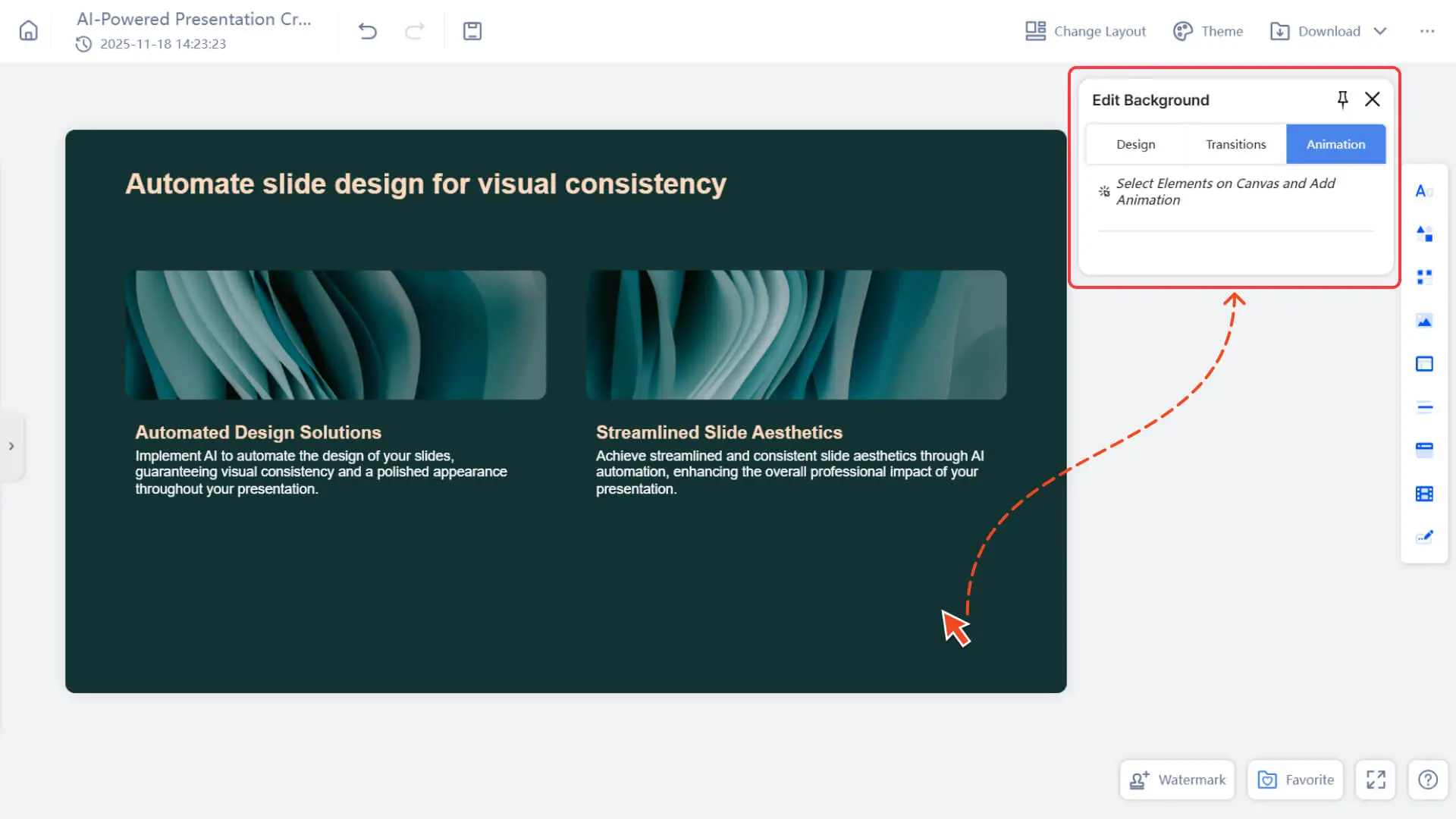
If you click on the card background area (instead of an element), the edit pop-up window will display Transitions.
Step 1: Select the card background
Click on the blank area or background region of the slide to select the background.
Step 2: Select the transition effect
Select your favorite Transitions in the edit pop-up window, and you can apply them to the transition style of the entire slide.
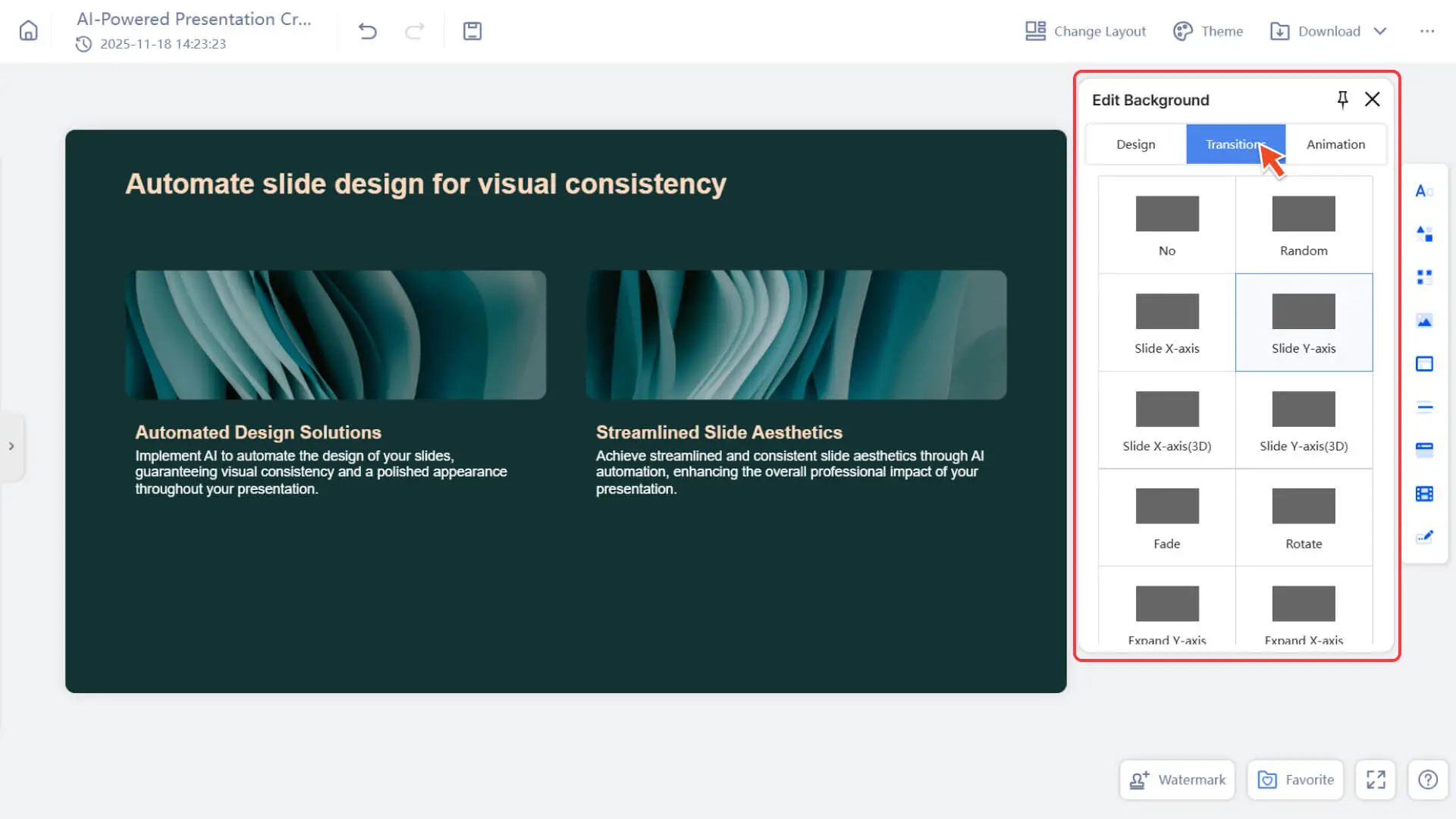
Note: Animations cannot be added to the background, but transition effects can be applied.
Frequently Asked Questions
Can animations be added to multiple elements at once?
- • Currently, batch adding of animations is not supported, and each element needs to be set separately. We are developing a more efficient way to edit animations, and in the future, we will support more convenient batch operations.
Why can't I select animation options when I click on the slide background?
- • Backgrounds cannot have element animations, but you can apply slide transitions. Make sure to click an empty area of the slide, not an element.
What are the differences in the triggering methods of animations?
- • Initiative Trigger: Play Animation Independently
- • Simultaneously with Previous: Play simultaneously with the previous animation
- • After Previous: Play after the previous animation ends
- • You can freely combine them according to the rhythm of the demonstration.
Can I modify the animation after adding it?
- • Yes. Click the element again to enter the animation editing panel, where you can adjust the animation type, duration, or trigger method.