


How to quickly edit, modify, and manage your articles in Smallppt?
Updated over 2 months ago
How to Edit Your Article in Smallppt
Step 1: Enter the article editing page
Method 1: Open the newly generated article
1. Enter the Smallppt dashboard panel.
2. Select the AI Writer feature in the left navigation bar.
3. When using Smart Writing or AI Rewriter to generate or rewrite an article, the system will automatically enter the article editing page.
Method 2: Open the generated article
1. Enter the Smallppt dashboard panel.
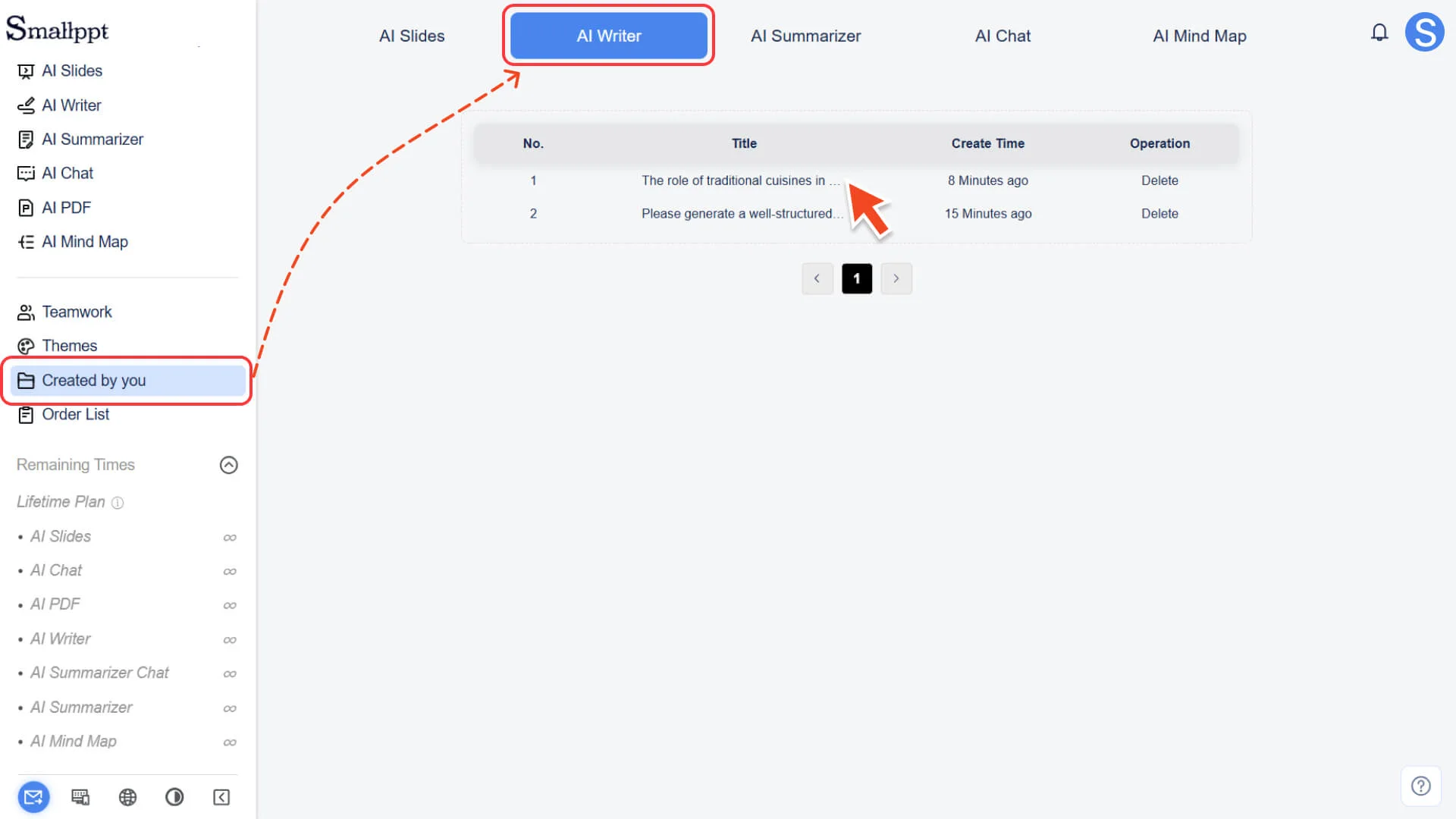
2. Select 'Created by you' in the left navigation bar.
3. Find and open the article you want to edit in the AI Writer category.
Step 2: Select the content you want to edit
1. Move the cursor to the target position in the article.
2. Drag to select the sentence or entire paragraph you wish to modify.
Step 3: Use AI features for quick editing
1. After selecting the content, click on the AI editing function panel on the right.
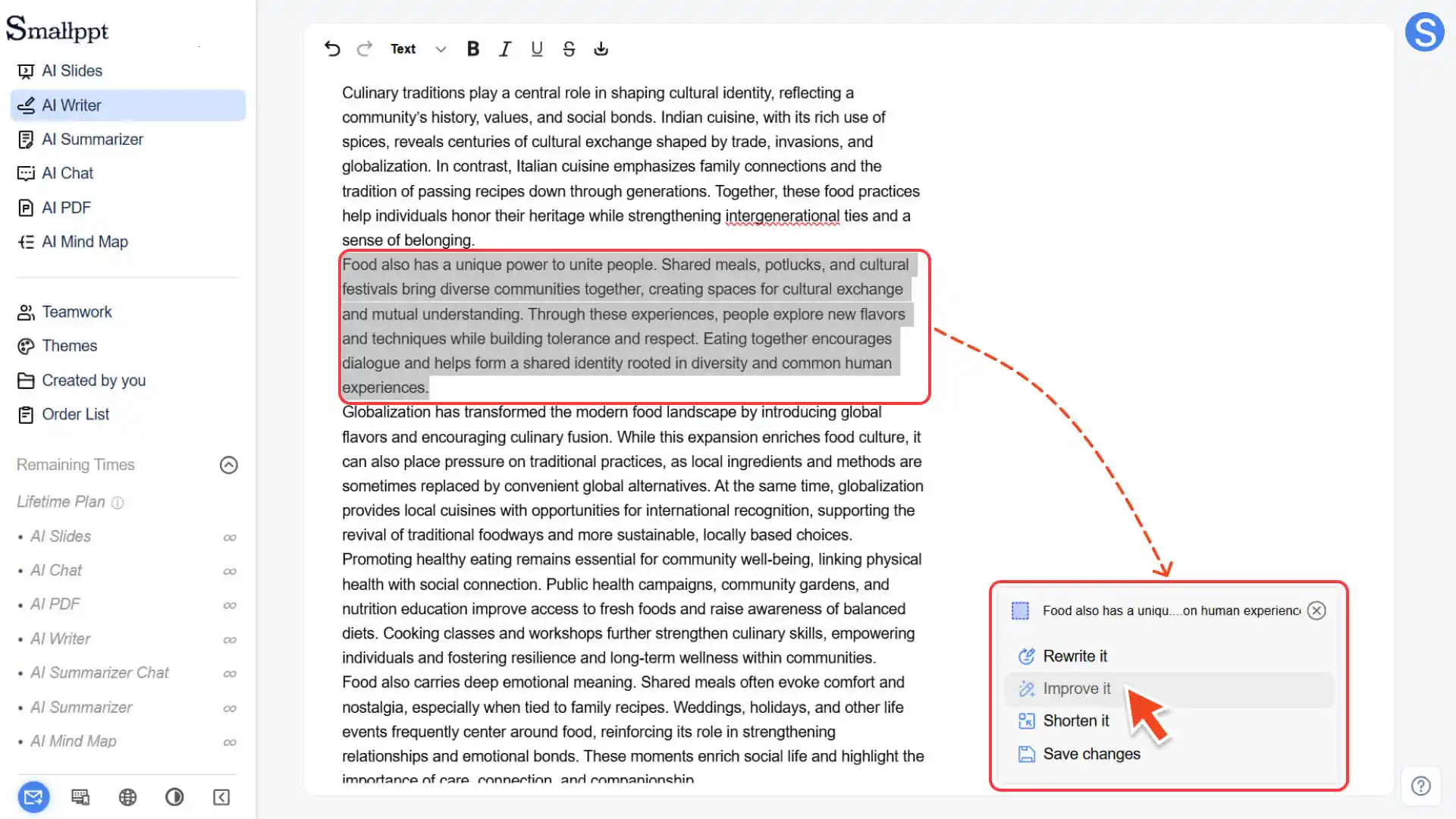
2. Select AI features based on requirements:
◦ Rewrite it: Rewrite the selected content
◦ Improve it: Optimize expression and wording
◦ Shorten it: Shorten the content length
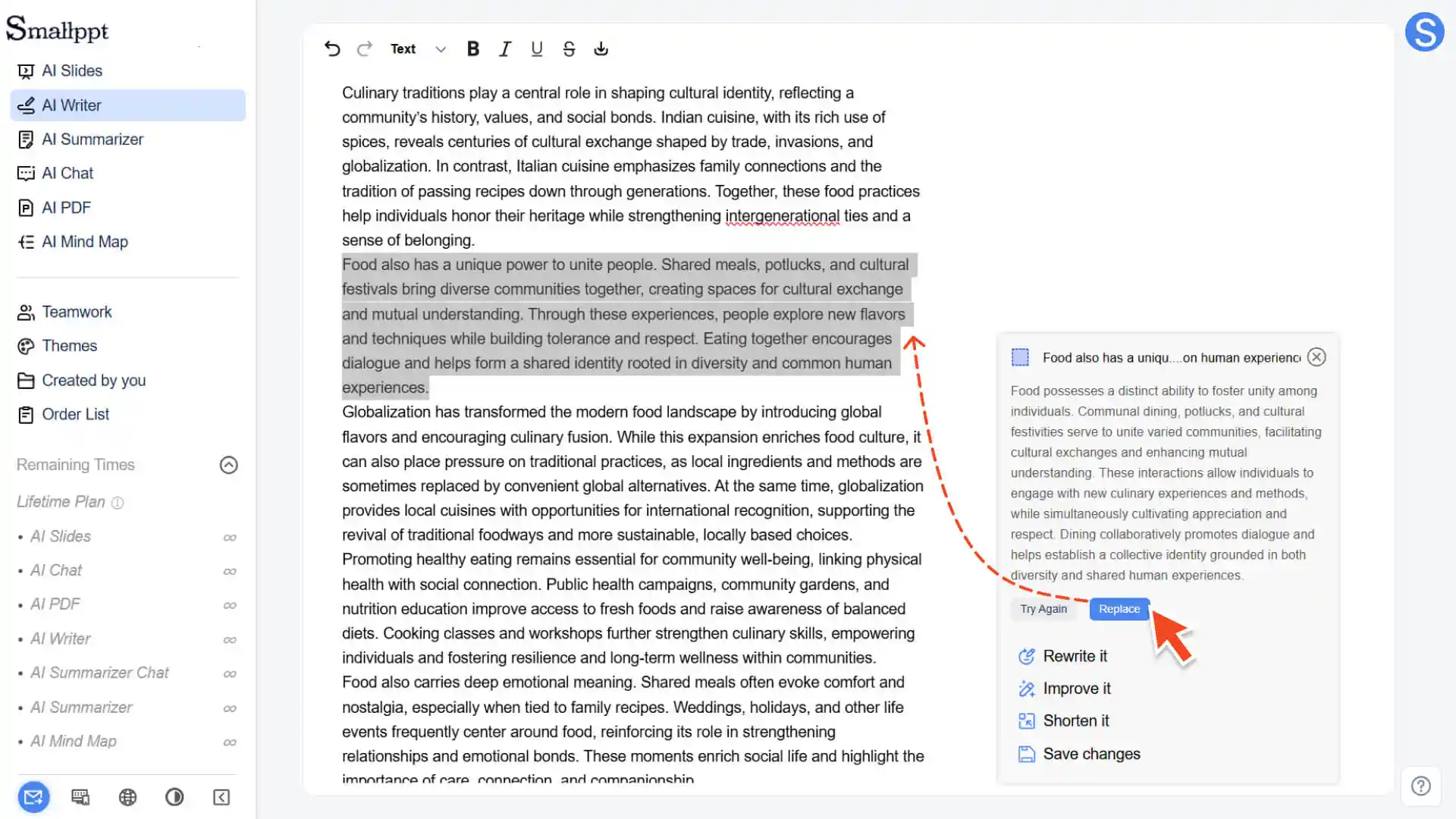
3. The system generates a new content version and displays the results. At this point, you can choose:
◦ Try Again: Not satisfied? Select this option to let the AI continue generating a new version
◦ Replace: Confirm to use? Selecting this option will replace the original text with AI-generated content
Step 4: Save Changes
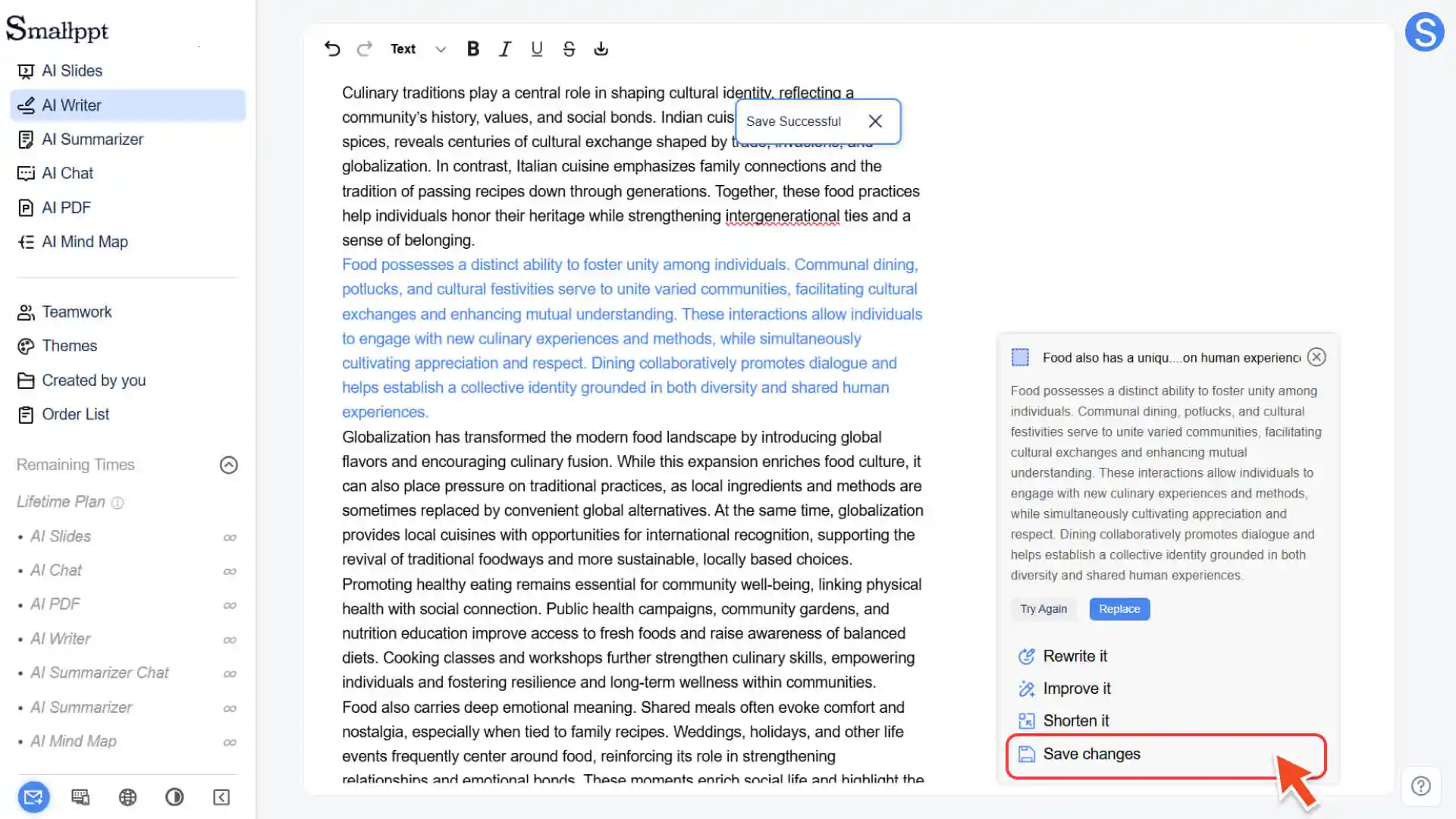
• After confirming that all modifications are correct, click the Save changes button.
• The system will immediately save the updated article content.
You can manually adjust basic styles such as text size and boldness, but for complex layout or format modifications, it is recommended to export the article to a local document tool for more efficient processing.
How to export a document
Method 1: Copy content
1. Select all article content:
◦ Windows/PC: Press Ctrl + A
◦ Mac/Apple Computer: Press Cmd + A
2. Copy content:
◦ Windows/PC: Press Ctrl + C
◦ Mac/Apple Computer: Press Cmd + C
3. Paste it into your local Word, Notion, or other document tools.
◦ Windows/PC: Press Ctrl + V
◦ Mac/Apple Computer: Press Cmd + V
Method 2: Download the Document
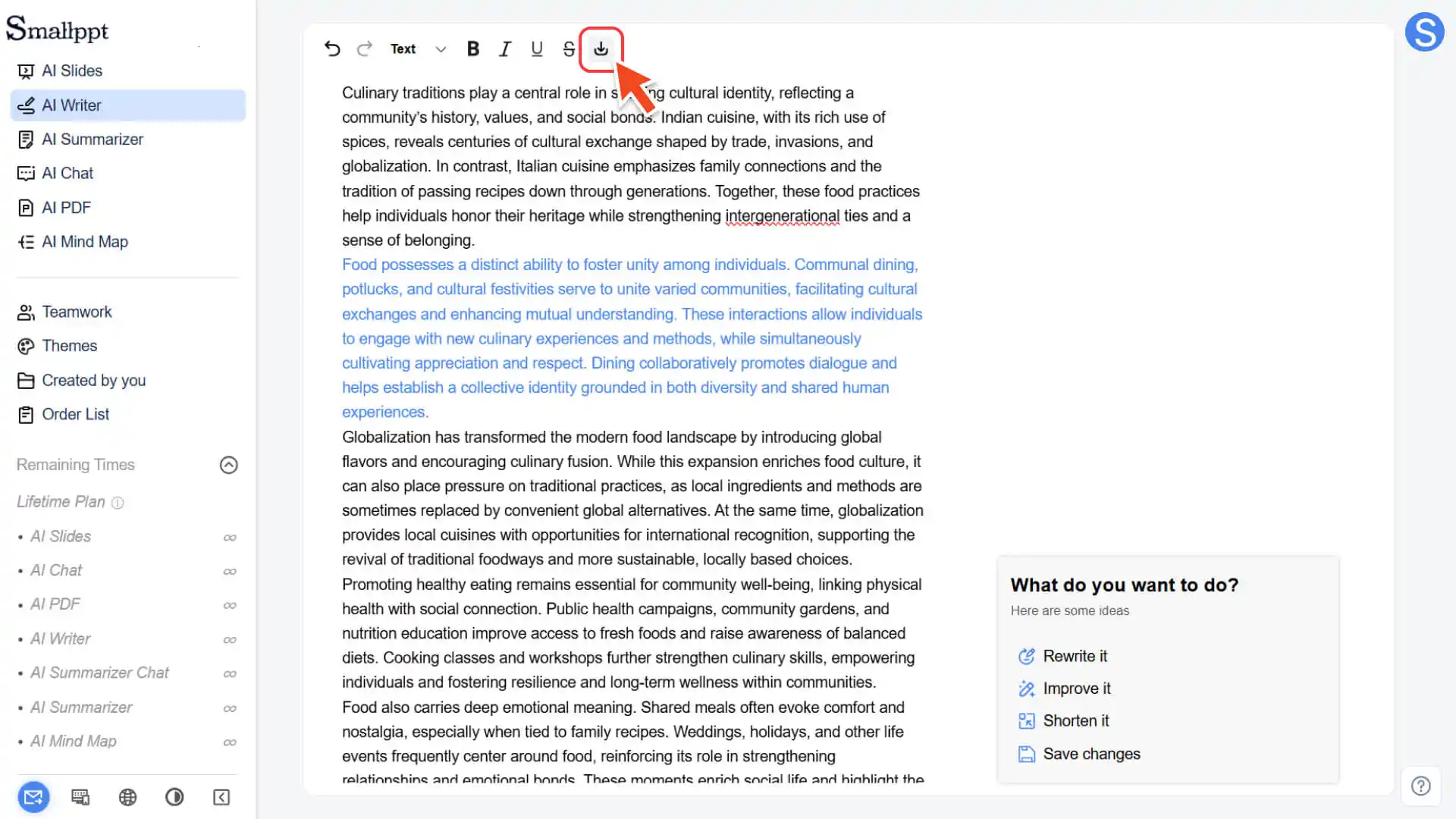
1. On the article editing page, click the download icon in the top-left corner.
2. Smallppt will automatically export .docx files.
3. The file will be downloaded to your local computer for easy continued editing or submission.
How to view previously generated articles
Step 1: Go to the “Created by you” page
1. Open the left sidebar of Smallppt.
2. Click the "Created by you" feature.
Step 2: View all articles
1. At the top of the "Created by You" page, select the "AI Writer" category.
2. View all automatically saved historical articles by Smallppt.
3. You can revisit these articles at any time for secondary editing or deletion.
4. For more information, please check:
Frequently Asked Questions
What if I forget to save after editing?
- • If Save changes is not clicked, the modified content may not be saved.
- • It is recommended to click Save promptly after each rewrite.
Can complex typesetting be done in Smallppt?
- • Complex typesetting is not currently supported.
- • It is recommended to download the .docx file to a local document tool for in-depth typesetting.
Will historical articles be automatically deleted?
• Yes, historical articles have a preservation time limit:
◦ Unsubscribed users: Content is saved for 7 days
◦ Other users: Content is generally retained for 180 days
• You can view and manage these articles at any time within the validity period.
• Content will be automatically cleaned up after expiration. It is recommended to back up or download documents that need to be retained for a long time on time.