


How to use AI Writer to generate a high-quality article?
Updated over 2 months ago
How to use AI Writer to generate articles?
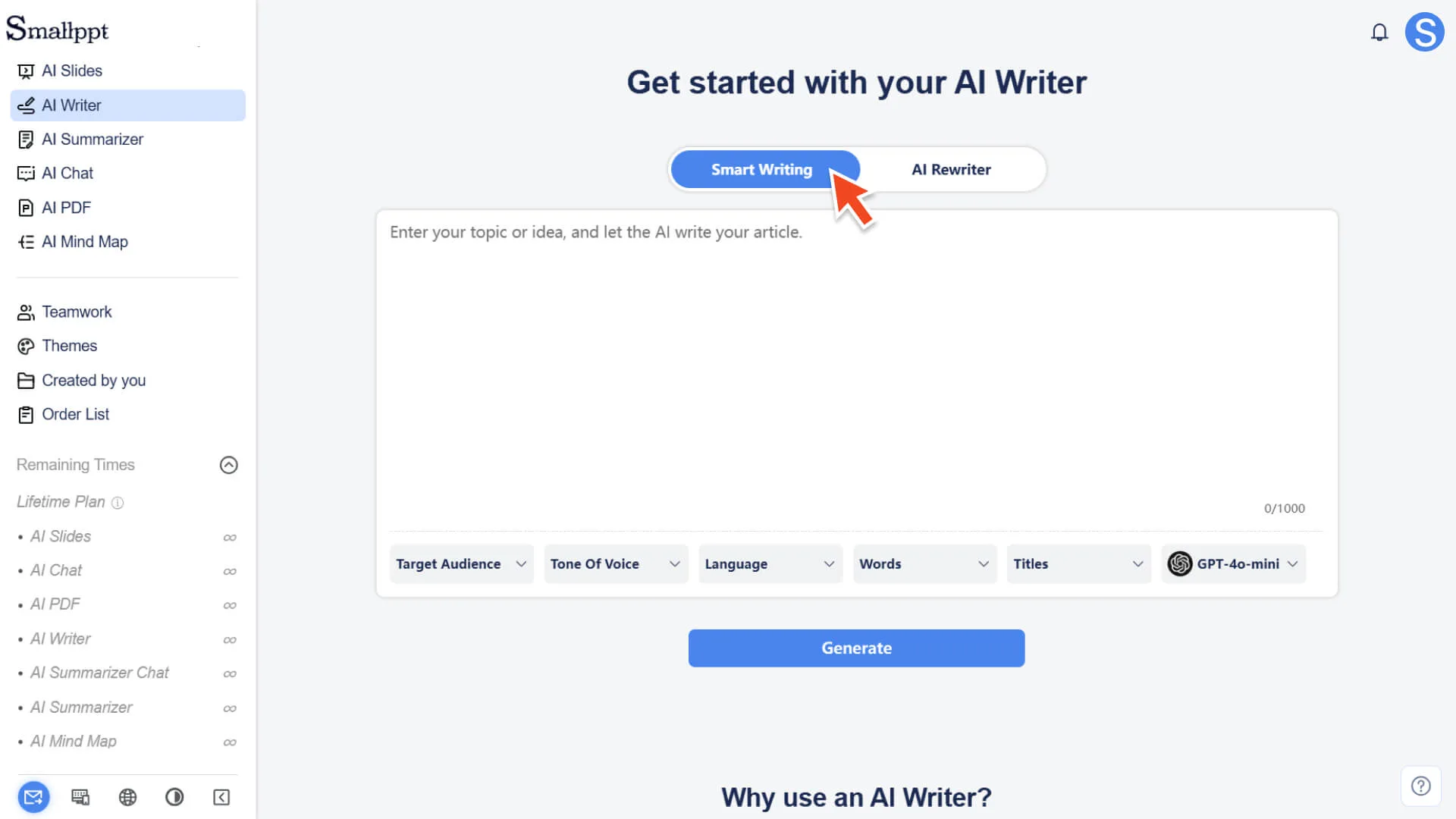
Step 1: Select Smart Writing Mode
- 1. Log in to your Smallppt account and enter the dashboard.
- 2. Select AI Writer on the left dashboard.
- 3. After entering the AI Writer page, you will see two main options: Smart Writing and AI Rewriter.
4. Please click to select Smart Writing mode to start creating new article content.
- For more information, please refer to:
Step 2: Enter the writing topic or content description
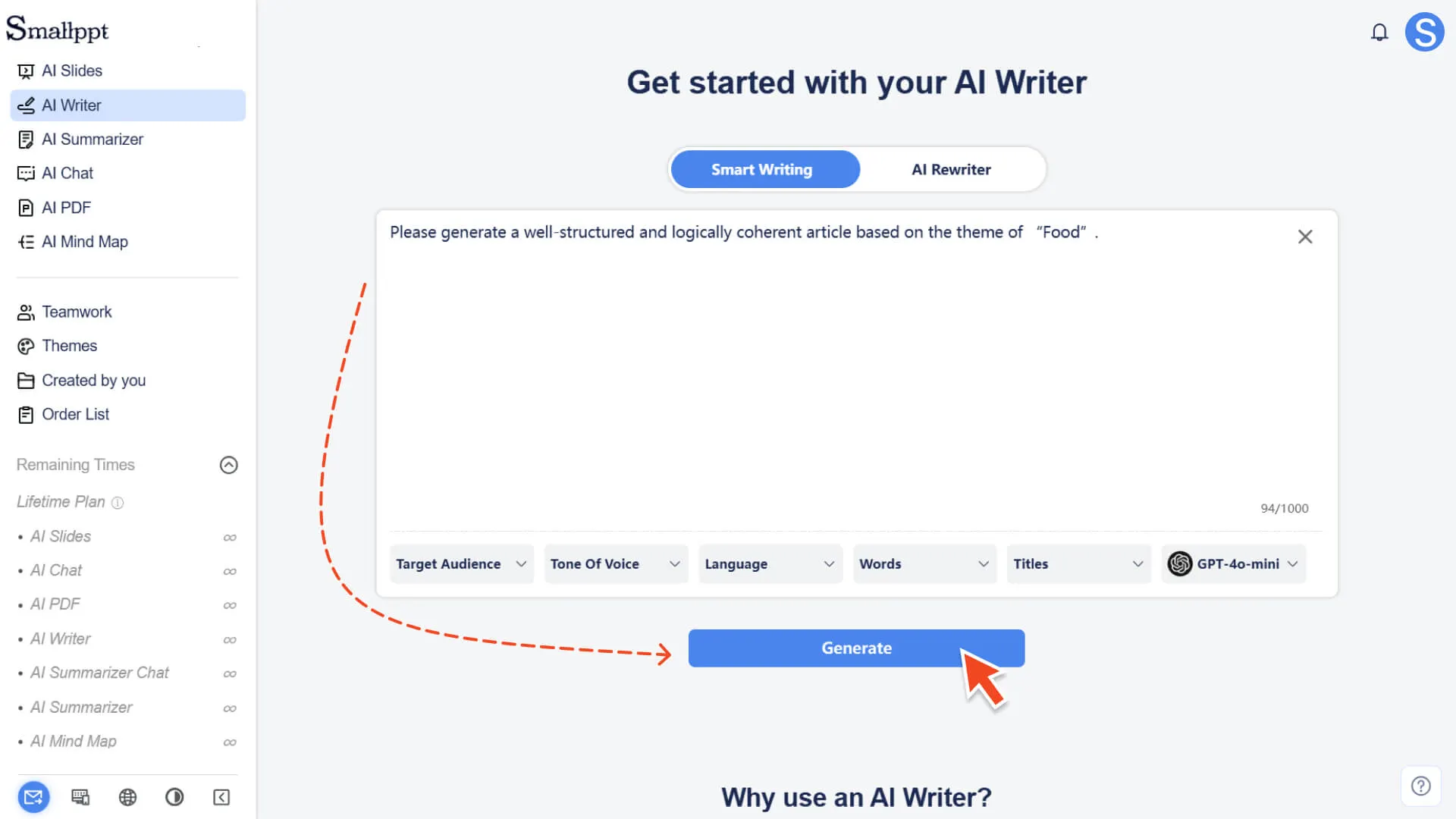
1. Enter the topic, requirements, or background content you want to write about in the Smart Writing input box.
2. You can enter specific writing requirements, or simply input a conceptual sentence, and the AI will automatically expand it.
Step 3: Select writing parameters (optional)
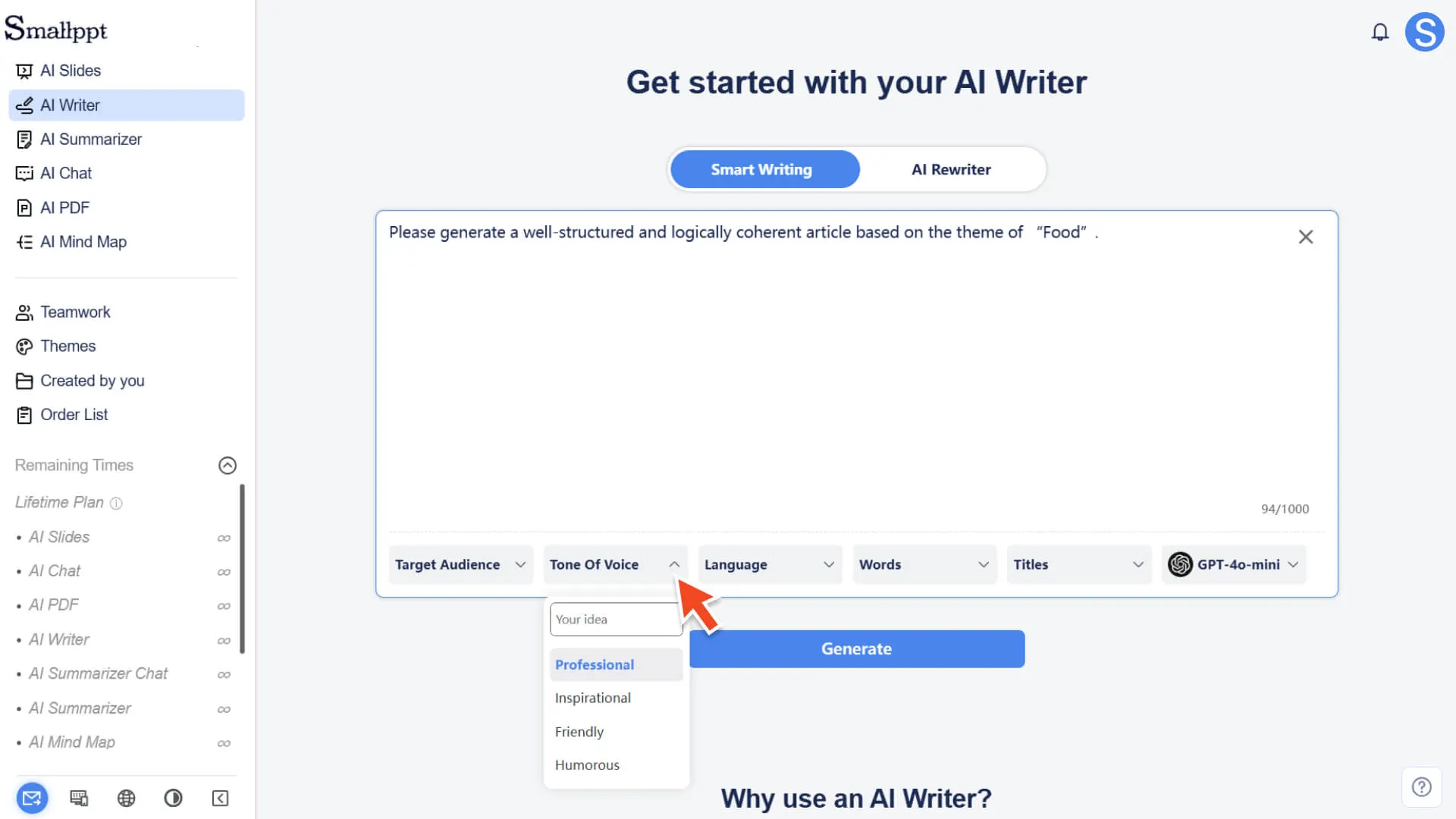
| Target Audience | • Select the target audience of the article, such as Professionals, Employees, Teachers, Students, etc. • If the list cannot find a suitable object, you can fill it in customarily. |
| Tone of Voice | • You can choose tones such as Professional, Inspirational, Friendly, Humorous, etc. • Also supports custom tone. |
| Language | • When not selected, the system will automatically recognize and generate based on the input language. |
| Words | • Short sentences • A few concise paragraphs • Multiple detailed paragraphs |
| Titles | • Select the number of paragraph titles you want the AI to generate. |
If no selection is made, the system will automatically use the default settings.
Step 4: Generate Article Outline
1. Click the Generate button, and the system will quickly generate a well-structured article outline based on your topic and settings.
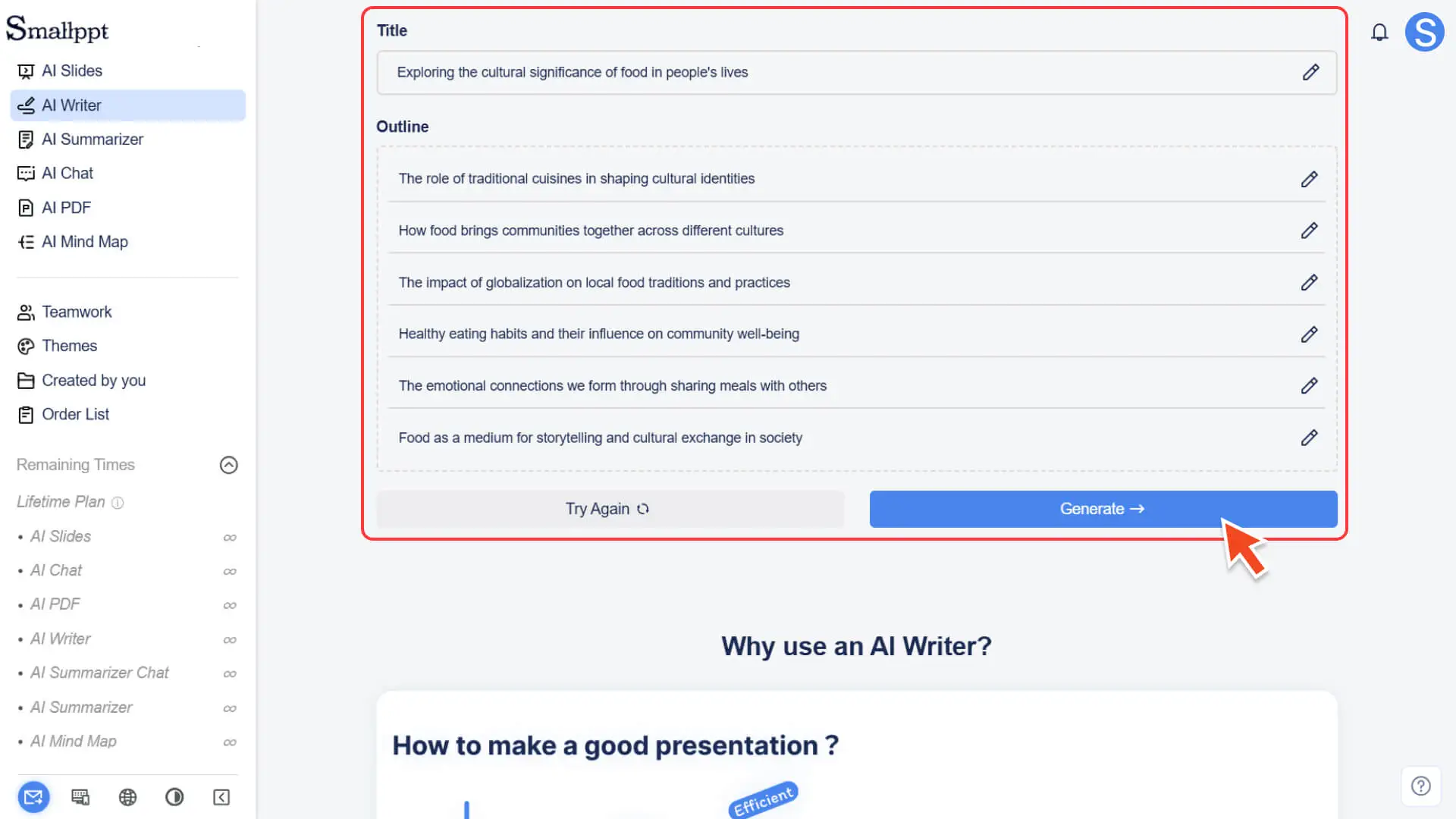
2. After generating the article outline
a. You can directly edit, add, or delete paragraphs on the current outline to ensure that the structure fully meets your writing requirements.
b. Or click the refresh button to have the AI regenerate a set of outlines based on the same input.
3. After confirming that the outline structure is correct, the next step can be taken.
Step 5: Generate article content
1. Click the Generate button after completing the outline.
2. The system will automatically generate a well-structured and logically coherent article based on the outline.
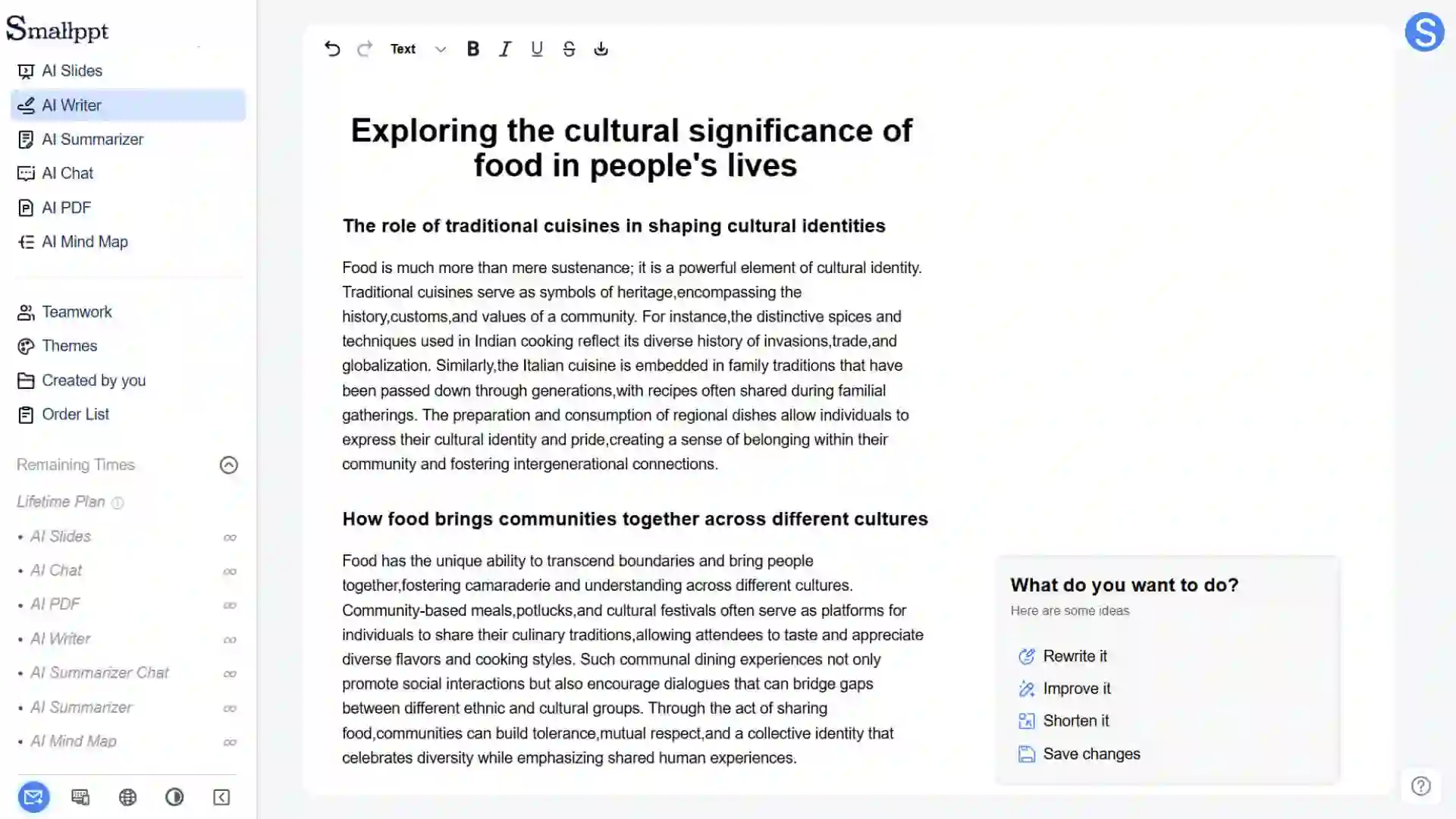
Step 6: Edit, refine, and export
After the article is generated, you can make final polish and organization in the editor.
• Edit and improve content
◦ You can directly manually modify the text, adjust the format, or supplement details.
◦ You can also continue to use built-in AI editing tools (such as rewriting, summarizing, expanding, etc.) to further optimize the content, making the text more in line with your final needs.
• Export Article
◦ The completed article can be exported in DOCX format for further editing, submission, or sharing.
For more information, please refer to:
Frequently Asked Questions
If I don't select any preference options, will it affect the quality of the article?
- • No. If you do not select options such as Target Audience, Tone of Voice, etc., the AI will intelligently select the most common default settings based on the topic and description you input, ensuring that the generated article remains high-quality and professional.
Can I ask AI Writer to help me revise the generated article content?
- • Yes. After the article is generated, you can select the part that needs modification in the editor, and then use AI-assisted tools to rewrite, polish, expand, or summarize it to further enhance the expression effect of the article.
Will my input content be used to train AI models or leaked?
- • We attach great importance to your data security and privacy. The content you input in AI Writer is only used for the current article generation process, will not be used for the continuous training of the model, and will not be shared with third parties. Your content will be strictly confidential and protected.