


How to use the AI Rewriter feature to enhance the original text expression?
Updated over 2 months ago
How to use AI Writer to rewrite articles?
Step 1: Select AI Rewriter Mode
1. Log in to your Smallppt account and enter the dashboard.
2. Select AI Writer on the left dashboard.
3. After entering the AI Writer page, you will see two writing tools:
◦ Smart Writing: Used to generate brand-new articles
◦ AI Rewriter: Used to rewrite existing content
4. Please click AI Rewriter to start rewriting the article.
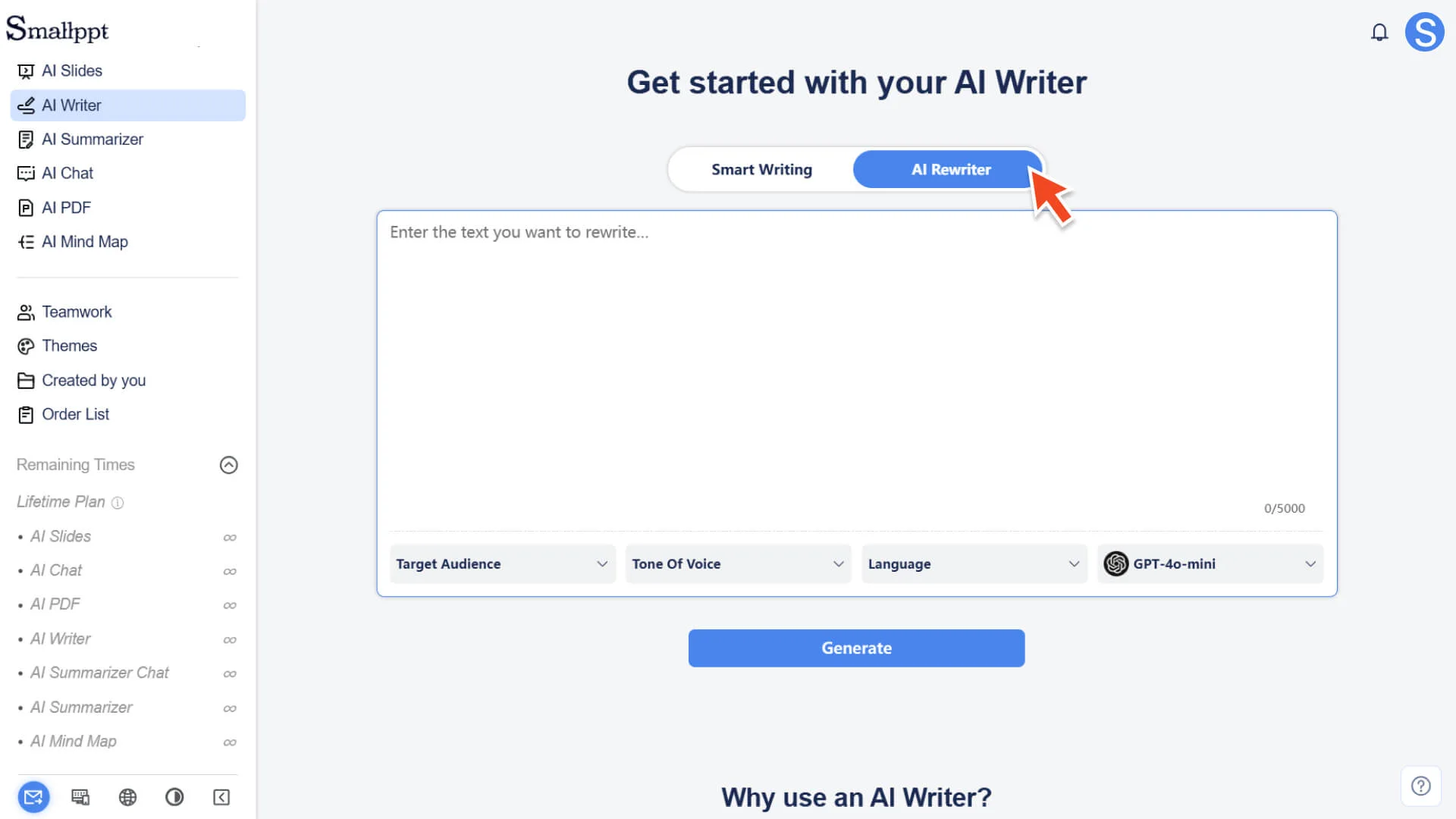
5. For more information, please check:
Step 2: Enter the original text you want to rewrite
1. Simply paste the text you want to rewrite or optimize directly into the input box, supporting short sentences, paragraphs, or even entire articles.
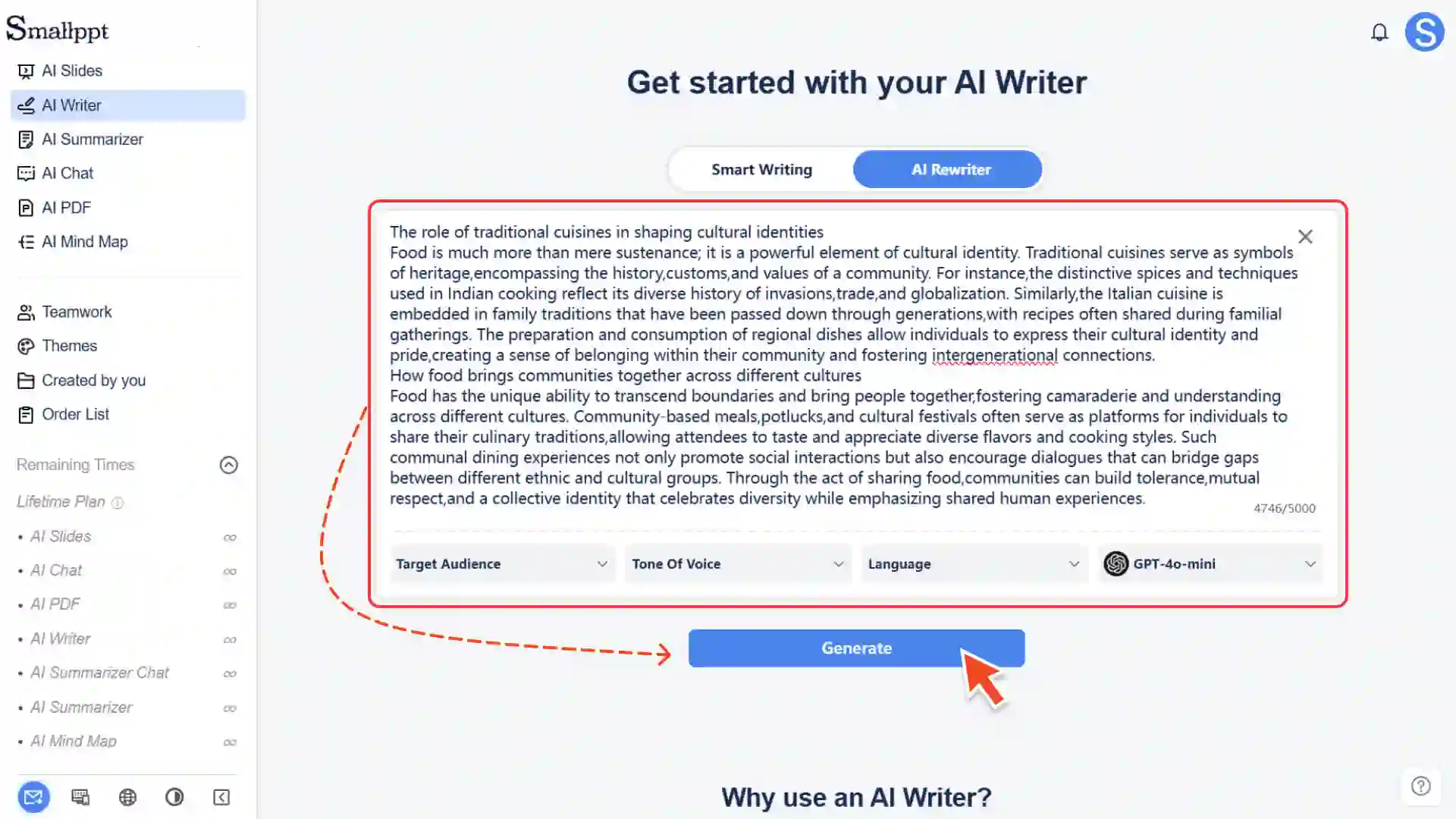
2. AI Rewriter will automatically polish the text, adjust the tone, and appropriately expand or streamline the content according to your needs, making the overall expression more natural and smooth.
To enable AI to generate more accurate rewritten content, please provide as much complete context and background information as possible.
Step 3: Select writing parameters (optional)
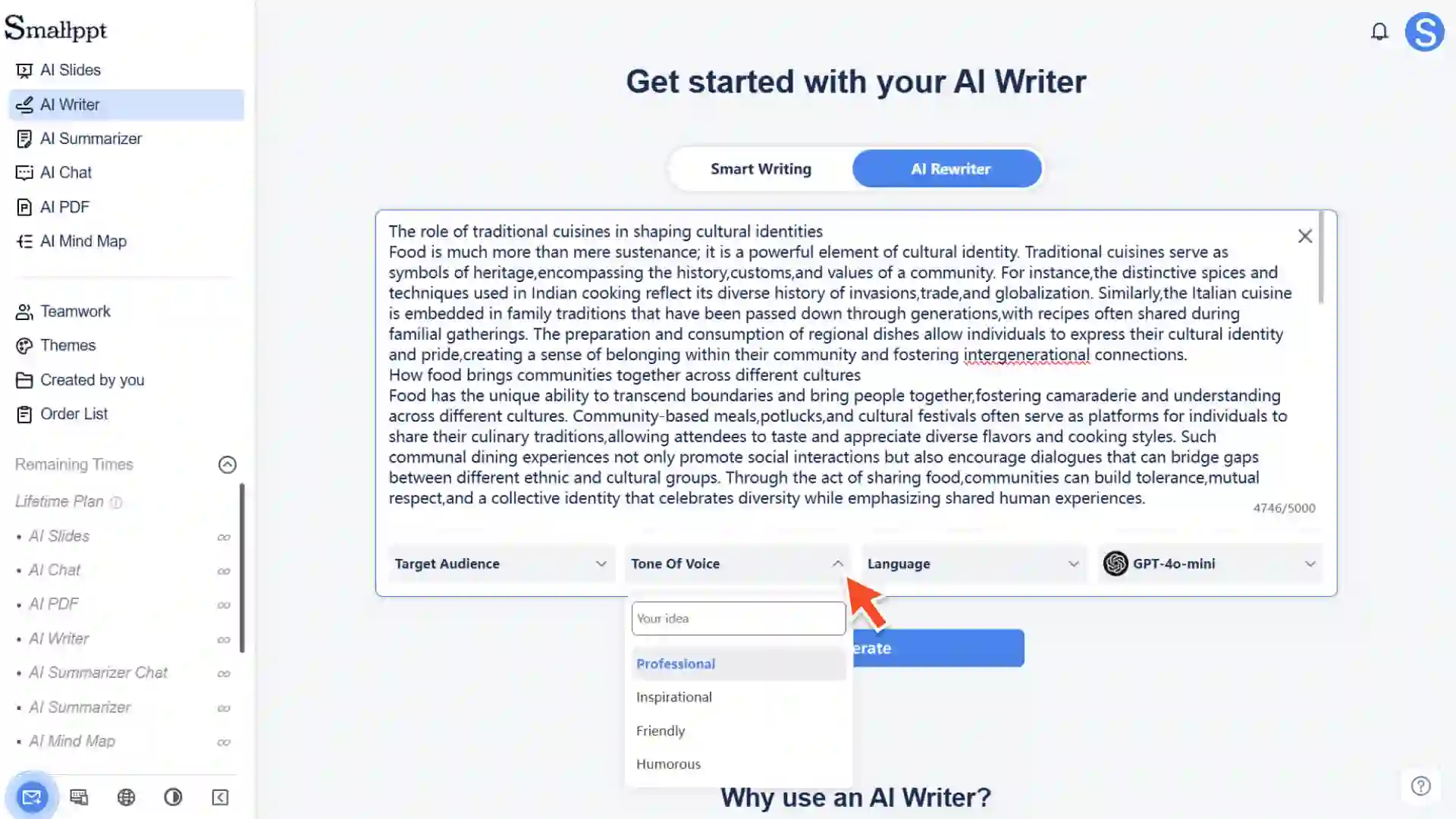
| Target Audience | • Select the target audience for the article, such as professionals, employees, teachers, students, etc. • If no suitable object can be found in the list, you can fill it in customarily. |
| Writing Tone | • You can choose tones such as professional, inspiring, friendly, and humorous. • Also supports custom tone. |
| Article Language | • When not selected, the system will automatically recognize and generate based on the input language. |
Step 4: Generate Rewritten Version
1. Click the Generate button to generate a new expression.
2. AI Rewriter will generate an optimized article in a short period based on your original content and the set preferences (target audience, tone, language, etc.).
Step 5: Edit, refine, and export
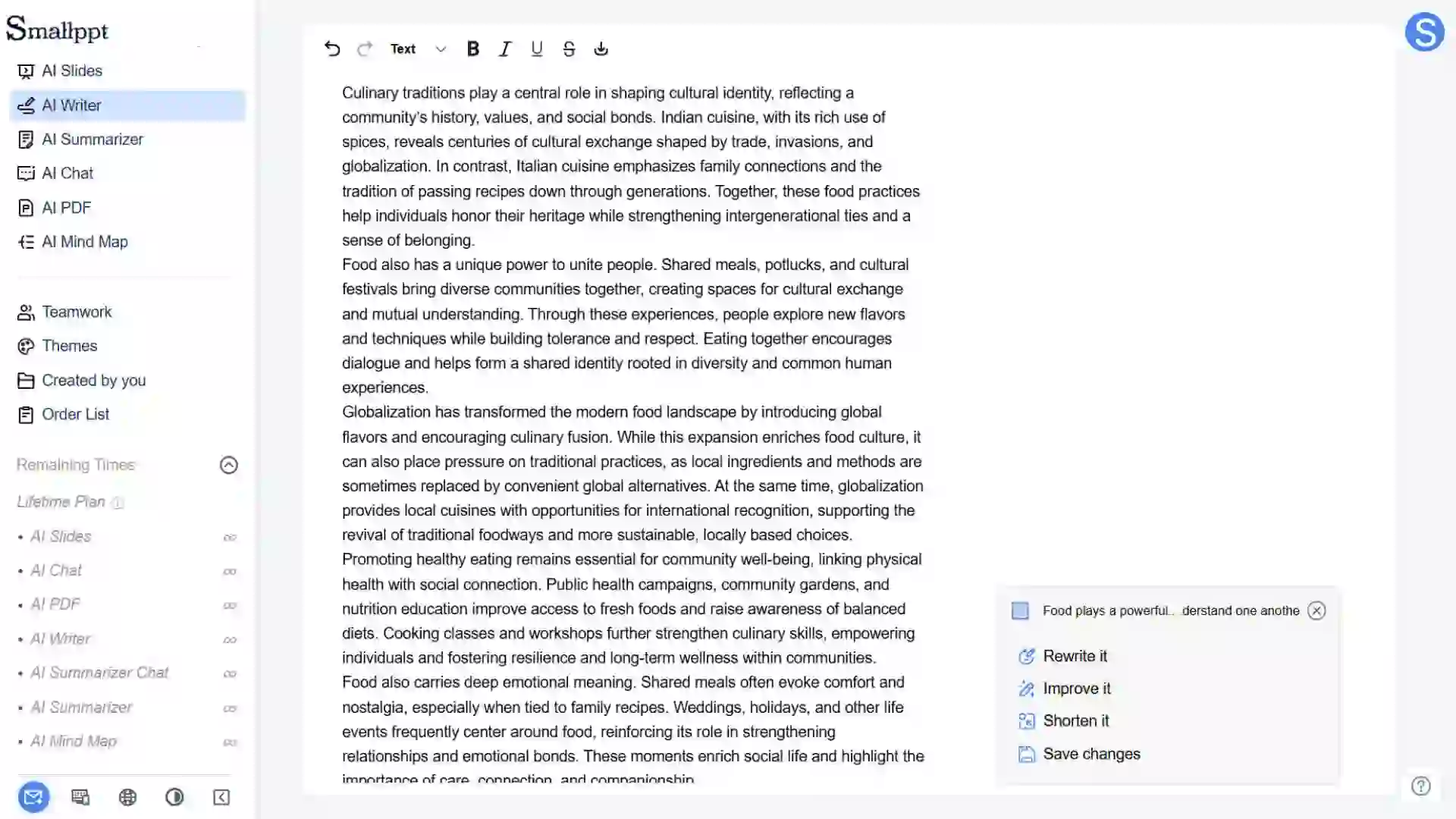
After the article is rewritten, you can make final polishing and organization in the editor:
• Edit and refine content
◦ You can directly manually modify text, adjust formatting, or supplement details.
◦ You can also continue to use built-in AI editing tools (such as rewriting, summarizing, expanding, etc.) to further optimize the content, making the text more in line with your ultimate needs.
• Export Article
◦ The completed article can be exported in DOCX format for further editing, submission, or sharing.
• For more information, please check:
Frequently Asked Questions
What is the difference between AI Rewriter and Smart Writing?
- • Smart Writing generates original articles and structures from scratch, while AI Rewriter optimizes, adjusts the style, and rephrases based on the existing text you provide. It does not generate entirely new structures but focuses on enhancing the expression quality of the original text.
Will the word count of the rewritten article remain the same as the original?
- • Not necessarily. The main goal of rewriting is to optimize expression, and it may streamline or expand the content based on the target audience and the writing tone you choose to achieve the best expression effect.
Will my original content be used to train AI models?
- • We attach great importance to your data security and privacy. The content you input in AI Rewriter is only used for the current rewriting process, will not be used for the continuous training of the model, and will not be shared with third parties. Please use it with confidence.