


In Smallppt, how can I quickly turn long articles, documents, or web pages into concise and easy-to-read summaries?
Updated over 2 months ago
What are the input methods for Smallppt summary generation?
Smallppt offers three flexible input methods, allowing you to choose the most convenient way to initiate the summary generation process based on different types of materials:
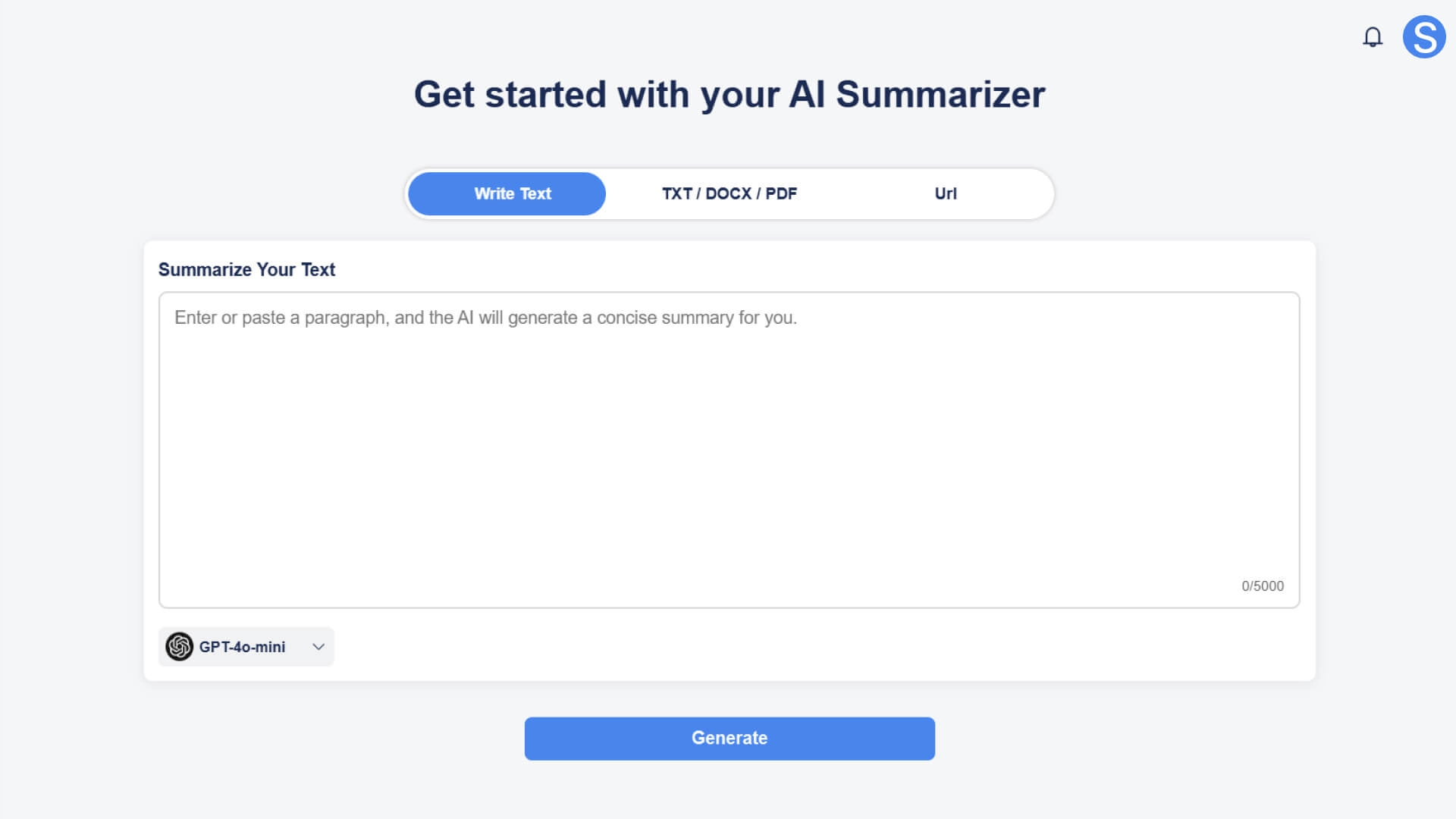
• Write Text: Paste or type the content to be summarized directly into the input box, and the AI will immediately generate a summary.
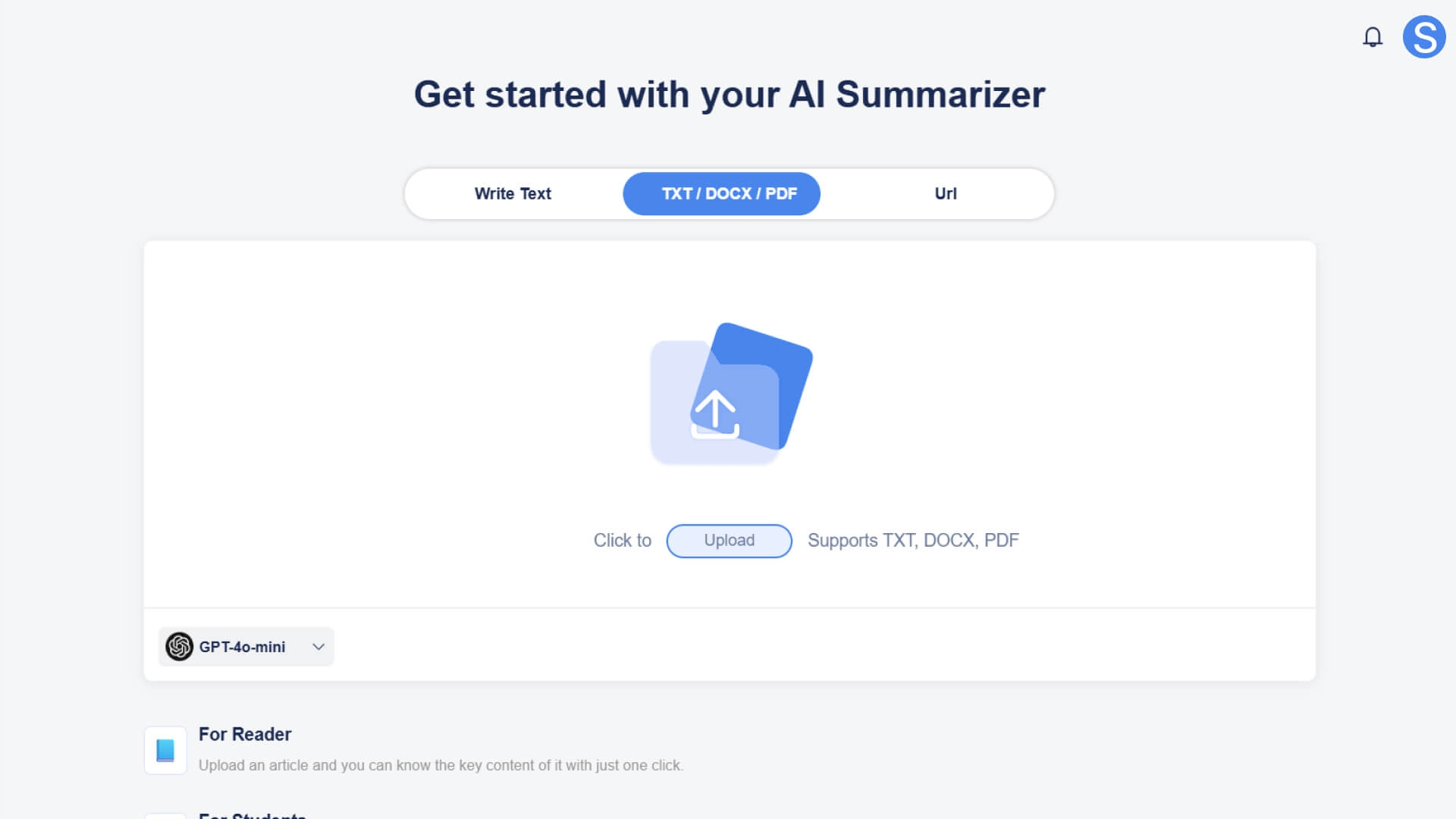
• Upload File: Upload an existing TXT, DOCX, or PDF document, and the system will automatically read the content and prepare to generate a summary.
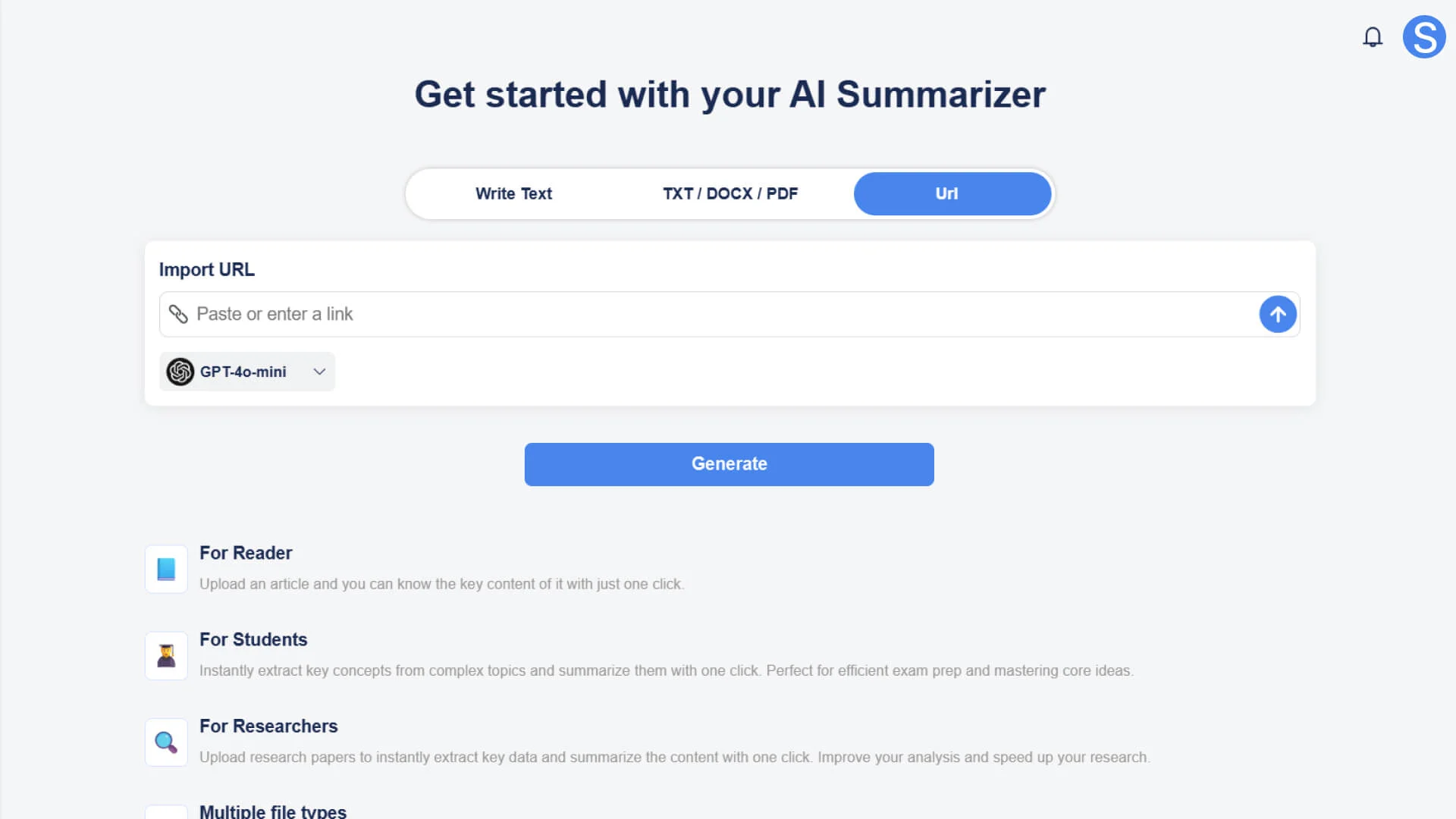
• Web Link: Enter any web link, and AI Summarizer will automatically extract the core information from the page and convert it into a concise summary.
How to quickly generate content summaries
Step 1: Access the AI Summarizer Module
• Open the Smallppt dashboard.
• Find and click the AI Summarizer module in the function list.
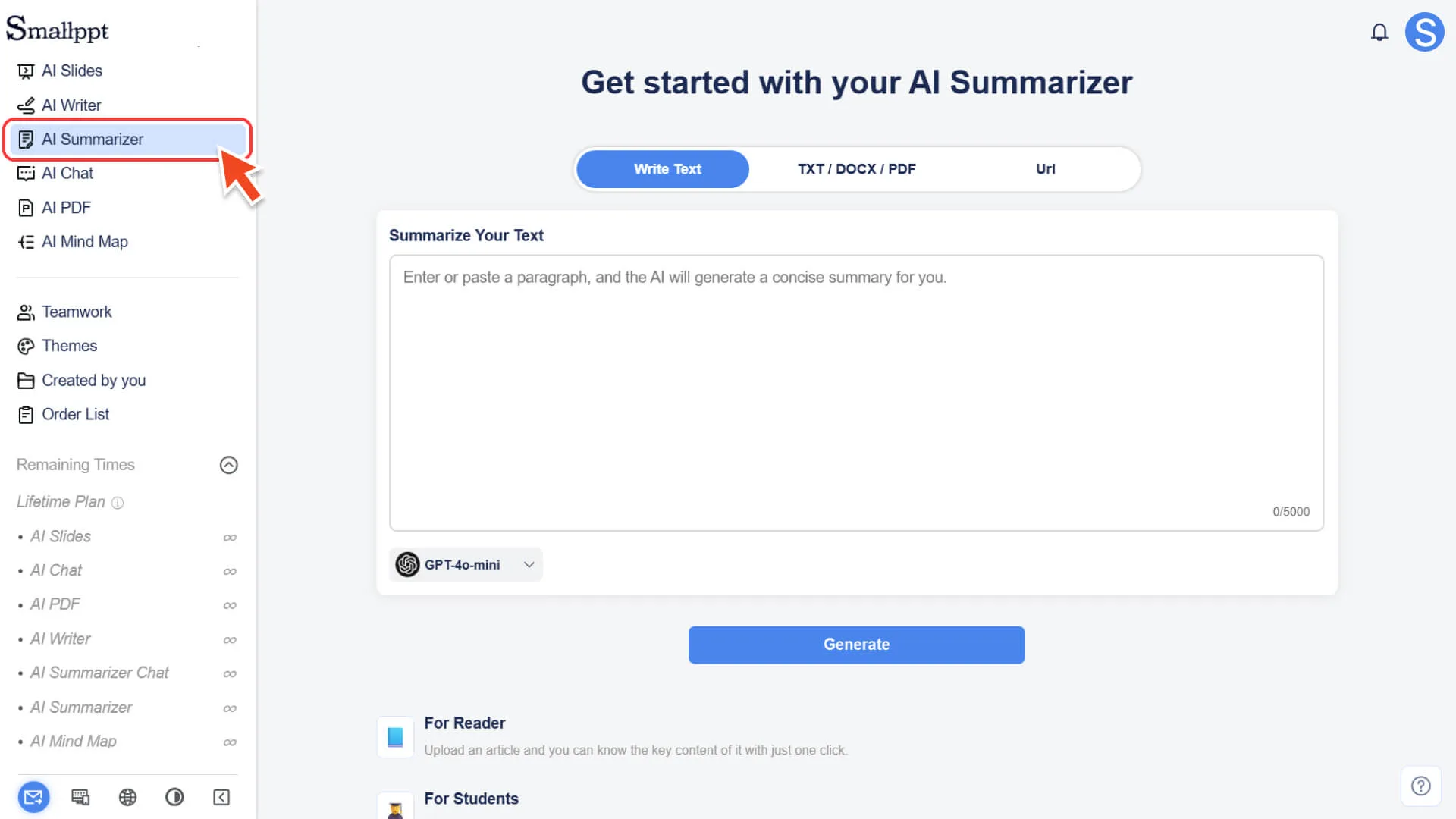
Step 2: Select the content import method
Select the most suitable import method based on the source of the creatives (long text, document, or webpage):
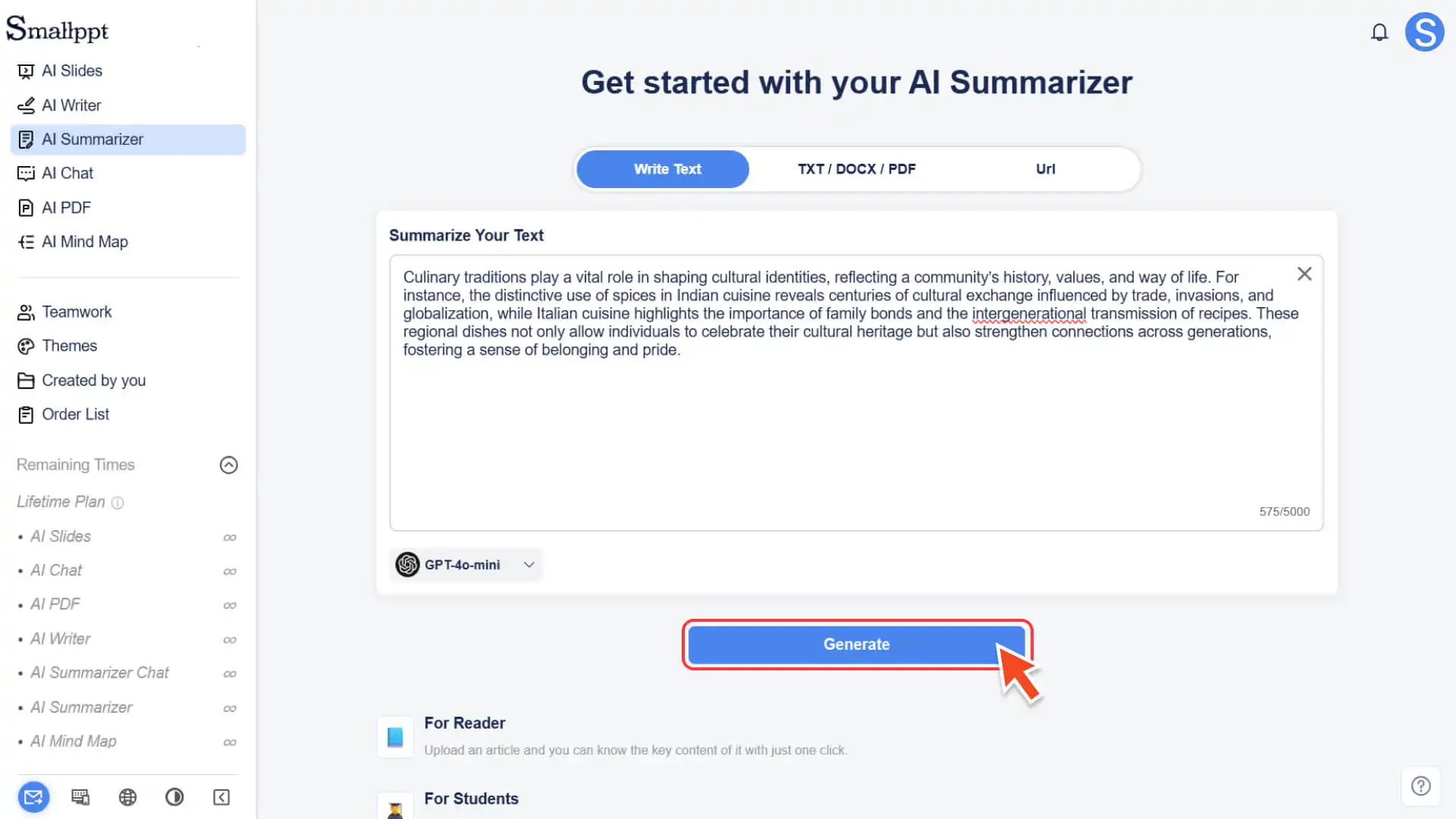
• Write Text: Directly paste or type the content to be summarized in the input box.
• Upload File: Upload TXT, DOCX, or PDF documents, and the system will automatically extract the content.
• Web link: Enter a web link, and the AI Summarizer will automatically crawl and analyze the main content of the page.
Step 3: Automatically generate a summary
• After importing the content, click the Generate button.
• AI will quickly analyze the creatives and generate a concise, structured summary.
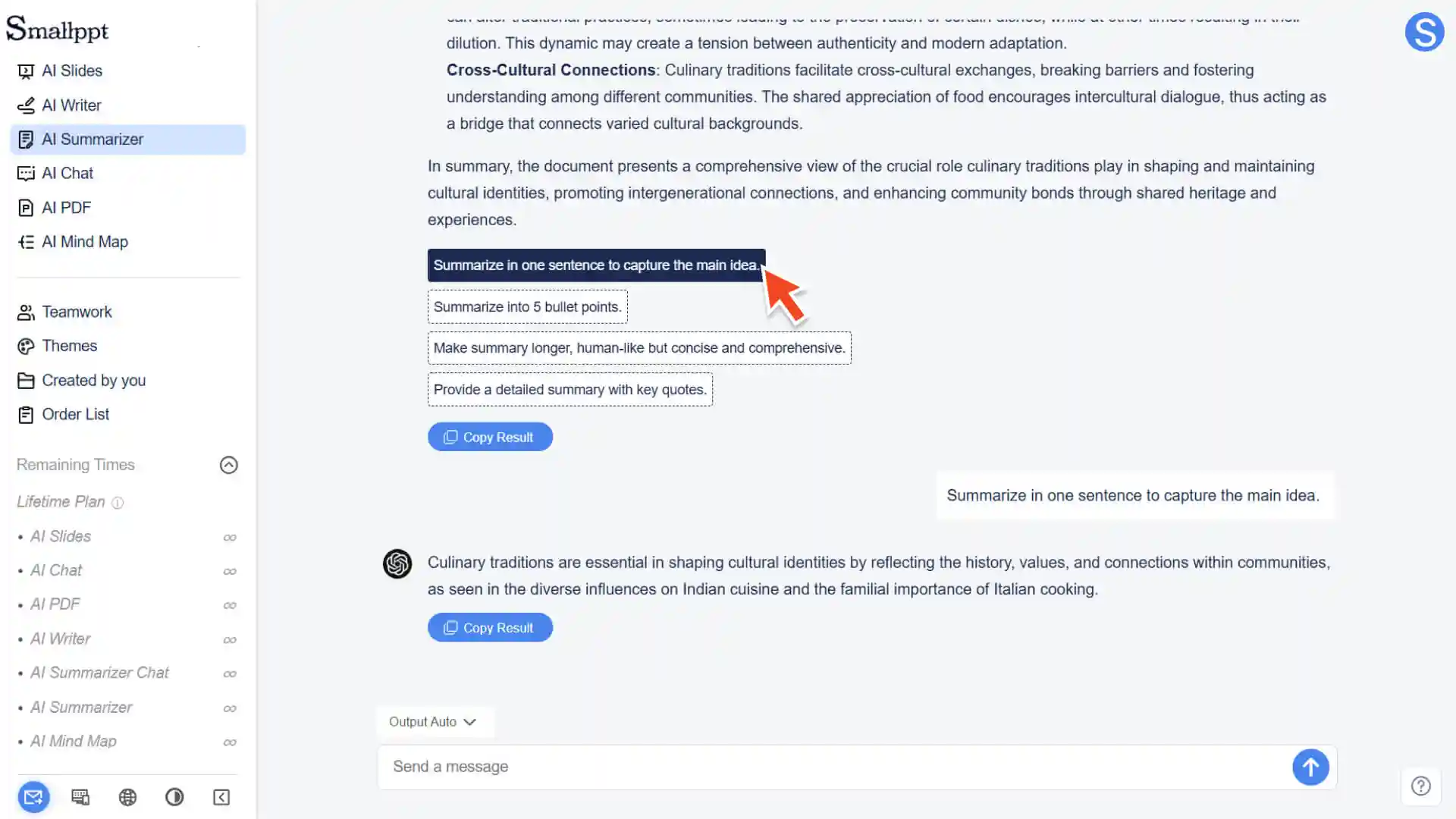
Step 4: Quickly optimize the summary through instructions
• After the summary is generated, there is no need for manual editing. You can continue to optimize it by chatting with AI or selecting the quick options below:
◦ Summarize in one sentence to capture the main idea.
◦ Summarize into 5 bullet points.
◦ Make summary longer, human-like but concise and comprehensive.
◦ Provide a detailed summary with key quotes.
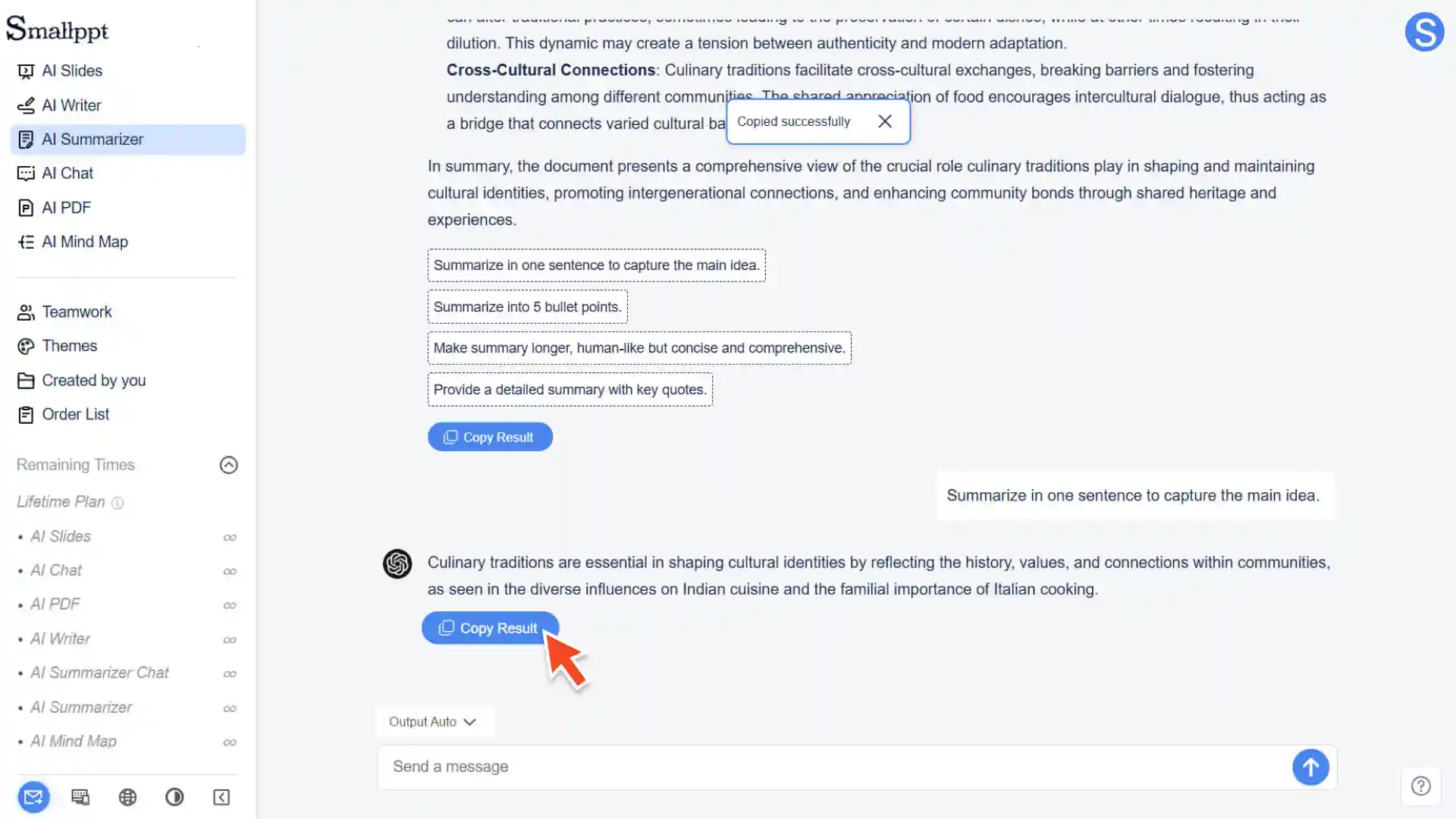
Step 5: Save and Output
• Summary content will be automatically saved in real-time.
• After confirming the final version, click the Copy Result button to copy the result.
How to view previously generated articles
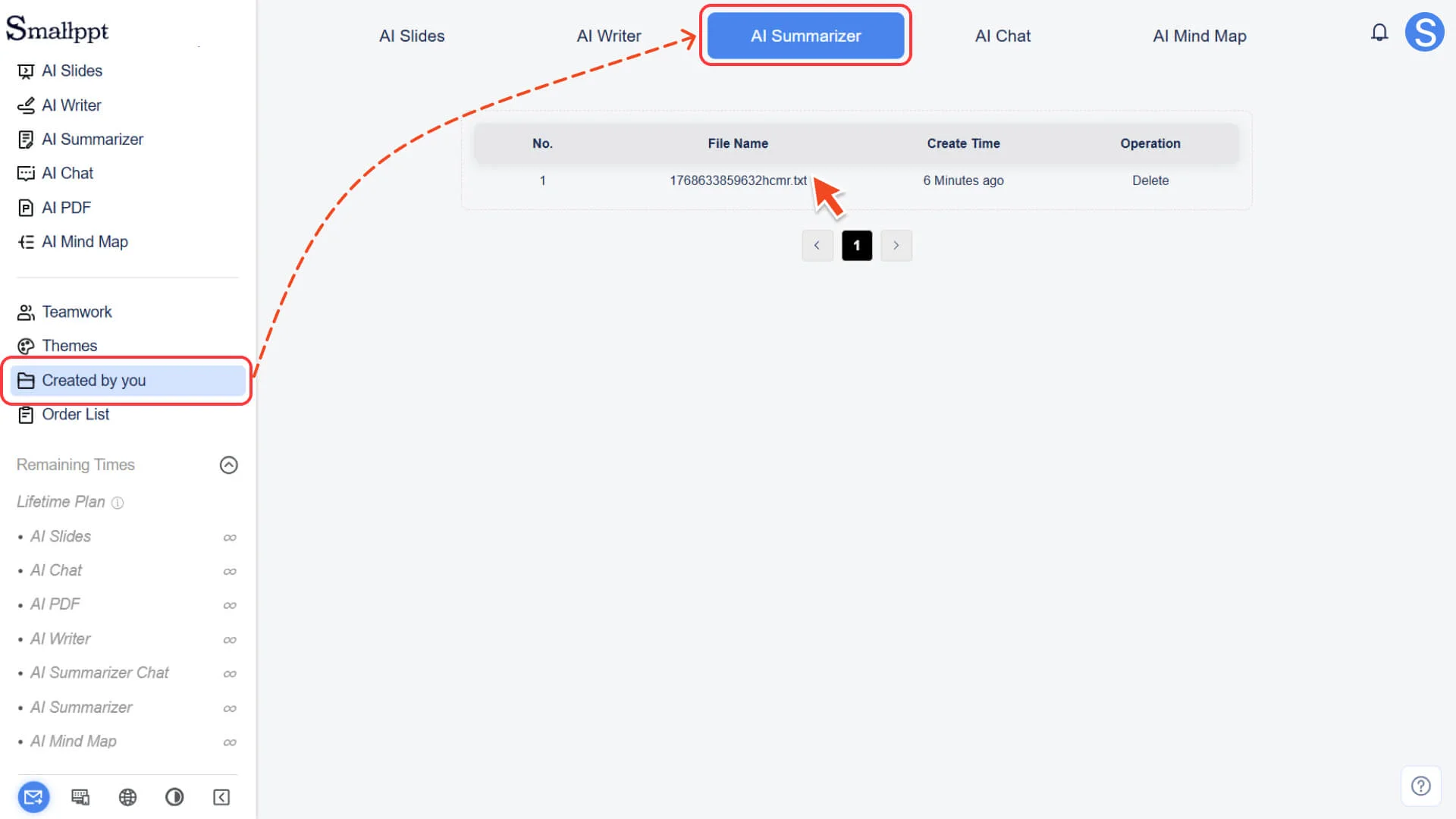
Step 1: Go to the “Created by you” page
1. Open the left sidebar of Smallppt.
2. Click the "Created by you" feature.
Step 2: View all articles
1. At the top of the "Created by You" page, select the "AI Summarizer" category.
2. View all automatically saved historical articles by Smallppt.
3. You can revisit these articles at any time for secondary editing or deletion.
• For more information, please check:
Frequently Asked Questions
What is the maximum file size I can upload?
- • We recommend that you upload documents with a size not exceeding the system limit to ensure that the system can smoothly parse and process them.
Will the AI Summarizer change the meaning of my original text?
- • The goal of AI is to preserve the core information, so it will not distort the original text's viewpoints and stances. If the generated summary requires more precise expression, you can use dialogue instructions or quick options to have AI assist you in further optimization and correction.
What should I do if the web link cannot generate a summary?
- • Some web pages may fail to extract content due to special content structures or access restrictions. In such cases, we recommend that you manually extract the core text of the web page and paste it into the Write Text input box to try generating the summary again.